
Example Code for Arduino-3-Wire Mode Integer Display
Last revision 2025/12/05
This sample is working under 3-Wire mode. It demonstrates how to display integers on the LCD screen.
Hardware Preparation
- 3-wire Serial LCD Module (Arduino Compatible) (Model: DFR0091), Quantity: 1
- Arduino Board, Quantity: 1
Mode Selection
The LCD is shipped in Parallel mode by default. The PSB_ON switch is used to set the interface mode. To switch to 3-Wire mode, Set the switch to SPI.
Wiring Diagram
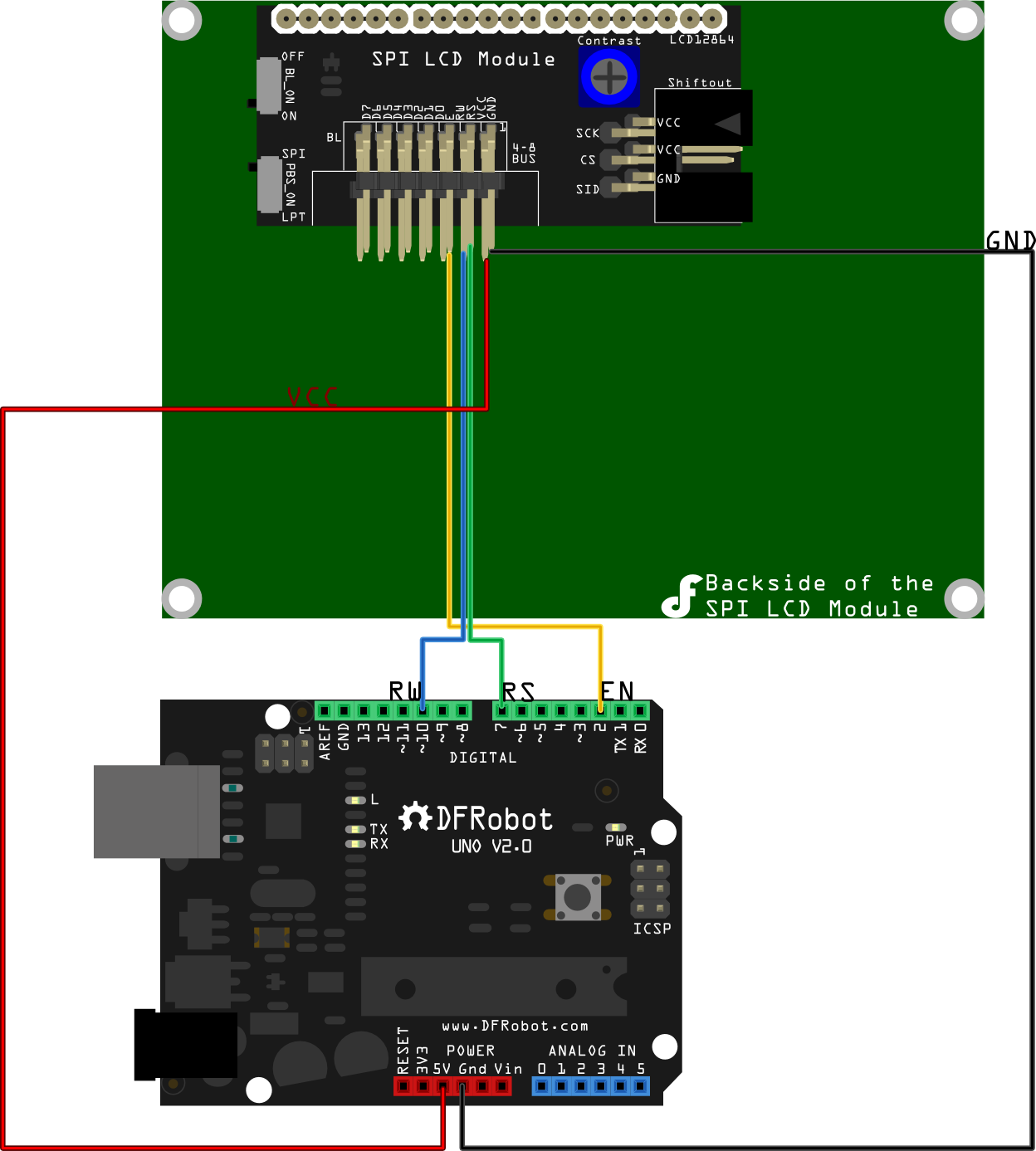
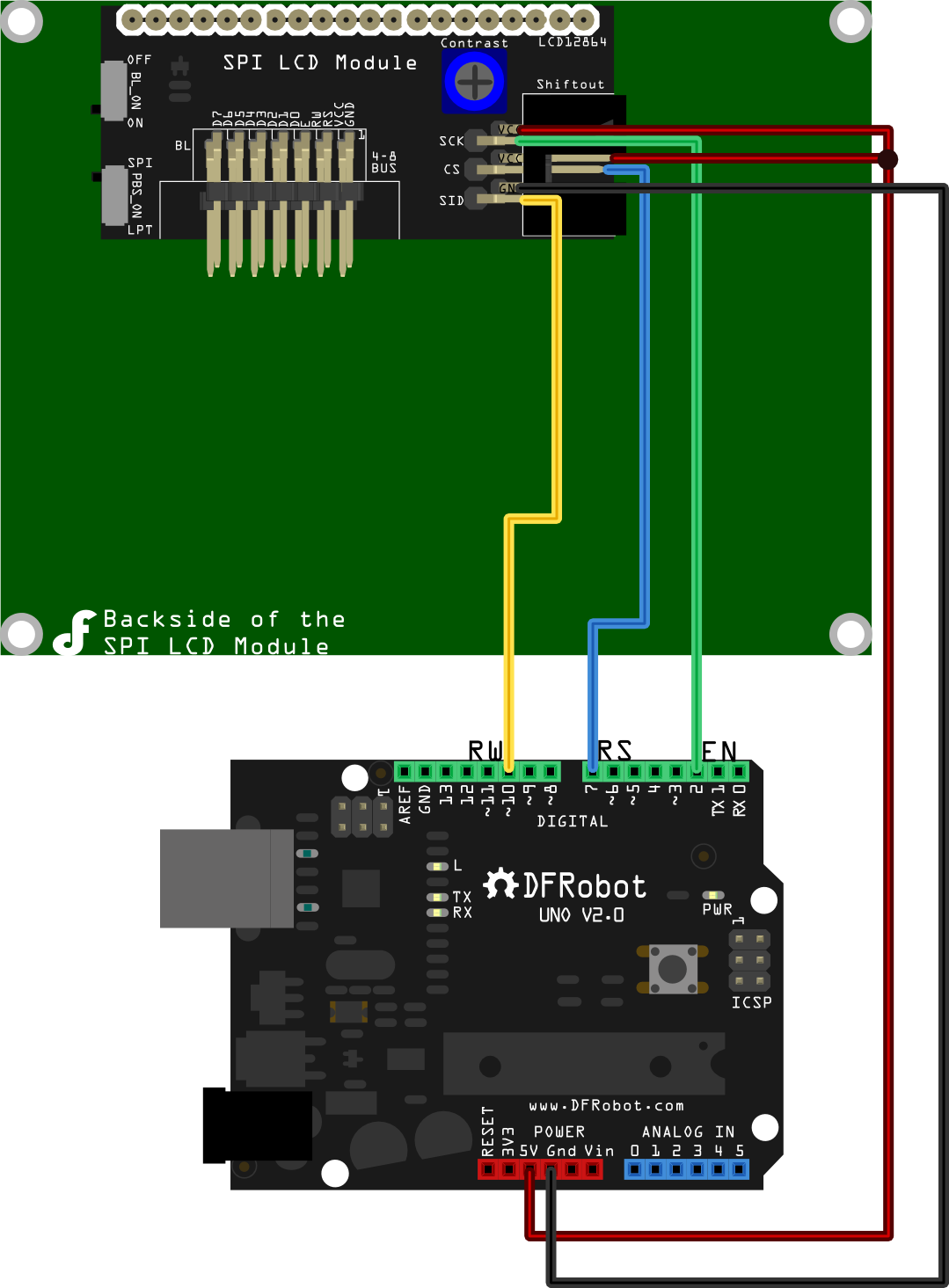
Connection in 3-Wire mode: (2 Methods)
Method1:
Method2:
Sample Code
The following sample is working under 3-Wire mode. It demonstrates how to display integers on the LCD screen. You will need the Arduino Library which can be downloaded here.
/*
1. SPI Interface Inatruction
      clockPin --> SCK(EN)
      latchPin --> CS(RS)
      dataPin --> SID(RW)
 2. Connection:
    1)Turn the BL_ON Switch to the "ON" side;
    2)Turn the PBS_ON Switch to the "SPI" side

Method1:
      LCD                   Arduino
      EN                 Digital Pin 2
      RS                 Digital Pin 7
      RW                 Digital Pin 10
      VCC                     5V
      GND                     GND;

Method2:
      LCD                          Arduino
      SCK       clockPin(defined in the "initDriverPin" function)
      CS        latchPin(defined in the "initDriverPin" function)
      SID       dataPin (defined in the "initDriverPin" function)
      VCC                            5V
      GND                           GND

This sample shows how to use LCD12864 to display integer on the screen, and it uses function itoa() from library stdlib.h
*/

#include "LCD12864RSPI.h"
#include "DFrobot_bmp.h"
#include "DFrobot_char.h"
#include "stdlib.h"
#define AR_SIZE( a ) sizeof( a ) / sizeof( a[0] )

int i=0;  //counter, initial value is 0

unsigned char wangzhi[]=" www.DFRobot.cn ";

unsigned char en_char1[]="ST7920 LCD12864 ";

unsigned char en_char2[]="Test, Copyright ";

unsigned char en_char3[]="by DFRobot ---> ";

void setup()
{
  LCDA.initDriverPin(2,7,10); //INIT SPI Interface
  LCDA.Initialise(); // INIT SCREEN
  delay(100);
  LCDA.DrawFullScreen(logo);//LOGO
  delay(2000);
  randomSeed(0);
  LCDA.CLEAR();
  delay(100);
  LCDA.DisplayString(0,0,en_char1,16);
  delay(10);
  LCDA.DisplayString(1,0,en_char2,16);
  delay(10);
  LCDA.DisplayString(2,0,en_char3,16);
  delay(10);
  LCDA.DisplayString(3,0,wangzhi,16);
  delay(2000);


}

void loop()
{
LCDA.CLEAR();//clear the screen
delay(100);

int number= i; // the interger should be in the range from -32768 ~ 32767
char buf [16];
itoa(number,buf,10); //transform integer into string
unsigned char temp[16];

for (int i=0;i<=15;i++)
{
  if(buf[i]!='0'&&buf[i]!='1'&&buf[i]!='2'&&buf[i]!='3'&&buf[i]!='4'&&buf[i]!='5'&&buf[i]!='6'&&buf[i]!='7'&&buf[i]!='8'&&buf[i]!='9'&&buf[i]!='-')
  {temp[i]=' ';}   // put space into those where no  values are assigned initially
  else
  {temp[i]=buf[i];}
}
LCDA.DisplayString(0,0,temp,16);//display the counter on the screen

delay(1000);
i++; // counter works every 1 second
}
Was this article helpful?