
Example Code for Arduino-Hello World and Custom Characters
Last revision 2026/01/17
The article provides a comprehensive guide on displaying custom characters on an Arduino LCD using the LiquidCrystal_I2C library, compatible with Arduino IDE 1.0 and library version 1.1. It includes detailed instructions for software preparation, wiring diagrams for different Arduino models, and sample code. The guide emphasizes the importance of modifying initialization statements to match different LCD configurations. Readers learn to create custom characters like bells, notes, clocks, hearts, ducks, checks, crosses, and arrows, and how to integrate them into a 'Hello World' display. The clear and concise instructions make it easy for both beginners and experienced Arduino users to follow along and achieve their desired display on an LCD.
Wiring Diagram
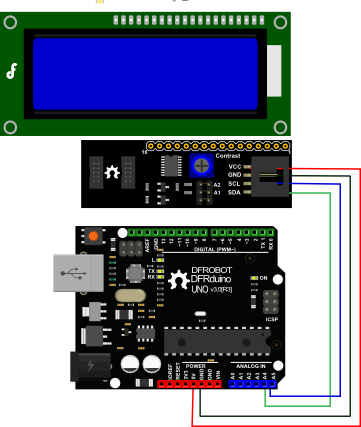
V1.2 has a different power pinout from V1.1, please check the history version for the old connection diagram.
- Arduino UNO: connect SDA to pin A4 and SCL to pin A5 on your Arduino.
- Arduino Leonardo: connect SDA to digital pin 2 and SCL to digital pin 3 on your Arduino.
Other Preparation Work
If you want to use the library's own sample code, pay attention to modify the initialization statement, need to change:
LiquidCrystal_I2C lcd(0x27,16,2); // set the LCD address to 0x27 for a 16 chars and 2 line display
to:
LiquidCrystal_I2C lcd(0x20,20,4); // set the LCD address to 0x20 for a 20 chars and 4 line display(All jumpers should be connected\!)
Because the default initialization statement is for LCD1602!
Sample Code
//Please download the Arduino library!
//The link:https://www.dfrobot.com/image/data/DFR0154/LiquidCrystal_I2Cv1-1.rar
//DFRobot.com
//Compatible with the Arduino IDE 1.0
//Library version:1.1
#include <Wire.h>
#include <LiquidCrystal_I2C.h>

#if defined(ARDUINO) && ARDUINO >= 100
#define printByte(args)  write(args);
#else
#define printByte(args)  print(args,BYTE);
#endif

uint8_t bell[8]  = {0x4,0xe,0xe,0xe,0x1f,0x0,0x4};
uint8_t note[8]  = {0x2,0x3,0x2,0xe,0x1e,0xc,0x0};
uint8_t clock[8] = {0x0,0xe,0x15,0x17,0x11,0xe,0x0};
uint8_t heart[8] = {0x0,0xa,0x1f,0x1f,0xe,0x4,0x0};
uint8_t duck[8]  = {0x0,0xc,0x1d,0xf,0xf,0x6,0x0};
uint8_t check[8] = {0x0,0x1,0x3,0x16,0x1c,0x8,0x0};
uint8_t cross[8] = {0x0,0x1b,0xe,0x4,0xe,0x1b,0x0};
uint8_t retarrow[8] = { 0x1,0x1,0x5,0x9,0x1f,0x8,0x4};

LiquidCrystal_I2C lcd(0x20,20,4);  // set the LCD address to 0x20 for a 20 chars and 4 line display (All jumpers should be connected!)

void setup()
{
//  Serial.begin(57600);
  lcd.init();                      // initialize the lcd
  lcd.backlight();

  lcd.createChar(0, bell);
  lcd.createChar(1, note);
  lcd.createChar(2, clock);
  lcd.createChar(3, heart);
  lcd.createChar(4, duck);
  lcd.createChar(5, check);
  lcd.createChar(6, cross);
  lcd.createChar(7, retarrow);
  lcd.home();

  lcd.setCursor(0, 0);
  for(int i = 0;i < 20; i++)  lcd.printByte(6);
  lcd.setCursor(0, 1);
  lcd.printByte(6);
  lcd.print("   Hello world    ");
  lcd.printByte(6);
  lcd.setCursor(0, 2);
  lcd.printByte(6);
  lcd.print("  i ");
  lcd.printByte(3);
  lcd.print(" arduinos!   ");
  lcd.printByte(6);
  lcd.setCursor(0, 3);
  for(int i = 0;i < 20; i++)  lcd.printByte(6);
//  lcd.clear();

}

void loop()
{

}
Was this article helpful?