
Example Code for Arduino-Button Control LED
In this project, we will use an Arduino library written by nicoverduin to control an LED with a button using the GPIO Shield for Arduino. Users will learn how to configure the PCA9555 I2C address, set GPIO pin modes (INPUT/OUTPUT), read digital inputs (button), and write digital outputs (LED) using the PCA9555 library.
Hardware Preparation
- Hardware
Software Preparation
- Software
- Arduino IDE Click to Download Arduino IDE from Arduino®
Wiring Diagram
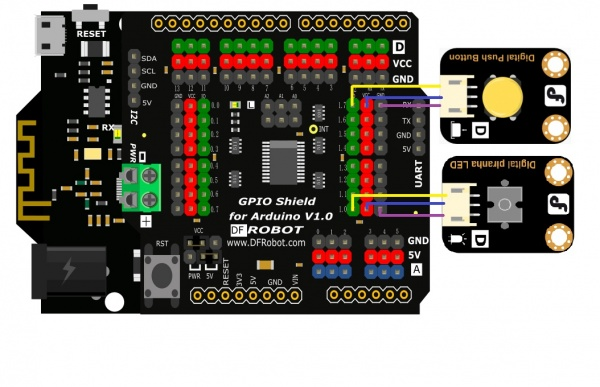
Other Preparation Work
PCA9555DB IIC Address
- Config PCA9555 IIC Address with A0~A2 Jumper Caps (0x20~0x27)
Plug = 0
Unplug = 1
| A2 | A1 | A0 | I2C Address |
|---|---|---|---|
| 0 | 0 | 0 | 0x20 (Default) |
| 0 | 0 | 1 | 0x21 |
| 0 | 1 | 0 | 0x22 |
| 0 | 1 | 1 | 0x23 |
| 1 | 0 | 0 | 0x24 |
| 1 | 0 | 1 | 0x25 |
| 1 | 1 | 1 | 0x26 |
| 1 | 1 | 1 | 0x27 |
VCC Jumper Caps
There are two Jump caps, you can change the position of two caps for the different VCC power input. See the following schematic for details:
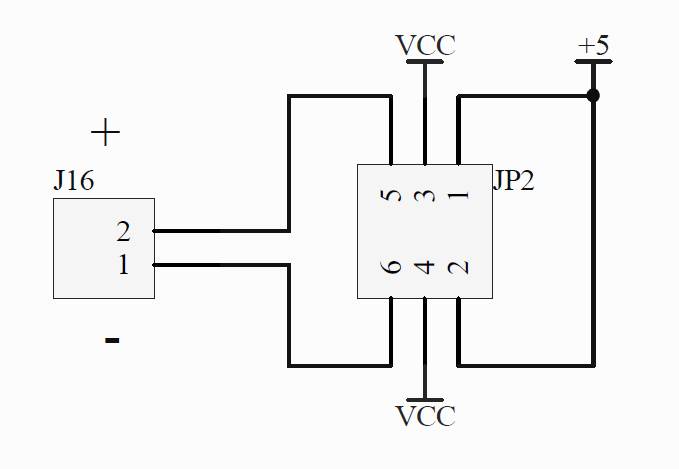
The middle pin is the shield VCC pin.
If you connect caps on the left side, VCC pins get power from the shield external port;
If you connect caps on the right side, VCC pins get power from the board 5V port;
This is suitable for some applications that require greater current.
Sample Code
In this section, we will use an Arduino library written by nicoverduin
Github Library. About Library installation.
#if defined(ARDUINO) && ARDUINO >= 100
#include "Arduino.h"
#else
#include "WProgram.h"
#endif

#include "clsPCA9555.h"
#include "Wire.h"


PCA9555 ioport(0x20);

void setup()
{
  ioport.pinMode(8, OUTPUT); //Set GPIOs pinMode LED
  ioport.pinMode(15, INPUT);  //Button
}

void loop()
{
  if (ioport.digitalRead(ED15) == LOW) {
    ioport.digitalWrite(8, LOW);                  //Turn off Led
  }

  if (ioport.digitalRead(ED15) == HIGH) {
    ioport.digitalWrite(8, HIGH);                 //Turn on Led
  }

}
Additional Information
"D": represents digital signal
"A": represents analog signal
One of the biggest benefits of the I/O expansion shield is more power and GND pins, allowing you to connect more sensors.
* Green: digital signal
* Blue: analog signal
* Red: VCC
* Black: GND
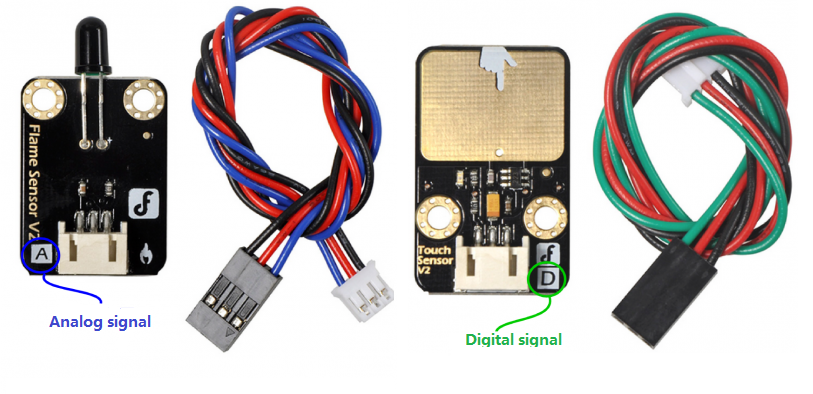
- This is DFRobot's Gravity Interface. Digital and analog connections are easy to recognize and support most of DFRobot's I/O expansion shields and modules. Search "Gravity" in the DFRobot store to find compatible modules.
Was this article helpful?