
Example Code for Arduino-Web Server
Last revision 2025/12/05
A simple web server that shows the value of the analog input pins using an Arduino Wiznet Ethernet shield. Users can learn how to set up the W5500 Ethernet with POE Mainboard as a web server and display real-time analog input data in a web browser.
Hardware Preparation
- Standard POE Protocol Ethernet Switch, Quantity: 1
- W5500 Ethernet with POE Mainboard (SKU: DFR0342), Quantity: 1
- Micro USB cable, Quantity: 1
- RJ45 network cable, Quantity: 2
Software Preparation
- Download the W5500 Ethernet library here
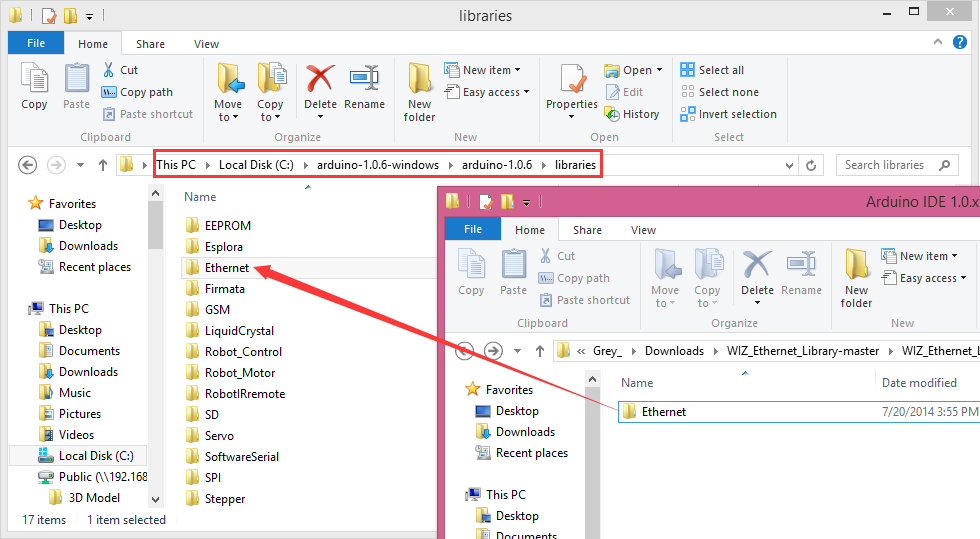
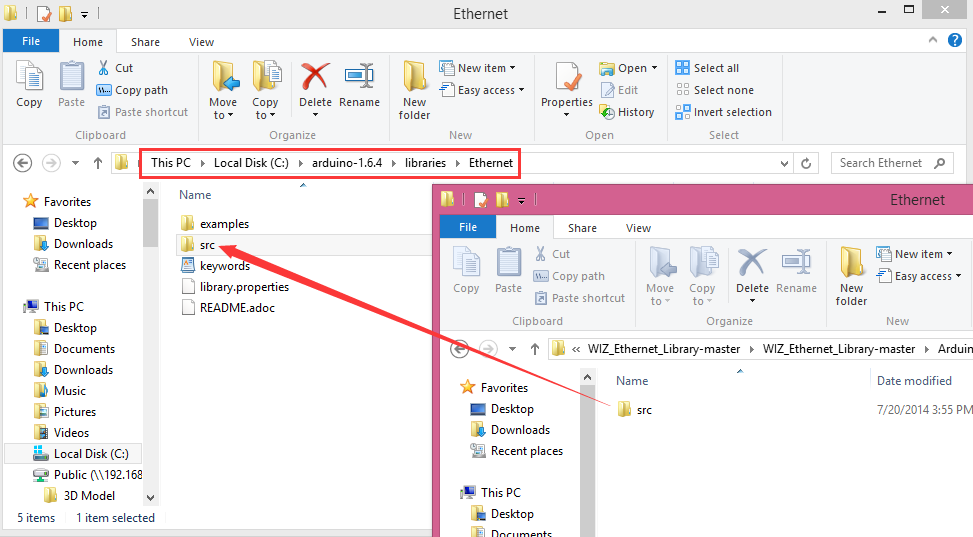
- Replace the existing Ethernet library according to your Arduino IDE version:
- For Arduino IDE 1.0.x: Place the Ethernet file under the libraries folder of Arduino IDE (overlap the original Ethernet library)
- For Arduino IDE 1.5.x: Place the Ethernet file under the libraries folder of Arduino IDE (overlap the original Ethernet library)
NOTE: Good news! You can use arduino IDE v1.7 from Arduino.org that has "Ethernet 2" library, which works with this board. It means you don't have to download any modded libraries. Thank for the Vladimir Akopyan comments. Welcome to share your projects and comments on the Disqus.
Wiring Diagram
-
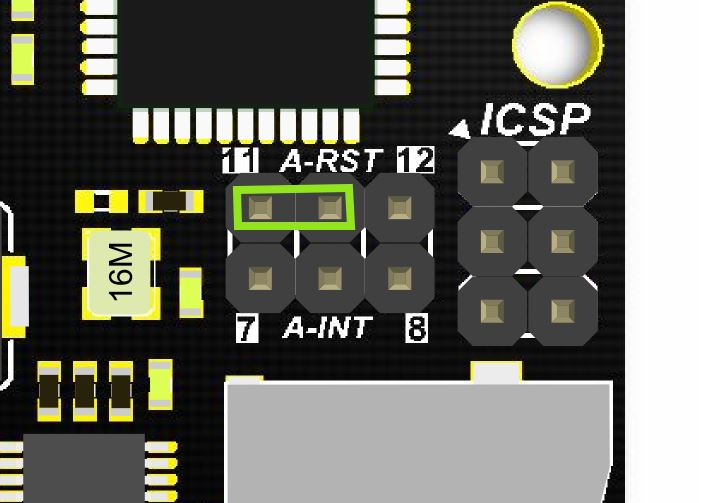
Connect W5500 Reset pins: Connect A-RST pin to D11 (Default: Connected)
-
Plug one end of the ethernet cable to W5500 mainboard, another end to any LAN ports of the Ethernet Switch, or you can use normal Internet switch or router device to directly connect to a PC's network interface (the module needs to be powered up here).

-
Connect the W5500 mainbord to a computer with a USB cable.

Other Preparation Work
-
Pin Definitions: These parts should be declared at the beginning of the sketch:
Define W5500 SPI “SS” pin and “Reset” Pin:#define SS 10U //D10----- SS #define RST 11U //D11----- ResetSetup function initialization:
void setup() { pinMode(SS, OUTPUT); pinMode(RST, OUTPUT); digitalWrite(SS, LOW); digitalWrite(RST,HIGH); //Reset delay(200); digitalWrite(RST,LOW); delay(200); digitalWrite(RST,HIGH); delay(200); //Wait W5500 -
Open Arduino IDE editor, find WebServer example in File->Example->Ethernet and open it.
-
Select Boards->Arduino Leonardo and the correct COM port in Arduino IDE.
Sample Code
/*  Web Server

 A simple web server that shows the value of the analog input pins.
 using an Arduino Wiznet Ethernet shield.

 Circuit:
 * Ethernet shield attached to pins 10, 11, 12, 13
 * Analog inputs attached to pins A0 through A5 (optional)

 created 18 Dec 2009
 by David A. Mellis
 modified 9 Apr 2012
 by Tom Igoe

 */
#include <SPI.h>
#include <Ethernet.h>
#define SS     10U    //D10 ---- SS
#define RST    11U    //D11 -----Reset

// Enter a MAC address and IP address for your controller below.
// The IP address will be dependent on your local network:

byte mac[] = {
  0xDE, 0xAD, 0xBE, 0xEF, 0xFE, 0xED
};

IPAddress ip(192, 168, 1, 177);

// Initialize the Ethernet server library
// with the IP address and port you want to use
// (port 80 is default for HTTP):

EthernetServer server(80);

void setup() {
  pinMode(SS, OUTPUT);
  pinMode(RST, OUTPUT);
  digitalWrite(SS, LOW);
  digitalWrite(RST, HIGH); //Reset
  delay(200);
  digitalWrite(RST, LOW);
  delay(200);
  digitalWrite(RST, HIGH);
  delay(200);              //Wait W5500
  //Open serial communications and wait for port to open :
  Serial.begin(9600);
  //while (!Serial) {
  //  ; // wait for serial port to connect. Needed for Leonardo only
  //}
  delay(1000);
  // start the Ethernet connection and the server:
  Ethernet.begin(mac, ip);
  server.begin();
  //Serial.print("server is at ");
  //Serial.println(Ethernet.localIP());
}

void loop() {
  // listen for incoming clients
  EthernetClient client = server.available();
  if (client) {
    //Serial.println("new client");
    // an http request ends with a blank line
    boolean currentLineIsBlank = true;
    while (client.connected()) {
      if (client.available()) {
        char c = client.read();
        Serial.write(c);
        // if you've gotten to the end of the line (received a newline
        // character) and the line is blank, the http request has ended,
        // so you can send a reply
        if (c == '\n' && currentLineIsBlank) {
          // send a standard http response header
          client.println("HTTP/1.1 200 OK");
          client.println("Content-Type: text/html");

          // the connection will be closed after completion of the response
          client.println("Connection: close");
          client.println("Refresh: 5");  // refresh the page automatically every 5 sec
          client.println();
          client.println("<!DOCTYPE HTML>");
          client.println("<html>");
          // output the value of each analog input pin
          for (int analogChannel = 0; analogChannel < 6; analogChannel++) {
            int sensorReading = analogRead(analogChannel);
            client.print("analog input ");
            client.print(analogChannel);
            client.print(" is ");
            client.print(sensorReading);
            client.println("<br />");
          }
          client.println("</html>");
          break;
        }
        if (c == '\n') {
          // you're starting a new line
          currentLineIsBlank = true;
        }
        else if (c != '\r') {
          // you've gotten a character on the current line
          currentLineIsBlank = false;
        }
      }
    }
    // give the web browser time to receive the data
    delay(1);
    // close the connection:
    client.stop();
    //Serial.println("client disconnected");
  }
}
Result
- Open the Arduino Serial Monitor to initialize the setup and you will see some information about the connection processing.
- Open your browser, input the IP address (e.g., 192.168.1.177) and you should get see data of 5 virtual analog pins:

Additional Information
If you want to skip the serial monitor step, you can comment out the lines waiting for !Serial, and add a line: delay(2000); to ensure that initialization has finished:
Serial.begin(9600);
delay(2000);
//  while (!Serial) {
//    ; // wait for serial port to connect. Needed for Leonardo only
//  }
Was this article helpful?