
Older version hardware Wiki (discontinued, now updated to V2)
This article discusses the older version hardware, which has been discontinued and replaced with an updated V2. It includes specifications, pin descriptions, and a tutorial for using the 1602 RGB LCD shield with Arduino, offering a comprehensive guide for enthusiasts and developers.
- Operating Voltage: 5.0V
- 1602 blue background LCD (2 lines of 16 bytes)
- 5 key inputs
- Size: 54*84mm
Board Overview
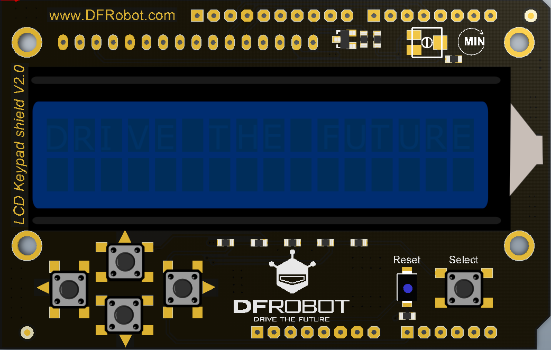
| Pin | Description |
|---|---|
| AnalogPin0 | Buttons (select, up, right, down, left) |
| DigitalPin4 | DB4 |
| DigitalPin5 | DB5 |
| DigitalPin6 | DB6 |
| DigitalPin7 | DB7 |
| DigitalPin8 | RS (Data or signal display selection) |
| DigitalPin9 | Enable (start data read/write) |
| DigitalPin10 | Backlight Control |
Tutorial
This demo shows how to use 1602 RGB LCD shield.
Requirements
-
Hardware
-
Software
- Arduino IDE V1.6.5 Click to Download Arduino IDE
Sample Code
The new Arduino IDE has built-in LiquidCrystal library to drive 1602 screen. If your Arduino IDE does not have this library, please follow the steps below to install it.
-
Click the link to download library and reference files.
-
Unzip this folder and copy it to the libraries folder under Arduino installation directory.
About how to install the library?
- Next, open the Arduino IDE and copy the following code to the IDE window. (Delete all contents in the IDE just opened!)
- Select the correct serial port and board (Arduino UNO).
#include <LiquidCrystal.h>
//LCD 上用于引脚
LiquidCrystal 的定义 lcd(8, 9, 4, 5, 6, 7);

// Define keys
int lcd_key = 0;
int adc_key_in = 0;

#define btnRIGHT 0
#define btnUP 1
#define btnDOWN 2
#define btnLEFT 3
#define btnSELECT 4
#define btnNONE 5

//Read the key value
int read_LCD_buttons() {
  adc_key_in = analogRead(0);  // 0 read the ADC from analog values
  // By setting different threshold, you can read the corresponding to the appropriate buttons
  if (adc_key_in > 1000) return btnNONE;
  if (adc_key_in < 50) return btnRIGHT;
  if (adc_key_in < 250) return btnUP;
  if (adc_key_in < 450) return btnDOWN;
  if (adc_key_in < 650) return btnLEFT;
  if (adc_key_in < 850) return btnSELECT;
  return btnNONE;
}

void setup() {
  lcd.begin(16, 2);  // Start
  lcd.setCursor(0, 0);
  lcd.print("Push the buttons");  //print“Push the buttons”
}

void loop() {
  lcd.setCursor(9, 1);
  lcd.print(millis() / 1000);  // Output wait


  lcd.setCursor(0, 1);           //
  lcd_key = read_LCD_buttons();  // Reading keys

  switch (lcd_key)  // Judge key
  {
    case btnRIGHT:
      {
        lcd.print("RIGHT ");
        break;
      }
    case btnLEFT:
      {
        lcd.print("LEFT ");
        break;
      }
    case btnUP:
      {
        lcd.print("UP ");
        break;
      }
    case btnDOWN:
      {
        lcd.print("DOWN ");
        break;
      }
    case btnSELECT:
      {
        lcd.print("SELECT");
        break;
      }

      {
        lcd.print("NONE ");
        break;
      }
  }
More Documents
Was this article helpful?