
Reference
Last revision 2025/12/09
Driver
Dfu-util (Device Firmware Upgrade Utilities) is a free, open-source, cross-platform firmware update program, it is easy to update firmware for devices with microcontrollers without platform limitations. More information: http://dfu-util.sourceforge.net
In Windows
1. Download the USB installation tool zadig.exe
Address: http://zadig.akeo.ie/downloads/zadig_2.2.exe
2. Enter dfu mode
Short-circuit the boot's two pins, and then connect it to the computer via USB

3. Install winUSB
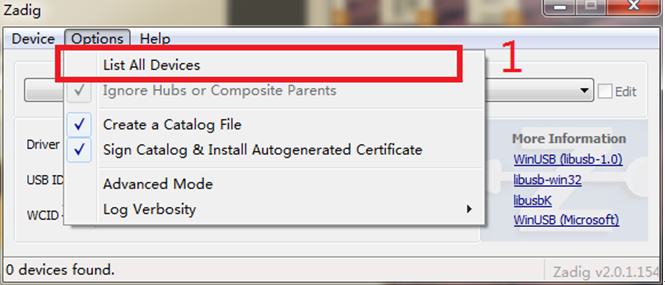
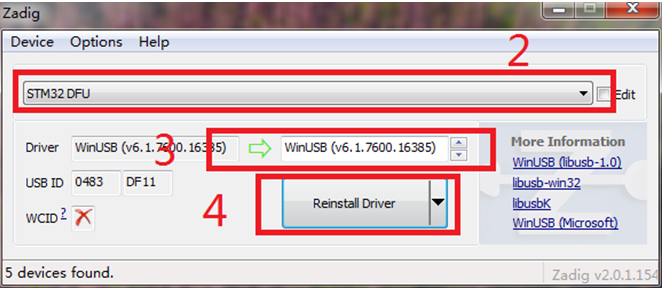
Click Options, check All Devices(1)
Select "STM32 DFU" in the drop-down box (2)
Select "WinUSB" (3)
Click Install Driver(4)
If there is a dialog box, click Continue to install.
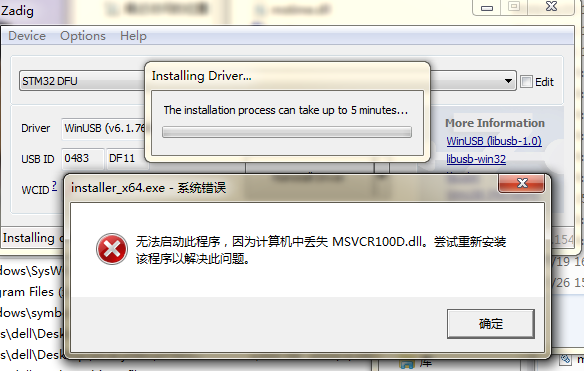
When installing winUSB with zadig fails, the following interface will appear. (Win10 does not have the same situation.)
Win 7 (32-bit/64-bit)
Download msvcr100d.dll, place it in the C:\Windows\System32 directory, and then re-install the driver. There will be no mistakes.
Win 8
32-bit
Download msvcr100d.dll, place it in the C:\Windows\System32 directory, and then re-install the driver.
64-bit
Download msvcr100d.dll, place it in the same directory as zadig.exe. (There will be a new error in the C:\Windows\System32 directory)

-
4. Download the dfu-util tool
32-bit Click to download
64-bit Click to download -
5. Extract the file to your computer, such as "Desktop > dfu-util-0.9-win64", and use it without installation
-
6. Firmware update, Click to download, unzip and copy the xxxx.dfu, erase.bin, and upload.py from the windows directory to the "desktop > dfu-util-0.9-win64".
-
7. Run upload.py (Windows need to install python firstly. Click to download.
-
8. The following interface appears, indicating that the program is being burned.
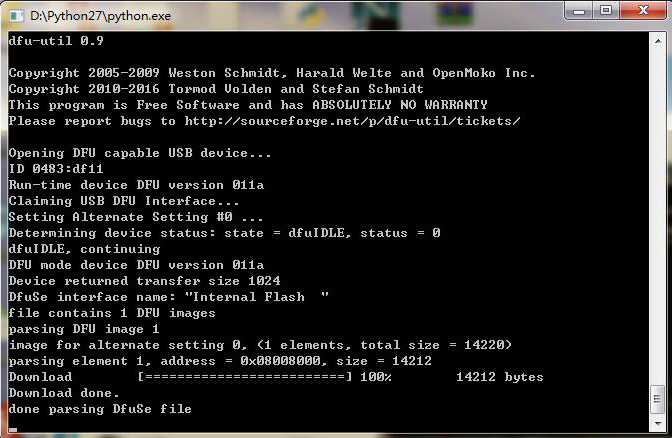
- 9. After the burning is completed, replug the USB device.
In Linux
- 1. Enter dfu mode
Short-circuit the boot's two pins, and then connect it to the computer via USB
-
2. Use apt-get for installation of dfu-util
Apt-get install dfu-util -
3. Use upload.py for firmware upgrade (requires root privileges)
-
4. Firmware update. Click to download.
Open the terminal and enter into the newly downloaded firmware directory (DFRobot_RaspberryPi_TouchScreen_Firmware/linux)
Use sudo python upload.py to run the program.
-
5. Replug the USB device.
In Mac
- 1. Enter dfu mode
Short-circuit the boot's two pins, and then connect it to the computer via USB
- 2. Open the terminal
Open the launcpad
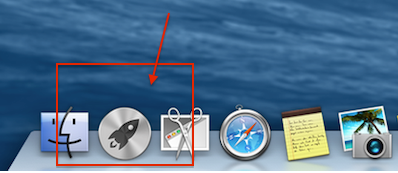
Search for "terminal" on the top of the screen.

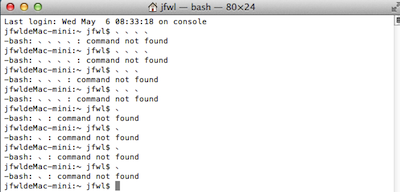
Open the terminal
-
3. Install dfu-util
brew install dfu-util -
4.Use upload.py for firmware upgrade (requires root privileges)
-
5. Firmware update. Click to download
Open the terminal and enter into the newly downloaded firmware directory (DFRobot_RaspberryPi_TouchScreen_Firmware/linux)
Use sudo python upload.py to run the program。 -
6. Replug the USB device
Was this article helpful?