
Example Code for Arduino-Two OLED Displays
Last revision 2025/12/17
This article guides you through the process of connecting and programming two OLED displays using Arduino and an I2C Multiplexer, featuring detailed hardware and software preparation, wiring diagrams, sample code, and additional information to optimize the use of the I2C Multiplexer library.
Hardware Preparation
- DFRduino UNO R3 + Gravity IO Expansion Shield * 1
- Gravity: I2C Multiplexer * 1
- Gravity I2C OLED-2864 Display (or similar) * 2
- Gravity 4pin UART/I2c Cable (or several DuPont Cables) * 3(Come with the Gravity Module/Sensor)
Software Preparation
- Arduino IDE (Version requirements: V1.0.x or V1.8.x), Click to Download Arduino IDE from Arduino®
- Library:DFRobot_I2C_Multiplexer
Wiring Diagram
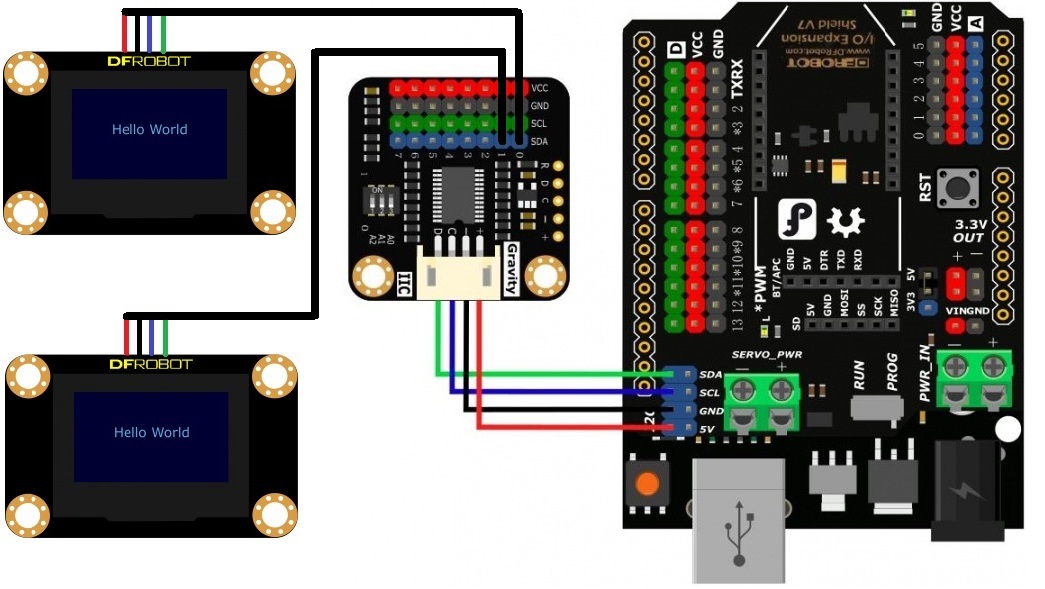
Other Preparation Work
Please down the DFRobot_I2C_Multiplexer Library,DFRobot_SSD1306 Library,DFRobot_Display Library and install it. How to install Libraries in Arduino IDE
Sample Code
 /*!
  * file Multi_SSD1306.ino
  *
  * Download Display library https://github.com/DFRobot/DFRobot_Display.git
  * Download SSD1306 library https://github.com/DFRobot/DFRobot_SSD1306.git
  *
  * Connect the 2 SSD1306 devices to the port 0 and  port 1 on the i2cmultiplexer respectively and then connect the I2cmultiplexer and Arduino, download this sample.
  * @n The address of I2C and the name of SSD1306 display module can be seen
  *
  * Copyright   [DFRobot](https://www.dfrobot.com), 2016
  * Copyright   GNU Lesser General Public License
  *
  * version  V0.1
  * date  2018-5-10
  */
#include "DFRobot_SSD1306_I2C.h"
#include "DFRobot_I2CMultiplexer.h"
#include "DFRobot_Character.h"
#include "DFRobot_GT30L.h"
#include <Wire.h>
#include <SPI.h>

/*Create an OLED object, the address is 0x3c*/
DFRobot_SSD1306_I2C OLED(0x3c);

/*Create an I2C Multiplexer object, the address of I2C Multiplexer is 0X70*/
DFRobot_I2CMultiplexer I2CMulti(0x70);


void setup(void){
  /*Let the OLED on port 0 display characters*/
  I2CMulti.selectPort(0);       //Select port
  OLED.begin();                 //initialize OLED
  OLED.setTextColor(1);
  OLED.setTextSize(2);

  OLED.setCursor(0,0);          // Set the corrdianate of characters
  OLED.print("device A");       //Display characters
  OLED.setCursor(0,30);
  OLED.print("addr:0x3C");

  /*Let OLED on  port 1 display  characters */
  I2CMulti.selectPort(1);
  OLED.begin();
  OLED.setTextColor(1);
  OLED.setTextSize(2);

  OLED.setCursor(0,0);
  OLED.print("device B");
  OLED.setCursor(0,30);
  OLED.print("addr:0x3C");
}

void loop(void){
}
Result
As shown in the picture below, although these two OLED displays have the same I2C addresses, they work normally after this I2C multiplexer's transfer. 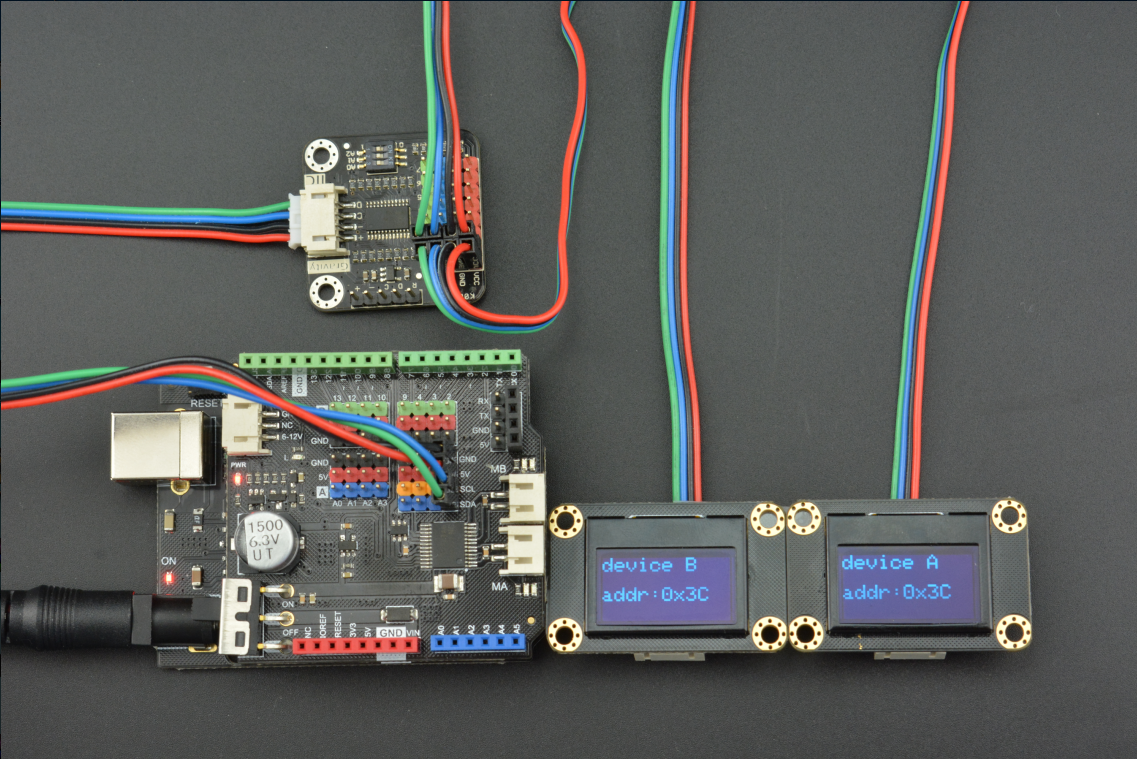
Additional Information
Through the above example, we have already understood how to use this I2C multiplexer's hardware and software library. Now we summarize further, and get the following software framework. This will help you better understand the software library and apply it to your project.
#include "DFRobot_I2CMultiplexer.h"
#include <Wire.h>

/*Create an I2C Multiplexer object, the default address of I2C Multiplexer is 0X70*/
DFRobot_I2CMultiplexer I2CMulti(0x70);

void setup(void)
{
  I2CMulti.selectPort(0);       //Select Port 0
  ...                           //Initialize the I2C Device on Port 0

  I2CMulti.selectPort(1);      //Select Port 1
  ...                          //Initialize the I2C Device on Port 1

   .
   .
   .

  I2CMulti.selectPort(8);      //Select Port 8
  ...                          //Initialize the I2C Device on Port 8
}

void loop(void)
{
  I2CMulti.selectPort(0);       //Select Port 0
  ...                           //Communicate with the I2C Device on Port 0

  I2CMulti.selectPort(1);      //Select Port 1
  ...                          //Communicate with the I2C Device on Port 1

   .
   .
   .

  I2CMulti.selectPort(8);      //Select Port 8
  ...                          //Communicate with the I2C Device on Port 8
}
Was this article helpful?