
Raspberry Pi Tutorial
Last revision 2026/01/23
The screen supports monochrome bitmap, change the file name and file path in display_bitmap.py to display your own picture.
Hardware Preparation
- Raspberry Pi 4B ×1
- Raspberry Pi e-ink Display Module (SKU: DFR0591)
Steps
1. Plug the e-ink display into Raspberry Pi/rock 4se, and enabe the SPI interface of the Raspberry Pi.
2. Install Driver library
To make the e-ink display work properly, we have to install function library. The library provides the driving program of e-ink display and sample code. The library only supports Python at present. We will provide more libraries under users' requirement later.
To integrate Rock 4se, installation is required beforehandlibmraa
Access the /boot/hw_intfc.conf file and modify it as follows

For V1.0, input the following command into Raspberry Pi terminal to download the library (https://github.com/DFRobot/DFRobot_RPi_Display)
command: git clone https://github.com/DFRobot/DFRobot_RPi_Display
For V2.0, input the following command to download (https://github.com/DFRobot/DFRobot_RPi_Display)
command: git clone https://github.com/DFRobot/DFRobot_RPi_Display_V2
For V3.0, input the following command to download (https://github.com/cdjq/DFRobot_RPi_Eink_Display)
command: git clone https://github.com/cdjq/DFRobot_RPi_Eink_Display_V3
3. Download the freetype library.
Make sure that your Raspberry Pi is connected to network before downloading. Open the Raspberry Pi terminal and input the following command to download the library.
command: python -m pip install freetype-py
4. Run the example program
Enter the examples files under decompress path, and run the example program.
command: cd DFRobot_RPi_Display/examples/dfrobot_epaper
command: python xxx.py
There are 5 example programs in the file: demo_bitmap, demographics, demo_multi_lingual and so on. Replace the xxx with the name of the example program when running the command.
Examples
1. Example program to dispaly image: display_bitmap.py
The screen supports monochrome bitmap, change the file name and file path in display_bitmap.py to display your own picture.
Result:

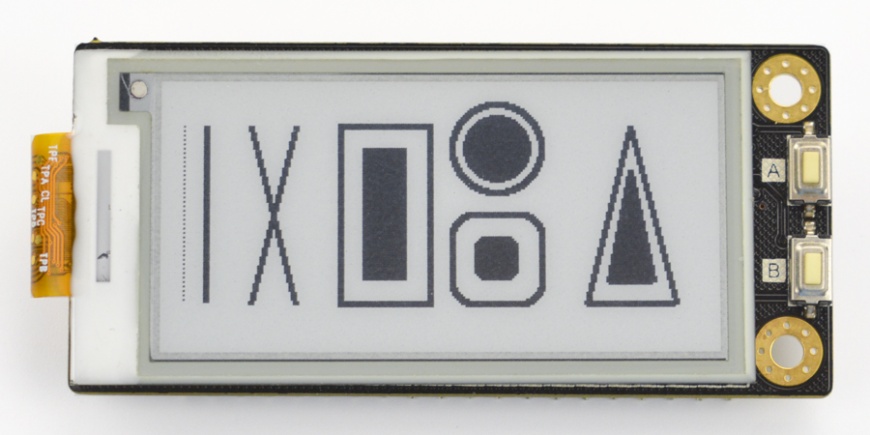
2. Example program to display geometrical figure: display_geometry.py
The example programs provide the interface functions of line, rectangle, circle, triangle and so on.
Result:
3. display_multiLingual.py
The e-ink screen supports multilingual display, just need to download the ttf library into examples/resources.
Result:

4. display_printString.py
The screen can be refreshed fully or partially, and the font is adjustable.
Result:

5. display_keyResponse.py
Result:

Attention: if you want to alter the customized font and language, you have to download the GPL ttf file from the internet, place it to /DFR0bot_RPi_Display/examples/resources, then call the file in the programs.
Pins Expansion
The expanded pins of the e-ink display match the ones on the Raspberry Pi, refer to the Pinout.
Please note that SPI, P20 and P21 of Raspberry Pi are occupied by the E-ink display.
Was this article helpful?