
Example for LattePanda-Connecting Thunderbolt 4 Docking Station
This guide offers detailed instructions on setting up a Thunderbolt docking station using essential components like graphics card and LattePanda Sigma, ensuring stability and performance with cooling systems.
Tutorial
Requirements
-
Graphics card x1
-
Chassis power supply x1
-
Thunderbolt 4 graphics card expansion dock(DFR1168) x1
-
LattePanda Sigma motherboard x1
-
Thunderbolt 4 data cable x1
Connection Diagram
-
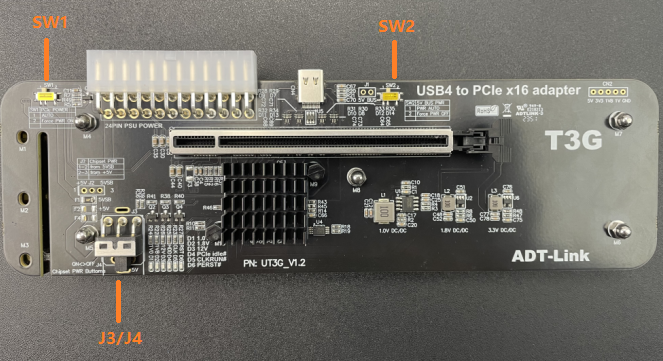
Switch the 3 switches of the Thunderbolt docking station as follows. SW1: Please switch to 1 to start automatically. SW2: Please switch to 1 to start automatically. J3/J4: Temporarily switch to OFF.
-
Install the copper pillars and graphics card (you can skip this step if you do not install the copper pillars).

-
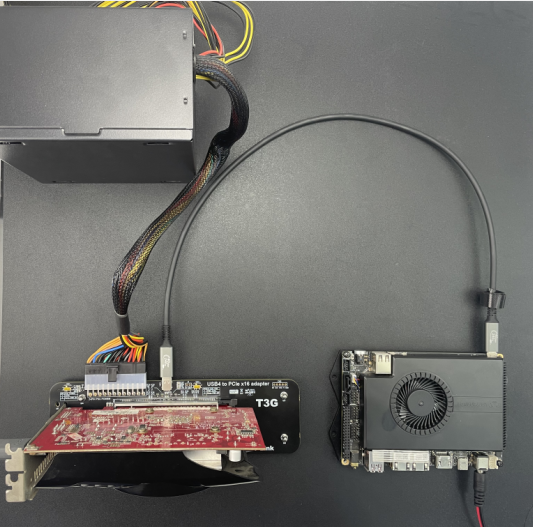
The Thunderbolt docking station is powered by an ATX 24pin power connector. Use a Thunderbolt 4 data cable to connect any Thunderbolt port of LattePanda Sigma to the Thunderbolt 4 docking station. Use an HDMI cable or AVG cable to connect the graphics card to the display. You can also use the HDMI port of LattePanda Sigma. Use the Thunderbolt port to connect multiple screens, and LattePanda Sigma can be powered by the official adapter.
-
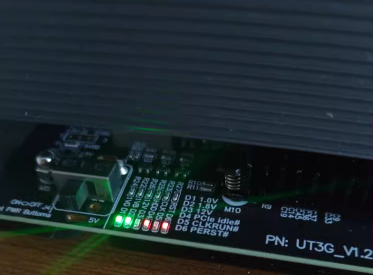
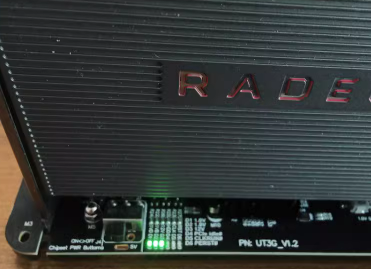
After all devices are connected, switch the J3/J4 switch of the Thunderbolt docking station from OFF to ON. At this time, the Thunderbolt docking station lights up with 2 red lights. Then press the LattePanda Sigma power-on button and turn on the LattePanda Sigma for 3 seconds. Afterwards, the Thunderbolt dock will light up with 3 green lights, and LattePanda Sigma and the Thunderbolt dock will start normally.
-
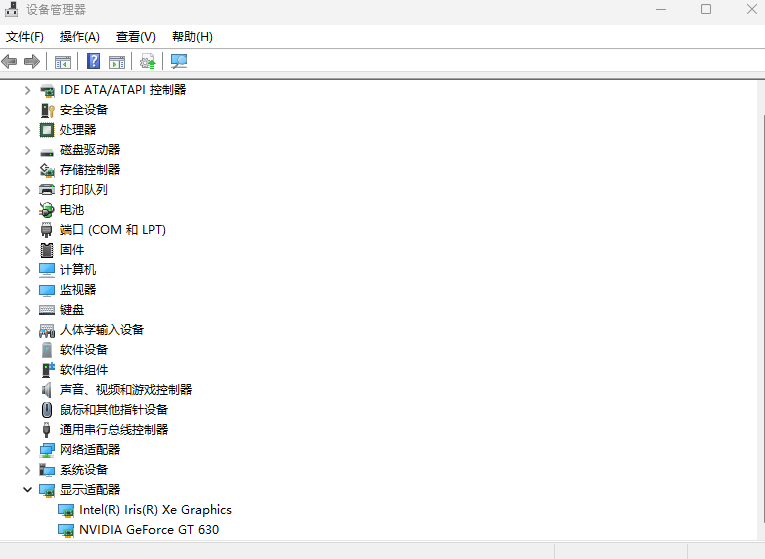
After LattePanda Sigma is turned on, you can check the graphics card model through the display adapter under the device manager.
-
The Thunderbolt docking station supports hot swapping. After the LattePanda Sigma is shut down, switch the J3/J4 switch of the Thunderbolt docking station to OFF and all the lights will go out. At this time, the power can be turned off, and the device can be safely unplugged.
Was this article helpful?