
Example for LattePanda-Connecting Expansion Board
This article serves as a comprehensive guide for safely connecting an expansion board to the LattePanda, offering step-by-step instructions and essential safety tips to ensure proper installation and functionality.
Other Supplementary Information
- Be sure to know the direction when plugging in the wire, and do not plug it in backwards or out of position to prevent burning the device. When plugging in, hold the socket of the device before plugging in the cord to avoid using too much force to disconnect the socket pins. Do not bend or pull within 2cm of the welding point between the two ends of the wire and the circuit board.
- Various motherboards and devices have different signal drive capabilities and other conditions. As long as an extension cable is connected, the signal will be attenuated.
Tutorial
Requirements
- Hardware
Graphics card x1
sigma x1
Chassis power supply x1
ATX to DC5.5*2.5 male power cord-50cm (FIT0975) x1
M.2 M Key to PCIe4.0x16 Extension Cable(FIT0974) x1
- 15 pin SATA power cable x1
Connection Diagram
When sigma needs to connect or unplug any powered equipment, sigma needs to be turned off and unplugged. It cannot be operated while it is powered on.
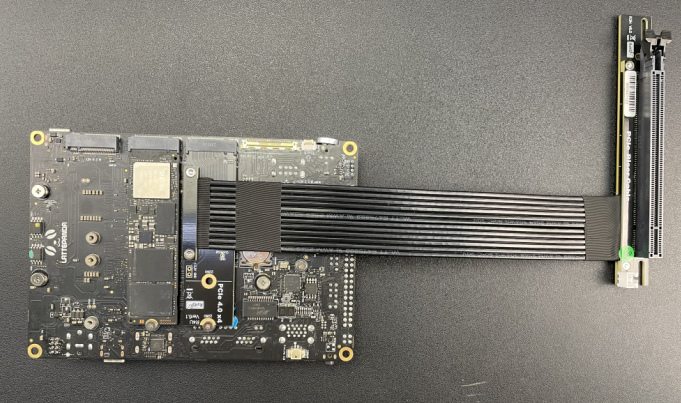
- The M.2 M Key to PCIe4.0x16 graphics card extension cable is installed on the M.2 port of the sigma motherboard.
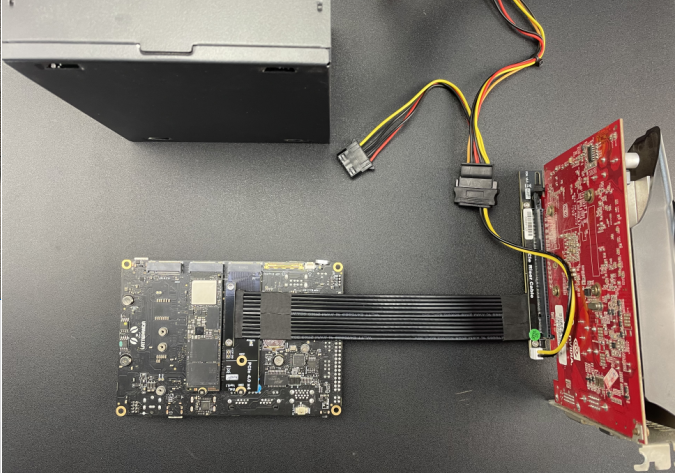
- Install the graphics card on the M.2 M Key to PCIe4.0x16 graphics card extension cable, and use the chassis power SATA-15Pin interface to power the adapter card.
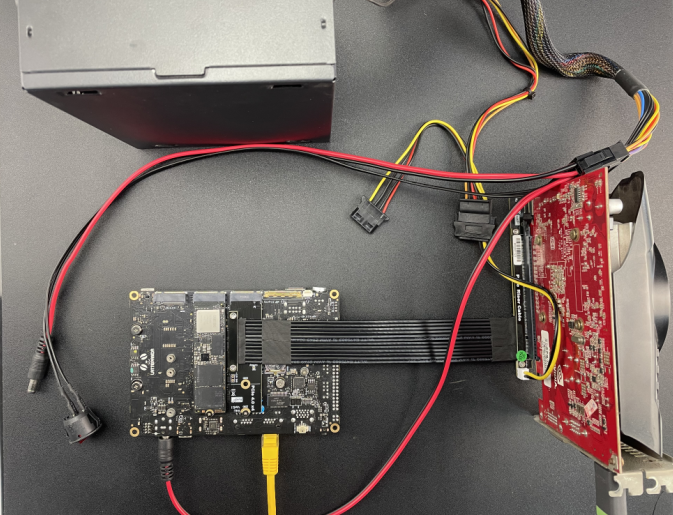
- Connect the graphics card to the monitor through the VGA or HDMI interface, connect the sigma motherboard to the network cable, connect the sigma motherboard to the ATX to DC male power cord, and use the ATX-24Pin interface of the chassis power supply to power the sigma motherboard. (Since the system needs to install the graphics card driver, it must be connected to the Internet before booting. When sigma is booted, the system will automatically install the required driver)
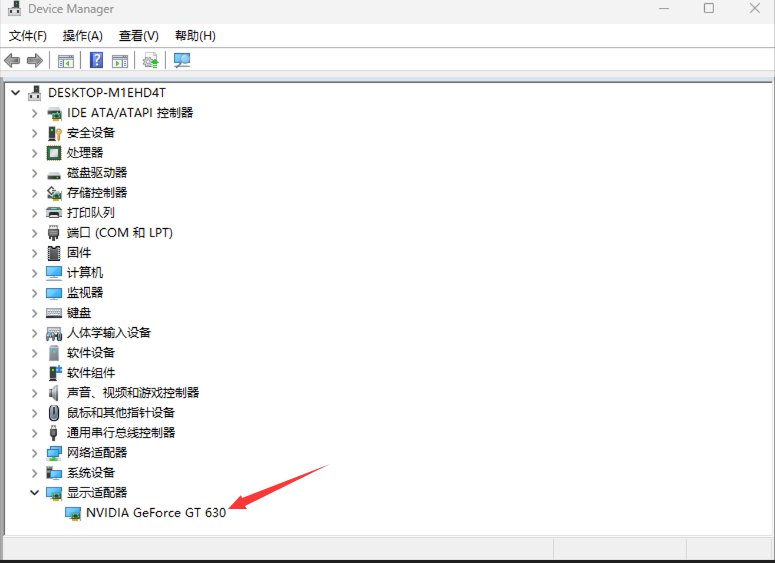
- After completing the connection of all devices, press the power button of the sigma motherboard. The system is installing the driver at this time, so the display will not light up immediately. Please wait patiently for a few minutes until the driver installation is completed and the display will light up normally and enter the system desktop. After booting, you can check the graphics card model through Display Adapter under Device Manager.
Was this article helpful?