
Getting Started
Last revision 2025/12/23
This article offers a comprehensive guide on assembling and calibrating the RoboPeak laser projection keyboard kit, detailing software setup for Windows and MacOS, the use of infrared light for finger detection, and the calibration process to ensure precise key input events.
Driver
The kit requires the related signal processing software designed by RoboPeak to work. Please run this software.
The software supports both Windows and MacOS:
software for Windows
software for Mac
After the software launched, select the camera named: Vimicro USB Camera(Altair)
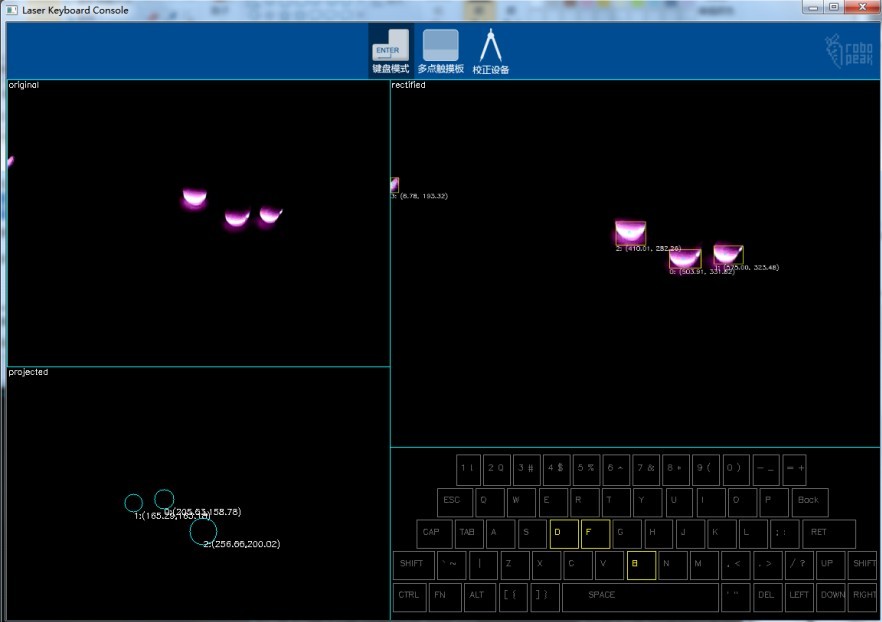
If everything works well, you should see the following window:
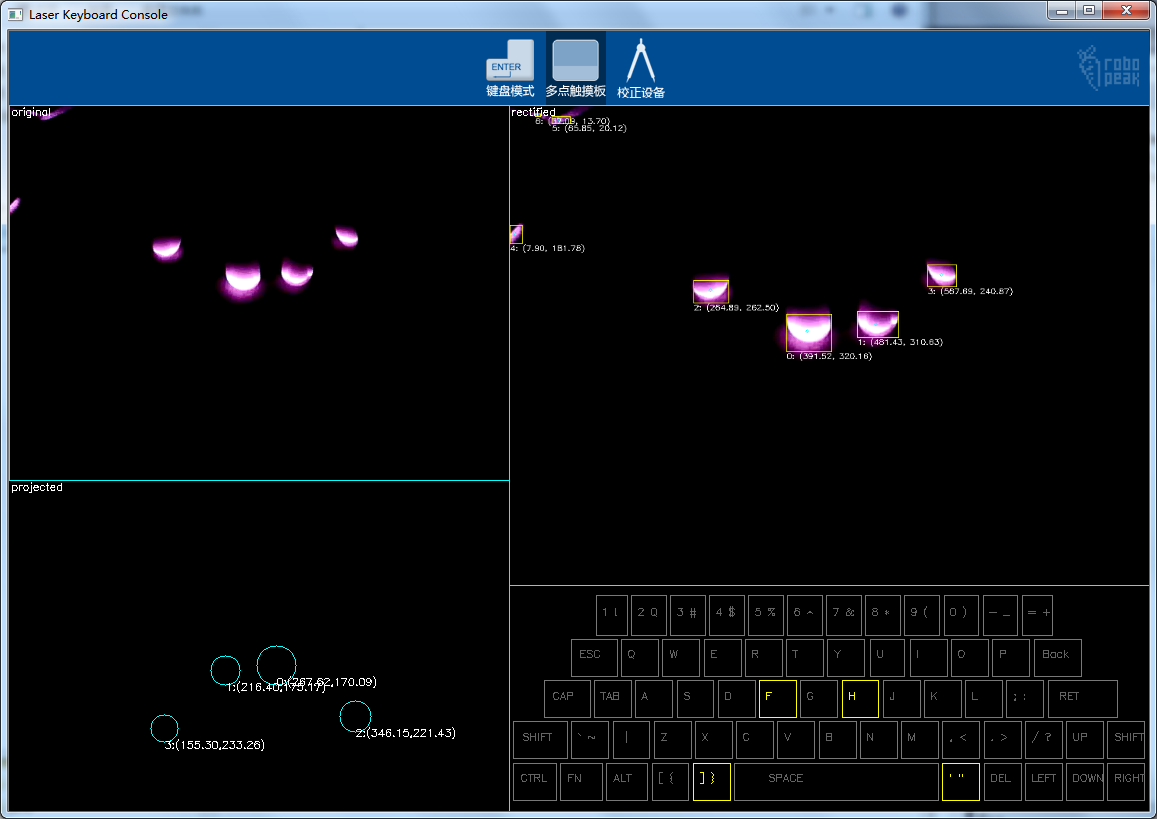
Do not close this window. You will need its help in the following calibration process.
Principle
The keyboard pattern projector displays a virtual keyboard pattern on a flat surface, such as a desktop surface. When a user touches virtual keys using his/her fingers, the top of fingers will be illuminated by the lighting plane created by the linear laser. Since the infrared light is used, the user won’t notice his/her fingers are illuminated.
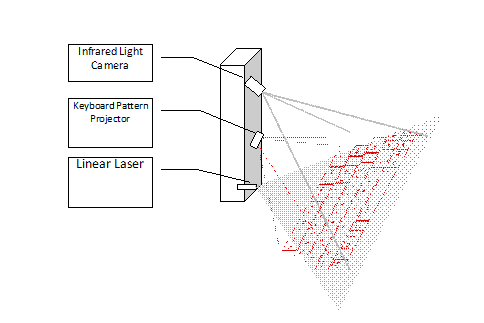
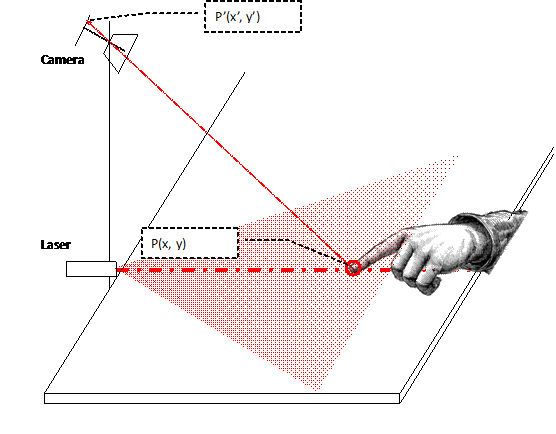
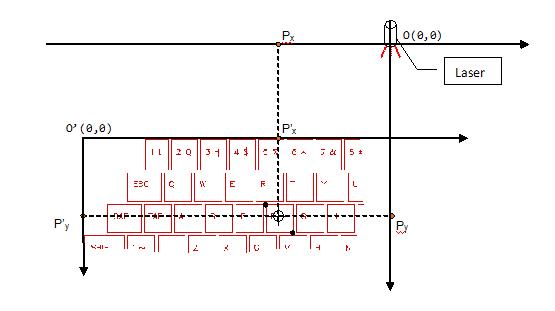
The infrared light camera captures the images of the illuminated fingers, and sends the images to the signal processing software. The position of the illuminated fingers is detected and localized by the software, and it will be transformed to the related key input events.
Other Supplementary Information
**NOTE:**Your laser projection keyboard kit needs to be assembled before you can use it. This manual will provide you the instructions to assemble the RoboPeak laser project keyboard kit quickly and easily.
For more assembly details, please refer toLaserProjectionKeyboardKit-Assembly
**Note:**You need to assemble and calibrate the kit first to make the kit work.
1 Basic calibration process
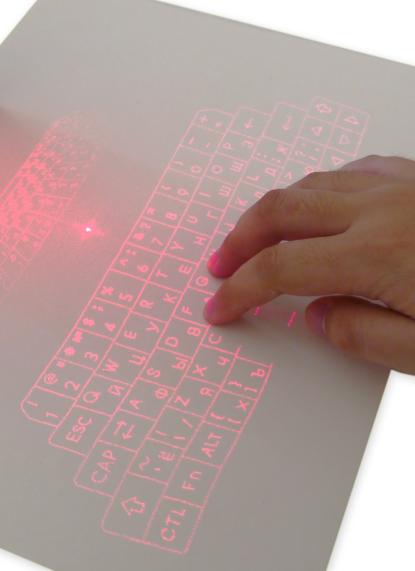
Power-on Check:Connect the assembled kit with your computer using a USB cable. You should see the keyboard pattern projected on your desktop:
Tuning the parts(optional):
You may need to tune the following parts: – The direction and heading of the linear laser – The focus of the IR camera 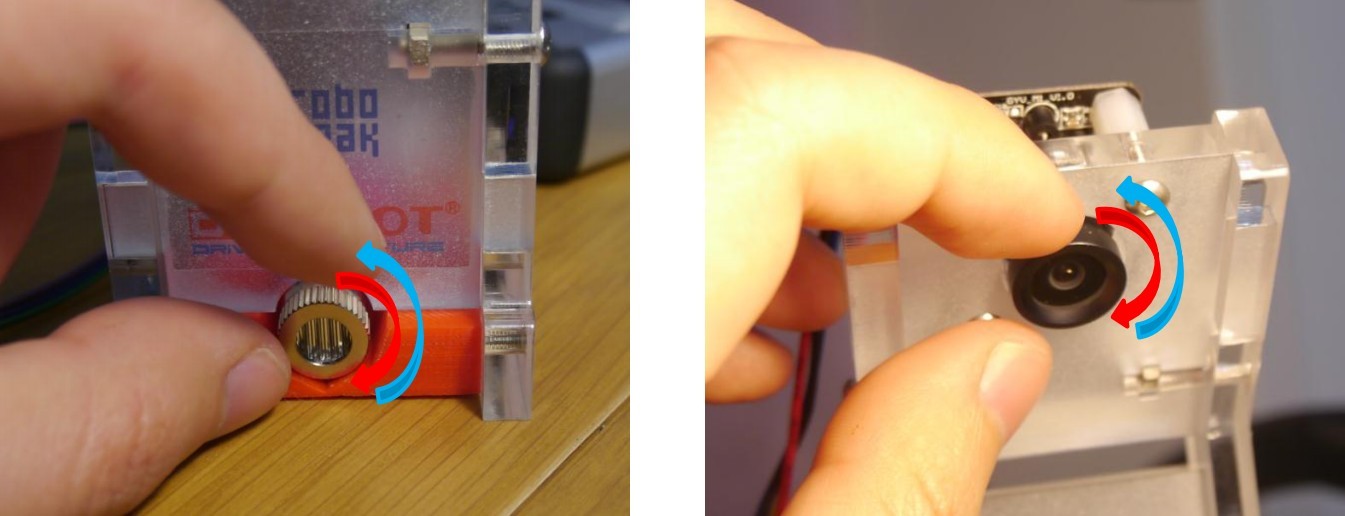
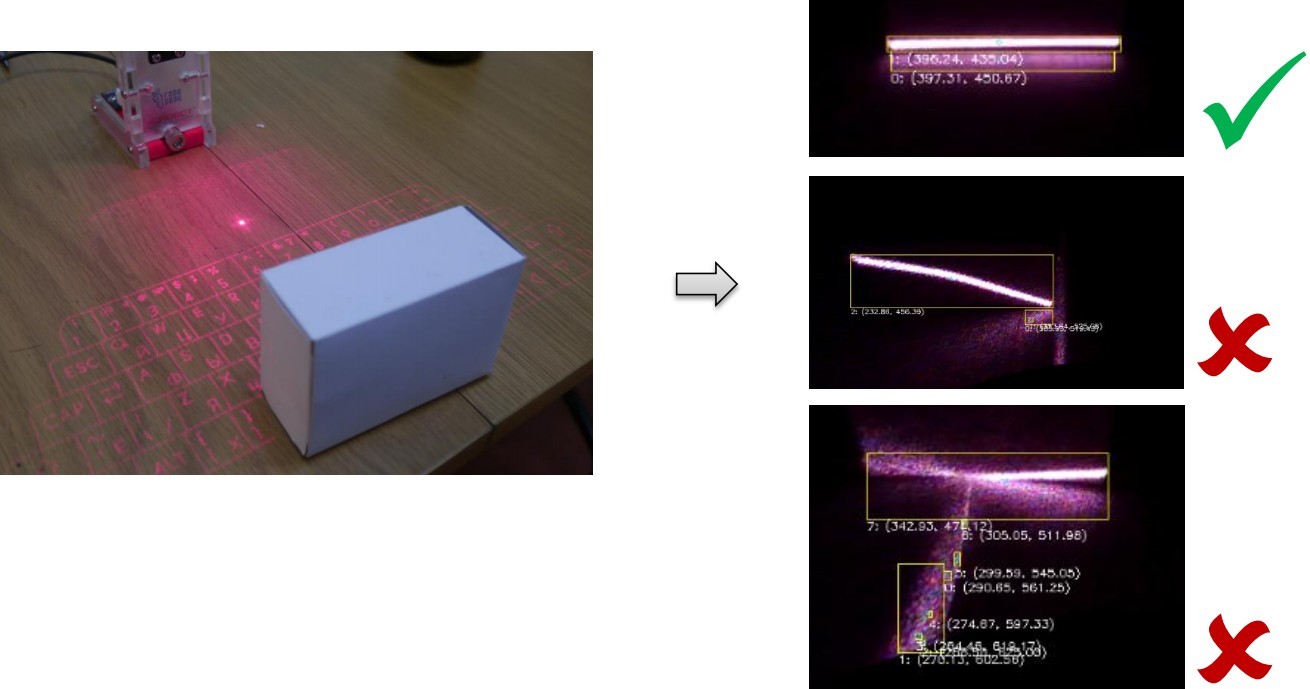
- Prepare a square box with white color and place it in front of the laser keyboard.
- Check the image displayed on the software window and adjust the laser head.
- Adjust the camera lens and check the image software window to set the correct focus.
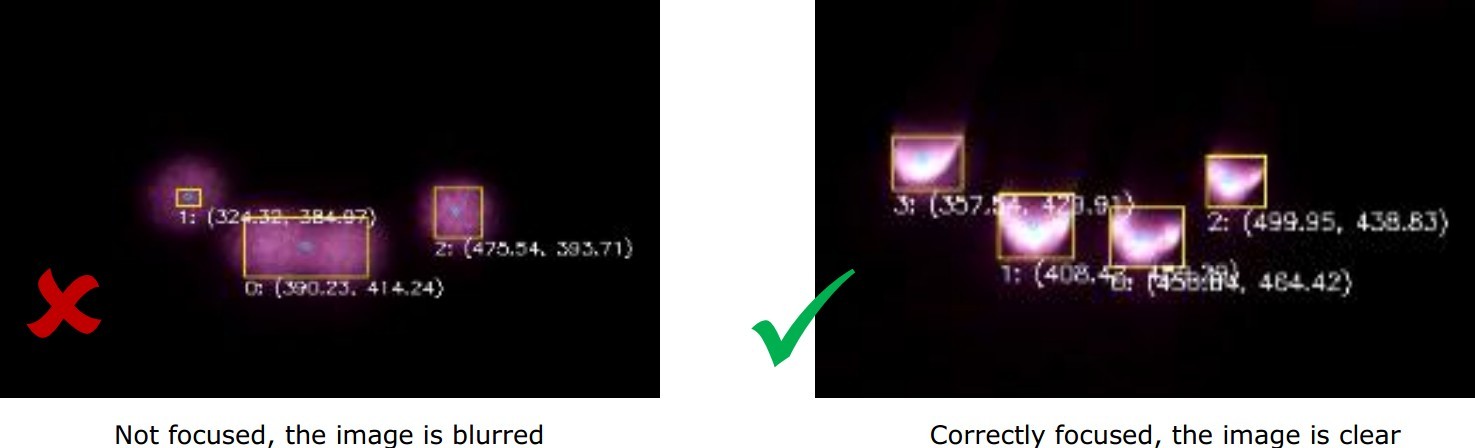
Keyboard Calibration:
-
Follow the tips displayed on the software window:
-
Place your finger to the place which is indicated by the flashing “key” on the software window – Click the related light blob on the window. – Repeat the above steps until the calibration is done.

-
Your laser projection keyboard should work like a normal keyboard after you finished the previous steps in most cases.
-
If you feel something wrong, please refer to the more detailed Calibration and Use manual for help.
Was this article helpful?