
Example Code for Arduino-Acceleration Sensor LED Control
Last revision 2025/12/23
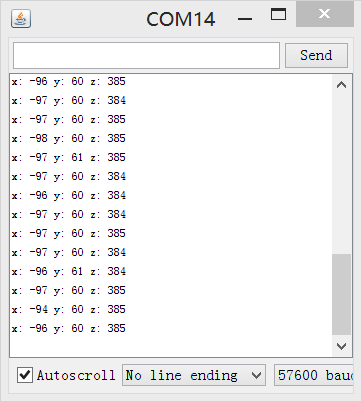
As there is an acceleration sensor on the board,we can do something more interesting. You need not change your connection because we will use it again. The code below can make LEDs show the posture of your board through adxl345b, which is the acceleration sensor mentioned previously.And you can check that whether you get the value of acceleration from serial.
Hardware Preparation
| Name | Model/SKU | Quantity | Purchase Link |
|---|---|---|---|
| LED | - | 3 | - |
| Nova Board | KIT0042 | 1 | DFRobot |
Software Preparation
- Development tool: Arduino IDE (download link: https://www.arduino.cc/en/software)
- Required library: Wire library (included in Arduino IDE by default)
Wiring Diagram
- LED1 → D9 (Arduino)
- LED2 → D10 (Arduino)
- LED3 → D13 (Arduino)
Other Preparation Work
- Set the Serial Monitor baud rate to 57600.
- Ensure the Nova board is connected to your computer via Micro USB.
Sample Code
// # Editor    :Holiday from DFRobot
// # Data      :08.06.2013

// # Product name:Nova
// # Product SKU:Unknown
// # Version : V2.0

// # Description:
// # This sample shows how to use the Nova for LED controlling

// # Connection:
// # LED1,LED2,LED3 ->D9,D10,D13 (Arduino)

#include <Wire.h>

#define DEVICE (0x53) // Device address as specified in data sheet

byte _buff[6];

char POWER_CTL = 0x2D;  //Power Control Register
char DATA_FORMAT = 0x31;
char DATAX0 = 0x32; //X-Axis Data 0
char DATAX1 = 0x33; //X-Axis Data 1
char DATAY0 = 0x34; //Y-Axis Data 0
char DATAY1 = 0x35; //Y-Axis Data 1
char DATAZ0 = 0x36; //Z-Axis Data 0
char DATAZ1 = 0x37; //Z-Axis Data 1

void setup()
{
  Wire.begin();        // join i2c bus (address optional for master)
  Serial.begin(57600);  // start serial for output. Make sure you set your Serial Monitor to the same!
  Serial.print("init");

  //Put the ADXL345 into +/- 4G range by writing the value 0x01 to the DATA_FORMAT register.
  writeTo(DATA_FORMAT, 0x01);
  //Put the ADXL345 into Measurement Mode by writing 0x08 to the POWER_CTL register.
  writeTo(POWER_CTL, 0x08);
  pinMode(9,OUTPUT);
  pinMode(10,OUTPUT);
  pinMode(13,OUTPUT);
}

void loop()
{
  readAccel(); // read the x/y/z tilt
  delay(500); // only read every 0,5 seconds
}

void readAccel() {
  uint8_t howManyBytesToRead = 6;
  readFrom( DATAX0, howManyBytesToRead, _buff); //read the acceleration data from the ADXL345

  // each axis reading comes in 10 bit resolution, ie 2 bytes.  Least Significat Byte first!!
  // thus we are converting both bytes in to one int
  int x = (((int)_buff[1]) << 8) | _buff[0];
  int y = (((int)_buff[3]) << 8) | _buff[2];
  int z = (((int)_buff[5]) << 8) | _buff[4];
  Serial.print("x: ");
  Serial.print( x );
  Serial.print(" y: ");
  Serial.print( y );
  Serial.print(" z: ");
  Serial.println( z );
  analogWrite(9,x);
  analogWrite(10,y);
  analogWrite(13,z);                          // change the luminance of LEDs which depends on the acceleration value
}

void writeTo(byte address, byte val) {
  Wire.beginTransmission(DEVICE); // start transmission to device
  Wire.write(address);             // send register address
  Wire.write(val);                 // send value to write
  Wire.endTransmission();         // end transmission
}

// Reads num bytes starting from address register on device in to _buff array
void readFrom(byte address, int num, byte _buff[]) {
  Wire.beginTransmission(DEVICE); // start transmission to device
  Wire.write(address);             // sends address to read from
  Wire.endTransmission();         // end transmission

  Wire.beginTransmission(DEVICE); // start transmission to device
  Wire.requestFrom(DEVICE, num);    // request 6 bytes from device

  int i = 0;
  while(Wire.available())         // device may send less than requested (abnormal)
  {
    _buff[i] = Wire.read();    // receive a byte
    i++;
  }
  Wire.endTransmission();         // end transmission
}
Result
- LEDs will show the posture of the board by changing luminance based on the acceleration sensor values.
- The acceleration values (x, y, z) will be printed on the Serial Monitor.
Additional Information
Was this article helpful?