
Example Code for Arduino-Sound-Activated Bluetooth Christmas Lights
Last revision 2025/12/26
The article provides a comprehensive guide for creating sound-activated Bluetooth Christmas lights using Arduino, detailing necessary hardware components, software preparation, wiring instructions, and sample code, enabling users to control LED lights via sound and smart devices.
Hardware Preparation
All of these components are included in KIT0069. You can find detailed hardware information about each component by following the Wiki links.
- Bluno arduino Microcontroller v2.0 (SKU: DFR0267)
- I/O Expansion Shield v7.1 (SKU: DFR0265)
- 3m RGB LED Strip (SKU: FIT0352)
- Audio Analyser v2.0 (SKU: DFR0126)
- Analog Sound Sensor v2.0 (SKU: DFR0034)
- F-F Jumper Wires (SKU: FIT0030)
- DC Barrel Jack Adapter - Female (SKU: FIT0151)
- DC Power Supply (5V@3.6A)
Software Preparation
Make sure you download and install the libraries from the product page and install them in the correct directory or the sample sketch will not compile!
On Windows the default directory will be C:\Users\
The following libraries need to be extracted to your Arduino IDE libraries directory:
Color
Adafruit_NeoPixel
AudioAnalyzer
Metro
OneWire
PlainProtocol
Arduino IDE cannot recognize libraries if they are contained in nested folders. Check that each library directory has all necessary files included in a single folder. If library files are in nested folders in the libraries directory, you will have compilation errors when you come to compile your sketch as Arduino IDE will not be able to find your library!
You can check if the libraries have been recognized by opening Arduino IDE and selecting Sketch > Include Library
Scroll down the list and under contributed libraries you should see your libraries listed and ready to use.
You will also need the Play BLUno app for smart device control.
Wiring Diagram
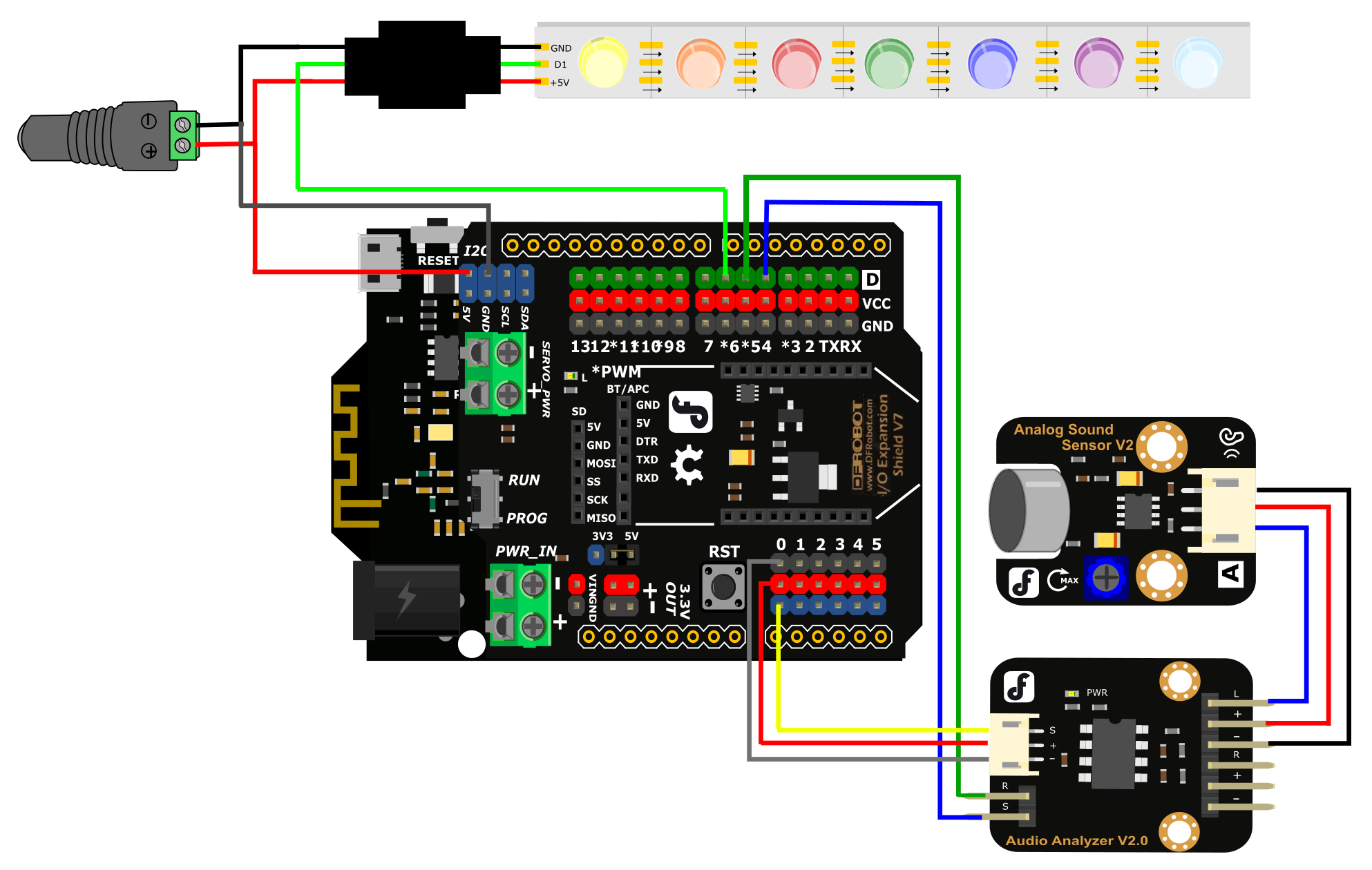
5V@3A is coming from the external power supply to the Bluno and the LED strip via the connector.
The digital signal for the LED strip is provided by digital pin 6 on the Bluno. Use a F-F jumper wire for this.
The audio analyzer module's output is connected to the analog 0 pin on the Bluno. The connector is provided with the module. Make sure that the +, - and s pins are correctly aligned or the circuit will not function.
S on the audio analyzer connects to digital pin 4. Use a F-F jumper wire for this.
RST on the audio analyzer connects to digital pin 5. Use a F-F jumper wire for this.
The analog sound sensor module is connected to the audio analyzer module with the provided connector. Connect the audio analyzer's left channel signal (L), + and - to the analog sound sensor. Make sure that the +, - and s pins are correctly aligned or the circuit will not function.
Other Preparation Work
In Arduino IDE, press the verify button and check that the code can compile. If you get compilation errors, check that the libraries are properly installed.
If all is well, go ahead and upload the code to the Bluno.
Sample Code
/*
The library "Adafruit_NeoPixel.h" is download from www.adafruit.com
You can change the data in the array "color[]" to change the color which changes when songs playing
and the data in color[] can be find in "WS2812_Definitions.h" which is also download from www.adafruit.com
*/

#include <Adafruit_NeoPixel.h>
#include "WS2812_Definitions.h"
#include <avr/pgmspace.h>
#include <Wire.h>
#include "Arduino.h"
#include "PlainProtocol.h"
#include <Metro.h>
#include <AudioAnalyzer.h>

#define PIN 6             //Arduino Pin connect to the LED Strip
#define LED_COUNT 180     //set the Amount of LED to 180 and this number depend on how many you really have

PlainProtocol BLUNOPlainProtocol(Serial,115200);//set Serial baud rate to 115200
Adafruit_NeoPixel leds = Adafruit_NeoPixel(LED_COUNT, PIN, NEO_GRB + NEO_KHZ400);// NEO_GRB means the type of your LED Strip
Metro ledMetro = Metro(18);  // Metro for data receive in a regular time
Analyzer Audio = Analyzer(4,5,0); // Strobe->4 RST->5 Analog->0

int humid=0;
int temper=0;          //  humid and temper means nothing in this program,just for the software in your phone
int State01=2,State02=0;         //  the value will change when your press "BUZZER" in your phone
int Red=10,Green=0,Blue=10,Number_Position_RGB=100;//the value of RGB and the position of the LEDs
int FreqVal[7];//the spectrum value
int color[]={0xDC143C,0xFFA500,0xFFFF00, 0x32CD32,0x0000FF,0x2F4F4F,0x4B0082,0xDA70D6};

int Num_Channel=0,Buff_Channel=0;
int Num_Color[7],Buff_Num_Color[7];
boolean Dis_En=false;
int Num_First_Color=0,Buf_Max=0; //
int Num_Shark02_High=0,Number_Shark02_LOW=0;

void setup()
{
  Audio.Init();//Init module
  leds.begin();  // Call this to start up the LED strip.
  clearLEDs();   // This function, defined below, turns all LEDs off...
  leds.show();   // ...but the LEDs don't actually update until you call this.
  Serial.begin(115200);
  TCCR1B &= ~((1<<CS12)|(1<<CS11)|(1<<CS10));   //Clock select: SYSCLK divde 8;
  TCCR1B |= (1<<CS11);
  TCCR2B &= ~((1<<CS12)|(1<<CS11)|(1<<CS10));   //Clock select: SYSCLK divde 8;
  TCCR2B |= (1<<CS11);
}

void loop()
{
  temper=State01;
  humid=State02;
  if (BLUNOPlainProtocol.available())
  {
    if(BLUNOPlainProtocol.receivedCommand=="TEMP")          BLUNOPlainProtocol.write("TEMP", temper);
    else if(BLUNOPlainProtocol.receivedCommand=="HUMID")    BLUNOPlainProtocol.write("HUMID", humid);

    if (BLUNOPlainProtocol.receivedCommand=="BUZZER")          //get command of "BUZZER"
    {
      if(BLUNOPlainProtocol.receivedContent[0]==1)  State01=1;
      else                                          State01=2;
    }
    else if(BLUNOPlainProtocol.receivedCommand=="RGBLED")  //get command of  "RGB"
    {
      State01=3;
      Red  = BLUNOPlainProtocol.receivedContent[0];
      Green= BLUNOPlainProtocol.receivedContent[1];
      Blue = BLUNOPlainProtocol.receivedContent[2];
    }
  }

  if (ledMetro.check() == 1)//time for metro
  {
    if(State01==1)
    {
      clearLEDs();  // Turn off all LEDs
      leds.show();
    }
    else if(State01==2)
    {
        Rock_With_Song();//leds.show();
    }
    else if(State01==3)
    {
      for (int i=0;i<LED_COUNT;i++)
      {
        if(i%7==0)
          leds.setPixelColor(i,Red, Green, 0);//change the color
        else if(i%3==0)
          leds.setPixelColor(i,0, Green, Blue);//change the color
        else if(i%2==0)
          leds.setPixelColor(i,Red, Green, Blue);//change the color
        else
          leds.setPixelColor(i,Red,0, Blue);//change the color
      }
      leds.show();
    }
  }
}


void clearLEDs()
{
  for (int i=0; i<LED_COUNT; i++)  leds.setPixelColor(i, 0);
}

void rainbow(byte startPosition)
{
  int rainbowScale =  192/LED_COUNT;
  leds.setPixelColor( startPosition, rainbowOrder((rainbowScale * ( startPosition + startPosition)) % 192));
  leds.show();
}
uint32_t rainbowOrder(byte position)
{
  if (position < 31)  // Red -> Yellow (Red = FF, blue = 0, green goes 00-FF)
  {
    return leds.Color(0xFF, position * 8, 0);
  }
  else if (position < 63)  // Yellow -> Green (Green = FF, blue = 0, red goes FF->00)
  {
    position -= 31;
    return leds.Color(0xFF - position * 8, 0xFF, 0);
  }
  else if (position < 95)  // Green->Aqua (Green = FF, red = 0, blue goes 00->FF)
  {
    position -= 63;
    return leds.Color(0, 0xFF, position * 8);
  }
  else if (position < 127)  // Aqua->Blue (Blue = FF, red = 0, green goes FF->00)
  {
    position -= 95;
    return leds.Color(0, 0xFF - position * 8, 0xFF);
  }
  else if (position < 159)  // Blue->Fuchsia (Blue = FF, green = 0, red goes 00->FF)
  {
    position -= 127;
    return leds.Color(position * 8, 0, 0xFF);
  }
  else  //160 <position< 191   Fuchsia->Red (Red = FF, green = 0, blue goes FF->00)
  {
    position -= 159;
    return leds.Color(0xFF, 0x00, 0xFF - position * 8);
  }
}


void Rock_With_Song()
{
  Buff_Channel=Num_Channel;// Buff_Channnel can store the number of the channel which has the max spectrum value
  Audio.ReadFreq(FreqVal);// get the spectrum value
  for (int i=0;i<6;i++)
  {
    if(FreqVal[Num_Channel]<FreqVal[i])  Num_Channel=i;// get the number of the channel which has the max spectrum value
    Buff_Num_Color[i]=Num_Color[i];                      //store the value for the using below
  }
  if(FreqVal[Num_Channel]<400)      {
    Number_Shark02_LOW++;
  } //count if a low voice started
  if(Buf_Max!=Num_Channel && FreqVal[Num_Channel]>300)    // judge if the sound changed
  {
    Num_First_Color++;
    Dis_En=true;                                          //enable the display
    if(FreqVal[Num_Channel]>400) Number_Shark02_LOW=0;    //reset the count of low voice
    if (Num_First_Color==7) Num_First_Color=0;                              //for recycle
    for(int i=0;i<7;i++)                                  //recycle the colour
    {
      int x=random(0,6);
      if(i==0)   Num_Color[i]=Num_First_Color;                  //recycle the value
      else       Num_Color[i]=Buff_Num_Color[x];       //change the color randomly
    }
  }

  Buf_Max=Num_Channel;                                   //store the max_value_channel for next use

  if( (Buf_Max==5 || Buf_Max==4 ) && FreqVal[Buf_Max]>700)  //count when the  High vlaue of the sound started
  {
    Num_Shark02_High++;
  }
  else Num_Shark02_High=0;                                  //reset the count of the High_value_count

  if(Num_Shark02_High>22)                                  //time of High value voice reached
  {
    for(int i=0;i<LED_COUNT/2;i++)                         //these are effects of color changing
    {
      leds.setPixelColor(i,rainbowOrder(i));               //rising from two origin points
      leds.setPixelColor(i+LED_COUNT/2,rainbowOrder(i));
      leds.show();
      if(i>LED_COUNT/4) delay(1);
    }
    for(int i=0;i<LED_COUNT/2;i++)
    {
      leds.setPixelColor(LED_COUNT-i,rainbowOrder(i));
      leds.setPixelColor(i+LED_COUNT/2,rainbowOrder(i));
      leds.show();
    }
    for (int i=0;i<LED_COUNT;i++)
    {
      leds.setPixelColor(i,GOLD);
    }
    leds.show();
    Audio.ReadFreq(FreqVal);
    if(FreqVal[4]>800)                                         //if High sound value continues, take another effect out!
    {
      for(int x=0;x<6;x++)
      {
        if(FreqVal[x]>1000)
        {
          for(int y=0;y<LED_COUNT/2;y++)    {
            leds.setPixelColor(LED_COUNT-y,RED);
            leds.setPixelColor(LED_COUNT/2-y,RED);
            leds.show();
          }
          x=7;
        }
      }
    }
    Num_Shark02_High=0;                                  //reset the count when effect playing finished
  }
  if(Number_Shark02_LOW>40)                             //when the time of low value sound reached
  {
    for(int i=0;i<LED_COUNT/2;i++)                       //close the light from two point
    {
      leds.setPixelColor(i,0);
      leds.setPixelColor(LED_COUNT-i,0);
      leds.show();
    }
    Number_Shark02_LOW=0;
    Dis_En=false;                                    //disable the function:Display() because the light should be closed
  }
  if(Dis_En==true)
    Display();
}

void Display()
{
  for (int i=0;i<LED_COUNT;i++)
  {
    if(i<LED_COUNT/7)
    {
      leds.setPixelColor(i,color[Num_Color[0]]);
    }
    else if(i<(LED_COUNT/7)*2)   {
      leds.setPixelColor(i,color[Num_Color[1]]);
    }
    else if(i<(LED_COUNT/7)*3)   {
      leds.setPixelColor(i,color[Num_Color[2]]);
    }
    else if(i<(LED_COUNT/7)*4)   {
      leds.setPixelColor(i,color[Num_Color[3]]);
    }
    else if(i<(LED_COUNT/7)*5)   {
      leds.setPixelColor(i,color[Num_Color[4]]);
    }
    else if(i<(LED_COUNT/7)*6)   {
      leds.setPixelColor(i,color[Num_Color[5]]);
    }
    else if(i<LED_COUNT)         {
      leds.setPixelColor(i,color[Num_Color[6]]);
    }
  }
  leds.show();
}
Result
When the code is installed, clap your hands or click your fingers near the audio sensor to check if it triggers. Hopefully you will see the LEDs light up in sequence.
The next step is to test the smart device control feature. Open the Play BLUno on your smart device. In the top right corner, tap Search. By default your Bluno will show up as Bluno. (You can change the device name using AT commands if you wish - details here).

Your smart device will scan for BLE devices in range. When your device shows up, select it and they will pair. You now have a light control interface. Use the color picker to choose the color of the lights.

Cool! Now you have your own set of sound-activated Bluetooth-enabled Christmas lights!


Additional Information
Have a tinker with the sample sketch and see what parameters you can change.
Can you make a different amount of LEDs light up? Can you make the LEDs turn on in a different sequence?
How about alternating LED colors?
What else can you come up with?
Was this article helpful?