
Example Code for Arduino-Temperature Reading
This tutorial will describe you how to use the high temperature sensor module and PT100.
Hardware Preparation
- DFRduino UNO Arduino Compatible x1
- PT100 Temperature Sensor Probe x1
- high temperature sensor module x1
- PH2.0-3P cable x1
Software Preparation
- Arduino IDE V1.6.5 Click to Download Arduino IDE from Arduino®
- HighTemperatureSensor libraries About Library installation.
Wiring Diagram
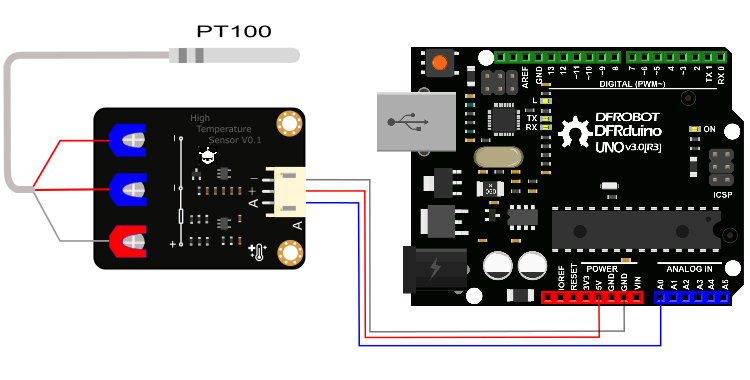
Other Preparation Work
 |
Before downloading the program, you must know the reference voltage of the analog port.If your board supply voltage is 3.3V, then you need change voltageRef which is in sample code from 5.000 rto 3.300,If your board supply voltage is 5.0V,then set voltageRef to 5.000。If you want a higher precision,Then you need to measure the voltage of the IOREF port and set that voltage to as voltageRef . |
|---|
Sample Code
HighTemperatureSensor libraries About Library installation.
/***************************************************
 This example reads HighTemperature Sensor.

 Created 2016-1-13
 By berinie Chen <bernie.chen@dfrobot.com>

 GNU Lesser General Public License.
 See <http://www.gnu.org/licenses/> for details.
 All above must be included in any redistribution
 ****************************************************/

/***********Notice and Trouble shooting***************
 1.Connection and Diagram can be found here  https://www.dfrobot.com/wiki/index.php?title=HighTemperatureSensor_SKU:SEN0198
 2.This code is tested on Arduino Uno.
 ****************************************************/
#include<DFRobotHighTemperatureSensor.h>

const float voltageRef = 5.000; //Set reference voltage,you need test your IOREF voltage.
//const float voltageRef = 3.300;
int HighTemperaturePin = A0;    //Setting pin
DFRobotHighTemperature PT100 = DFRobotHighTemperature(voltageRef); //Define an PT100 object

void setup(void) {
  Serial.begin(9600);
}

void loop(void) {
  int temperature = PT100.readTemperature(HighTemperaturePin);  //Get temperature
  Serial.print("temperature:  ");
  Serial.print(temperature);
  Serial.println("  ^C");
  delay(1000); //just here to slow down the output so it is easier to read
}
Result
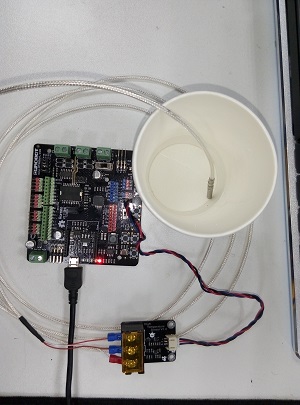
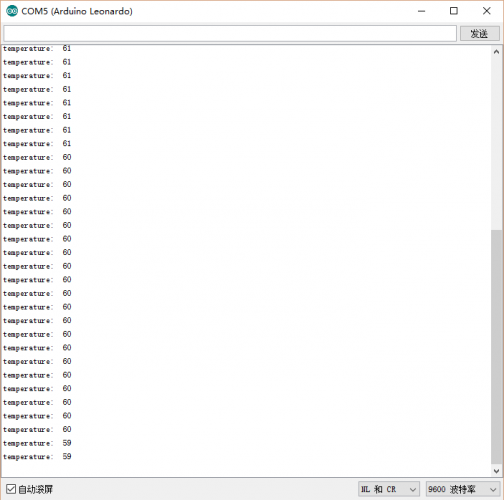
Additional Information
Was this article helpful?