
Example Code for Arduino-Get Sensor Data
This example demonstrates how to use the Arduino IDE to read sensor data from the SFA40 module, including formaldehyde (HCHO), temperature, and humidity measurements.
Hardware Preparation
- DFRduino UNO+IO Expansion Board (SKU:DFR0216-2) ×1
- Gravity: SFA40 HCHO Sensor(SKU:SEN0661)×1
- Gravity Sensor Cable(Comes with Gravity: SFA40 HCHO Sensor)
The yellow vent membrane on the SFA40 sensor must not come into contact with organic solvents or be scratched by sharp objects.
Software Preparation
- Download Arduino IDE: Click to download Arduino IDE
- Download DFRobot_SFA40 library:DFRobot SFA40
- Arduino IDE V1.8.19 (or below) can extract the .zip library downloaded from GitHub into the “libraries” folder located in the Arduino IDE installation directory.
- Arduino IDE V2.0.0 (or above) can directly search for the "DFRobot_SFA40" library in the Library Manager and install it.
Wiring Diagram
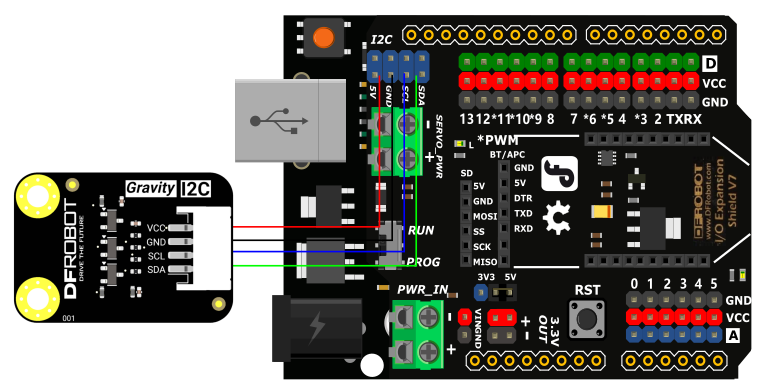
Sample Code
/*!
 * @file getSensorData.ino
 * @brief This example shows how to obtain data collected by SFA40, including HCHO and temperature and humidity data
 * @copyright	Copyright (c) 2025 DFRobot Co.Ltd (http://www.dfrobot.com)
 * @license The MIT License (MIT)
 * @author [fary](feng.yang@dfrobot.com)
 * @version V1.0
 * @date 2025-04-08
 * @url https://github.com/DFRobot/DFRobot_SFA40
 */
#include "DFRobot_SFA40.h"
DFRobot_SFA40 SFA40;

void setup() {
	Serial.begin(115200);
	while(!Serial);
	Serial.print("SFA40 init...");
	while(SFA40.begin()!=0){
		Serial.print("failed,Not found SFA40!");
	}
	Serial.println("successed");
	SFA40.startMeasurement();
}

void loop() {
	uint8_t status = SFA40.readMeasurementData();
	if(status==0){
		Serial.println("The sensor is ready and the data is reliable! ");
		static int number=0;

		Serial.print("TemperatureC: ");
		Serial.print(SFA40.temperatureC);
		Serial.println(" C");

		Serial.print("TemperatureF:");
		Serial.print(SFA40.temperatureF);
		Serial.println(" F");

		Serial.print("humidity:");
		Serial.print(SFA40.humidity);
		Serial.println(" %RH");

		Serial.print("HCHO:");
		Serial.print(SFA40.HCHO);
		Serial.println(" ppb");

	}else if(status&0x01){
		Serial.println("The sensor is not ready!");
	}else if(status&0x02){
		Serial.println("Sensor is not up to specification!");
	}

	 delay(1000);
}
Result
Upload the following code and open Serial monitor to check the output.

Was this article helpful?