
MakeCode Getting Started Guide
This document introduces how to use the MakeCode programming environment for micro:bit, including entering the editor, creating and downloading programs, switching the interface language, and adding software libraries.
Enter the Makecode Programming Environment
Click the link to enter the Makecode online programming environment: https://makecode.microbit.org/ (The loading speed may be a little bit slow for the first time, please wait patiently.)

- A:Menu Bar
It has several features, the most prominent being the central button that allows you to switch between Blocks and JavaScripts editors.
- B: Micro:bit Simulator
The simulator runs automatically after you have made a change to your program. Buttons under the simulator allow you to stop/start program execution and control other aspects of the simulator.
- C: Toolbox
This is where you can find different categories of programming blocks.
- D: Programming Canvas/Editor
Construct/edit your programming.
- E: Toolbar
It most prominently features a Download button, which you use to compile a program to a file for copying to the micro:bit.
Programme and Download the Graphical Codes
Step 1. Drag and snap the graphical blocks as the way shown in picture below.

Step 2. Connect the micro:bit and your computer with a USB cable.
Step 3. Download the program.

Click "download", select a driver disk named "MICROBIT" and downlod the program into it. The micro:bit LED will keep blinking in downloading, and please do not disconnect the USB. The download will be done after 1 or 2 seconds when the LED turns off.
Step 4. Check the Result
Result: the micro:bit LED panel constantly displays the word "hello".
Swtich the Interface Language
Step 1. Click the setting button at the right-upper corner.

Step 2. Select "Language" in the drop-down menu.

Step 3. Choose the language you need in the pop-up box.

Add Software Library
Click Advanced->Extensions.

Copy the library address: https://github.com/DFRobot/pxt-motor
Paste the address into the search bar, and search.

Click the result you got.

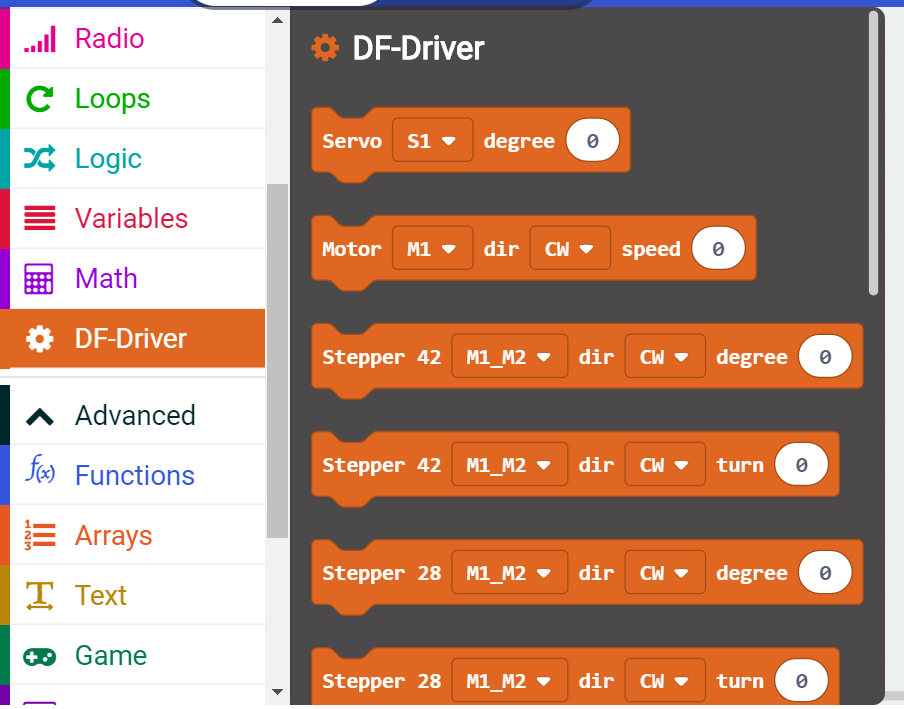
Load the library, wait for a while then you will see your library is displayed in the module list.

Was this article helpful?