
Usage and Firmware Update Guide
This comprehensive guide covers the usage and firmware update instructions for the ESP8266 module, including connection to access points, TCP client modes, problem troubleshooting, and the update process using ESP_Flasher.
How to Use ?
1 Connect AP
1 Download the ESP8266 library, and unzip it to "C:\Users\***\Documents\Arduino\libraries"
2 Insert the expansion shield on UNO, and plug ESP8266 in the socket on the expansion shield.
3 Note the switch: “RUN/Prog” at “Prog” side; “BOOT/UART” at "BOOT" side;
4 Wire adapter to the expansion shield: TX- PIN10, RX- PIN11, GND - GND;

5 Open the sketch "Connect AP", and modify the wifi AP ssid and password of yours;

6 Upload the sketch;
7 Trun the switch of the expansion shield “RUN/Prog” to “Run” side;
8 Use software "CoolTerm" to monitor if the AP connection is done.(Configure as the follow picture)


2 TCP_Client_Single
1 Pull the switch"RUN/Prog" to "Prog";
2 Check the Ip address of your computer, we will use it as the Server Ip address;

3 Open sample sketch "TCP_Client_Single", write your wifi's ssid, password , Server Ip address, port;

4 Open the software"TCP/IP Net Assistant V3.8", configure as follow, and click Connect to monitor the PC doing as Server;

5 Upload the modified sketch, and then pull the switch"RUN/Prog" to "RUN";
6 Open "CoolTerm" and monitor the if the AP connection was good;

7 Send a message from "TCP/IP Net Assistant V3.8", you could see "New message" appear on "CoolTerm" .


3 TCP_Client_multi
1 Pull the switch"RUN/Prog" to "Prog";
2 Open sample sketch "TCP_Client_multi", write your wifi's ssid, password , Server Ip address, port;

3 Open another "TCP/IP Net Assistant V3.8", configure as follow, and click Connect;

4 Upload the modified sketch, and then pull the switch"RUN/Prog" to "RUN";
6 Watch**"CoolTerm"** to see if the AP connection was good;

7 Send a message from different "TCP/IP Net Assistant V3.8", you could see New message appear on "CoolTerm" from different server .


ESP8266 can connect to 5 servers simultaneously.
4 TCP_Pure_Data_Mode
1 Pull the switch"RUN/Prog" to "Prog";
2 Open sample sketch "TCP_Pure_Data_Mode", write your wifi's ssid, password , Server Ip address, port;

3 Open the software"TCP/IP Net Assistant V3.8", configure as follow, and click Connect to monitor the PC doing as Server;

4 Upload the modified sketch, and then pull the switch"RUN/Prog" to "RUN";
5 Open "CoolTerm" and monitor the if the AP connection was good;

6 Send a message from "TCP/IP Net Assistant V3.8", you could see New message appear on "CoolTerm".


When the symbol">" appeared, it means ESP8266 entered into Transparent Mode which transfer data faster than normal mode.
5 Server mode
Since now, the STA mode which support the Server mode is not stable, we are working on that you could refer to the ESP8266 manual book to try.
* Problem Shooting
If the monitor print"Connect failed!" Please try/check these steps:
- Unplug the USB cable from Arduino to power off, and plug it again to restart module.
- The wifi you are using is good, and the code ssid and password is correct.
- Whether the button on expansion shield was push to the left side"RUN" but not"PROG".
- Whether the botton on the ESP8266 is also on the left side"BOOT".
- It's might for the wrong wire.
- The wifiBee socket on expansion shield has a loose connection to the wifi Bee.
If everything is ok, but still failed connection. You may have a try "Update Firmware"
Update Firmware
Please download the Firmware and Tools first. then Like in AT mode, but pull the swith of ESP8266 to "UART" side.Don't forget to pull it back to "BOOT" after updating firmware.
1 Open software "ESP_Flasher";
2 Choose Firmware;


3 Choose Serial Port of ESP8266, click Flash to burn firmware;
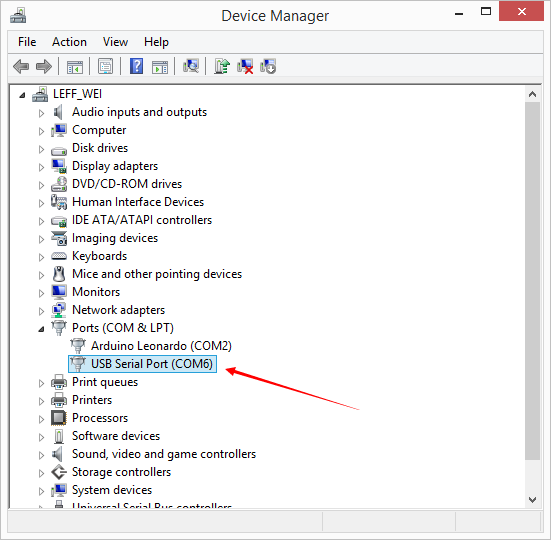
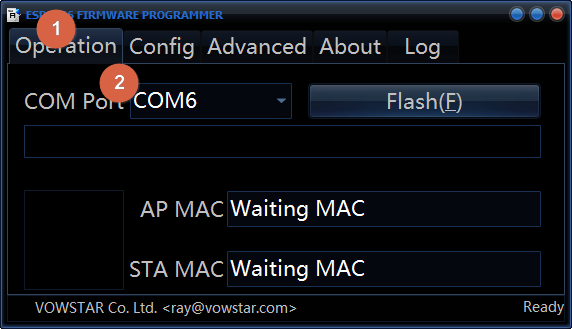
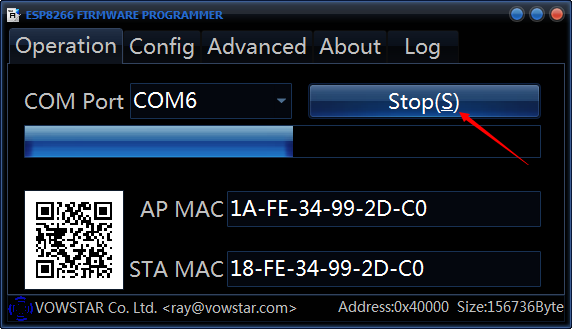
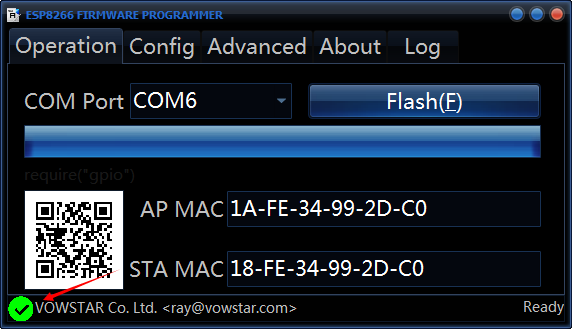
4 Wait for done.
Was this article helpful?