
Example Code for Arduino-Display Numbers and Letters via Serial
This article offers a detailed guide on using Arduino to display numbers and letters via serial communication, featuring hardware setup, wiring diagrams, and sample code to help users implement the functionality with a 3-Wire LED module.
Hardware Preparation
- 3-Wire LED Module 8 Digital (DFR0090): 1 piece, Purchase Link
- Interface Shield For Arduino (SKU: DFR0074): 1 piece, Purchase Link
- IDC6 cables: 1 piece (for linking the module to the interface shield)
Software Preparation
- Arduino IDE: Download Link (version 1.8.x or later)
Wiring Diagram
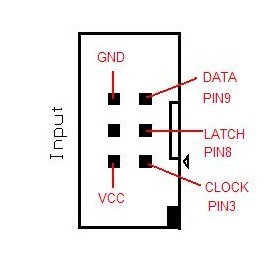
This module is linked to interface shield via IDC6 cables. Make sure that the first input is plugged onto "Input" socket of the module. The "Output" socket is linked to the second module "Input socket".
Other Preparation Work
Upload the sketch above.
Link "Input" socket for LED Module to "shiftout" socket of interface shield.
Sample Code
//Pin connected to latch pin (ST_CP) of 74HC595
const int latchPin = 8;
//Pin connected to clock pin (SH_CP) of 74HC595
const int clockPin = 3;
////Pin connected to Data in (DS) of 74HC595
const int dataPin = 9;

byte Tab[]={0xc0,0xf9,0xa4,0xb0,0x99,0x92,0x82,0xf8,0x80,0x90,0xff}; //0,1,2,3,4,5,6,7,8,9, ALL OFF
byte Taf[]={0xA0,0x83,0xa7,0xa1,0x86,0x8e,0xc2,0x8b,0xe6,0xe1,0x89,0xc7,0xaa,0xc8,0xa3,0x8c,0x98,0xce,0x9b
,0x87,0xc1,0xe3,0xd5,0xb6,0x91,0xb8};//a,b,c,d,e,f,g,h,i,j,k,l,o,m,n,o,p,q,r,s,t,u,v,w,x,y,z
byte Tap[]={0xff,0x7f}; //"space", "."


void setup() {
  //set pins to output because they are addressed in the main loop
  pinMode(latchPin, OUTPUT);
  pinMode(dataPin, OUTPUT);
  pinMode(clockPin, OUTPUT);
  Serial.begin(9600);
  Serial.println("reset");
}
void loop() {
  if (Serial.available() > 0) {

  int bitToSet = Serial.read();
  //test for "space"
  if (bitToSet == 32){
    digitalWrite(latchPin, LOW);
    shiftOut(dataPin, clockPin, MSBFIRST, Tap[0]);
    digitalWrite(latchPin, HIGH);
  }
  //test for "."
   else if (bitToSet == 46){
    digitalWrite(latchPin, LOW);
    shiftOut(dataPin, clockPin, MSBFIRST, Tap[1]);
    digitalWrite(latchPin, HIGH);
   }

   //test for numbers
   else if (bitToSet <= 57){
    bitToSet= bitToSet - 48;
    digitalWrite(latchPin, LOW);
    shiftOut(dataPin, clockPin, MSBFIRST, Tab[bitToSet]);
    digitalWrite(latchPin, HIGH);
  }
  //test for letters
  else {
    bitToSet= bitToSet - 97;
    digitalWrite(latchPin, LOW);
    shiftOut(dataPin, clockPin, MSBFIRST, Taf[bitToSet]);
    digitalWrite(latchPin, HIGH);
  }

  // write to the shift register with the correct bit set high:
  //digitalWrite(latchPin, LOW);
  // shift the bits out:
 // shiftOut(dataPin, clockPin, MSBFIRST, Tab[bitToSet]);
    // turn on the output so the LEDs can light up:
 // digitalWrite(latchPin, HIGH);
  }
}
Result
Open serial monitor, and type numbers (0-9), lowercase letters (a-z), space, or dot. The LED module should display the corresponding characters.
Additional Information
Additional sample code with the capability to print letters.
The Arrays Tab and Taf contain numbers and letters encoded as HEX which tells the LED Module which segments to light. Tap array contains "space" and "." encoded as HEX.
For example the first element of Tab =0xC0 which is the number 0.
 0=0xC0
 0xC0=11000000
The zeros and ones represent the light(0's) segments and the off(1's) segments from the 7 segment display.
P G F E D C B A
  A
  --
F|__|B
E|G |C
  --   .P
  D
So in this case P and G will be off. which makes 0.
Seven Segment display Wiki Pattern tables are used to reference display patterns.
Ascii tables are used to see the equivalence. You can see on this table:
DEC CHR
48  0 //This is why we subtract 48 for the first element in the number array
97  a //This is why we subtract 97 for the first element in the alphabet array
Was this article helpful?