
Example Code for Arduino-Paint
This article provides a sample code for achieving dynamic image display by using an ESP32 in conjunction with the FireBeetle ePaper Display Module.
Hardware Preparation
- ESP32 x1
- FireBeetle Covers-ePaper Black&White&Red Display Module x1
Software Preparation
- Download and install Arduino IDE.
- Install the DFRobot_Display library from GitHub.
- Install the DFRobot_ePaper library from GitHub.
Wiring Diagram

Other Preparation Work
- Set the dial switch on the module to select D3 (ink screen CS) and D6 (font chip CS).
- Plug the module into the ESP32 main control board.
Sample Code
#include "Arduino.h"
#include "DFRobot_IL0376F_SPI.h"
DFRobot_IL0376F_SPI eink;

#define EINK_CS  D3
#define Font_CS  D6
#define EINK_DC  D8
#define BUSY     D7

void setup(void)
{
    Serial.begin(115200);
    //Select the corresponding pins
    eink.begin(EINK_CS, Font_CS, EINK_DC, BUSY);

    //Clear the screen and display white-
    eink.fillScreen(WHITE);
    //Displays a string, red font
    eink.disString(12,12,1,"DFRobot EINK 1234567890,!@#$%^&*()-+=",RED);
    //Refresh screen display
    eink.flush();
    delay(3000);

    //Displays a string, red font
    eink.disString(12,48,1,"DFRobotThree-color electronic ink screen test program",BLACK);
    //Refresh screen display
    eink.flush();
}

void loop(void)
{
    delay(8000);
}
Result
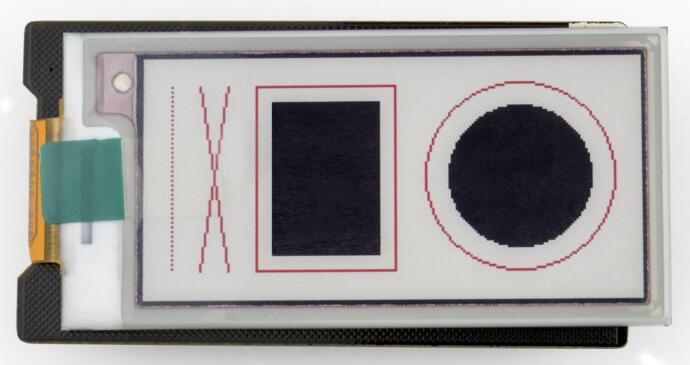
The screen will display:
- A red string "DFRobot EINK 1234567890,!@#$%^&*()-+=" at (12,12).
- A black string "DFRobotThree-color electronic ink screen test program" at (12,48).
- Basic shapes (points, lines, rectangles, circles) as defined by the code.
Additional Information
- The screen will refresh once every 8 seconds in the loop, but this can be adjusted by modifying the delay time.
- Ensure the
BUSYpin is correctly connected to avoid refresh errors.
Was this article helpful?