
Older version hardware Wiki (discontinued, now updated to V2)
Last revision 2026/06/05
This article discusses the older version hardware, which has been discontinued and replaced with an updated V2. It includes specifications, pin descriptions, and a tutorial for using the 1602 RGB LCD shield with Arduino, offering a comprehensive guide for enthusiasts and developers.
- Operating Voltage: 5.0V
- 1602 blue background LCD (2 lines of 16 bytes)
- 5 key inputs
- Size: 54*84mm
Board Overview
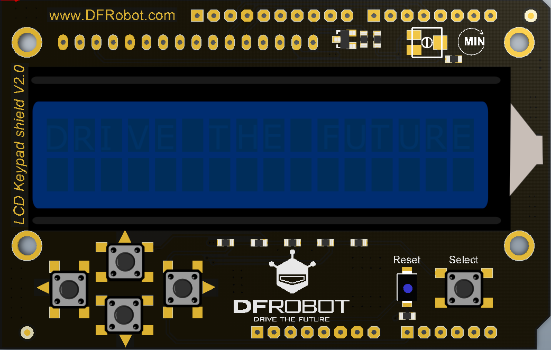
| Pin | Description |
|---|---|
| AnalogPin0 | Buttons (select, up, right, down, left) |
| DigitalPin4 | DB4 |
| DigitalPin5 | DB5 |
| DigitalPin6 | DB6 |
| DigitalPin7 | DB7 |
| DigitalPin8 | RS (Data or signal display selection) |
| DigitalPin9 | Enable (start data read/write) |
| DigitalPin10 | Backlight Control |
Tutorial
This demo shows how to use 1602 RGB LCD shield.
Requirements
-
Hardware
-
Software
- Arduino IDE V1.6.5 Click to Download Arduino IDE
Sample Code
The new Arduino IDE has built-in LiquidCrystal library to drive 1602 screen. If your Arduino IDE does not have this library, please follow the steps below to install it.
-
Click the link to download library and reference files.
-
Unzip this folder and copy it to the libraries folder under Arduino installation directory.
About how to install the library?
- Next, open the Arduino IDE and copy the following code to the IDE window. (Delete all contents in the IDE just opened!)
- Select the correct serial port and board (Arduino UNO).
#include <LiquidCrystal.h>
//LCD ÉÏÓÃÓÚÒý½Å
LiquidCrystal µÄ¶¨Òå lcd(8, 9, 4, 5, 6, 7);

// Define keys
int lcd_key = 0;
int adc_key_in = 0;

#define btnRIGHT 0
#define btnUP 1
#define btnDOWN 2
#define btnLEFT 3
#define btnSELECT 4
#define btnNONE 5

//Read the key value
int read_LCD_buttons() {
  adc_key_in = analogRead(0);  // 0 read the ADC from analog values
  // By setting different threshold, you can read the corresponding to the appropriate buttons
  if (adc_key_in > 1000) return btnNONE;
  if (adc_key_in < 50) return btnRIGHT;
  if (adc_key_in < 250) return btnUP;
  if (adc_key_in < 450) return btnDOWN;
  if (adc_key_in < 650) return btnLEFT;
  if (adc_key_in < 850) return btnSELECT;
  return btnNONE;
}

void setup() {
  lcd.begin(16, 2);  // Start
  lcd.setCursor(0, 0);
  lcd.print("Push the buttons");  //print¡°Push the buttons¡±
}

void loop() {
  lcd.setCursor(9, 1);
  lcd.print(millis() / 1000);  // Output wait


  lcd.setCursor(0, 1);           //
  lcd_key = read_LCD_buttons();  // Reading keys

  switch (lcd_key)  // Judge key
  {
    case btnRIGHT:
      {
        lcd.print("RIGHT ");
        break;
      }
    case btnLEFT:
      {
        lcd.print("LEFT ");
        break;
      }
    case btnUP:
      {
        lcd.print("UP ");
        break;
      }
    case btnDOWN:
      {
        lcd.print("DOWN ");
        break;
      }
    case btnSELECT:
      {
        lcd.print("SELECT");
        break;
      }

      {
        lcd.print("NONE ");
        break;
      }
  }
More Documents
Was this article helpful?