
Example Code for Arduino-Digital Color Detection
In digital mode, the user can have two color data records through simple button operations. To achieve two-color detections you simply need to monitor high and low outputs, and therefore requires no more configuration after being set up.
Hardware Preparation
- Smart Grayscale sensor V1.0, Quantity: 1, Purchase Link: https://www.dfrobot.com/product-1007.html
- Arduino controller, Quantity: 1
Software Preparation
- Development Tool: Arduino IDE, Download Link: https://www.arduino.cc/en/software
- Library Loading: No additional libraries required
Wiring Diagram
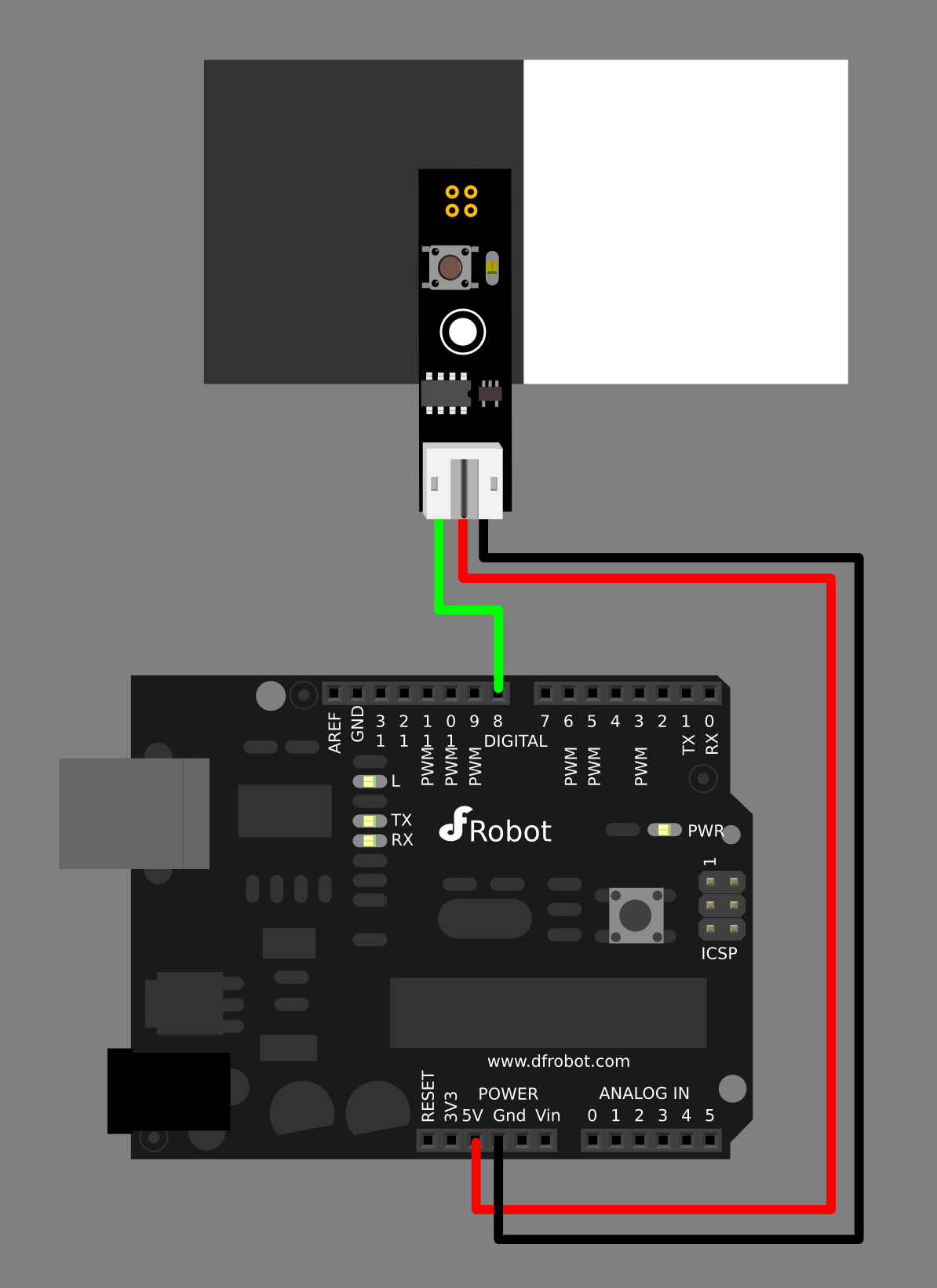
Other Preparation Work
- Long click the button until the LED slow blinking (which means first color detecting ready).
- Let the grayscale sensor face to the first color (such as white paper)
- Meanwhile short click the button and the LED gets dark (which means first color detected).
- Short click the button and make the LED fast blink (which means second color detecting ready).
- Let the grayscale sensor face to the second color (such as black paper)
- Meanwhile short click the button and the LED gets dark (which means second color detected).
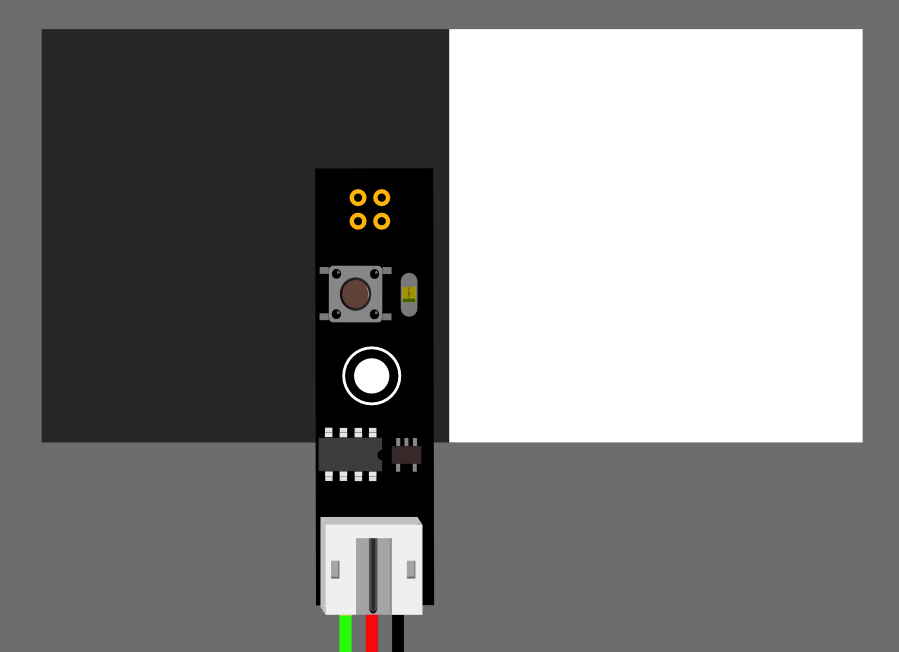
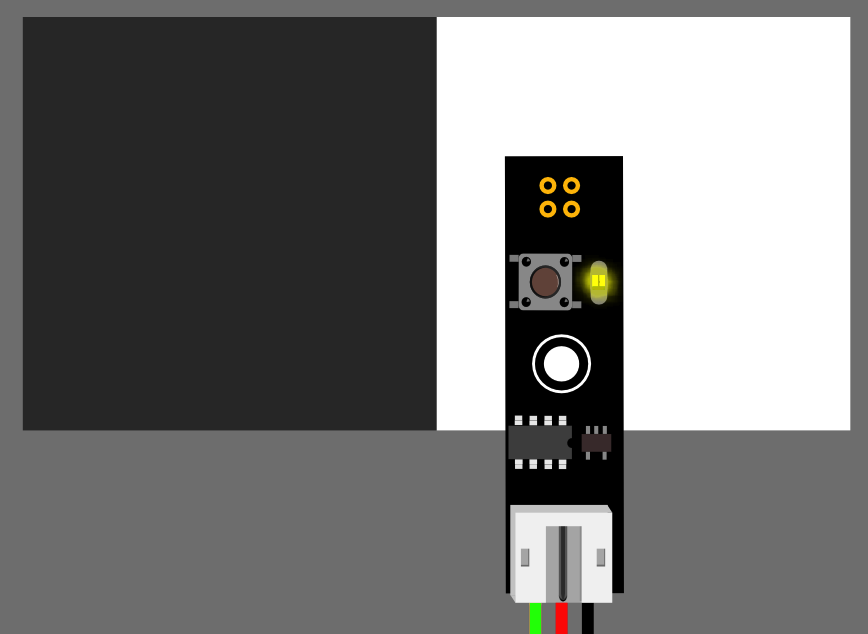
- The first color (such as white paper) will be Logical '1', and the LED becomes bright.
- The second color (such as black paper) will be Logical '0', and the LED becomes dark.
- This setting maintains even if the power is off, so for one purpose, one setting is enough.
Sample Code
int grayscalePin=8;
void setup()
{
 Serial.begin(9600);
 pinMode(grayscalePin,INPUT);
 Serial.println("Smart Grayscale sensor:");
}
void loop()
{
  Serial.print("Grayscale:");
  if(digitalRead(grayscalePin))
  {
    Serial.println("White detected");
  }
  else
  {
    Serial.println("Black detected");
  }

  delay(500);
}
Result
The first color (such as white paper) will be Logical '1', and the LED becomes bright. The second color (such as black paper) will be Logical '0', and the LED becomes dark. The serial monitor outputs "White detected" when the first color is detected and "Black detected" when the second color is detected.
Was this article helpful?