
Example Code for Raspberry Pi-Lightning Detection
Last revision 2026/01/15
This tutorial presents a basic usage of the module with Raspberry Pi.
Hardware Preparation
- Raspberry Pi 3 Model B (or similar) x 1
- DFRobot Gravity: Lightning Sensor x 1
- Gravity 4P sensor wire (or Dupont wires) x 1
Software Preparation
- RASPBIAN
- Download and install the DFRobot_AS3935 RaspberryPi library.
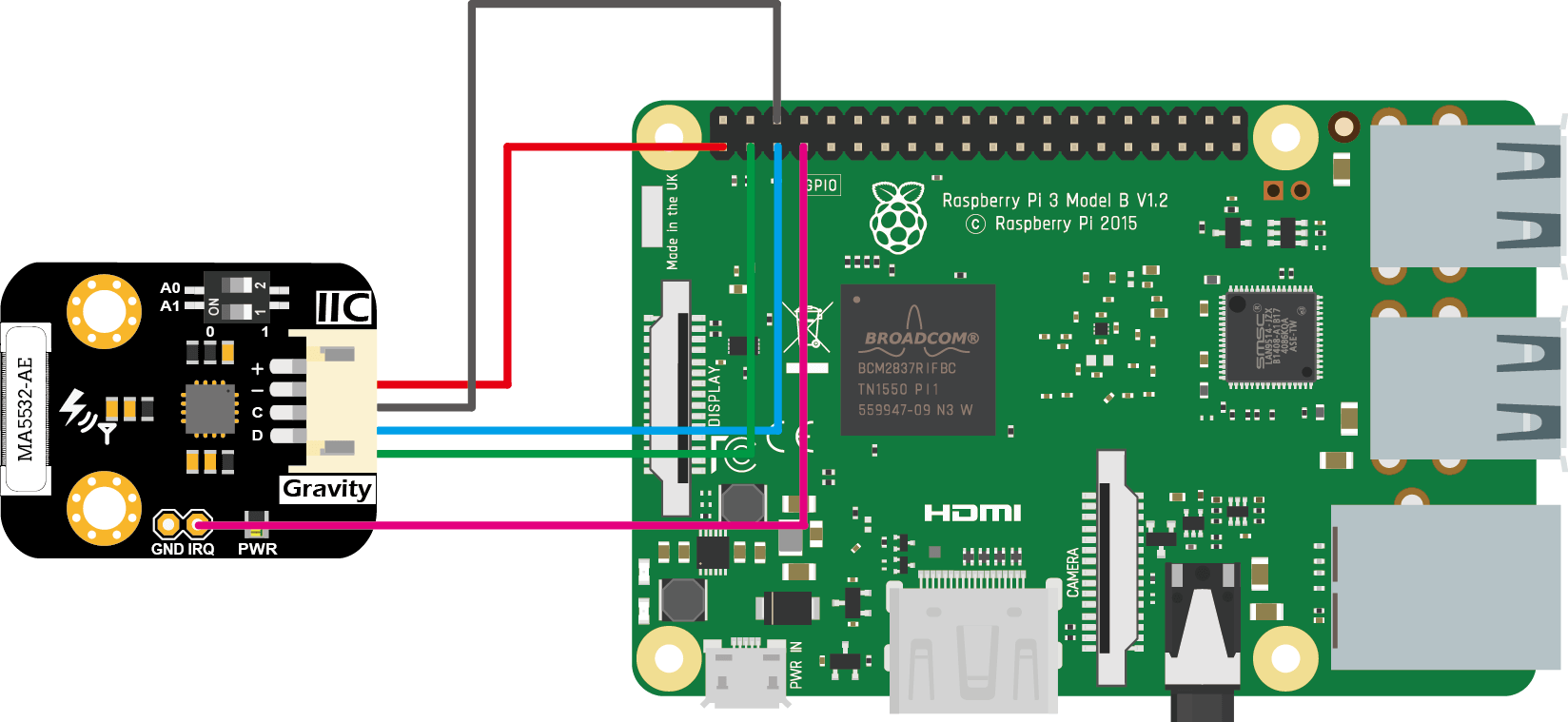
Wiring Diagram
Other Preparation Work
- Start the I2C interface of the Raspberry Pi. If it is already open, skip this step. Open Terminal, type the following command, and press Enter:
sudo raspi-config - Then use the up and down keys to select “5 Interfacing Options” -> “P5 I2C” and press Enter to confirm “YES”. Reboot the Raspberry Pi.
- Installing Python libraries and git (networking required). If it is already installed, skip this step. In the Terminal, type the following commands, and press Enter:
sudo apt-get updateandsudo apt-get install build-essential python-dev python-smbus git - Download the driver library and run it. In Terminal, type the following commands, and press Enter:
git clone https://github.com/DFRobot/DFRobot_AS3935.git,cd ~/DFRobot_AS3935/RaspberryPi/Python,python DFRobot_AS3935_Lib.py - Connect the module to the Arduino according to the connection diagram. The I2C address defaults to 0x03, which corresponds to “AS3935_ADD3” in the code. If you need to modify the I2C address, you can change it to 0x01 or 0x02 through the DIP switch on the module, and modify the macro definition of the I2C address in the software "#define AS3935_I2C_ADDR AS3935_ADDx", where x can be 1, 2, 3.
- Install DFRobot_AS3935 Raspberry Pi library.
- In the Terminal, type in the following commands and press Enter to run the sample code:
cd example/DFRobot_AS3935_ordinary,python DFRobot_AS3935_ordinary.py
Result
- When lightning occurs, the interrupt alarm pin IRQ triggers the controller to display the lightning alarm "Lightning occurs!", and shows the estimated lightning distance and intensity.
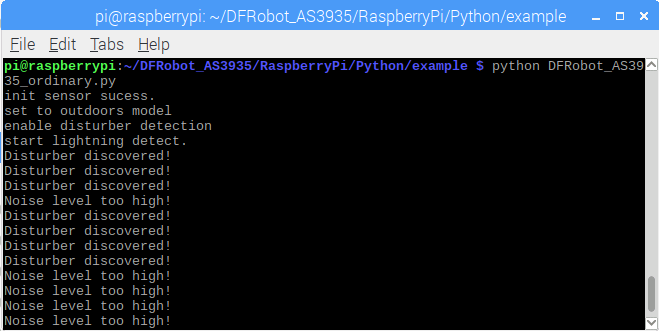
- When there is electromagnetic interference near the module, the module will issue an alarm “Disturber discovered!”. If the interference noise is too large, the module will issue the alarm “Noise level too high!” .
Was this article helpful?