
Usage Example for Arduino-Bluetooth Communication Test
This article offers a detailed guide on establishing communication between Arduino and Bluetooth using BlueSoleil software, complete with step-by-step instructions and sample code.
Operation Steps
Step 1 :
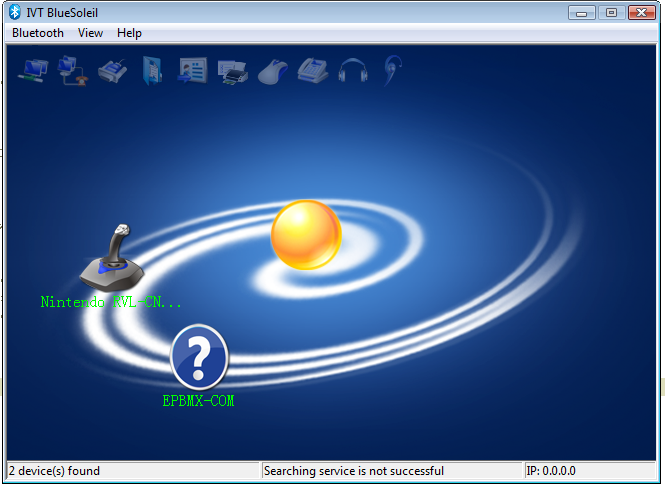
Open BlueSoleil software (Figure 1) and right click the yellow ball in the centre screen, click “Search Devices” , an icon named EPBMX-COM will appear after few seconds. The EPBMX-COM is the DF-Bluetooth module.
Step 2:
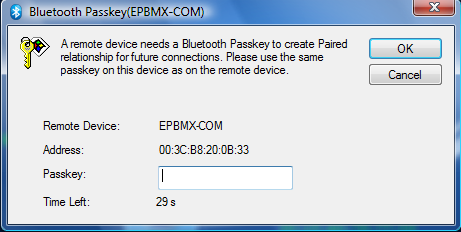
Right click EPBMX-COM icon, click “Pair”. A window will popup ask for PassKey which is “0000” by default (Figure 2).
Step 3:
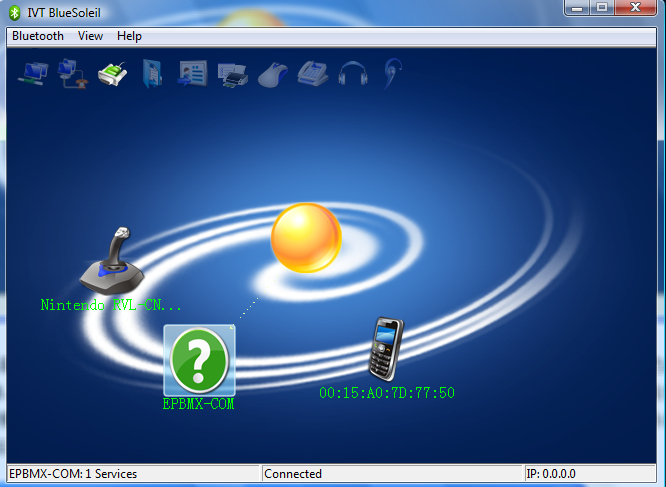
Double click EPBMX-COM to connect to DF-Bluetooth.
Step 4:
Upload test code to Arduino.
Sample Code
void setup()
{
  Serial.begin(115200);             //Set serial baud rate to 115200
}

void loop()
{
  Serial.print("Hello!");           //print out hello string
  delay(1000);                  //1 second delay
}
- Check the serial setting! Make sure the baud rate is set to 115200 on both master and slave.
- When the DF-Bluetooth is used on Arduino, please make sure you disconnect the DF-Bluetooth module before uploading any code to your Arduino. It won’t burn your Arduino, but the uploading will fail as the DF-Bluetooth module occupying the TX/RX pins.
Was this article helpful?