
Usage Example for ESP32 - BLE Signal Scan
This article guides you through using the ESP32 for BLE signal scanning with the Arduino IDE, detailing the setup and code required for scanning BLE devices, handling beacon data, and displaying device addresses.
- Ready for Arduino IDE & ESP32 Environment:DFR0654 FireBeetle_ESP32-E_first use
- Burn the following program for the ESP32
/*
   Based on Neil Kolban example for IDF: https://github.com/nkolban/esp32-snippets/blob/master/cpp_utils/tests/BLE%20Tests/SampleScan.cpp
   Ported to Arduino ESP32 by Evandro Copercini
   Changed to a beacon scanner to report iBeacon, EddystoneURL and EddystoneTLM beacons by beegee-tokyo
*/

#include <Arduino.h>
#include <BLEDevice.h>
#include <BLEUtils.h>
#include <BLEScan.h>
#include <BLEAdvertisedDevice.h>
#include <BLEEddystoneURL.h>
#include <BLEEddystoneTLM.h>
#include <BLEBeacon.h>
#define ENDIAN_CHANGE_U16(x) ((((x)&0xFF00) >> 8) + (((x)&0xFF) << 8))

float TemperatureData,HumidityData;
float Temperature,Humidity;

int scanTime = 3; //In seconds
BLEScan *pBLEScan;

class MyAdvertisedDeviceCallbacks : public BLEAdvertisedDeviceCallbacks
{
    void onResult(BLEAdvertisedDevice advertisedDevice)
    {
      if (advertisedDevice.haveName())
      {
        if(String(advertisedDevice.getName().c_str()) == "WS_DF")
        {
          std::string strManufacturerData = advertisedDevice.getManufacturerData();
          uint8_t cManufacturerData[100];
          strManufacturerData.copy((char *)cManufacturerData, strManufacturerData.length(), 0);
          Serial.printf("Address:");

          for (int i = 2; i < 8; i++)
          {
            Serial.printf("[%X]", cManufacturerData[i]);
          }
          Serial.println();
          Serial.println("------------------");
        }
      }
    }
};
void setup()
{
  Serial.begin(115200);
  Serial.println("Scanning...");

  BLEDevice::init("");
  pBLEScan = BLEDevice::getScan(); //create new scan
  pBLEScan->setAdvertisedDeviceCallbacks(new MyAdvertisedDeviceCallbacks());
  pBLEScan->setActiveScan(true); //active scan uses more power, but get results faster
  pBLEScan->setInterval(100);
  pBLEScan->setWindow(99); // less or equal setInterval value
}
void loop()
{
  // put your main code here, to run repeatedly:
  BLEScanResults foundDevices = pBLEScan->start(scanTime, false);
  pBLEScan->clearResults(); // delete results fromBLEScan buffer to release memory
  delay(2000);
}
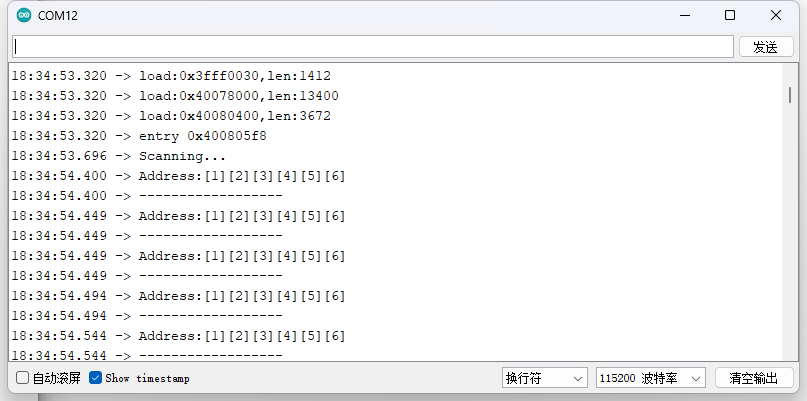
- Open the serial monitor and press the power generation button to view the device's address.
Was this article helpful?