
Example Code for Arduino-Display Hello World
Print "Hello, world!" to the LCD and turn on the backlight. Users can learn how to initialize the LCD and display basic text.
Hardware Preparation
[I2C LCD1602 Module](https://www.dfrobot.com/product-135.html](https://www.dfrobot.com/product-135.html)
Arduino UNO
Arduino Leonardo
Software Preparation
Development Tools: Arduino IDE 1.0 or higher; Library: LiquidCrystal_I2C v1.1; Download Link: Sample code and library
Wiring Diagram
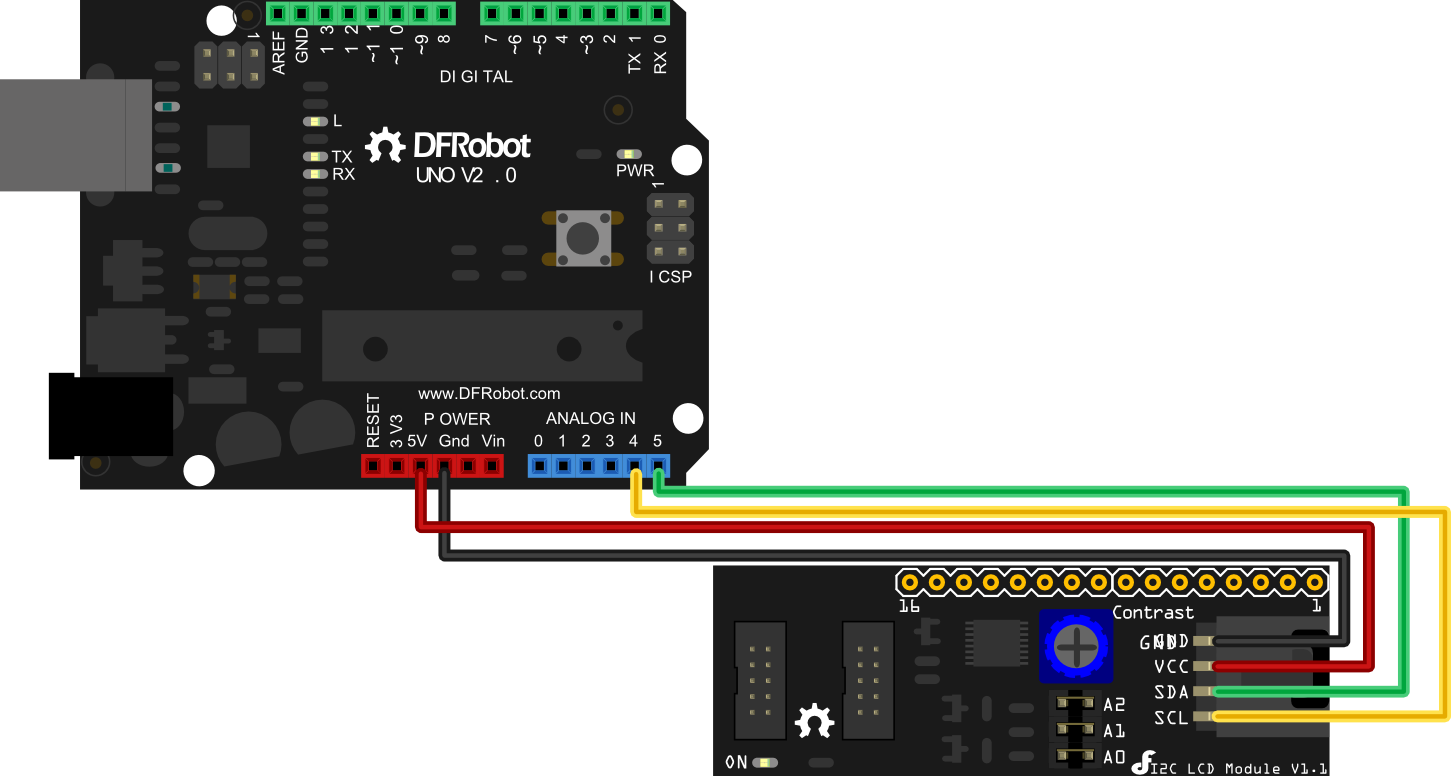
Arduino UNO: connect SDA to Analog pin 5 and SCL to Analog pin 4 on your Arduino.
Arduino Leonardo: connect SDA to digital pin 2 and SCL to digital pin 3 on your Arduino.
Other Preparation Work
- Set the I2C address of the LCD module according to the Address Setting table (default is 0x27).
- Install the LiquidCrystal_I2C library in the Arduino IDE.
Sample Code
Download Sample code and library
//DFRobot.com
//Compatible with the Arduino IDE 1.0
//Library version:1.1
#include <Wire.h>
#include <LiquidCrystal_I2C.h>

LiquidCrystal_I2C lcd(0x27,16,2);  // set the LCD address to 0x27 for a 16 chars and 2 line display

void setup()
{
  lcd.init();                      // initialize the lcd

  // Print a message to the LCD.
  lcd.backlight();
  lcd.print("Hello, world!");
}

void loop()
{
}
Result
The LCD displays "Hello, world!" and the backlight is on.
Additional Information
Refer to the project DYP-ME007 Ultrasound range finder - display distance on a I2C 2x16 LCD for more usage examples.
Was this article helpful?