
Example Code for Arduino-Chinese Font Display
Last revision 2025/12/18
This article guides you through setting up an Arduino to display Chinese fonts using a FireBeetle ESP32-E and a 1.47" IPS LCD. It covers hardware preparation, software setup, wiring diagrams, and provides a sample code to initialize the ST7789 screen and display the text '你好' in blue, ensuring you can successfully execute the project.
Hardware Preparation
- FireBeetle ESP32-E IoT Microcontroller(SKU: DFR0654) (or similar) × 1
- 1.47" 172×320 IPS LCD Display Module(SKU: DFR0995) × 1
- FPC Cable (included with DFR0995) × 1
- Type-C Cable x1
- M-M/F-M/F-F Jumper wires
Software Preparation
- Download Arduino IDE: Click to download Arduino IDE
- Install SDK: click to enter FireBeetle ESP32-E IoT Microcontroller Wiki for SDK installation tutorial
- Download the DFRobot GDL Library: DFRobot GDL Library.
- For Arduino IDE V1.8.19 (or earlier), install the library manually: How to Add a Library?
- For Arduino IDE V2.0.0 (or later), directly search for the "DFRobot GDL Library" in the Library Manager and install it.
Wiring Diagram
The following provides two ways to connect 1.47" display to the FireBeetle ESP32-E:
- Directly connect to GDI via FPC.
- Connect to SPI function pin.
Connection 1:

Wire Sequence for GDI connection:
| FPC PINS | FireBeetle ESP32 PINS | Description |
|---|---|---|
| VCC | 3V3 | 3.3V |
| BLK | 12/D13 | Backlit |
| GND | GND | GND |
| SCLK | 18/SCK | SPI Clock |
| MOSI | 23/MOSI | Master output, slave input |
| MISO | 19/MISO | Master input, slave output |
| DC | 25/D2 | Data/Command |
| RES | 26/D3 | Reset |
| CS | 14/D6 | TFT Chip-select |
| SDCS | 13/D7 | SD chip-select |
| FCS | 0/D5 | Font library |
| TCS | 4/D12 | Touch |
| SCL | 22/SCL | I2C clock |
| SDA | 21/SDA | I2C data |
| INT | 16/D11 | INT |
| BUSY-TE | 17/D10 | Anti-tear pin |
| X1 | NC | User-defined pin 1 |
| X2 | NC | User-defined pin 2 |
Connection 2:
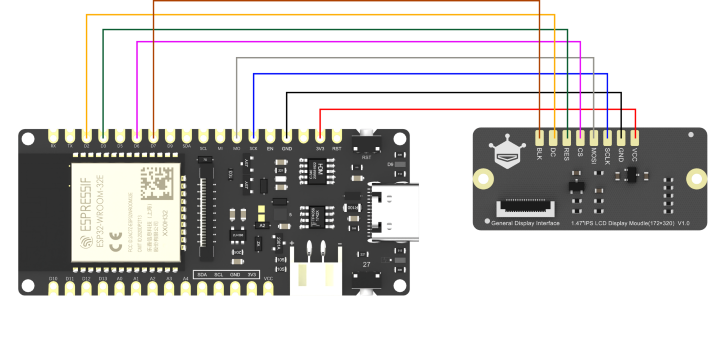
Wire sequence for SPI connection:
| LCD Display | ESP32-E |
|---|---|
| VCC | 3V3 |
| GND | GND |
| SCLK | 18/SCK |
| MOSI | 23/MOSI |
| CS | 14/D6 |
| RES | 26/D3 |
| DC | 25/D2 |
| BLK | 13/D7 |
Sample Code
Initialize ST7789 screen, loop display large blue Chinese "你好".
#include "DFRobot_GDL.h"

#define TFT_DC  D2
#define TFT_CS  D6
#define TFT_RST D3
#define TFT_BL  D7

DFRobot_ST7789_172x320_HW_SPI screen(/*dc=*/TFT_DC,/*cs=*/TFT_CS,/*rst=*/TFT_RST,/*bl=*/TFT_BL);
void setup() {
  screen.begin();
}

void loop() {
  screen.setTextSize(4);
  screen.fillScreen(COLOR_RGB565_BLACK);//Background color
  screen.setFont(&SIMKAIFont72pt);//Font size(12pt 18pt 24pt 36pt 48pt 72pt)
  screen.setCursor(/*x=*/10,/*y=*/120);//Text Position
  screen.setTextColor(COLOR_RGB565_BLUE); //Text color
  screen.setTextWrap(true);
  screen.print("你好");//Chinese Character
  delay(2000);
}
Result
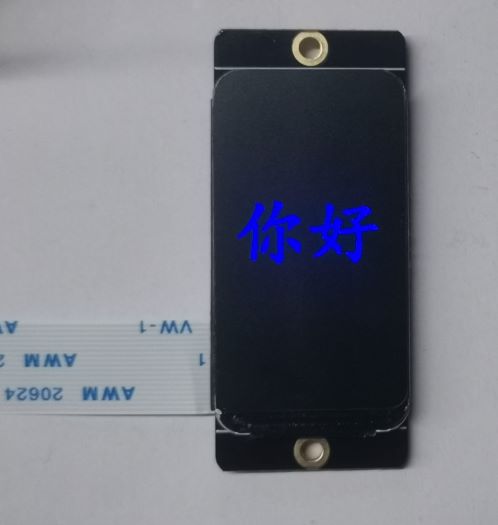
Burn the codes into the ESP32-E, then the screen shows “你好” in blue.
Was this article helpful?