
Example Code for Arduino-Icon Display
Last revision 2026/01/29
This article serves as a comprehensive guide to displaying icons on Arduino using a color display module, offering insights into hardware and software setup, wiring connections, and sample code to display a range of icons and images effectively.
Hardware Preparation
- DFRduino UNO R3 (SKU: DFR0216) ×1
- Gravity: I2C&UART Color Display Module (SKU: DFR0997) ×1
- PH2.0-4P cable ×1
- USB cable ×1
Software Preparation
- Download Arduino IDE: Click here to download Arduino IDE
- Download Arduino library: Click here to download DFRobot_LcdDisplay library.
- For Arduino IDE V1.8.19 (or earlier), install the library manually: How to Add a Library?
Wiring Diagram
-
I2C Communication Mode:

Pin Connection Description- Display: + Pin --- (Connect to) --- Controller: 5V
- Display: - Pin --- (Connect to) --- Controller: GND
- Display: C Pin --- (Connect to) --- Controller: SCL
- Display: D Pin --- (Connect to) --- Controller: SDA
-
UART Communication Mode:

Pin Connection Description- Display: + Pin --- (Connect to) --- Controller: 5V
- Display: - Pin --- (Connect to) --- Controller: GND
- Display: R Pin --- (Connect to) --- Controller: 5/TX
- Display: T Pin --- (Connect to) --- Controller: 4/RX
Other Preparation Work
The U-disk contains 200+ icons, including some animated icons and images with a resolution of 320x240, as shown below.
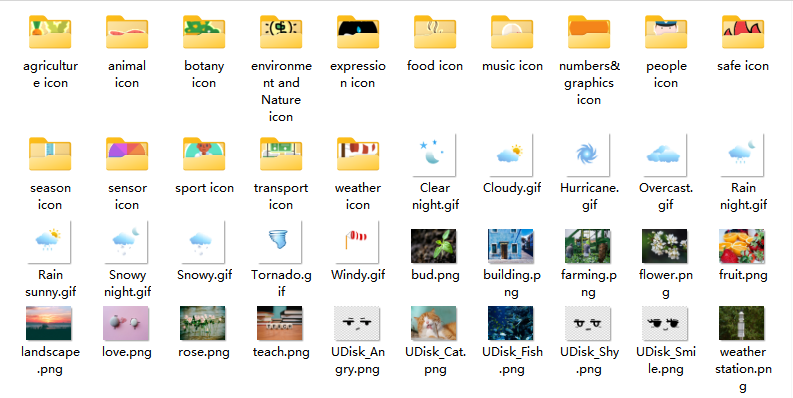
Here are some examples of exquisite icons:
sensor icon
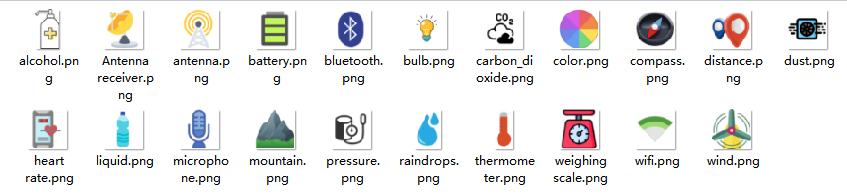
agriculture icon
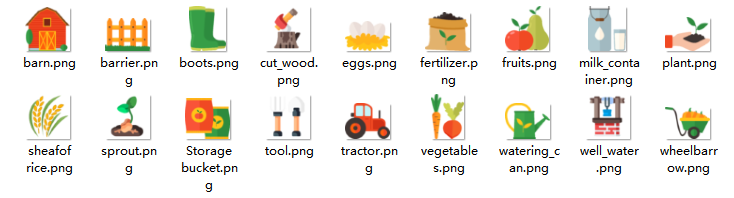
animal icon
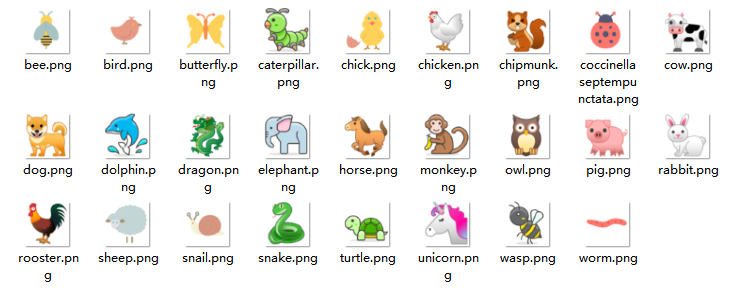
botany icon

environment icon

transport icon

There are also other categories of icons, such as those for expressions, food, music, digital graphics, people, safety, seasons, sports, and weather, which will not be displayed one by one.
You can connect the module's Type-C interface to a computer, check the USB drive to make a selection.
If you don't find a suitable one, you can download your own pictures to the USB drive for use.
- After plugging in the USB drive and selecting a picture, you need to power the display on again to ensure it displays properly.
- When calling an icon or picture, it is necessary to ensure that the names of the folder, icon, or picture in the code are consistent with those in the USB drive.
- Requirements for custom picture formats in the USB drive:
- PNG format;
- Background pictures should be adapted to a resolution of 320×240;
- Icons should be adapted to a resolution of 64×64;
- Animated pictures should be adapted to a resolution of 64×64.
Sample Code
Display icons stored in the U-disk storage. The icons can be updated in terms of position and size.
#include "DFRobot_LcdDisplay.h"
DFRobot_Lcd_IIC lcd(&Wire, /*I2CAddr*/ 0x2c);

uint8_t iconId;
uint8_t gificonId;
uint8_t pictureId;
void setup(void)
{
    lcd.begin();
    lcd.cleanScreen();
    delay(500);
    lcd.setBackgroundColor(WHITE);
}

void loop(void){
  // Display an icon with a resolution of 64x64
  iconId = lcd.drawIcon(120, 100, "/weather icon/rainbow2.png", 256);
  delay(2000);
  lcd.updateIcon(iconId, 120, 100, "/transport icon/high-speed railway.png", 256);
  delay(2000);
  lcd.deleteIcon(iconId);

  // Display an animated icon with a resolution of 64x64
  gificonId = lcd.drawGif(120, 100, "Cloudy.gif", 256);
  delay(2000);
  lcd.deleteGif(gificonId);
  delay(2000);

  // Display an image with a resolution of 320x240
  pictureId = lcd.drawIcon(0, 0, "rose.png", 256);
  delay(2000);
  lcd.updateIcon(pictureId, 0, 0, "fruit.png", 256);
  delay(2000);
  lcd.deleteIcon(pictureId);
}
Result

Was this article helpful?