
Example Codefor micro:bit
Last revision 2026/01/31
This guide offers a detailed exploration of micro:bit programming using MakeCode, covering hardware connections, I2C communication, and display functions for a rich coding experience.
Hardware Preparation
- micro:bit V2 board (SKU: MBT0039) x 1
- micro:bit IO expansion board (SKU: MBT0008) x 1
- Gravity: I2C&UART Color Display Module (SKU: DFR0997) ×1
- PH2.0-4P jumper wire x 1
- USB cable x 1
Software Preparation
- MakeCode programming platform: Click here to open MakeCode
- MakeCode I2C library address: https://github.com/DFRobot/pxt-DFRobot_lcdDisplay
Wiring Diagram
When using the MakeCode programming platform, this product only supports I2C communication.

Sample Code
1. Background Color or Image Display
MakeCode programming
Set the background color of the display. Or display a custom image from the USB drive (fixed resolution 320×240). Enter the image name, for example, "fruit.png".

Display effect:

2. Text Display
- Each display type has a corresponding number. For example, text, icon, widget, graphics, etc., each type can be assigned a number up to 255. Each number corresponds to the text, so each text can be deleted by specifying the number.
- Only English display is supported in MakeCode.
MakeCode programming
Display text, time, and date.

Display effect:

3. Icon Display
Function Description: Display icons stored in the U-disk storage. The icons can be updated in terms of position and size.
The U-disk contains 200+ icons, including some animated icons and images with a resolution of 320x240, as shown below.
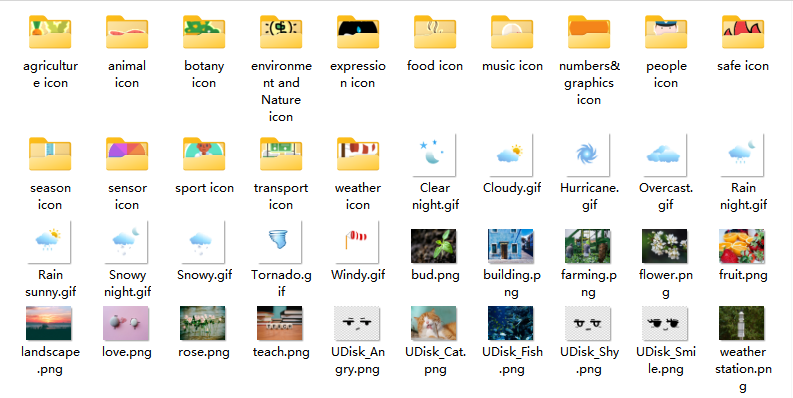
Here are some examples of exquisite icons:
sensor icon
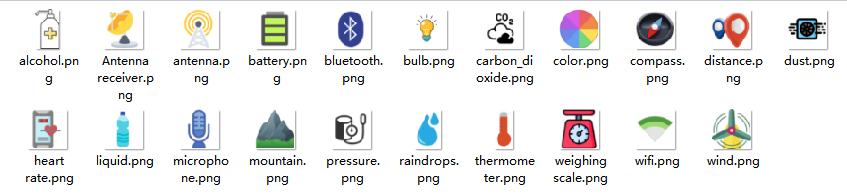
agriculture icon
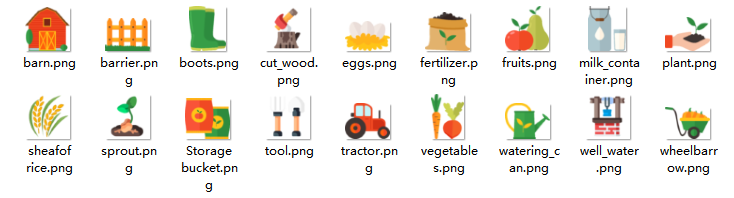
animal icon
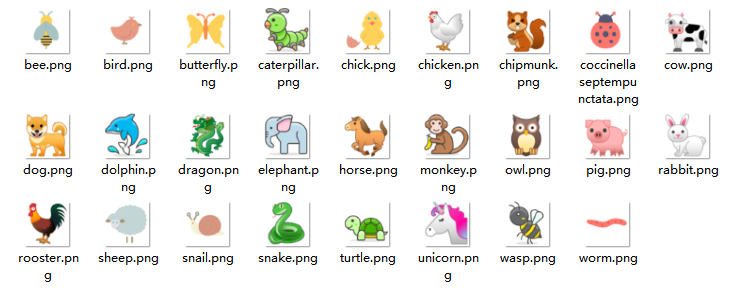
botany icon

environment icon

transport icon

There are also other categories of icons, such as those for expressions, food, music, digital graphics, people, safety, seasons, sports, and weather, which will not be displayed one by one. You can connect the module's Type-C interface to a computer, check the USB drive to make a selection. If you don't find a suitable one, you can download your own pictures to the USB drive for use.
- After plugging in the USB drive and selecting a picture, you need to power the display on again to ensure it displays properly.
- When calling an icon or picture, it is necessary to ensure that the names of the folder, icon, or picture in the code are consistent with those in the USB drive.
- Requirements for custom picture formats in the USB drive:
- PNG format;
- Background pictures should be adapted to a resolution of 320×240;
- Icons should be adapted to a resolution of 64×64;
- Animated pictures should be adapted to a resolution of 64×64.
MakeCode programming:

Display effect:

4. Basic Graphics Display
MakeCode programming:
Display basic graphics such as lines, rectangles, circles, triangles, etc. on the display. The position, size, border color, fill color, and other parameters can be modified.

Display effect:

5. Widget Display
-
Bar Function: You need to create a progress bar widget first, and then set the value to be displayed on the progress bar. This widget can be modified in terms of position, size, and color, and can also be deleted.
MakeCode programming:

Display effect:

-
Slider Function:
The slider widget allows users to create the widget first, and then set the value to be displayed on the slider.
This widget can be modified in terms of position, size, and color, and can also be deleted.
MakeCode programming:

Display effect:

-
Compass Function: You need to create the compass widget first, and then set the value to be displayed on the compass pointer. This widget can be modified in terms of position, size, and can also be deleted.
MakeCode programming:

Display effect:

-
Gauge Function: You need to create the gauge widget first, and then set the value to be displayed on the gauge. This widget can be modified in terms of position, size, starting and ending scale, base color, and pointer color, and can also be deleted.
MakeCode programming:

Display effect:

-
Linear Gauge Function: You need to create the linear gauge widget first, and then set the value to be displayed on the linear gauge. This widget can be modified in terms of position, size, starting and ending scale, base color, and pointer color, and can also be deleted.
MakeCode programming:

Display effect:

-
Chart Function:
Step 1: You need to create the chart widget first, set the content of the horizontal and vertical axes, chart background color, and chart style (there are 3 types: 1-line shadow chart, 2-bar chart, 3-line shadow chart).
Step 2: Create the color for the chart data series.
Step 3: Add data to the chart data series, including data name, data group name, and the number of data points to be displayed.
(The number of data points displayed should be set according to the screen size, as the space for displaying the horizontal axis content is limited)
The colors and styles of the chart widget can be modified. The colors of the chart data series can also be modified. The chart can also be deleted.
MakeCode programming:

Display effect:

Was this article helpful?