
Touchdesigner-WIAnode Sample: Knob
Sensor Features: Enables interaction by turning the knob.
Output Data: Range value from 0 to 1
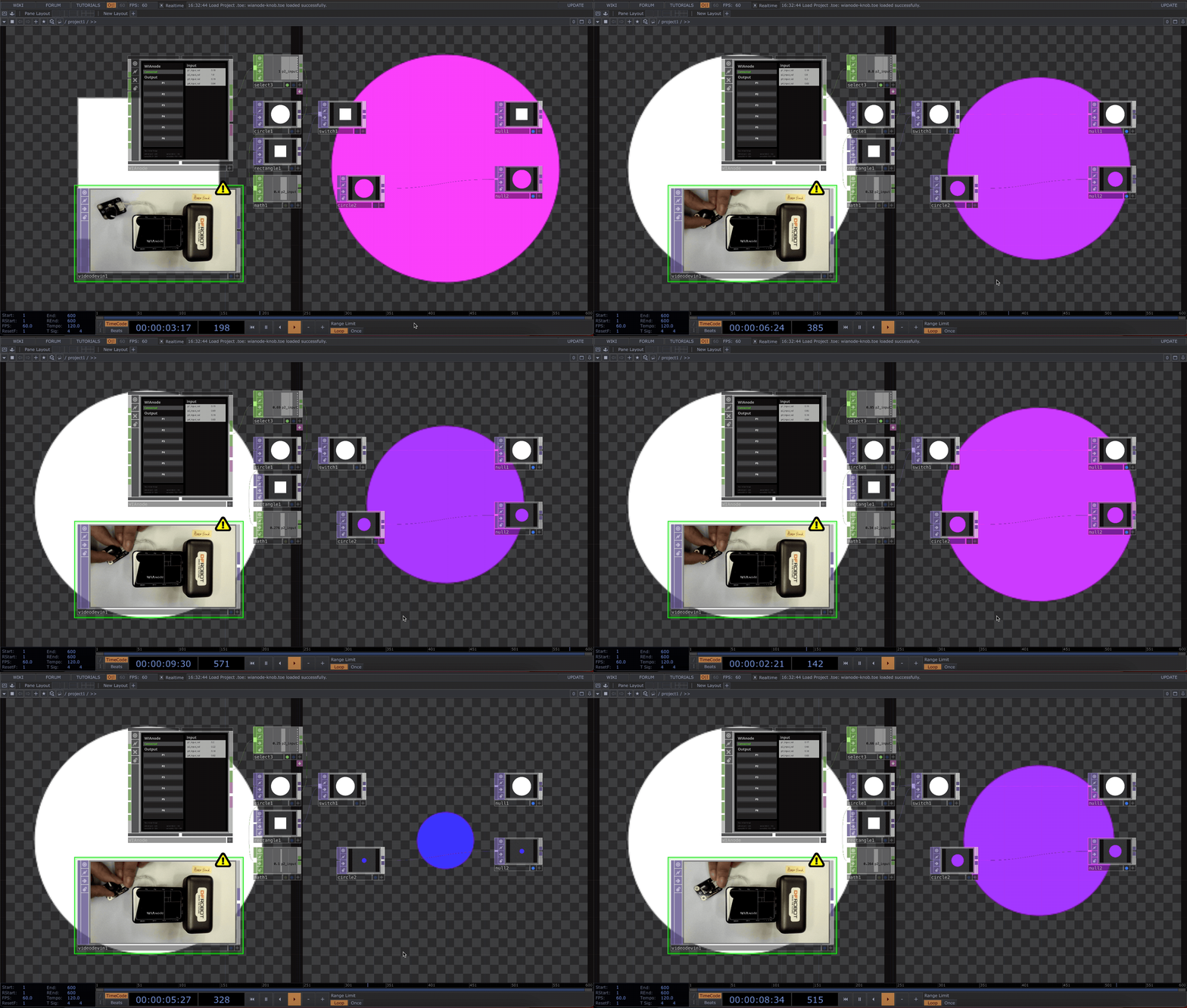
Quick Example: Turn the knob to adjust the transition between a square and a circle, as well as the color and size of the circle.
Program:::https://github.com/DFRobot/WIAnode-examples/tree/master/WIAnode_Touchdesigner_samples/02.WIAnode-TD-knob
Step 1: Configure the Port
-
Connect the WIAnode to your computer.
-
Open the USB drive that appears and modify the
config.txtfile by setting the P2 port toinput. Ensure that your Wi-Fi SSID and password are filled in. -
Save the file. (Do not save the file multiple times.) Power cycle the WIAnode to restart it.

Step 2: Connect the Sensor
- Use a 3-pin silicone cable to connect the knob to the P2 port on the WIAnode.

Step 3: Connect TouchDesigner to WIAnode
-
Press the WKUP button on the side of the WIAnode to wake up the screen (it will turn off automatically after one minute of inactivity) and check the current device IP address.
-
Open the TouchDesigner example file, click on the WIAnode plugin, and enter the IP address shown on the WIAnode screen into the configuration panel. Enter
wianodeas the client name anddfrobotas the password. -
Once the plugin displays Connected, the connection to the WIAnode is successful.

Step 4: Control TouchDesigner with the WIAnode Knob
- Export the read button data from the right side and map the values to the switch node.

Was this article helpful?