
RoboFlow Tutorial
The RoboFlow Tutorial is a comprehensive guide to setting up and operating a six-axis robotic arm using the RoboFlow operating system. It covers hardware and software preparation, login procedures, programming, debugging, and controlling the arm using joint and coordinate controls, aiming to simplify the interaction between users and cobots for efficient operation.
Hardware Preparation
-
Connect devices

Software Preparation

The RoboFlow operating system provides man-machine interfaces (with coordinate control, angle control, IO control, track recording, gripper control and other functions) to make it easy for the operator to interact with the the robot arm and to use them properly. Namely, most of the time the users operate the cobot through the RoboFlow operating system.
Fox example, because the RoboFlow operating system runs in a teaching pendant, users may use the pendant to control the cobot manually, do programming and perform other operations. They also can use the operating system (OS) to realize the communication between the cobot system and other robots or devices. In one word, with friendly interfaces, rich functions and other advantages, the RoboFlow operating system makes it easier for the users to use the cobot, thus making each user become a robot commander.
Preconditions for use: Use mystudio to burn the corresponding firmware. Burn the latest version of atomMain in Atom (factory default burnt).
Simple Use of RoboFlow
- Login
Note: password is mycobot
After the system starts successfully, it will enter the login interface of the RoboFlow operating system shown in the following figure.

Select the login user name "Admin" or other administrator user names (only administrators are allowed to edit and debug programs), click the password box, and a pop-up window will appear as shown in the following figure.

The login password for administrator user "Admin" is "aaa" by default (enter the corresponding login password when selecting other administrator user names). Enter the password and click "OK", then click "Login", and you will login successfully.
- Powering up
After successful login, you will enter the main menu interface as shown in the figure below.

In this interface, select "Configuration Center", and you will enter the interface as shown in the figure below.
After making sure that the emergency stop knob is not pressed, click the "Start Robot" button. At this point, the interface will change, and a "Powering up is in process" icon will appear. If powering up is successful, the "normal" state will appear. If it fails, check to see which steps are not implemented.
After completing the previous step, click the "< Main Menu" button in the configuration center to return to the main menu.


- Creating a new blank program
As shown in the figure below, click "Write program" and select "Blank program".

After performing the previous step, enter the program editing interface.

- Adding and editing instructions
As shown in the figure below, add two waypoints: absolute point command, and teach two points (that is to say, control the robot to move to a certain posture and then move it back to its original position with a fast moving tool, and click "Save current point". The teaching procedure for both points is the same. To verify the saved point, long press the "Move to this point" button to manually control the robot to move to the teaching point).
After editing, don't forget to save the program file. Click "Save" in the file option bar, and the window will pop up. Click "File name", and the input keyboard will appear. After entering a file name, click "OK". It will return to the save interface. And then click "OK" to save the program file successfully. After successful saving, the program name at the upper left corner of the program editing interface will be changed.


- Debugging the program
In addition to the two functions "Next" and "Run" provided in the program running control bar, click "Advanced function" to enter the interface for more settings.
The "Next" function corresponds to step-by-step execution of the program. Click it once, and only a step will be run. If you want to continue running, click "Next" again. The "Run" function corresponds to automatically running the program once.
In the "Advanced function", you can set the number of loop runs, or run it in an infinite loop. You can also control the program to make it run in an automatic or manual mode. In the automatic mode, "Next", "Run" and loop run are available. In the interface, select "Manual mode", and then select "Run" or "Infinite loop" in the loop run. Then you will enter the running interface in the manual mode.


If you debugs the program in the manual mode, you have to keep pressing the "Press Down" button to continue running. If you release the button, the program pauses; press again, it will continue to run.
- Saving and running the program
If debugging is completed, make sure to save the debugged program. After returning to the main menu, select Write program -> "Load program". The pop-up window will appear, select the program that has been debugged, and then click "OK".

After selecting the program, you will enter the program running interface. And in this interface, you can run the program and view the information on the program running.

Note: If you can't control the robot arm, check whether it is powered up successfully (If not, check whether the firmware is under Tansponder -> UART USB function), and then select Tools -> Basic settings. The following picture shows the status of successful powering up: (You can also check the powering-up steps).

Simple Sample
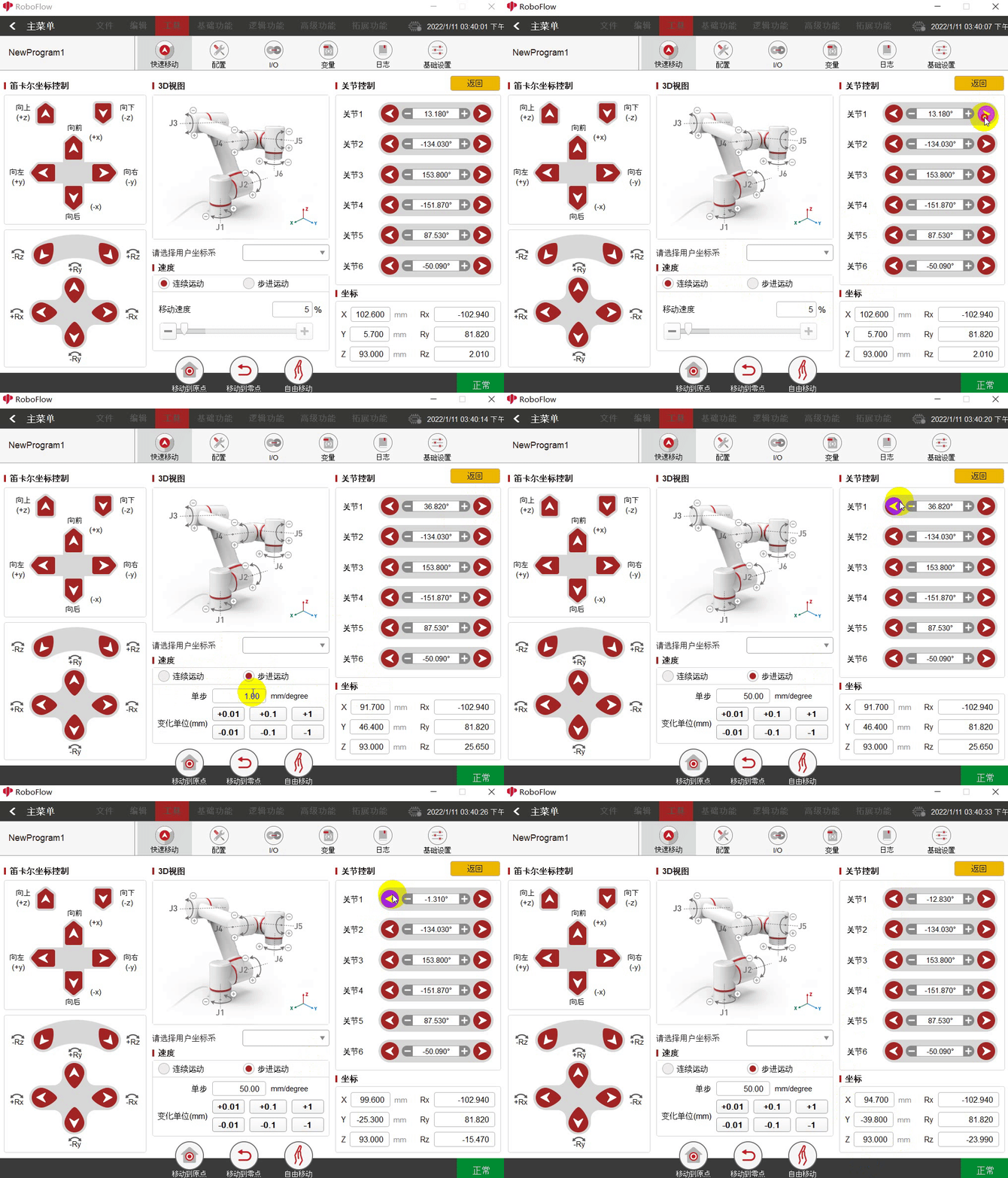
In RoboFlow, the control of joints and coordinates are performed on the QuickMove page. Run RoboFlow, enter the program editing interface, and select Tools–QuickMove.
The way to control the robot arm is divided into continuous motion and discrete motion. For the former, press the button, and the robot arm will not stop moving until the button is released; for the latter, set an increment, and the robot arm will stop when it reaches a set point.
Joint control
Joint Control means the control of joints. Joints 1-6 correspond to the joints 1, 2, 3, 4, 5 and 6 respectively.
Function description:
- Select Continuous Motion or Discrete Motion at speed. If the latter is selected, an increment needs to be set;
- Each joint at Joint Control is provided with the buttons for increasing and decreasing angles. To decrease an angle, press the button with the minus sign, and press the button with the plus sign to increase the angle. For continuous motion, after pressing the button, the robot arm will not stop until the button is released (It will also stop after reaching the limited position). For discrete motion, the robot arm will stop when it reaches a set point (For example, the angle of the joint 1 is 30 now, and the increment is 50. Press the button with the minus sign, and then the robot arm will stop when it reaches -20). For detailed steps, click here.
Coordinate control
Note: Before using the coordinate control, you have to press the home button (For 280, press the home button, while for 320 click the home button) to make the robot arm reach a certain posture; after that, click the home button again, a prompt that "The robot arm has reached the required point" will be provided.

Coordinates Control means the control of coordinates.
Function description:
- Select Continuous Motion or Discrete Motion at speed. If the latter is selected, an increment needs to be set;
- Each coordinate axis at Coordinates Control is provided with increasing and decreasing buttons. To decrease a coordinate, press the button with the minus sign, and press the button with the plus sign to increase the coordinate. For continuous motion. After pressing the button, the robot arm will not stop until the button is released (It will also stop after reaching the limited position). For discrete motion, the robot arm will stop when it reaches a set point (For example, the coordinate of X-axis is 30 now, and the increment is 50. Press the button with the plug sign, and then the robot arm will stop when it reaches 80). For detailed steps, click here.
Was this article helpful?