
C++ Tutorial
This C++ tutorial offers a comprehensive guide on setting up and configuring development environments for both Windows and Linux, providing detailed steps on installation, configuration, and solving common issues to ensure a smooth development process.
C++
Environment building
Windows Environment Configuration
-
Downloading:
First download vs2019 from the official website. -
Installation:
After installation is complete, the interface shown in the figure below will appear. "Universal Windows platform development, desktop development using C++, ASRNET and Web development" are mainly chosen (This is just a suggestion, you can choose according to your own needs. The installation time of vs2019 is long).
-
Environment variable configuration:
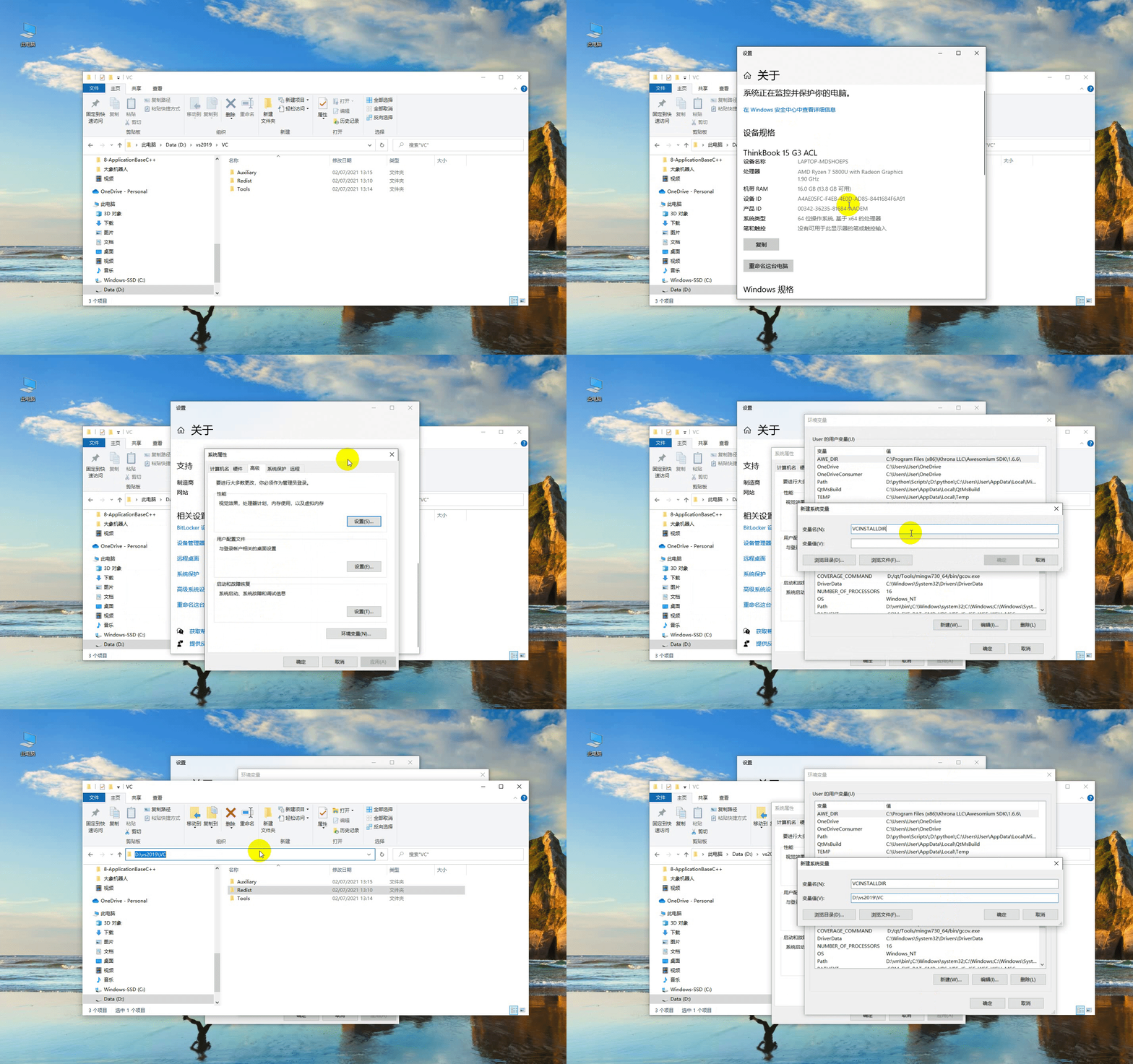
This Computer -> Right-click Properties -> Advanced System Settings -> Environment Variables -> Look at System Variables, click New -> Variable Name: VCINSTALLDIR variable value: Find the directory where Redist is located (eg: D:\vs2019\VC), for specific operation click here.
Installing qt5.12.10
Step 1. Downloading:
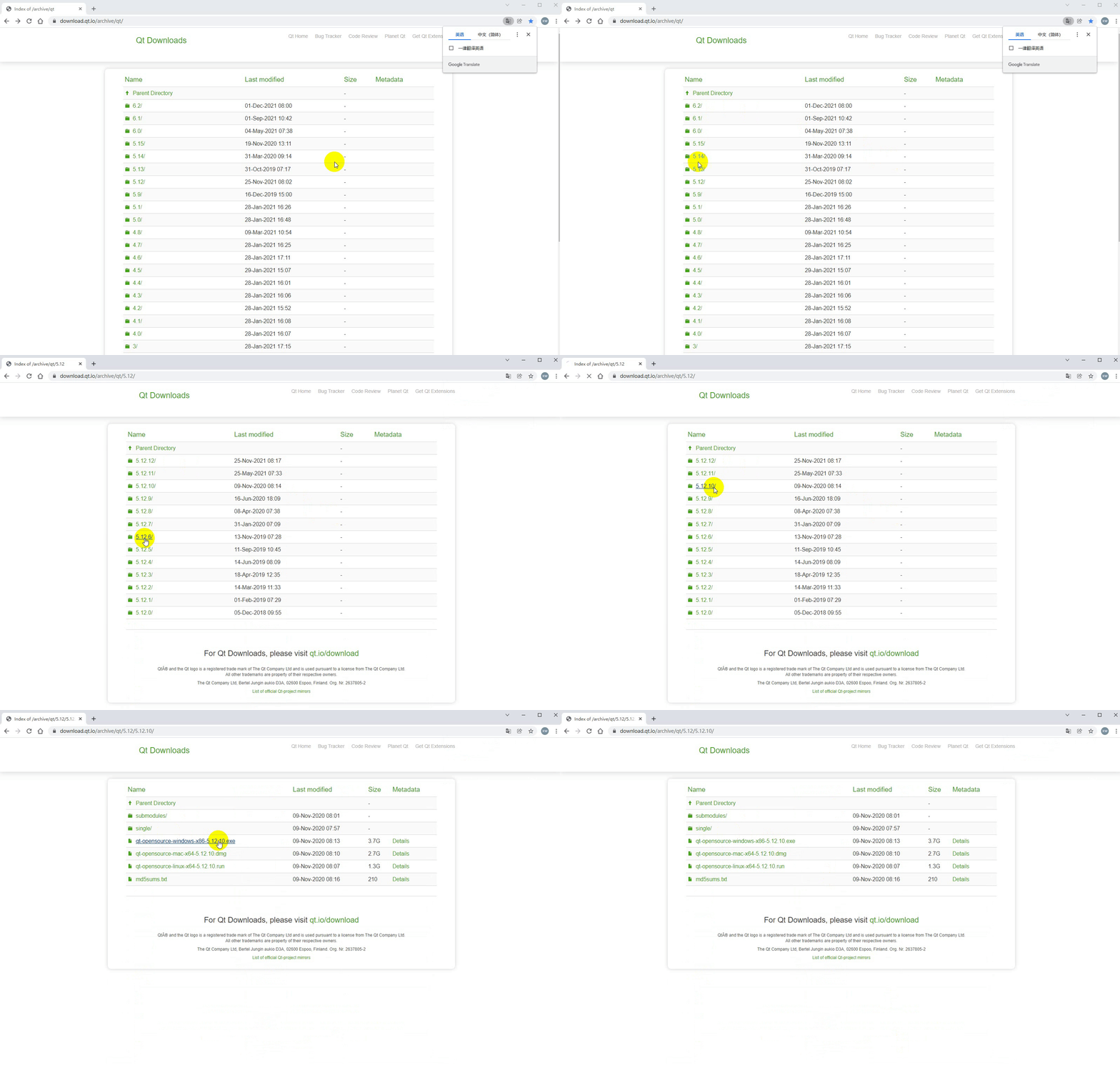
Download qt5.12.10 and above versions. They are all available. For specific operation click here.
Step 2. Installation:
First log into the qt account. if you haven't an qt account, register first. Next, the interface for selecting components will appear. You may select MinGW and MSVC on Windows, as shown in the following figure.

-
Environment variable configuration:
This Computer -> Right-click Properties -> Advanced System Settings -> Environment Variables -> Look at System Variables, click New -> Variable Name: QTDIR variable value: the directory where msvc2017_64 is located (eg: D:\qt5.12.10\5.12.10\msvc2017_64, it depends on your own computer installation path), for specific operation click here.

Installing qt plugin vsaddin
- Downloading:
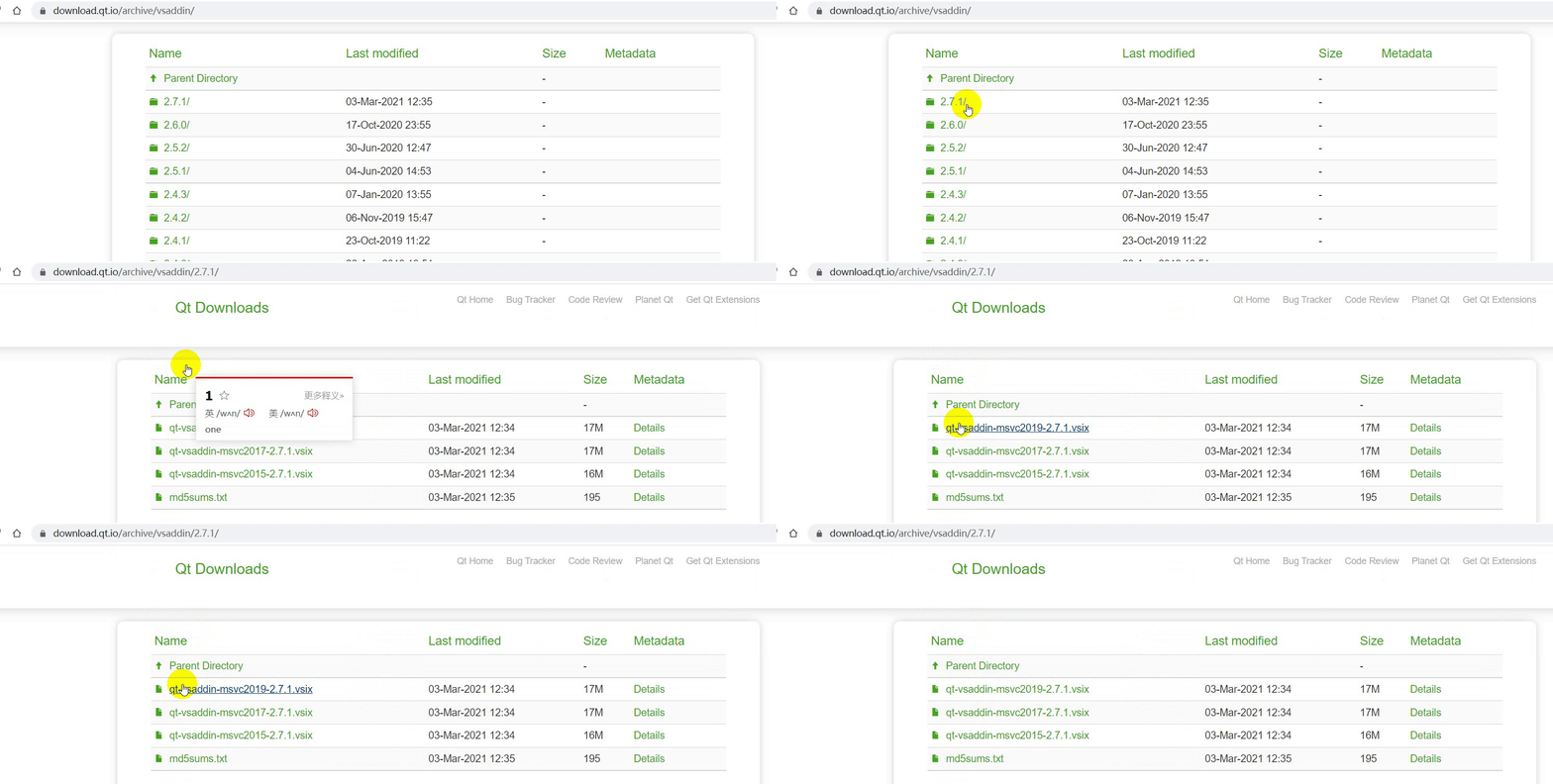
First select the vsaddin version corresponding to vs2019. For specific operation click here. - Installation: direct installation.
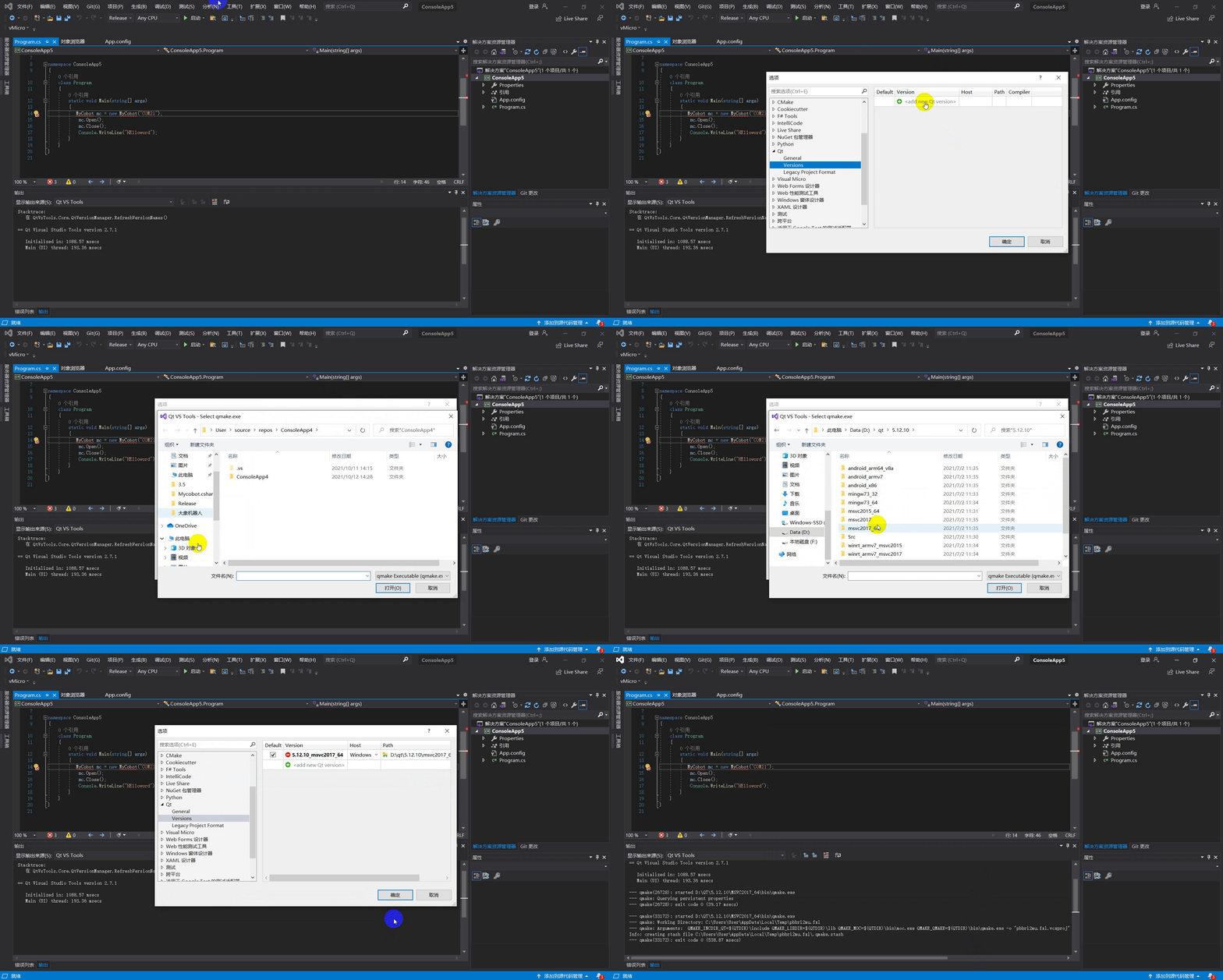
- Configuration: vs2019 menu bar extension -> QT VS Tools -> QT Versions -> add new qtversion. For Path, select the path where msvc2017_64 is located (eg: D:\qt5.12.10\5.12.10\msvc2017_64). For specific operation click here.
Linux Environment Configuration
Installing qt5.12.10
1.Downloading:
The download address is the same as Windows. Select the installation package on Linux. For details, see the steps above.
2.Installation:
Command line installation: run ./"installation package name". If there is no execute permission, add execute permission: sudo chmod +x "installation package name", and then enter the graphical interface like Windows;
graphical interface installation: the same as Windows.
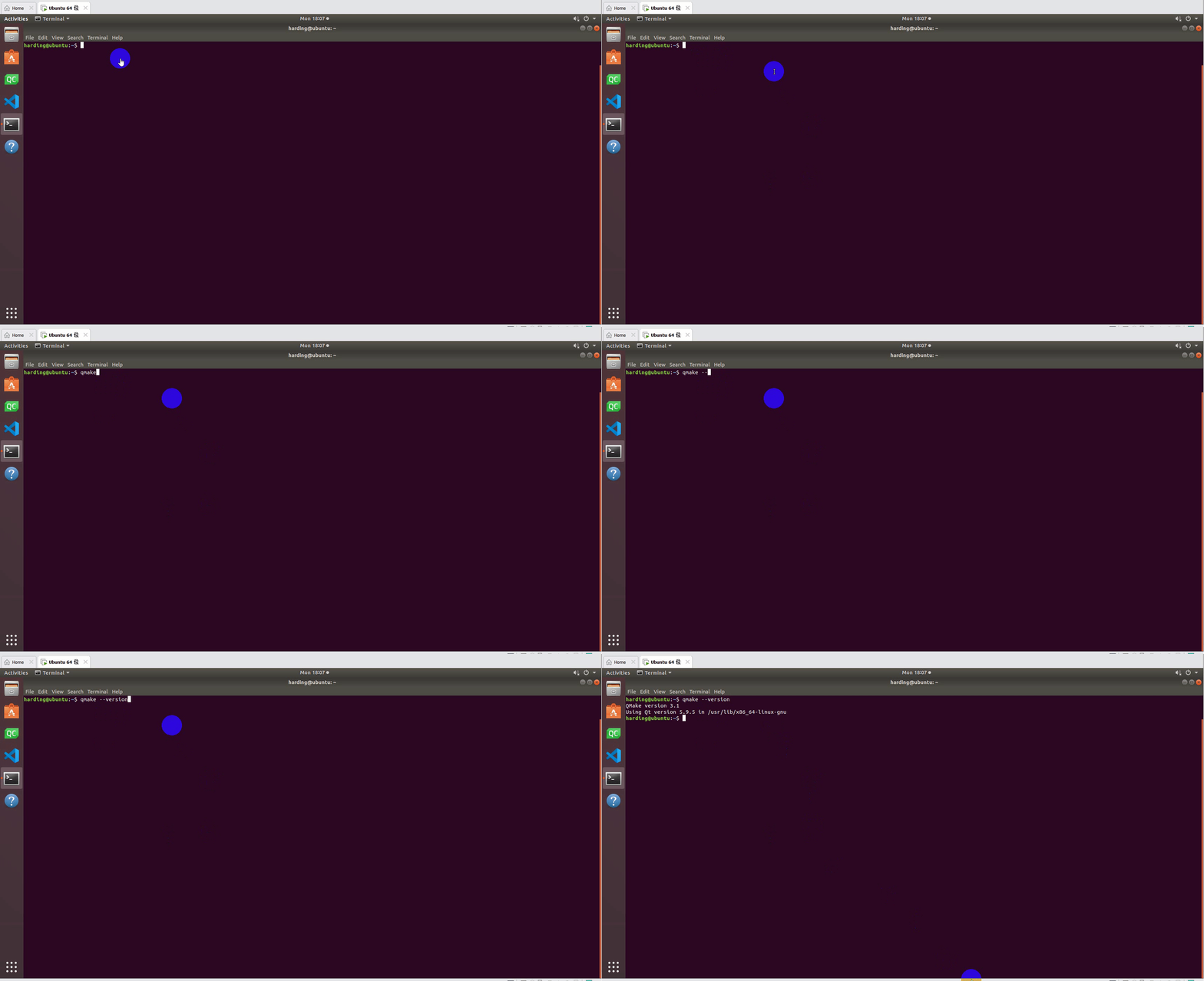
It is recommended to install qt directly with ordinary user rights. After the installation is successful, you can execute qmake –version, and if the interface appears, installation is successful.
3.Configuration:
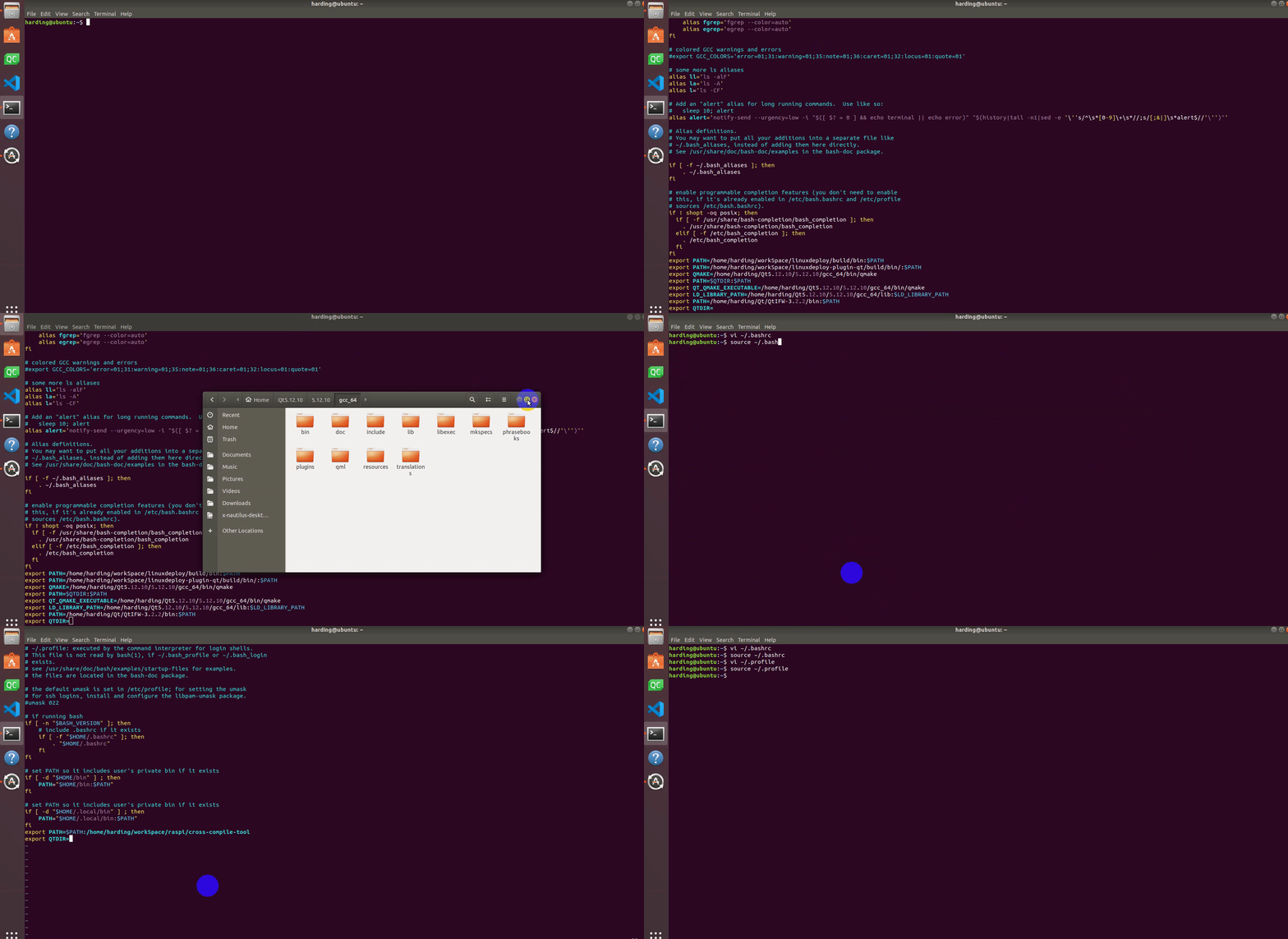
Open the configuration file, install qt: vi ~/.bashrc for ordinary users, and install qt: vi ~/.profile for root users. Add in the configuration file: export QTDIR="the directory where qt is located" (eg: export QTDIR=$HOME/Qt/5.12.10/gcc_64), click here to see details.
Compiling and running
Downloading
(1) Downloading source code
Download MycobotCpp on github.
(2) Dynamic library downloading
Dependency library downloading (Download the latest version, and pay attention to select Windows or Linux; the suffix.zip is the library required by Windows, and .tar.gz is the library required by Linux).
Running in Windows
1.Compiling
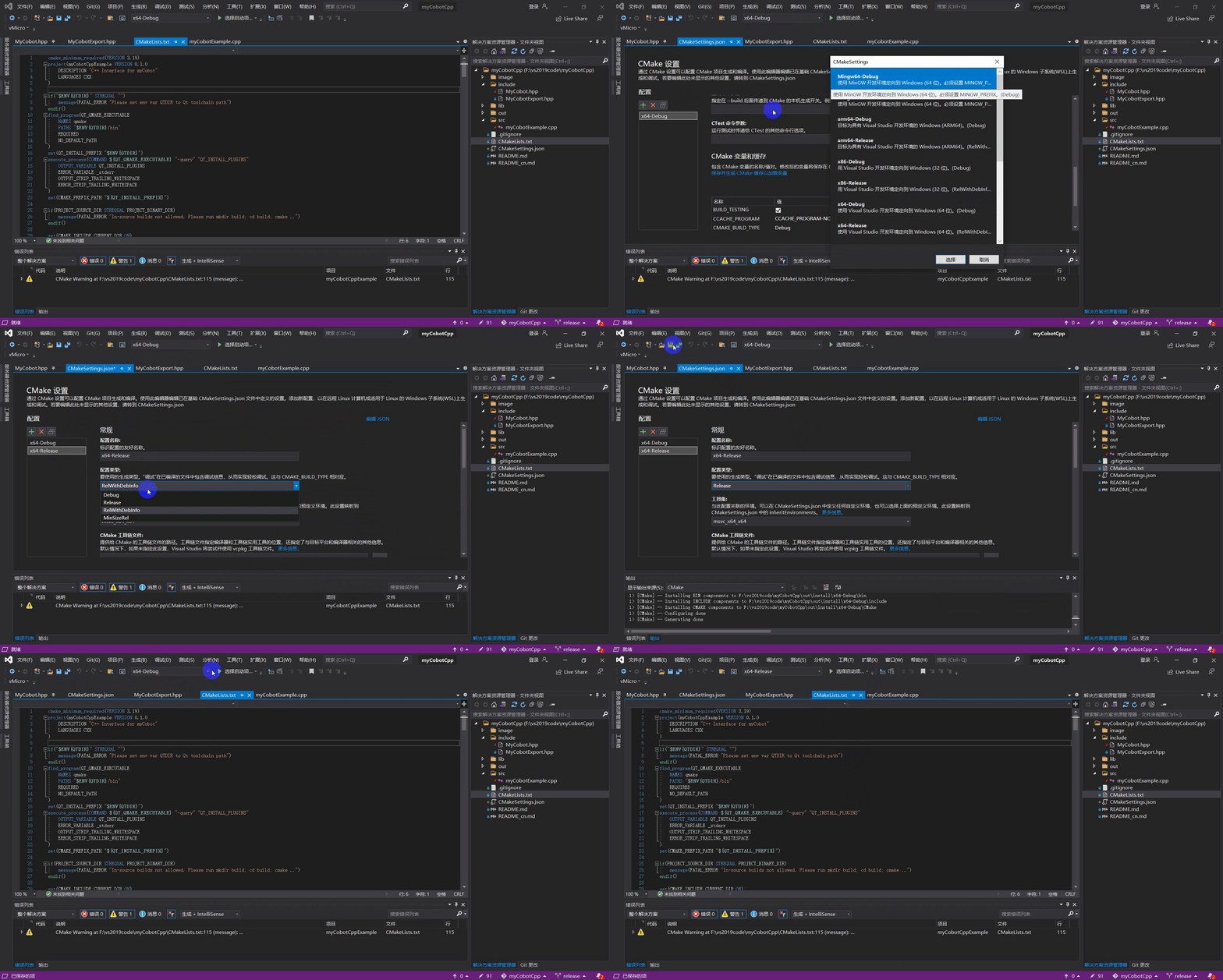
In vs2019, open MycobotCpp, select x64-Release to compile (which is next to the startup item. If there is no x64-Release, click the drop-down box -> Manage configuration to add it), at the same time select release in the configuration of cmake setting, and finally click Generate. Note: Be sure to select x64-Release to compile, click here to see details.
2.Running
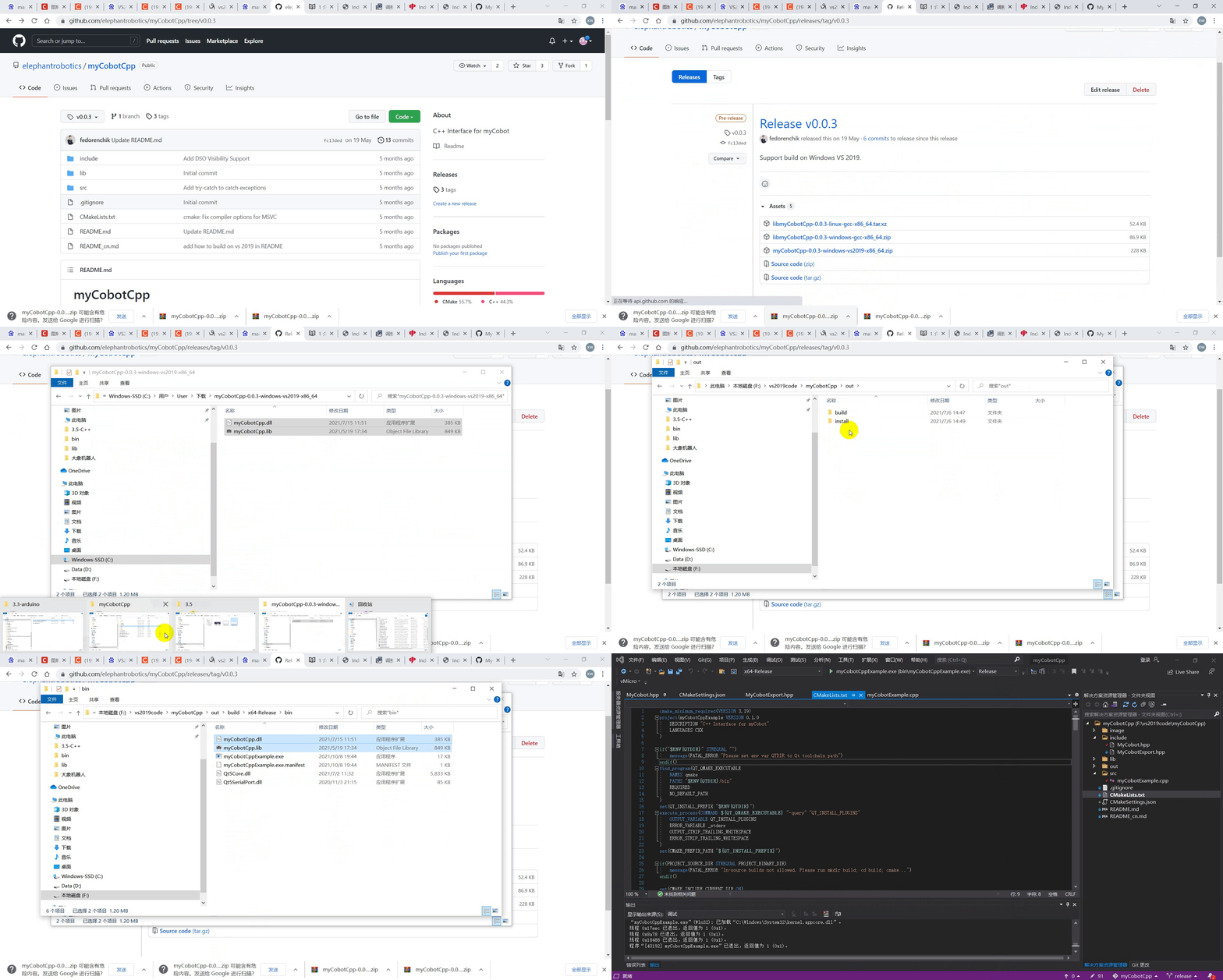
Add library files: add .lib to myCobotCpp/lib. Add .lib and .dll to the directory of myCobotCppExample.exe, such as out/build/x64-Release/bin (The two files .lib and .dll are in the myCobotCpp-0.0.3-windows-msvc-x86_64.zip package). Running: Select the startup item (which is next to the green play button and also to the running button), drop down to select myCobotCppEXample.exe(bin\myCobotCppExample.exe), and click Run, click here to see details.
3.Common problems and solutions:
Run-time error:
- If myCobotCpp.dll is missing, put myCobotCpp.dll previously saved in the lib directory to the directory where mycobotcppexample.exe is located.
- If QT5Core.dll is reported to be missing, open the qt command (search for QT in the menu bar) and select msvc 2017 64-bit, execute the directory where windeployqt --release myCobotCppExample.exe is located (for example: windeployqt --release D:\vs2019\myCobotCpp\out\build\x64-Release\bin). If the VS installation path cannot be found after executing the command here, check the settings of VS environment variable.
- After executing the above steps, if the qt5serialport.dll file is reported to be missing, copy the file in the qt installation directory (such as: D:\qt5.12.10\5.12.10\msvc2017_64\bin) to the directory where myCobotCppExample.exe is located.
Running in Linux
Step 1.Compiling and building
- mkdir build && cd build
- cmake ..
- cmake --build .
Step 2.Run
- copy all .so files to the lib directory
- command line run: ./bin/myCobotCppExample (Here it is running in the build directory)
For example, running on Ubuntu20.04
-
Compiling
(1) mkdir build && cd build
(2) cmake ..
(3) cmake –build . -
Run
(1) copy all .so files to the lib directory (Note: after downloading, unzip it. Do not unzip it in Windows, and then copy to Ubuntu. Unzip it directly in Ubuntu, for example: tar -xvf and then drag the file directly to the terminal)
(2) Soft-link libQt5SerialPort.so.5 (in the QT installation directory, such as: /home/"username"/Qt5.12.10/5.12.10/gcc_64/lib) to mycobotcpp/build/bin (Do not copy directly). The command is as follows (Be careful to choose your path): ln -s/home/"username"/Qt5.12.10/5.12.10/gcc_64/lib/libQt5SerialPort.so.5 /home/"username"/myCobotCpp/build/bin/libQt5SerialPort.so.5 -
Common problems and solutions
- Error during compilation:
QTDIR is not found. Solution: Check whether QTDIR is configured correctly. You may check it in the command line output: echo $QTDIR - Run-time error: Serial port problem: The serial port cannot be opened. Solution: Modify the permission for the serial port of the robot arm. You cannot directly chmod..., because this will lead to permission change required for every time of restart. Modify the file directly:
cd /etc/udev/rules.dsudo gedit 20-usb-serial.rulesAdd in the file: KERNEL=="ttyUSB*" MODE="0777"
- The file cannot be found: for example, libQt5SerialPort.so.5 could not be opened or found.
Solution: Check the running step 2 above.
If you don't use cmake to compile, for example, if use it directly in MFC, do configurations as shown in the figure below:


Use Cases
Joint control
int main(int argc, char* argv[])
try {
    QCoreApplication a(argc, argv);
    using namespace std::chrono_literals;
    if (!mycobot::MyCobot::I().IsControllerConnected()) {
        std::cerr << "Robot is not connected\n";
        exit(EXIT_FAILURE);
    }
    std::cout << "Robot is connected\n";
    mycobot::MyCobot::I().PowerOn();
    mycobot::MyCobot::I().StopRobot();
    std::cout << "Robot is moving: " << mycobot::MyCobot::I().IsMoving() << "\n";
    mycobot::Angles angles = mycobot::MyCobot::I().GetAngles();
    std::this_thread::sleep_for(200ms);
    mycobot::Coords coords = mycobot::MyCobot::I().GetCoords();
    angles = mycobot::MyCobot::I().GetAngles();
    std::cout << "[" << angles[mycobot::J1] << ", " << angles[mycobot::J2] << ", " << angles[mycobot::J3] << ", "
        << angles[mycobot::J4] << ", " << angles[mycobot::J5] << ", " << angles[mycobot::J6] << "]";
    mycobot::Angles goal_angles = { 5, 5, 5, 5, 5, 5 };
    mycobot::MyCobot::I().WriteAngles(goal_angles);
    while (!mycobot::MyCobot::I().IsInPosition(goal_angles, false)) {
        angles = mycobot::MyCobot::I().GetAngles();
        std::cout << "[" << angles[mycobot::J1] << ", " << angles[mycobot::J2] << ", "
            << angles[mycobot::J3] << ", " << angles[mycobot::J4] << ", "
            << angles[mycobot::J5] << ", " << angles[mycobot::J6] << "]" << std::flush;
        std::this_thread::sleep_for(200ms);
    }

    mycobot::MyCobot::I().JogAngle(mycobot::Joint::J1, 1, 5);
    std::this_thread::sleep_for(5000ms);
    mycobot::MyCobot::I().StopRobot();

    std::cout << "\n";
    exit(EXIT_SUCCESS);
} catch (std::error_code&) {
    std::cerr << "System error. Exiting.\n";
    exit(EXIT_FAILURE);
} catch (...) {
    std::cerr << "Unknown exception thrown. Exiting.\n";
    exit(EXIT_FAILURE);
}
Coordinate control
int main(int argc, char* argv[])
try {
    QCoreApplication a(argc, argv);
    using namespace std::chrono_literals;
    if (!mycobot::MyCobot::I().IsControllerConnected()) {
        std::cerr << "Robot is not connected\n";
        exit(EXIT_FAILURE);
    }
    std::cout << "Robot is connected\n";
    mycobot::MyCobot::I().PowerOn();
    mycobot::MyCobot::I().StopRobot();
    std::cout << "Robot is moving: " << mycobot::MyCobot::I().IsMoving() << "\n";
    mycobot::Angles angles = mycobot::MyCobot::I().GetAngles();
    std::this_thread::sleep_for(200ms);
    mycobot::Coords coords = mycobot::MyCobot::I().GetCoords();
    angles = mycobot::MyCobot::I().GetAngles();
    std::cout << "[" << angles[mycobot::J1] << ", " << angles[mycobot::J2] << ", " << angles[mycobot::J3] << ", "
        << angles[mycobot::J4] << ", " << angles[mycobot::J5] << ", " << angles[mycobot::J6] << "]";
    mycobot::Angles goal_angles = { 5, 5, 5, 5, 5, 5 };
    mycobot::MyCobot::I().WriteAngles(goal_angles);
    while (!mycobot::MyCobot::I().IsInPosition(goal_angles, false)) {
        angles = mycobot::MyCobot::I().GetAngles();
        std::cout << "[" << angles[mycobot::J1] << ", " << angles[mycobot::J2] << ", "
            << angles[mycobot::J3] << ", " << angles[mycobot::J4] << ", "
            << angles[mycobot::J5] << ", " << angles[mycobot::J6] << "]" << std::flush;
        std::this_thread::sleep_for(200ms);
    }

    mycobot::MyCobot::I().JogAngle(mycobot::Joint::J1, 1, 5);
    std::this_thread::sleep_for(5000ms);
    mycobot::MyCobot::I().StopRobot();

    std::cout << "\n";
    exit(EXIT_SUCCESS);
} catch (std::error_code&) {
    std::cerr << "System error. Exiting.\n";
    exit(EXIT_FAILURE);
} catch (...) {
    std::cerr << "Unknown exception thrown. Exiting.\n";
    exit(EXIT_FAILURE);
}
IO control
int main(int argc, char* argv[])
try {
QCoreApplication a(argc, argv);
using namespace std::chrono_literals;
if (!mycobot::MyCobot::I().IsControllerConnected()) {
    std::cerr << "Robot is not connected\n";
    exit(EXIT_FAILURE);
}
std::cout << "Robot is connected\n";
mycobot::MyCobot::I().PowerOn();

mycobot::MyCobot::I().SleepSecond(1);//Need to wait 1S for the previous motion to be done

//Set io output, 2, 5 and 26 are m5 output pins
mycobot::MyCobot::I().SetBasicOut(2, 1);
mycobot::MyCobot::I().SleepSecond(1);
mycobot::MyCobot::I().SetBasicOut(5, 1);
mycobot::MyCobot::I().SleepSecond(1);
mycobot::MyCobot::I().SetBasicOut(26, 1);
mycobot::MyCobot::I().SleepSecond(1);

//delay will occur on m5 input pins 35 and 36 for the first time
/*for (int i = 0; i < 2; i++) {
    std::cout << "35= " << mycobot::MyCobot::I().GetBasicIn(35) << std::endl;
    mycobot::MyCobot::I().SleepSecond(1);
    std::cout << "36= " << mycobot::MyCobot::I().GetBasicIn(36) << std::endl;
    mycobot::MyCobot::I().SleepSecond(1);
}*/

//atom output pins 23 and 33
/*mycobot::MyCobot::I().SetDigitalOut(23, 1);
mycobot::MyCobot::I().SleepSecond(1);
mycobot::MyCobot::I().SetDigitalOut(33, 1);
mycobot::MyCobot::I().SleepSecond(1);*/

//delay will occur on atom input pins 22 and 19 for the first time
/*for (int i = 0; i < 2; i++) {
    std::cout << "22= " << mycobot::MyCobot::I().GetDigitalIn(22) << std::endl;
    mycobot::MyCobot::I().SleepSecond(1);
    std::cout << "19= " << mycobot::MyCobot::I().GetDigitalIn(19) << std::endl;
    mycobot::MyCobot::I().SleepSecond(1);
}*/

//Adaptive gripper 1--open 0--close send twice due to first delay
/*for (int i = 0; i < 2; i++) {
    mycobot::MyCobot::I().SetGriper(1);
    mycobot::MyCobot::I().SleepSecond(3);
    mycobot::MyCobot::I().SetGriper(0);
    mycobot::MyCobot::I().SleepSecond(3);
}*/

//Electric gripper 1--open 0--close send twice due to first delay
/*for (int i = 0; i < 2; i++) {
    mycobot::MyCobot::I().SetElectricGriper(1);
    mycobot::MyCobot::I().SleepSecond(1);
    mycobot::MyCobot::I().SetElectricGriper(0);
    mycobot::MyCobot::I().SleepSecond(1);
}*/
/*mycobot::MyCobot::I().StopRobot();
std::cout << "Robot is moving: " << mycobot::MyCobot::I().IsMoving() << "\n";
mycobot::Angles angles = mycobot::MyCobot::I().GetAngles();
std::this_thread::sleep_for(200ms);
mycobot::Coords coords = mycobot::MyCobot::I().GetCoords();
angles = mycobot::MyCobot::I().GetAngles();
std::cout << "[" << angles[mycobot::J1] << ", " << angles[mycobot::J2] << ", " << angles[mycobot::J3] << ", "
    << angles[mycobot::J4] << ", " << angles[mycobot::J5] << ", " << angles[mycobot::J6] << "]";
mycobot::Angles goal_angles = { 1, 0, 0, 0, 0, 0 };
mycobot::MyCobot::I().WriteAngles(goal_angles,180);
while (!mycobot::MyCobot::I().IsInPosition(goal_angles, false)) {
    angles = mycobot::MyCobot::I().GetAngles();
    std::cout << "[" << angles[mycobot::J1] << ", " << angles[mycobot::J2] << ", "
        << angles[mycobot::J3] << ", " << angles[mycobot::J4] << ", "
        << angles[mycobot::J5] << ", " << angles[mycobot::J6] << "]" << std::flush;
    std::this_thread::sleep_for(200ms);
}

//mycobot::MyCobot::I().JogAngle(mycobot::Joint::J1, 1, 5);
std::this_thread::sleep_for(5000ms);
mycobot::MyCobot::I().StopRobot();*/

std::cout << "\n";
exit(EXIT_SUCCESS);
} catch (std::error_code&) {
std::cerr << "System error. Exiting.\n";
exit(EXIT_FAILURE);
} catch (...) {
std::cerr << "Unknown exception thrown. Exiting.\n";
exit(EXIT_FAILURE);
}
Gripper control
int main(int argc, char* argv[])
try {
QCoreApplication a(argc, argv);
using namespace std::chrono_literals;
if (!mycobot::MyCobot::I().IsControllerConnected()) {
    std::cerr << "Robot is not connected\n";
    exit(EXIT_FAILURE);
}
std::cout << "Robot is connected\n";
mycobot::MyCobot::I().PowerOn();

mycobot::MyCobot::I().SleepSecond(1);//Need to wait 1S for the previous motion to be done

//Set io output, 2, 5 and 26 are m5 output pins
mycobot::MyCobot::I().SetBasicOut(2, 1);
mycobot::MyCobot::I().SleepSecond(1);
mycobot::MyCobot::I().SetBasicOut(5, 1);
mycobot::MyCobot::I().SleepSecond(1);
mycobot::MyCobot::I().SetBasicOut(26, 1);
mycobot::MyCobot::I().SleepSecond(1);

//delay will occur on m5 input pins 35 and 36 for the first time
/*for (int i = 0; i < 2; i++) {
    std::cout << "35= " << mycobot::MyCobot::I().GetBasicIn(35) << std::endl;
    mycobot::MyCobot::I().SleepSecond(1);
    std::cout << "36= " << mycobot::MyCobot::I().GetBasicIn(36) << std::endl;
    mycobot::MyCobot::I().SleepSecond(1);
}*/

//atom output pins 23 and 33
/*mycobot::MyCobot::I().SetDigitalOut(23, 1);
mycobot::MyCobot::I().SleepSecond(1);
mycobot::MyCobot::I().SetDigitalOut(33, 1);
mycobot::MyCobot::I().SleepSecond(1);*/

//delay will occur on atom input pins 22 and 19 for the first time
/*for (int i = 0; i < 2; i++) {
    std::cout << "22= " << mycobot::MyCobot::I().GetDigitalIn(22) << std::endl;
    mycobot::MyCobot::I().SleepSecond(1);
    std::cout << "19= " << mycobot::MyCobot::I().GetDigitalIn(19) << std::endl;
    mycobot::MyCobot::I().SleepSecond(1);
}*/

//Adaptive gripper 1--open 0--close send twice due to first delay
for (int i = 0; i < 2; i++) {
    mycobot::MyCobot::I().SetGriper(1);
    mycobot::MyCobot::I().SleepSecond(3);
    mycobot::MyCobot::I().SetGriper(0);
    mycobot::MyCobot::I().SleepSecond(3);
}

//Electric gripper 1--open 0--close send twice due to first delay
/*for (int i = 0; i < 2; i++) {
    mycobot::MyCobot::I().SetElectricGriper(1);
    mycobot::MyCobot::I().SleepSecond(1);
    mycobot::MyCobot::I().SetElectricGriper(0);
    mycobot::MyCobot::I().SleepSecond(1);
}*/
/*mycobot::MyCobot::I().StopRobot();
std::cout << "Robot is moving: " << mycobot::MyCobot::I().IsMoving() << "\n";
mycobot::Angles angles = mycobot::MyCobot::I().GetAngles();
std::this_thread::sleep_for(200ms);
mycobot::Coords coords = mycobot::MyCobot::I().GetCoords();
angles = mycobot::MyCobot::I().GetAngles();
std::cout << "[" << angles[mycobot::J1] << ", " << angles[mycobot::J2] << ", " << angles[mycobot::J3] << ", "
    << angles[mycobot::J4] << ", " << angles[mycobot::J5] << ", " << angles[mycobot::J6] << "]";
mycobot::Angles goal_angles = { 1, 0, 0, 0, 0, 0 };
mycobot::MyCobot::I().WriteAngles(goal_angles,180);
while (!mycobot::MyCobot::I().IsInPosition(goal_angles, false)) {
    angles = mycobot::MyCobot::I().GetAngles();
    std::cout << "[" << angles[mycobot::J1] << ", " << angles[mycobot::J2] << ", "
        << angles[mycobot::J3] << ", " << angles[mycobot::J4] << ", "
        << angles[mycobot::J5] << ", " << angles[mycobot::J6] << "]" << std::flush;
    std::this_thread::sleep_for(200ms);
}

//mycobot::MyCobot::I().JogAngle(mycobot::Joint::J1, 1, 5);
std::this_thread::sleep_for(5000ms);
mycobot::MyCobot::I().StopRobot();*/

std::cout << "\n";
exit(EXIT_SUCCESS);
} catch (std::error_code&) {
std::cerr << "System error. Exiting.\n";
exit(EXIT_FAILURE);
} catch (...) {
std::cerr << "Unknown exception thrown. Exiting.\n";
exit(EXIT_FAILURE);
}
Was this article helpful?