
C# Tutorial
Last revision 2026/01/29
This article offers a comprehensive tutorial on C# programming, covering environment setup on Windows and Raspberry Pi, project compilation and execution, and troubleshooting, with practical use cases for joint, coordinate, IO, and gripper control.
C#
Step 1. Environment building
Windows Environment Configuration
Installing vs2019
(1) Downloading:
First download vs2019 from the official website.
(2) Installation:
After installation is complete, the interface shown in the figure below will appear. .NET desktop development is mainly chosen (This is just a suggestion, you can choose according to your own needs. The installation time of vs2019 is long).

Environment configuration of Raspberry Pi robot arm
- Installing monodevelop
(1) Installation
Execute the following commands in order to install it. You may also view the instructions on the official website.
sudo apt install apt-transport-https dirmngr
sudo apt-key adv --keyserver hkp://keyserver.ubuntu.com:80 --recv-keys 3FA7E0328081BFF6A14DA29AA6A19B38D3D831EF echo "deb https://download.mono-project.com/repo/ubuntu vs-bionic main" | sudo tee /etc/apt/sources.list.d/mono-official-vs.list
sudo apt update
sudo apt-get install monodevelop
(2) Test
Test whether the installation is successful. Check this documentdocument.
Step 2. Compiling and Running
Downloading
(1) Downloading source code
Download Mycobot.csharp from github.
(2) Downloading a dynamic library
To run the case, you need to use this dynamic library, which encapsulates the API to control the robot arm:
1.Select the latest version, as shown in the following figure:

2.The dynamic library is divided into two versions: Windows (Windows is divided into .net and .net framework. For the way to distinguish them, see running under Windows below) and Raspberry Pi system, as shown in the following figure.

Running in Windows
(1) Directly running the Mycobot.csharp case downloaded from github:
1.Double-click Mycobot.csharp.sln to open it (Make sure that vs2019 has been installed in the computer. If not, see Environment building)

2.Compile and run the project, and check the serial port number of the robot arm. If it is inconsistent with the example, modify the serial port number, as shown here.
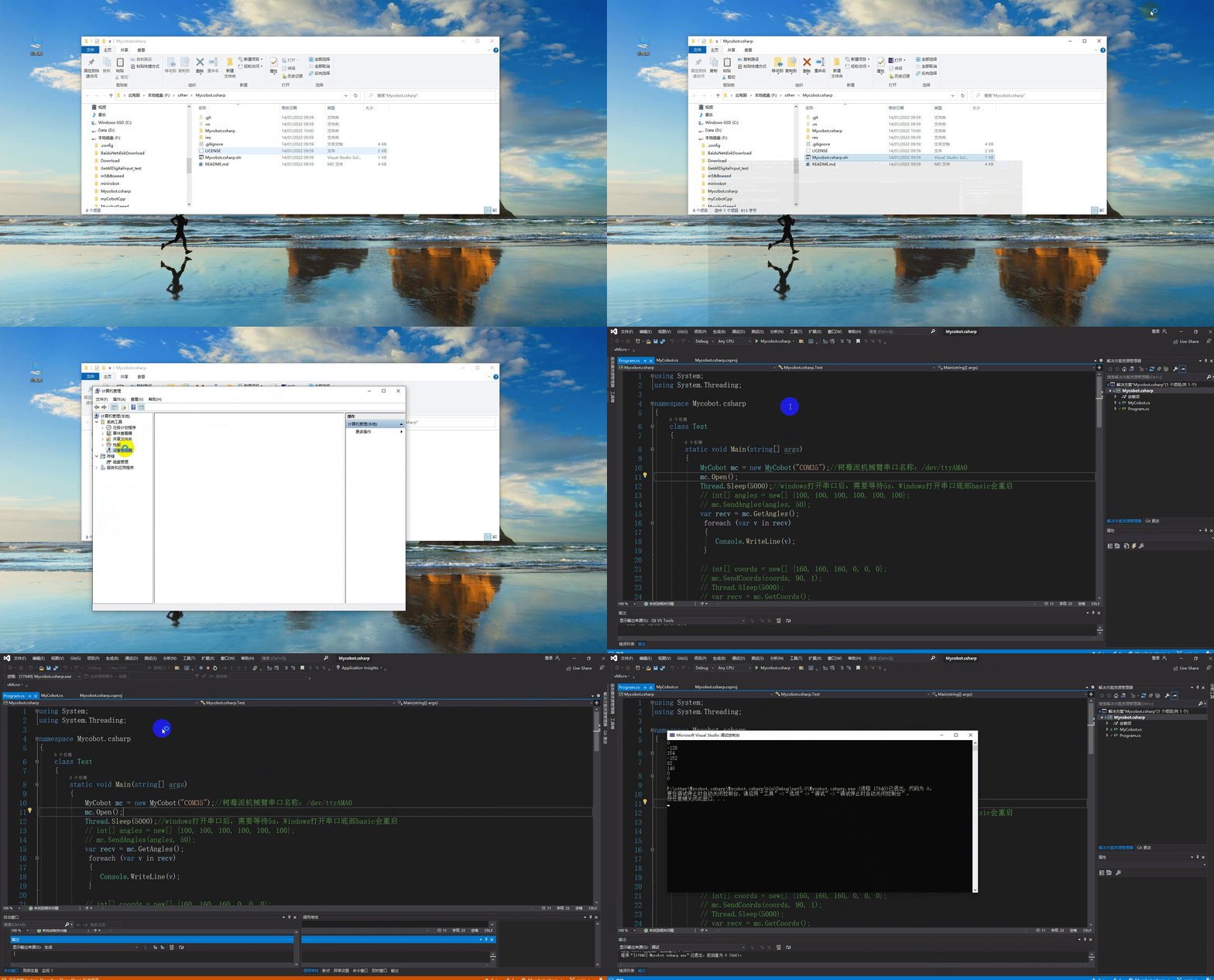
(2) Calling a Mycobot.csharp dynamic library in your own project
1.Check the target frame of the project, and then download the corresponding dynamic library. If the target frame is .net core, download net core/Mycobot.csharp.dll, if it is .net framework, download net framework/Mycobot.csharp.dll). For specific steps click here.
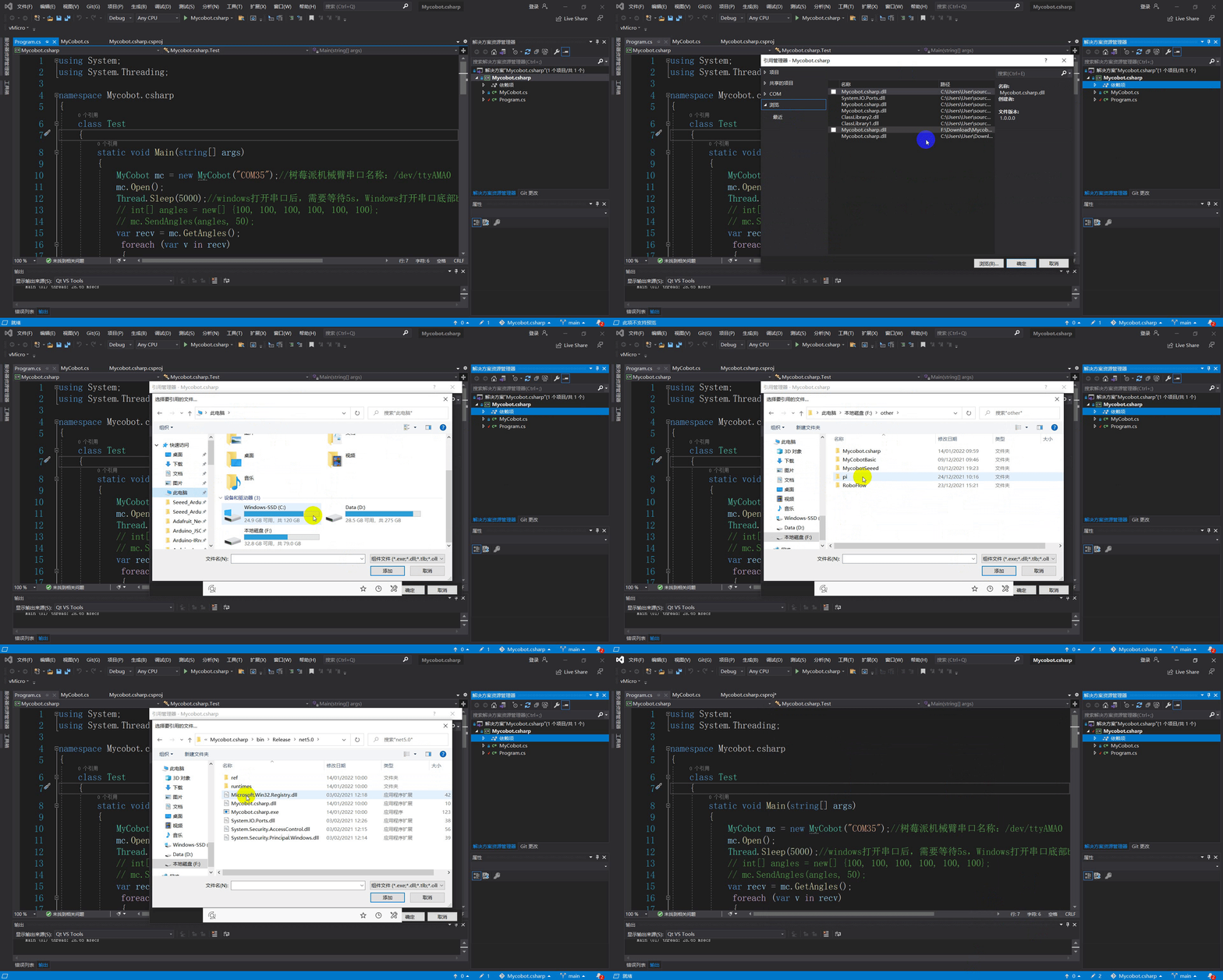
2.Import Mycobot.csharp.dll into the project. For specific steps click here.
3.Add system.io.ports to .csproj (the project name, and the file is located in the directory of the project), as shown in the picture below:
frame: .net core
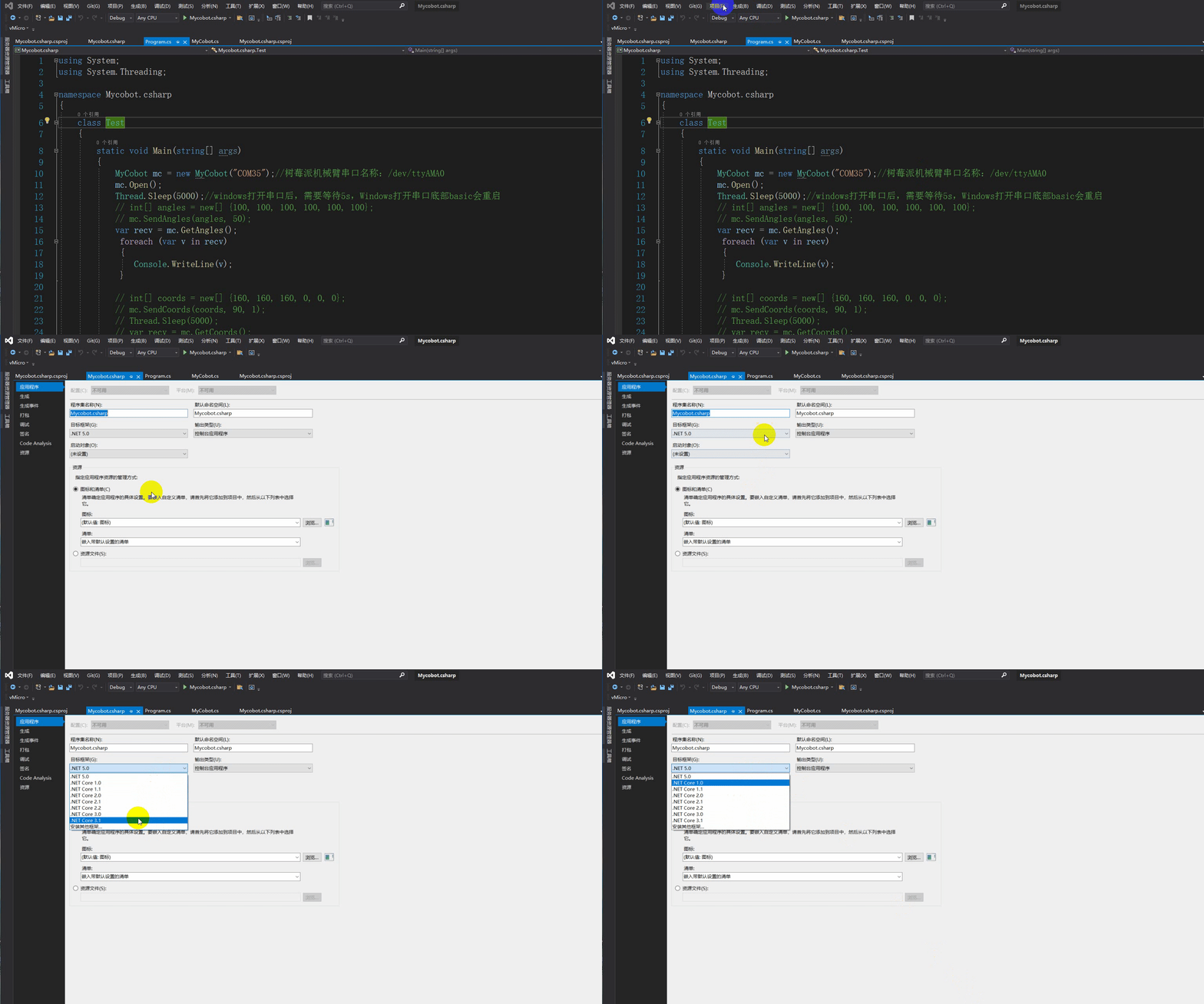

frame: .net framework

(3) Problems
Problems that may be encountered during use:
1.Problem: System.Runtime, Version=5.0.0.0, Culture=neutral, PublicKeyToken=b03f5f7f11d50a3a' or one of its dependencies...
Solution: update your sdk(if .net core,update to 5.0 and choose,if .net framework update to 4.0 and choose 4.7.2), click here to view:
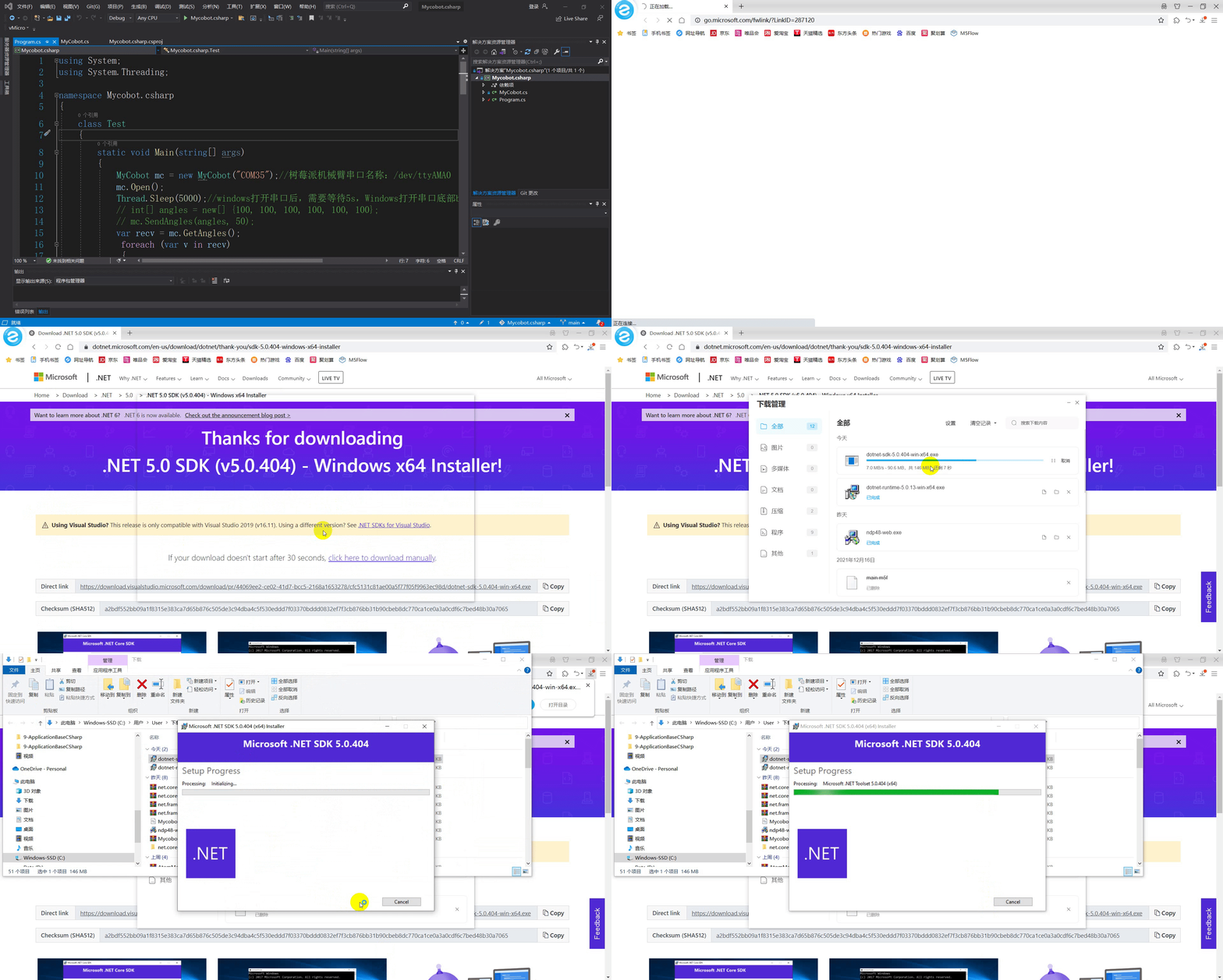
2.Problem: System.IO.FileNotFoundException:“Could not load file or assembly 'System.IO.Ports, Version=6.0.0.0, Culture=neutral, PublicKeyToken=cc7b13ffcd2ddd51'.
Solution: See the step 3 of calling dynamic library above.
Running in the Raspberry Pi robot arm
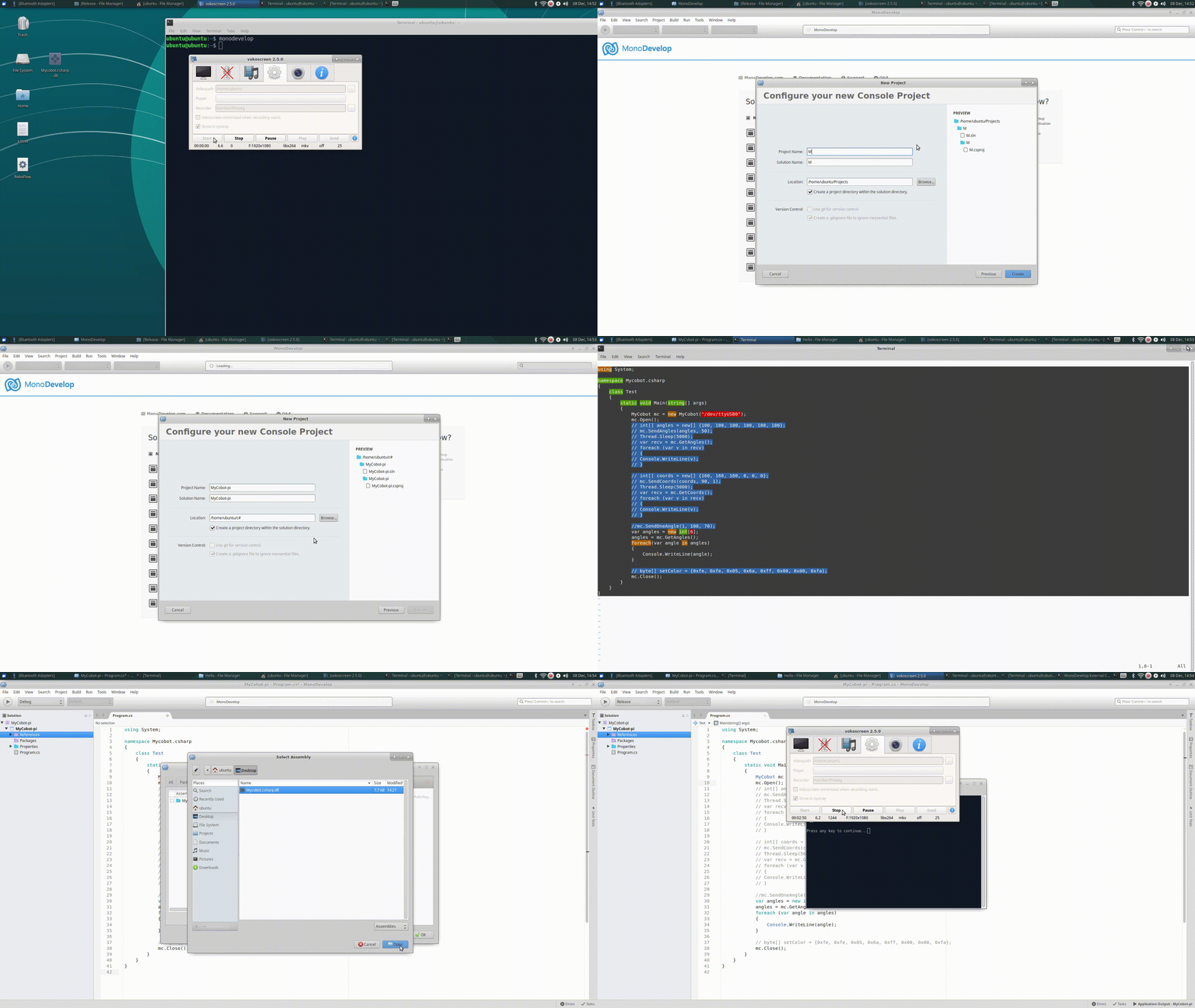
1.Create a C# console application;
2.Copy the program.cs and paste it to the application;
3.change the port number in program.cs to /dev/ttyAMA0(MyCobot mc = new MyCobot("/dev/ttyAMA0"));

4.Change the compilation method to Release;

5.Add the Mycobot.csharp.dll library file to the project, library: ReFerences–>Edit References–>.Net Assembly–>Browse(path for .dll), click here to view.
6.Run it. Note: compile and run it. For the whole operation process, click here.
Step 3. Use Cases
Joint control
The program.cs in Mycobot.csharp source code is a complete use case program, which can be modified as needed on this basis.
using System;

namespace Mycobot.csharp
{
    class Test
    {
        static void Main(string[] args)
        {
            MyCobot mc = new MyCobot("/dev/ttyUSB0");
            mc.Open();
            // int[] angles = new[] {100, 100, 100, 100, 100, 100};
            // mc.SendAngles(angles, 50);
            // Thread.Sleep(5000);
            // var recv = mc.GetAngles();
            // foreach (var v in recv)
            // {
                // Console.WriteLine(v);
            // }

            // int[] coords = new[] {160, 160, 160, 0, 0, 0};
            // mc.SendCoords(coords, 90, 1);
            // Thread.Sleep(5000);
            // var recv = mc.GetCoords();
            // foreach (var v in recv)
            // {
                // Console.WriteLine(v);
            // }

            mc.SendOneAngle(1, 100,70);

            // byte[] setColor = {0xfe, 0xfe, 0x05, 0x6a, 0xff, 0x00, 0x00, 0xfa};
            mc.Close();
        }
    }
Coordinate control
The program.cs in Mycobot.csharp source code is a complete use case program, which can be modified as needed on this basis.
using System;

namespace Mycobot.csharp
{
    class Test
    {
        static void Main(string[] args)
        {
            MyCobot mc = new MyCobot("/dev/ttyUSB0");
            mc.Open();
            // int[] angles = new[] {100, 100, 100, 100, 100, 100};
            // mc.SendAngles(angles, 50);
            // Thread.Sleep(5000);
            // var recv = mc.GetAngles();
            // foreach (var v in recv)
            // {
                // Console.WriteLine(v);
            // }

            // int[] coords = new[] {160, 160, 160, 0, 0, 0};
            // mc.SendCoords(coords, 90, 1);
            // Thread.Sleep(5000);
            // var recv = mc.GetCoords();
            // foreach (var v in recv)
            // {
                // Console.WriteLine(v);
            // }

            mc.SendOneAngle(1, 100,70);

            // byte[] setColor = {0xfe, 0xfe, 0x05, 0x6a, 0xff, 0x00, 0x00, 0xfa};
            mc.Close();
        }
    }
IO control
The program.cs in Mycobot.csharp source code is a complete use case program, which can be modified as needed on this basis.
using System;
using System.Threading;

namespace Mycobot.csharp
{
    class Test
    {
        static void Main(string[] args)
        {
            MyCobot mc = new MyCobot("COM57");//Raspberry Pi robot arm serial port name:/dev/ttyAMA0
            mc.Open();
            Thread.Sleep(5000);//After windows open the serial port, you need to wait 5s, the bottom basic will restart when windows open the serial port

            //set basic output io
            /*mc.SetBasicOut(2, 1);
            Thread.Sleep(100);
            mc.SetBasicOut(5, 1);
            Thread.Sleep(100);
            mc.SetBasicOut(26, 1);
            Thread.Sleep(100);*/

            //get basic input io
            Console.WriteLine(mc.GetBasicIn(35));
            Thread.Sleep(100);
            Console.WriteLine(mc.GetBasicIn(36));
            Thread.Sleep(100);

            //set atom output io
            /*mc.SetDigitalOut(23, 0);
            Thread.Sleep(100);
            mc.SetDigitalOut(33, 0);
            Thread.Sleep(100);*/

            //get m5 input io
            /*Console.WriteLine(mc.GetDigitalIn(19));
            Thread.Sleep(100);
            Console.WriteLine(mc.GetDigitalIn(22));
            Thread.Sleep(100);*/

            mc.Close();
        }
    }
}
Gripper control
using System;
using System.Threading;

namespace Mycobot.csharp
{
    class Test
    {
        static void Main(string[] args)
        {
            MyCobot mc = new MyCobot("COM57");//Raspberry Pi robot arm serial port name:/dev/ttyAMA0
            mc.Open();
            Thread.Sleep(5000);//After windows open the serial port, you need to wait 5s, the bottom basic will restart when windows open the serial port

            //set gripper open or close 0--close 100-open max 0-100
            mc.setGripperValue(0, 10);
            Thread.Sleep(3000);
            mc.setGripperValue(50, 100);
            Thread.Sleep(3000);

            //set electric gripper
            mc.setEletricGripper(0);
            Thread.Sleep(100);
            mc.setEletricGripper(1);
            Thread.Sleep(100);

            //get gripper state 0--close 1--open
            Console.WriteLine(mc.getGripperValue());
            mc.Close();
        }
    }
}
Was this article helpful?