
Example Code for Arduino-Read Accelerated Velocity
Last revision 2026/01/15
In this section, we will teach you how to read the correct accelerated velocity. (Sample: SEN0178)
Hardware Preparation
- Hardware
- DFRduino UNO R3 x1
- I/O Expansion shield V7 x1
- SEN0178 x1
Software Preparation
- Software
- Arduino IDE click here to download Arduino IDE
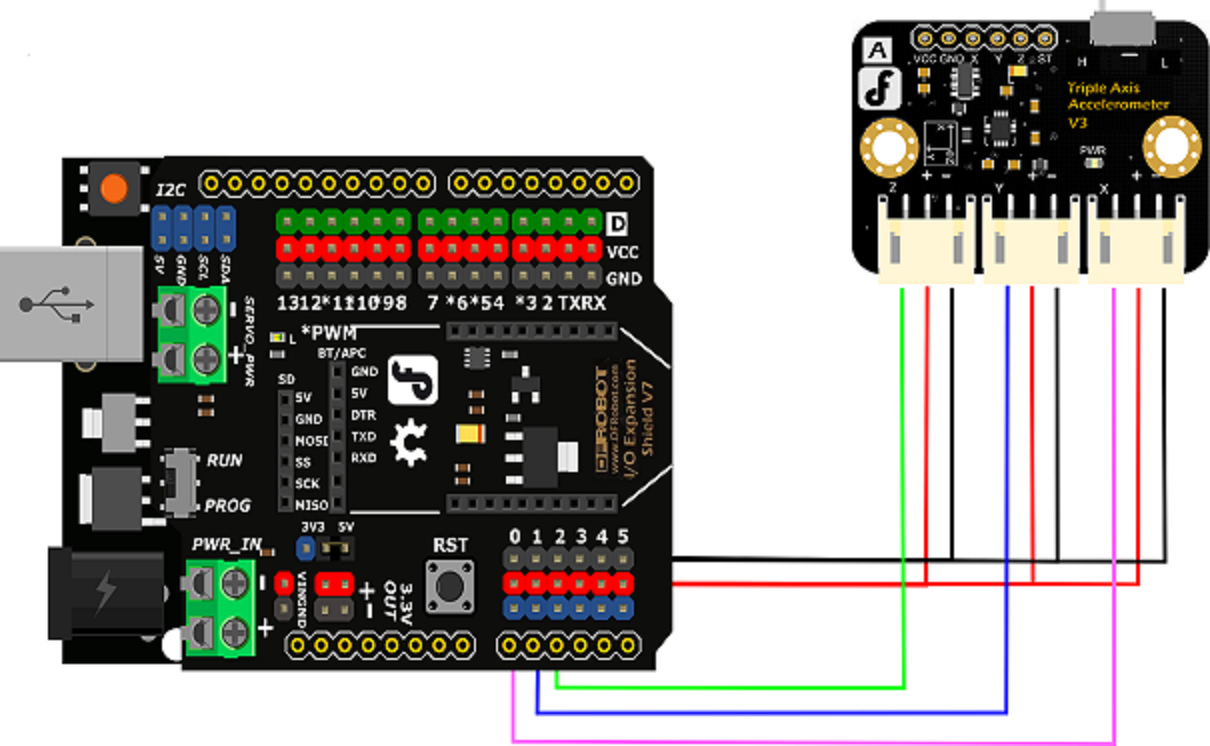
Wiring Diagram
Other Preparation Work
Due to sensor individual difference, we need make a calibration for each module. (Or you could skip this step, and test the sensor directly.)
- Step 1
Turn the switch to "H" position, and connect the sensor according to the connection diagram.
Upload the testing code to Arduino.
    /*
    DFRobot 3-axis calibration code

    X——A0
    Y——A1
    Z——A2

    */

    void setup()
    {
      Serial.begin(9600);
    }
    void loop()
    {
          int x,y,z;
          x=analogRead(0);
          y=analogRead(1);
          z=analogRead(2);
          Serial.print("x= ");
          Serial.print(x*5/1024.0,3);
          Serial.print(',');
          Serial.print("y= ");
          Serial.print(y*5/1024.0,3);
          Serial.print(',');
          Serial.print("z= ");
          Serial.println(z*5/1024.0,3);
          delay(500);
    }
- Step 2
Leave sensor resting horizontally on the desktop, keep the positive direction of Z-axis upwards. Open the IDE serial monitor, and record a set of data. E.g.:
` x= 0.776,y= 0.776,z= 1.157`
Similarly, leave sensor resting horizontally on the desktop, keep the negative direction of Z-axis upwards. Open the IDE serial monitor, and record another set of data. E.g.:
` x= 0.776,y= 0.781,z= 0.688`
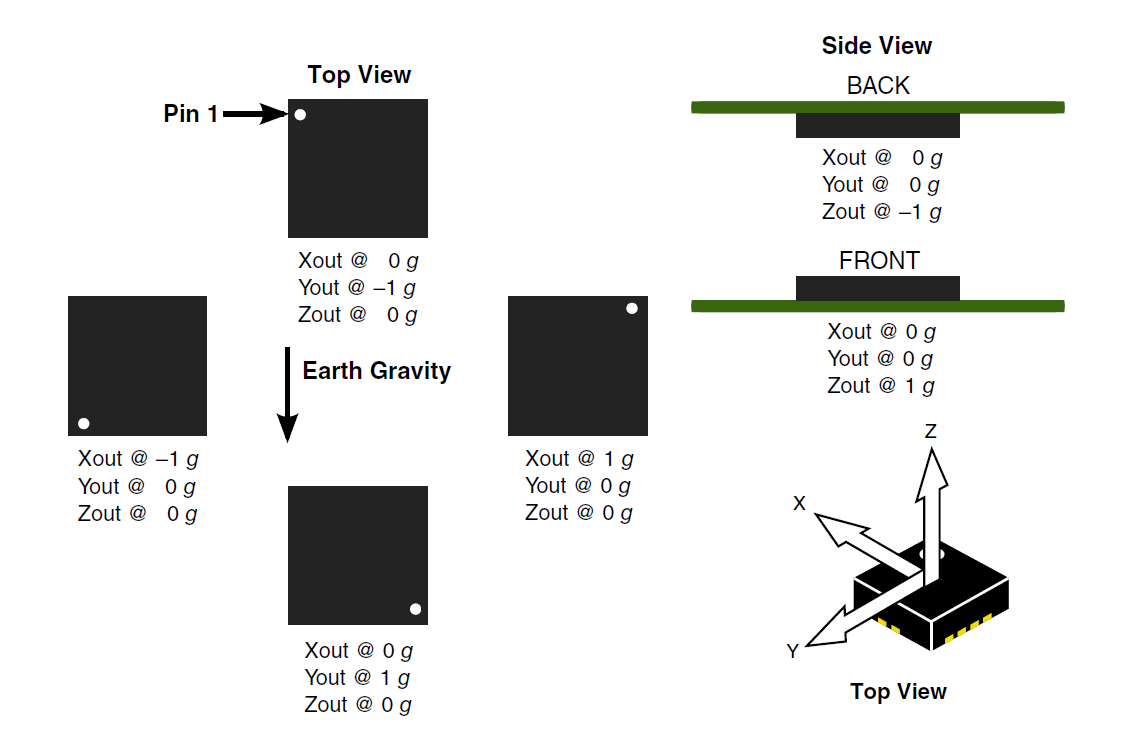
Now, you could observe two sets of data, and you will find the value on X-axis & Y-axis are equal or differ very little, but the value on Z-axis are quite different. This is because there is no accelerated velocity on X-axis and Y-axis, when the sensor is resting horizontally. The module is only forced by gravity, and its direction is always downward. With different posture, the gravitational acceleration stays the same. In physics, we call it "g".
So, when the Z-axis upward, the value z should be "z=Z+g"; when the Z-axis downward, it will be "z=Z+g". You could calculate the initial value of "Z", and the corresponding value of "g".
`    Z=(1.157+0.688)/2=0.923 mV`
`    g=(1.157-0.688)/2=0.235 mV/g`
Similarly, you could get sensor initial value "X" & "Y" and corresponding value of "g" on X-axis and Y-axis.
| Note: The gravitational acceleration are always downward, and its value are only related to the local gravity. We regulate its direction as acceleration positive direction. For example: when the object is moving upward with the acceleration of "a", its acceleration will be "g+a". |
- Step 3
After the calibration, we have gotten every axis initial value and corresponding value of "g".
Upload the sample code, we will get the perfect acceleration velocity.
| Note: In order to get the accurate data, we need do the calibration on each axis. |
Sample Code
    float X=0.774;  //replace your value
    float gx=0.237; //replace your value

    float Y=0.781; //replace your value
    float gy=0.21; //replace your value

    float Z=0.923; //replace your value
    float gz=0.235; //replace your value

    void setup()
    {
      Serial.begin(9600);    //Baudrate 9600
    }
    void loop()
    {
      int x,y,z;
      x=analogRead(0);
      y=analogRead(1);
      z=analogRead(2);
      Serial.print("x= ");
      Serial.print((x*5/1024.0 - X)/gx,2);
      Serial.print(',');
      Serial.print("y= ");
      Serial.print(((y*5/1024.0- Y)/gy),2);
      Serial.print(',');
      Serial.print("z= ");
      Serial.println(((z*5/1024.0-Z)/gz),2);
      delay(100);
    }
Result
Open Arduino IDE, copy the sample code to IDE window, click "Upload".
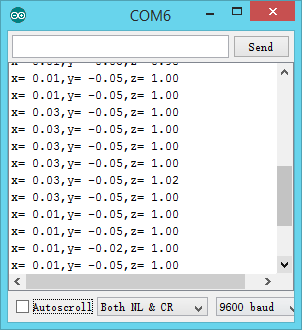
Now, you can see that there is only a "g" on Z-axis, when you leave it resting horizontally.
Was this article helpful?