
Example Code for Arduino-M0-Read acceleration of x, y and z
Last revision 2026/01/19
Get the acceleration in the three directions of xyz, the range can be ±6g, ±12g or ±24g. When using SPI, chip select pin can be modified by changing the value of LIS331HH_CS.
Hardware Preparation
- Firebeetle Board-M0 × 1
- LIS331HH Triple Axis Accelerometer × 1
- Some Jumper wires
Software Preparation
- Arduino IDE
- Download and install the LIS Series Library and Sample Code (About how to install the library?)
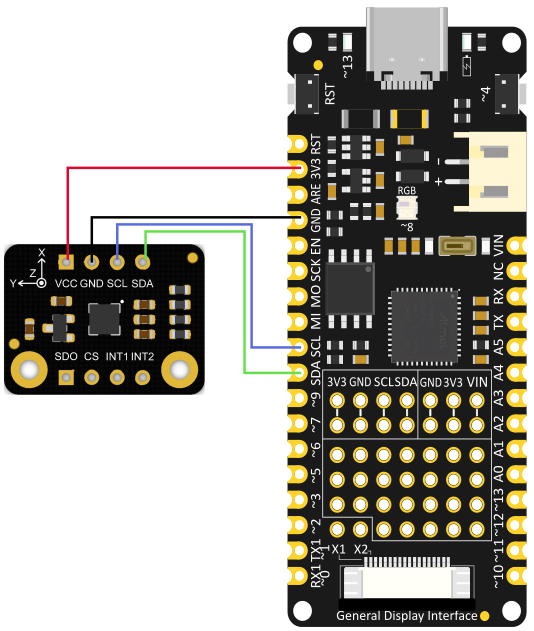
Wiring Diagram
Connect your sensor to an M0 controller (or others) according to the connection diagram below.
Other Preparation Work
- Select getAcceleration.ino.
- Program Burning.
Sample Code
/**!
 * @file getAcceleration.ino
 * @brief Get the acceleration in the three directions of xyz, the range can be ±6g, ±12g or ±24g
 * @n When using SPI, chip select pin can be modified by changing the value of LIS331HH_CS
 * @copyright  Copyright (c) 2010 DFRobot Co.Ltd (http://www.dfrobot.com)
 * @licence     The MIT License (MIT)
 * @author [fengli](li.feng@dfrobot.com)
 * @version  V1.0
 * @date  2021-01-16
 * @get from https://www.dfrobot.com
 * @https://github.com/DFRobot/DFRobot_LIS
 */

#include <DFRobot_LIS.h>

//When using I2C communication, use the following program to construct an object by DFRobot_LIS331HH_I2C
/*!
 * @brief Constructor
 * @param pWire I2c controller
 * @param addr  I2C address(0x18/0x19)
 */
//DFRobot_LIS331HH_I2C acce(&Wire,0x18);
DFRobot_LIS331HH_I2C acce;

//When using SPI communication, use the following program to construct an object by DFRobot_LIS331HH_SPI
#if defined(ESP32) || defined(ESP8266)
#define LIS331HH_CS  D3
#elif defined(__AVR__) || defined(ARDUINO_SAM_ZERO)
#define LIS331HH_CS 3
#elif (defined NRF5)
#define LIS331HH_CS 2  //The pin on the development board with the corresponding silkscreen printed as P2
#endif
/*!
 * @brief Constructor
 * @param cs : Chip selection pinChip selection pin
 * @param spi :SPI controller
 */
//DFRobot_LIS331HH_SPI acce(/*cs = */LIS331HH_CS,&SPI);
//DFRobot_LIS331HH_SPI acce(/*cs = */LIS331HH_CS);

void setup(void){

  Serial.begin(9600);
  //Chip initialization
  while(!acce.begin()){
     delay(1000);
     Serial.println("Initialization failed, please check the connection and I2C address setting");
  }
  //Get chip id
  Serial.print("chip id : ");
  Serial.println(acce.getID(),HEX);

  /**
    set range:Range(g)
              eLis331hh_6g = 6,/<±6g>/
              eLis331hh_12g = 12,/<±12g>/
              eLis331hh_24g = 24/<±24g>/
  */
  acce.setRange(/*range = */DFRobot_LIS::eLis331hh_6g);

  /**
    Set data measurement rate:
      ePowerDown_0HZ = 0,
      eLowPower_halfHZ,
      eLowPower_1HZ,
      eLowPower_2HZ,
      eLowPower_5HZ,
      eLowPower_10HZ,
      eNormal_50HZ,
      eNormal_100HZ,
      eNormal_400HZ,
      eNormal_1000HZ,
  */
  acce.setAcquireRate(/*rate = */DFRobot_LIS::eNormal_50HZ);
  Serial.print("Acceleration:\n");
  delay(1000);
}

void loop(void){

    //Get the acceleration in the three directions of xyz
    //The mearsurement range can be ±6g, ±12g or ±24g, set by the setRange() function
    long ax,ay,az;
    ax = acce.readAccX();//Get the acceleration in the x direction
    ay = acce.readAccY();//Get the acceleration in the y direction
    az = acce.readAccZ();//Get the acceleration in the z direction
    //acce.getAcceFromXYZ(/*accx = */ax,/*accy = */ay,/*accz = */az);//The second way to obtain acceleration in three directions
    Serial.print("x: "); //print acceleration
    Serial.print(ax);
    Serial.print(" mg \ty: ");
    Serial.print(ay);
    Serial.print(" mg \tz: ");
    Serial.print(az);
    Serial.println(" mg");
    delay(300);
}
Result

Additional Information
Select getAcceleration.ino.

Was this article helpful?