
Example Code for Arduino-Threshold Interrupt
Last revision 2026/01/21
Set the interrupt to be triggered when beyond/below threshold, when the interrupt at a axis occur, the relevant data will be printed in the serial port. Experimental phenomenon: when the geomagnetic data at 3 axis (x, y, z) beyond/below threshold, serial print the geomagnetic data, unit (uT). Experimental phenomenon: the main controller interrupt will be triggered by level change caused by INT pin interrupt, then the geomagnetic data can be obtained.
Hardware Preparation
- FireBeetle 2 ESP32-E (SKU:DFR0654) ×1
- Gravity: BMM350 Triple Axis Magnetomete(SKU:SEN0529)×1
- Dupond wire
Software Preparation
- Arduino IDE: Click to download Arduino IDE
- Install the ESP32 SDK:FireBeetle 2 ESP32-E WIKI
- Arduino library:DFRobot_BMM350 Github repo,
Wiring Diagram
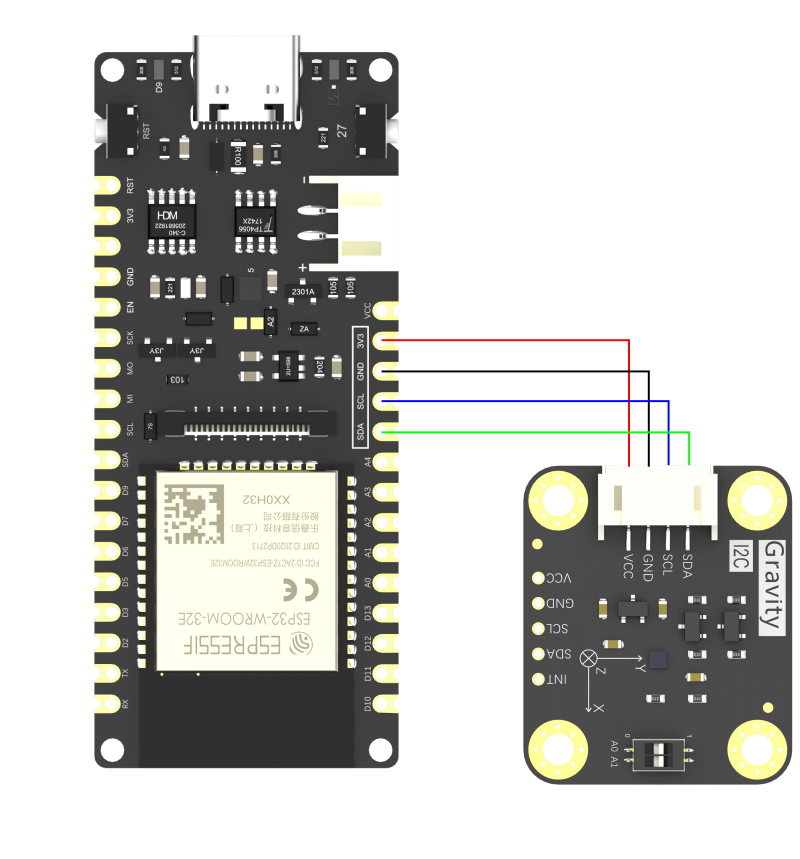
Gravity BMM350 :VCC---(to)---ESP32-E:3V3;
Gravity BMM350 :GND---(to)---ESP32-E:GND;
Gravity BMM350:SCL---(to)---ESP32-E:SCL;
Gravity BMM350:SDA---(to)---ESP32-E:SDA;
Sample Code
  /*!
  * @file  thresholdInterrupt.ino
  * @brief Set the interrupt to be triggered when beyond/below threshold, when the interrupt at a axis occur, the relevant data will be printed in the serial port.
  * @n Experimental phenomenon: when the geomagnetic data at 3 axis (x, y, z) beyond/below threshold, serial print the geomagnetic data, unit (uT)
  * @n Experimental phenomenon: the main controller interrupt will be triggered by level change caused by INT pin interrupt, then the geomagnetic data can be obtained
  * @copyright   Copyright (c) 2010 DFRobot Co.Ltd (http://www.dfrobot.com)
  * @license     The MIT License (MIT)
  * @author      [GDuang](yonglei.ren@dfrobot.com)
  * @version     V1.0.0
  * @date        2024-05-06
  * @url         https://github.com/dfrobot/DFRobot_BMM350
  */
#include "DFRobot_BMM350.h"

DFRobot_BMM350_I2C bmm350(&Wire, 0x14);

volatile uint8_t interruptFlag = 0;
void myInterrupt(void)
{
  interruptFlag = 1;    // Interrupt flag
  #if defined(ESP32) || defined(ESP8266) || defined(ARDUINO_SAM_ZERO)
    detachInterrupt(13);   // Detach interrupt
  #else
    detachInterrupt(0);   // Detach interrupt
  #endif
}

void setup()
{
  Serial.begin(115200);
  while(!Serial);
  delay(5000);
  while(bmm350.begin()){
    Serial.println("bmm350 init failed, Please try again!");
    delay(1000);
  } Serial.println("bmm350 init success!");

  /**!
   * Set sensor operation mode
   * opMode:
   *   BMM350_SUSPEND_MODE      // suspend mode: Suspend mode is the default power mode of BMM350 after the chip is powered, Current consumption in suspend mode is minimal,
   *                               so, this mode is useful for periods when data conversion is not needed. Read and write of all registers is possible.
   *   BMM350_NORMAL_MODE       // normal mode  Get geomagnetic data normally.
   *   BMM350_FORCED_MODE       // forced mode  Single measurement, the sensor restores to suspend mode when the measurement is done.
   *   BMM350_FORCED_MODE_FAST  // To reach ODR = 200Hz is only possible by using FM_ FAST.
   */
  bmm350.setOperationMode(BMM350_NORMAL_MODE);

  /**!
   * Set preset mode, make it easier for users to configure sensor to get geomagnetic data (The default rate for obtaining geomagnetic data is 12.5Hz)
   * presetMode:
   *   BMM350_PRESETMODE_LOWPOWER      // Low power mode, get a fraction of data and take the mean value.
   *   BMM350_PRESETMODE_REGULAR       // Regular mode, get a number of data and take the mean value.
   *   BMM350_PRESETMODE_ENHANCED      // Enhanced mode, get a plenty of data and take the mean value.
   *   BMM350_PRESETMODE_HIGHACCURACY  // High accuracy mode, get a huge number of take and draw the mean value.
   */
  bmm350.setPresetMode(BMM350_PRESETMODE_HIGHACCURACY);

  /**!
   * Set the rate of obtaining geomagnetic data, the higher, the faster(without delay function)
   * rate:
   *   BMM350_DATA_RATE_1_5625HZ
   *   BMM350_DATA_RATE_3_125HZ
   *   BMM350_DATA_RATE_6_25HZ
   *   BMM350_DATA_RATE_12_5HZ   (default rate)
   *   BMM350_DATA_RATE_25HZ
   *   BMM350_DATA_RATE_50HZ
   *   BMM350_DATA_RATE_100HZ
   *   BMM350_DATA_RATE_200HZ
   *   BMM350_DATA_RATE_400HZ
   */
  bmm350.setRate(BMM350_DATA_RATE_25HZ);

  /**!
   * Enable the measurement at x-axis, y-axis and z-axis, default to be enabled, no config required, the geomagnetic data at x, y and z will be inaccurate when disabled.
   * Refer to setMeasurementXYZ() function in the .h file if you want to configure more parameters.
   */
  bmm350.setMeasurementXYZ();

  /*!
   * HIGH_THRESHOLD_INTERRUPT:The interrupt is triggered only if the set threshold range is exceeded.
   * 4:This parameter is a 16-fold parameter, for example, if this parameter is set to 1, then an interrupt will be triggered when the geomagnetic parameter exceeds 16
   * BMM350_ACTIVE_HIGH:Interrupt pin set to high trigger
   */
  bmm350.setThresholdInterrupt(HIGH_THRESHOLD_INTERRUPT, 4, BMM350_ACTIVE_HIGH);

#if defined(ESP32) || defined(ESP8266)
  /**!
    Select according to the set DADY pin polarity
      INPUT_PULLUP    // Low polarity, set pin 13 to pull-up input
      INPUT_PULLDOWN  // High polarity, set pin 13 to pull-down input
    interput io
      All pins can be used. Pin 13 is recommended
  */
  pinMode(/*Pin */13 ,INPUT_PULLUP);
  attachInterrupt(/*interput io*/13, myInterrupt, ONLOW);
#elif defined(ARDUINO_SAM_ZERO)
  pinMode(/*Pin */13 ,INPUT_PULLUP);
  attachInterrupt(/*interput io*/13, myInterrupt, LOW);
#else
  /**!    The Correspondence Table of AVR Series Arduino Interrupt Pins And Terminal Numbers
   * ---------------------------------------------------------------------------------------
   * |                                        |    Pin       | 2  | 3  |                   |
   * |    Uno, Nano, Mini, other 328-based    |--------------------------------------------|
   * |                                        | Interrupt No | 0  | 1  |                   |
   * |-------------------------------------------------------------------------------------|
   * |                                        |    Pin       | 2  | 3  | 21 | 20 | 19 | 18 |
   * |               Mega2560                 |--------------------------------------------|
   * |                                        | Interrupt No | 0  | 1  | 2  | 3  | 4  | 5  |
   * |-------------------------------------------------------------------------------------|
   * |                                        |    Pin       | 3  | 2  | 0  | 1  | 7  |    |
   * |    Leonardo, other 32u4-based          |--------------------------------------------|
   * |                                        | Interrupt No | 0  | 1  | 2  | 3  | 4  |    |
   * |--------------------------------------------------------------------------------------
   */

  /**!    The Correspondence Table of micro:bit Interrupt Pins And Terminal Numbers
   * ---------------------------------------------------------------------------------------------------------------------------------------------
   * |             micro:bit                       | DigitalPin |P0-P20 can be used as an external interrupt                                     |
   * |  (When using as an external interrupt,      |---------------------------------------------------------------------------------------------|
   * |no need to set it to input mode with pinMode)|Interrupt No|Interrupt number is a pin digital value, such as P0 interrupt number 0, P1 is 1 |
   * |-------------------------------------------------------------------------------------------------------------------------------------------|
   */
  /**!
       Select according to the set DADY pin polarity
      INPUT_PULLUP    // Low polarity, set pin 2 to pull-up input
   */
  pinMode(/*Pin */2 ,INPUT_PULLUP);

  /**!
    Set the pin to interrupt mode
    // Open the external interrupt 0, connect INT1/2 to the digital pin of the main control:
      function
        callback function
      state
        LOW            // When the pin is at low level, the interrupt occur, enter interrupt function
  */
  attachInterrupt(/*Interrupt No*/0, /*function*/myInterrupt ,/*state*/LOW );
#endif

}

void loop()
{
  /**!
   * Get the data that threshold interrupt occured and interrupt status (get the data ready status through software)
   *    Returns the structure for storing geomagnetic data, the structure stores the data of 3 axis and interrupt status,
   *    No interrupt triggered when the data at x-axis, y-axis and z-axis is NO_DATA
   *    Refer to .h file if you want to check interrupt status.
   */
  /*
  sBmm350ThresholdData_t thresholdData = bmm350.getThresholdData();
  if(thresholdData.mag_x != NO_DATA){
    Serial.print("mag x = "); Serial.print(thresholdData.mag_x); Serial.println(" uT");
  }
  if(thresholdData.mag_y != NO_DATA){
    Serial.print("mag y = "); Serial.print(thresholdData.mag_y); Serial.println(" uT");
  }
  if(thresholdData.mag_z != NO_DATA){
    Serial.print("mag z = "); Serial.print(thresholdData.mag_z); Serial.println(" uT");
  }
  Serial.println();
  */

  /**!
    When the interrupt occur in INT IO, get the threshold interrupt data (get the threshold interrupt status through hardware)
  */
  if(interruptFlag == 1){
    sBmm350ThresholdData_t thresholdData = bmm350.getThresholdData();
    if(thresholdData.mag_x != NO_DATA){
      Serial.print("mag x = "); Serial.print(thresholdData.mag_x); Serial.println(" uT");
    }
    if(thresholdData.mag_y != NO_DATA){
      Serial.print("mag y = "); Serial.print(thresholdData.mag_y); Serial.println(" uT");
    }
    if(thresholdData.mag_z != NO_DATA){
      Serial.print("mag z = "); Serial.print(thresholdData.mag_z); Serial.println(" uT");
    }
    Serial.println();
    interruptFlag = 0;
    #if defined(ESP32) || defined(ESP8266)
      attachInterrupt(13, myInterrupt, ONLOW);
    #elif defined(ARDUINO_SAM_ZERO)
      attachInterrupt(13, myInterrupt, LOW);
    #else
      attachInterrupt(0, myInterrupt, LOW);
    #endif

  }
  delay(3000);
}
Result
Upload sample code, bring magnet close to sensor, serial port prints change data

Was this article helpful?