
Example Code for Arduino-Dual DC Motor PLL Control
Last revision 2025/12/10
This article provides a comprehensive guide on using Arduino to control dual DC motors with PLL mode, including hardware and software preparation, wiring instructions, and a sample code for efficient motor operation via serial commands.
Hardware Preparation
- DFRobot RoMeo (Arduino Robot Control Board), SKU: DFR0004, Quantity: 1, Purchase Link: DFRobot
- DC Motors, Quantity: 2
- External Power Supply (7V~12V DC), Quantity: 1
- USB Cable, Quantity: 1
Software Preparation
- Arduino IDE 0022 and above, Download Link: Arduino.cc
- Select “Arduino UNO” as the hardware in Arduino IDE.
Wiring Diagram
| Pin | Function |
|---|---|
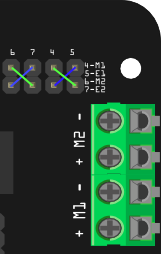
| Digital 4 | Motor 1 Enable control |
| Digital 5 | Motor 1 Direction control |
| Digital 6 | Motor 2 Direction control |
| Digital 7 | Motor 2 Enable control |
"PLL Mode"
Other Preparation Work
- Connect DC motors to the Motor Terminals on the Romeo.
- Apply power to the Motor Power Input terminal (GND and VIN) with an external power supply (ensure correct polarity).
- Connect the Romeo to your computer using a USB cable.
- Open Arduino IDE and select the correct board and port.
Sample Code
//Standard DLL Speed control

int E1 = 4;     //M1 Speed Control
int E2 = 7;     //M2 Speed Control
int M1 = 5;    //M1 Direction Control
int M2 = 6;    //M1 Direction Control

///For previous Romeo, please use these pins.
//int E1 = 6;     //M1 Speed Control
//int E2 = 9;     //M2 Speed Control
//int M1 = 7;    //M1 Direction Control
//int M2 = 8;    //M1 Direction Control

//When m1p/m2p is 127, it stops the motor
//when m1p/m2p is 255, it gives the maximum speed for one direction
//When m1p/m2p is 0, it gives the maximum speed for reverse direction

void DriveMotorP(byte m1p, byte m2p)//Drive Motor Power Mode
{

  digitalWrite(E1, HIGH);
  analogWrite(M1, (m1p));

  digitalWrite(E2, HIGH);
  analogWrite(M2, (m2p));

}

void setup(void)
{
  int i;
  for(i=6;i<=9;i  )
    pinMode(i, OUTPUT);
  Serial.begin(19200);      //Set Baud Rate
}
void loop(void)
{
  if(Serial.available()){
    char val = Serial.read();
    if(val!=-1)
    {
      switch(val)
      {
      case 'w'://Move Forward
        DriveMotorP(0xff,0xff); // Max speed
        break;
      case 'x'://Move Backward
        DriveMotorP(0x00,0x00);
        ; // Max speed
        break;
      case 's'://Stop
        DriveMotorP(0x7f,0x7f);
        break;

      }
    }
  }
}
Result
Send serial commands ('w' for forward, 'x' for backward, 's' for stop) to the Romeo via the serial monitor (19200 baud rate). The motors will respond accordingly:
- 'w': Both motors run forward at max speed.
- 'x': Both motors run backward at max speed.
- 's': Both motors stop.
Additional Information
- PLL control mode uses Pin 4,7 for enable and Pin 5,6 for direction.
- For previous Romeo versions, the pins used to control the motor are Pin 7,8 (Direction) and Pin 6,9 (Speed). Check the Motor Control Pin Jumpers for details.
Was this article helpful?