
Example Code for Arduino-Button Press
Last revision 2025/12/10
This article presents an example code for implementing button press functionality using DFRobot RoMeo with Arduino IDE. It covers hardware and software setup, wiring diagrams, and provides sample code for detecting button presses and displaying key messages on the serial monitor.
Hardware Preparation
- DFRobot RoMeo (Arduino Robot Control Board), SKU: DFR0004, Quantity: 1, Purchase Link: DFRobot
- USB Cable, Quantity: 1
Software Preparation
- Arduino IDE 0022 and above, Download Link: Arduino.cc
- Select “Arduino UNO” as the hardware in Arduino IDE.
Wiring Diagram
| Pin | Function |
|---|---|
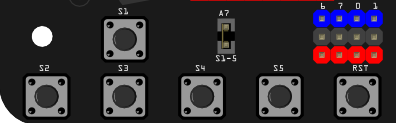
| Analog Pin 7 | Button S1-S5 |
"Button Pin Map"
Other Preparation Work
- Connect the Romeo to your computer using a USB cable.
- Apply power to the Romeo via USB or external power source (ensure correct polarity).
- Open Arduino IDE and select the correct board and port.
Sample Code
char msgs[5][15] = {
  "Right Key OK ",
  "Up Key OK    ",
  "Down Key OK  ",
  "Left Key OK  ",
  "Select Key OK" };
char start_msg[15] = {
  "Start loop "};
int  adc_key_val[5] ={
  30, 150, 360, 535, 760 };
int NUM_KEYS = 5;
int adc_key_in;
int key=-1;
int oldkey=-1;
void setup() {
  pinMode(13, OUTPUT);  //we'll use the debug LED to output a heartbeat
  Serial.begin(9600);

  /* Print that we made it here */
  Serial.println(start_msg);
}

void loop()
{
  adc_key_in = analogRead(7);    // read the value from the sensor
  digitalWrite(13, HIGH);
  /* get the key */
  key = get_key(adc_key_in);    // convert into key press
  if (key != oldkey) {   // if keypress is detected
    delay(50);      // wait for debounce time
    adc_key_in = analogRead(7);    // read the value from the sensor
    key = get_key(adc_key_in);    // convert into key press
    if (key != oldkey) {
      oldkey = key;
      if (key >=0){
        Serial.println(adc_key_in, DEC);
        Serial.println(msgs[key]);
      }
    }
  }
  digitalWrite(13, LOW);
}
// Convert ADC value to key number
int get_key(unsigned int input)
{
  int k;
  for (k = 0; k < NUM_KEYS; k++  )
  {
    if (input < adc_key_val[k])
    {
      return k;
    }
  }
  if (k >= NUM_KEYS)
    k = -1;     // No valid key pressed
  return k;
}
Result
When you press buttons S1-S5, corresponding key messages (e.g., "Right Key OK ", "Up Key OK ") will be output to the serial monitor at 9600 baud rate. The debug LED on Pin 13 will blink with each loop.
Additional Information
- Buttons are connected to Analog Pin 7.
- Use the serial monitor in Arduino IDE to view output.
Was this article helpful?