
Getting Started
Last revision 2025/12/10
This article offers comprehensive guidance on installing drivers and setting up Arduino boards, detailing procedures for Windows, OSX, and Linux operating systems. It highlights essential steps such as connecting the Romeo controller, applying power correctly, and programming with Arduino IDE, ensuring users can efficiently start their projects.
Important Notes
A. Please read this manual carefully before applying power on the device.
B. Do not use this device for military or medical purpose as they are not designed to.
Driver installation
For products purchased after February 2021, please use the following method to install the driver before use.
Note: OSX and Linux do not need to install the driver, only the development board; Windows needs to install the driver and development board.
Install the board
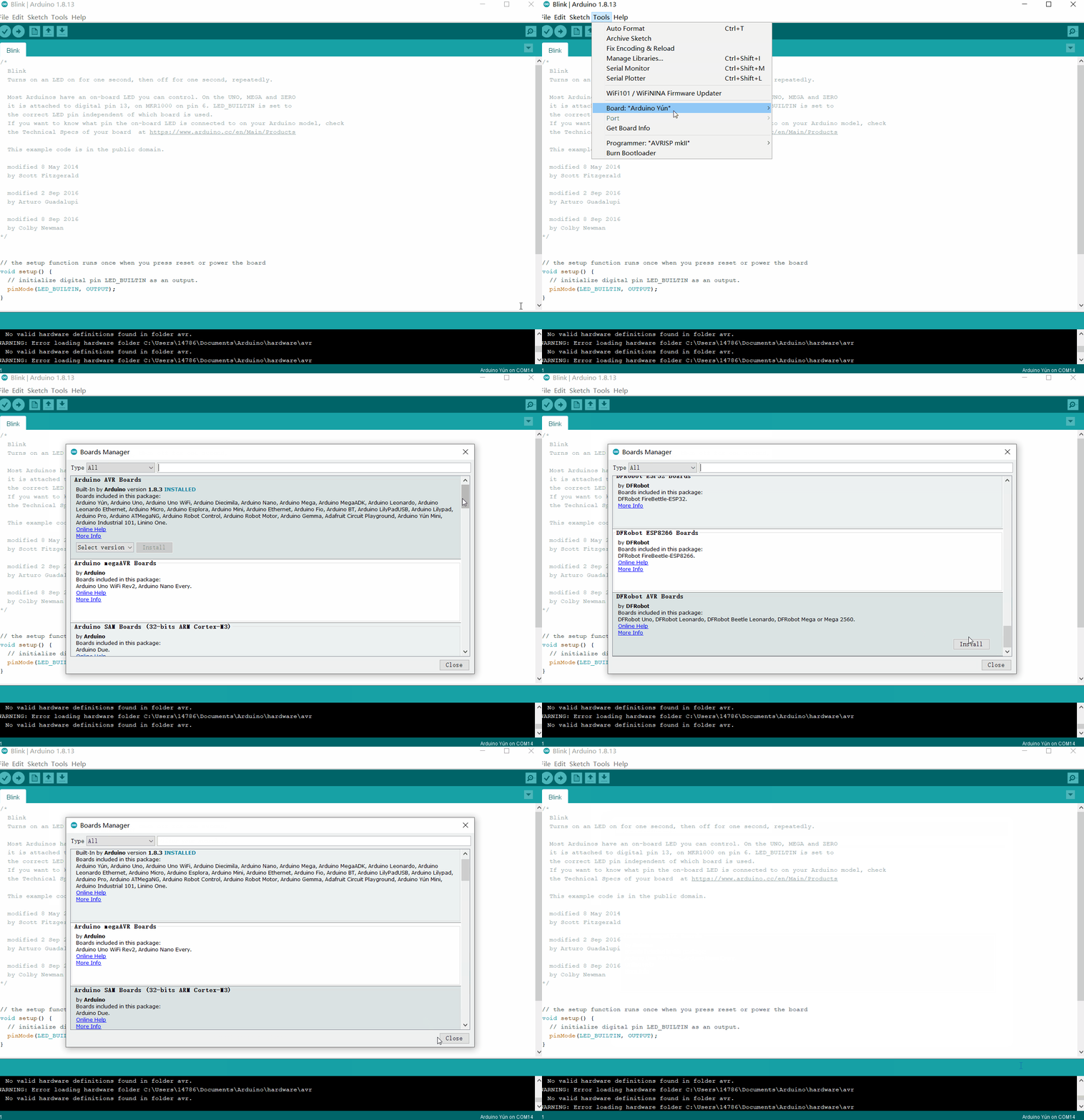
(1) Open Arduino 1.8.13, click File--Preferences--Show verbose output during the checkbox compilation and upload, and then copy and paste the json file URL (as shown below) into Additional Boards Manager URLs, and then click OK at the bottom right corner of the page to close the page.
https://downloadcd.dfrobot.com.cn/boards/package_DFRobot_index.json


(2) Click Tools--Board--Board Manager--Select the DFRobot AVR Boards board. --Click Install --Click Close in the lower right corner to close the page after the installation is completed.
Installation of the driver
(1)Download the driver and install it
(2) Connect Romeo 3-in-1 Arduino compatible controller and pc with serial cable

(3) open the device manager to check the port number (the same as the following figure shows that the driver installation is successful)

Before you start
Applying Power
This is one of the most important steps in getting the Romeo up and communicating with your host controller. You MUST make sure that you apply power to the Power Terminal using the correct polarity. Reverse Polarity will damage the Romeo. We are not responsible for such damage, nor do we warranty against such damage. Make sure you take time to apply power correctly. Otherwise, it could get costly for you!
Power from USB: Simply plug USB cable, and the Romeo is able to work. Please notice that the USB can only supply 500 mA current. It should be able to meet the most requirements for LED lit application. However it is not enough to power DC motors or servo.
Power from Motor Power Input: Simply connect the ground wire from your supply to the screw terminal labeled “GND”, and then connect the positive wire from your supply to the screw terminal labeled “VIN".
NOTE: Maximum supply voltage cannot exceed 14V DC.
Software
RoMeo can be programmed by Arduino IDE 0022 and above. It can be downloaded at Arduino.cc, Please select “Arduino UNO” as the hardware.
Romeo Configuration
Servo Power Select Jumper
As most servos draw more current than the USB power source can supply. A separate servo power terminal is provided to power the servo individually. This option can be Enabled/Disabled by the Servo Power Select Jumper.
When the Servo Power Select Jumper is applied, the servo is powered by internal 5V.
When the Servo Power Select Jumper is not applied, the servo is powered by external power source.
The Romeo V1.0 uses an automatic switcher for the power source selection. When the external power source has been applied, the servo will be automatically powered by the external power instead of USB power.
Motor Control Pin Jumper
Applying the Motor Control Pin Jumpers will allocate Pin 5,6,7,8 for motor control.
Removing the jumpers will release the above Pins, and the motor controller will be disabled.
Was this article helpful?