
Reference
This article offers a comprehensive guide on setting up libraries for Arduino IDE and MicroPython, detailing network configuration, firmware downloads, and utilizing features such as secondary screens, weather updates, and multimedia playback.
Library
- For Arduino IDE: Download the library file( The library contains the following 4 files: ESP32_Display_Panel library, ESP32_IO_Expander library, lvgl library (8.4.0), and lv_conf.h file. After downloading, copy the three libraries and lv_conf.h file to the C:\Users\your username\Documents\Arduino\libraries\ directory.)
- For MicroPython: Download the required MicroPython firmware and screen driver
Other Supplementary Information
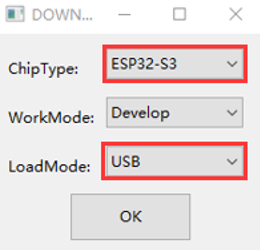
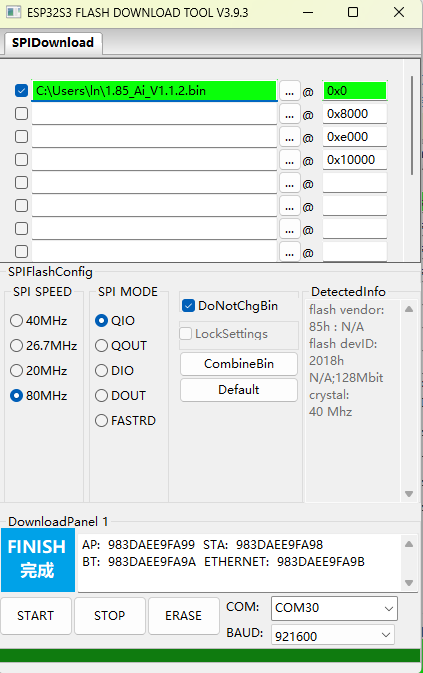
- Use “flash_download_tool” to burn the demo_firmware.bin which has the following functions: secondary screen, theme clock, weather, MJPEG playback, electronic photo frame, music playback, and sound spectrum pickup.
Secondary screen: Swipe left and right on the screen area to switch between different secondary screen styles, with 18 styles built in
Theme clock: Swipe left and right on the screen area to switch between different dials, with 4 built-in anime theme clocks.
Weather: Get the current city's weather, air pressure and other information through the Internet.
MJPEG playback: Swipe left and right on the screen area to switch between the next or previous file, and you can add MJPEG files yourself.
Electronic photo frame: Swipe left and right on the screen area to switch between the next or previous file, and you can add photos yourself.
Music playback: divided into playback page and menu/list page. Enter the menu/list page by default, and the mp3 files in the music directory on the TF card will be automatically scanned and listed. Click the corresponding name to play and go to the playback page. Click anywhere on the screen on the playback page to display the menu/list page. If there is no action after 3 seconds, the menu/list page will be automatically hidden. You can add MP3 files by yourself and decode 320K high-quality MP3.
Audio spectrum: audio spectrum function.
Settings: All setting functions are performed on the setting page. In order to extend the service life of the flash, the changes made on the setting page will be saved to the flash only when you exit the setting page.
Network configuration
AIDA64 sub-screen and weather clock need to be configured for use.
After power-on, the device will automatically open an AP named My-Ap, and the password is 12345678. Connect to this AP with your mobile phone, and the network configuration page will pop up after a while, automatically search for hotspots in the current environment, select your hotspot and enter the password to complete the network configuration. After the network configuration is completed, the screen will obtain an IP address, which can be viewed on the WIFI page in the settings.
Note: Once some mobile phones find that the hotspot cannot connect to the Internet, they will automatically disconnect the hotspot and use the 5G network. At this time, you need to connect to the AP again. If the network configuration page does not pop up after connecting to the AP, please enter 192.168.4.1 on the mobile browser to open it.
Detailed instructions for each function:
1. Computer secondary screen function (AIDA64)
- Find an activated AIDA64 client (by yourself).
- Menu [File] [Settings] [LCD], select Remote Sensor. 3. Port 80, fill in 1280×800 for the resolution, and check [Enable RemoteSensor LCD support].
- Click [LCD Project], click [Import] in the upper right corner, and then select the aida_remote_1.85.rslcd file provided by our file.
- After importing, you need to make some settings, because everyone's CPU, GPU, motherboard, hard disk, network card, etc. are different. Please set them one by one, 8 parameters CPU usage \CPU freq\ CPU temp\CPUfan\GPUusage \GPU freq\ GPU temp\GPU fan.
- Note that you must not modify the text in "Show Label". "Showunit" must be filled with "^" (without quotation marks), otherwise the device cannot be detected.
- After all modifications are completed, click OK, and then minimize AIDA64. You can let it start automatically when it starts in the settings. (Settings, General, Run AIDA64 when Windows starts).
- Access the IP address of the screen through the web page, set your computer's IP address (that is, the computer IP running AIDA64) in the "Secondary Screen Host Address" at the bottom, and then save. If the local port 80 is occupied, you need to add a colon at the end and add a custom port.
For example:
192.168.0.100 uses the host address of 192.168.0.100, and the default port is 80. 192.168.0.100:9223 uses the host address of 192.168.0.100, and uses the port 9223. Note that the colon is an English colon ":". - The firewall allows AIDA64 to access the network, or manually opens TCP port 80 (or your custom port). Important!
https://jingyan.baidu.com/article/af9f5a2d2ea83543140a4584.html
After the settings are completed, switch the screen to the AIDA64 function window to display the status information of various hardware on the computer.
2. Audio spectrum function
Gain correction can be performed on the Web page. There are 4 levels in total. Adjust to the appropriate level to ensure that the spectrum is almost invisible when it is quiet.
3. MP3 music playback function
Put MP3 files with a sampling rate of 48000 or less and below 320kbps into the music directory of the TF card (restart the device each time you insert the card back into the device after copying it, the same below).
4. Electronic photo frame function
Put a 360×360 JPEG file into the pic directory of the TF card.
5. MJPEG playback function
Use the mjpeg conversion tool to convert the video to be played into an MJPEG file with a resolution of 360*360, an FPS of 25, and a video quality of 7, and copy the file to the mjpeg directory of the TF card.
6. Real-time weather display function
Configure the city code in the web page and use it. Enter the city name on the web page, click Save, and the city code will be automatically generated. However, it takes time to refresh. After the screen exits the weather interface, enter the weather interface again. After the network refresh is successful, the corresponding city weather will be obtained.
7. Clock display function
Enter the clock screen, slide from left to right, and select the corresponding dial screen.
Was this article helpful?