
JetPack SDK Components Installation
This guide explains how to install additional JetPack SDK components (such as CUDA and TensorRT) using either SDK Manager or command-line tools, including notes for systems with limited storage.
SDK Installation
JetPack mainly includes system images, libraries, APIs, developer tools, examples, and some documents. In the SDK Manager software, what we install first is the OS (i.e., the system image), and the uninstalled part is the SDK, as shown in the figure below. You can install it directly using commands or via SDK Manager:
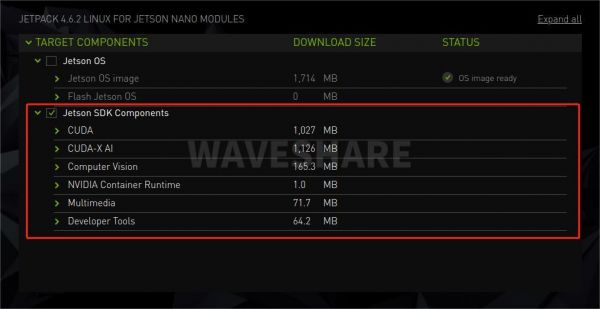
The SDK includes TensorRT, cuDNN, CUDA, Multimedia API, Computer Vision, and Developer Tools.
- TensorRT: A high-performance deep learning inference runtime for neural networks used in image classification, segmentation, and object detection. It accelerates the speed of deep learning inference and reduces the runtime memory footprint of convolutional and deconvolutional neural networks.
- cuDNN: The CUDA Deep Neural Network Library provides high-performance primitives for deep learning frameworks. It includes support for convolution, activation functions, and tensor transformations.
- CUDA: The CUDA Toolkit provides a comprehensive development environment for C and C++ developers building GPU-accelerated applications. The toolkit includes compilers for NVIDIA GPUs, mathematical libraries, and tools for debugging and optimizing application performance.
- Multimedia API: The Jetson Multimedia API provides low-level APIs for flexible application development.
- Computer Vision: VPI (Vision Programming Interface) is a software library that provides computer vision/image processing algorithms implemented on PVA1 (Programmable Vision Accelerator), GPU, and CPU. Among them, OpenCV is the leading open-source library for computer vision, image processing, and machine learning, now with GPU-accelerated capabilities for real-time operations; VisionWorks2 is a software development kit for computer vision (CV) and image processing.
- Developer Tools: The CUDA Toolkit (part of Developer Tools) provides a comprehensive development environment for C and C++ developers building GPU-accelerated applications. The toolkit includes compilers for NVIDIA GPUs, mathematical libraries, and tools for debugging and optimizing application performance.
The above are some functions of the SDK. Only the basic system was installed during the initial system setup; other JetPack SDK components (such as CUDA) need to be further installed after the system starts normally. Here are the step-by-step instructions for installing the SDK. If you want to install these components, ensure that the TF card or USB flash drive is used as the main system, as the downloaded content may cause the EMMC disk to run out of space.
Installation via SDK Manager
Note: This method is overly cumbersome, so it is recommended to use the commands below for installation (i.e., operate on the development board with network connectivity).
When installing the SDK via SDK Manager, there is no need to set the Nano to recovery mode.
- Power on and start the Nano normally
- After the Jetson Nano boots into the system normally, connect the Micro USB port of the Jetson Nano to the Ubuntu host using a USB data cable
- Run the
sdkmanagercommand on the Ubuntu host to open SDK Manager (SDK Manager needs to be installed first) - Similar to the previous system flashing operation, the difference is that in the second step, do not check the OS option, but check the SDK option, then click Continue to proceed with the installation
- After downloading the resources, a pop-up window will prompt you to enter the username and password; just fill in the username and password of the Nano system
- Wait for the SDK installation to complete
Installation via Commands
Users who do not have Ubuntu or a virtual machine can choose to install it directly on the Jetson Nano using the following commands:
sudo apt update
sudo apt install nvidia-jetpack
If you only have a small amount of reserved space, do not install using the above commands (it will cause insufficient space), and do not install components via SDK Manager either. Please use the following two commands instead:
sudo apt update
apt depends nvidia-jetpack | awk '{print $2}' | xargs -I {} sudo apt install -y {}
Was this article helpful?