
Example Code for Arduino-Keyboard Control Test
This program allows keyboard control of the Cherokey 4WD robot via the Arduino IDE serial monitor. It provides feedback on the robot's actions and helps debug motor direction.
Hardware Preparation
- Cherokey 4WD Robot Kit (SKU: ROB0117)
- RoMeo BLE Microcontroller (SKU: ROB0117)
- 5x AA batteries or 7.5V LiPo battery
- F-F jumper wires
- Phillips screwdriver (for motor terminals)
Software Preparation
- Arduino IDE (download from https://www.arduino.cc/en/software)
- Board setting: "Arduino UNO"
- COM port: Correct port for the RoMeo BLE
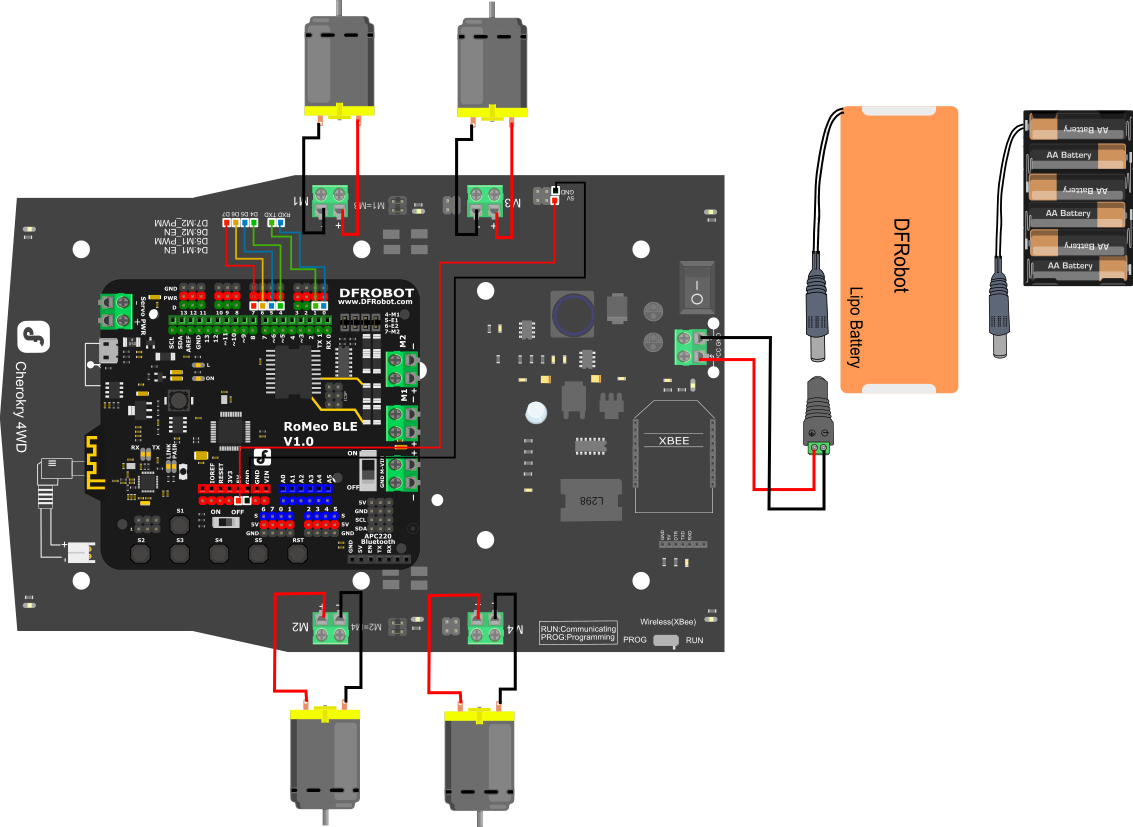
Wiring Diagram
| RoMeo BLE | Cherokey PCB |
|---|---|
| RX | RX |
| TX | TX |
| D4 | D4 |
| D4 | D4 |
| D5 | D5 |
| D6 | D6 |
| D7 | D7 |
| 5v | 5v |
| GND | GND |
Other Preparation Work
- Complete the assembly and wiring steps from the Simple Movement Test.
- Upload the Control Test Program to the RoMeo BLE.
- Keep the USB cable connected to the computer.
- Open the Arduino IDE serial monitor, set to "No line ending" and baud rate 9600.
Sample Code
/*
 # Edited by:  Matt
 # Date:       2015.09.06
 # Version:    1.1
 # Product:    Cherokey 4WD Mobile Platform
 # SKU:        ROB0102/ROB0117

 # Description:
 # Drive 2 motors with this Cherokey 4WD Mobile Platform
 # Connect D4,D5,D6,D7,GND to UNO digital 4,5,6,7,GND

*/
//Motor Definitions
int E1 = 5;     //M1 Speed Control
int E2 = 6;     //M2 Speed Control
int M1 = 4;     //M1 Direction Control
int M2 = 7;     //M2 Direction Control

//DIRECTIONS

//STOP
void stop(void)
{
  digitalWrite(E1, 0);
  digitalWrite(M1, LOW);
  digitalWrite(E2, 0);
  digitalWrite(M2, LOW);
}

//ADVANCE
void advance(char a, char b)
{
  analogWrite (E1, a);
  digitalWrite(M1, HIGH);
  analogWrite (E2, b);
  digitalWrite(M2, HIGH);
}

//MOVE BACKWARDS
void back_off (char a, char b)
{
  analogWrite (E1, a);
  digitalWrite(M1, LOW);
  analogWrite (E2, b);
  digitalWrite(M2, LOW);
}


//TURN LEFT
void turn_L (char a, char b)
{
  analogWrite (E1, a);
  digitalWrite(M1, LOW);
  analogWrite (E2, b);
  digitalWrite(M2, HIGH);
}

//TURN RIGHT
void turn_R (char a, char b)
{
  analogWrite (E1, a);
  digitalWrite(M1, HIGH);
  analogWrite (E2, b);
  digitalWrite(M2, LOW);
}

void setup(void) {
  int i;
  for (i = 4; i <= 7; i++)
    pinMode(i, OUTPUT);
  Serial.begin(9600);      //Set Baud Rate
  Serial.println("hello. w = forward, d = turn right, a = turn left, s = backward, x = stop, z = hello world"); //Display instructions in the serial monitor
  digitalWrite(E1, LOW);
  digitalWrite(E2, LOW);
}

void loop(void) {
  if (Serial.available()) {
    char val = Serial.read();
    if (val != -1)
    {
      switch (val)
      {
        case 'w'://Move Forward
          Serial.println("going forward");
          advance (255, 255);  //move forward at max speed
          delay (1000);
          stop();
          break;
        case 's'://Move Backward
          Serial.println("going backward");
          back_off (255, 255);  //move backwards at max speed
          delay (1000);
          stop();
          break;
        case 'a'://Turn Left
          Serial.println("turning left");
          turn_L (255, 255);
          delay (1000);
          stop();
          break;
        case 'd'://Turn Right
          Serial.println("turning right");
          turn_R (255, 255);
          delay (1000);
          stop();
          break;
        case 'z':
          Serial.println("hello world!");
          break;
        case 'x':
          Serial.println("stopping");
          stop();
          break;
      }
    }
    else stop();
  }
}
Result
When the serial monitor is opened, the following message appears:
hello. w = forward, d = turn right, a = turn left, s = backward, x = stop, z = hello world
Using the keyboard keys:
- W: Robot moves forward for 1 second, then stops. Serial monitor displays "going forward".
- S: Robot moves backward for 1 second, then stops. Serial monitor displays "going backward".
- A: Robot turns left for 1 second, then stops. Serial monitor displays "turning left".
- D: Robot turns right for 1 second, then stops. Serial monitor displays "turning right".
- X: Robot stops. Serial monitor displays "stopping".
- Z: Serial monitor displays "hello world!".
Additional Information
Changing the Motor Direction in Code
If the robot's movement direction is incorrect, you can adjust the motor direction by modifying the code:
-
Locate the motor direction control variables:
int M1 = 4; //M1 Direction Control int M2 = 7; //M2 Direction Control -
Adjust the
digitalWritevalues in the movement functions. For example, in theturn_Lfunction:void turn_L (char a, char b) { analogWrite (E1, a); digitalWrite(M1, LOW); // Change to HIGH to reverse M1 direction analogWrite (E2, b); digitalWrite(M2, HIGH); // Change to LOW to reverse M2 direction } -
Upload the modified code and test until the movement is correct.
Was this article helpful?