
Example Code for Arduino-Simple Movement Test
This program tests basic movement functions (forward, backward, left turn, right turn) of the Cherokey 4WD robot.
Hardware Preparation
- Cherokey 4WD Robot Kit (SKU: ROB0117)
- RoMeo BLE Microcontroller (SKU: ROB0117)
- 5x AA batteries or 7.5V LiPo battery
- F-F jumper wires
- Phillips screwdriver (for motor terminals)
Software Preparation
- Arduino IDE (download from https://www.arduino.cc/en/software)
- Board setting: "Arduino UNO"
- COM port: Correct port for the RoMeo BLE
Wiring Diagram
| RoMeo BLE | Cherokey PCB |
|---|---|
| RX | RX |
| TX | TX |
| D4 | D4 |
| D4 | D4 |
| D5 | D5 |
| D6 | D6 |
| D7 | D7 |
| 5v | 5v |
| GND | GND |
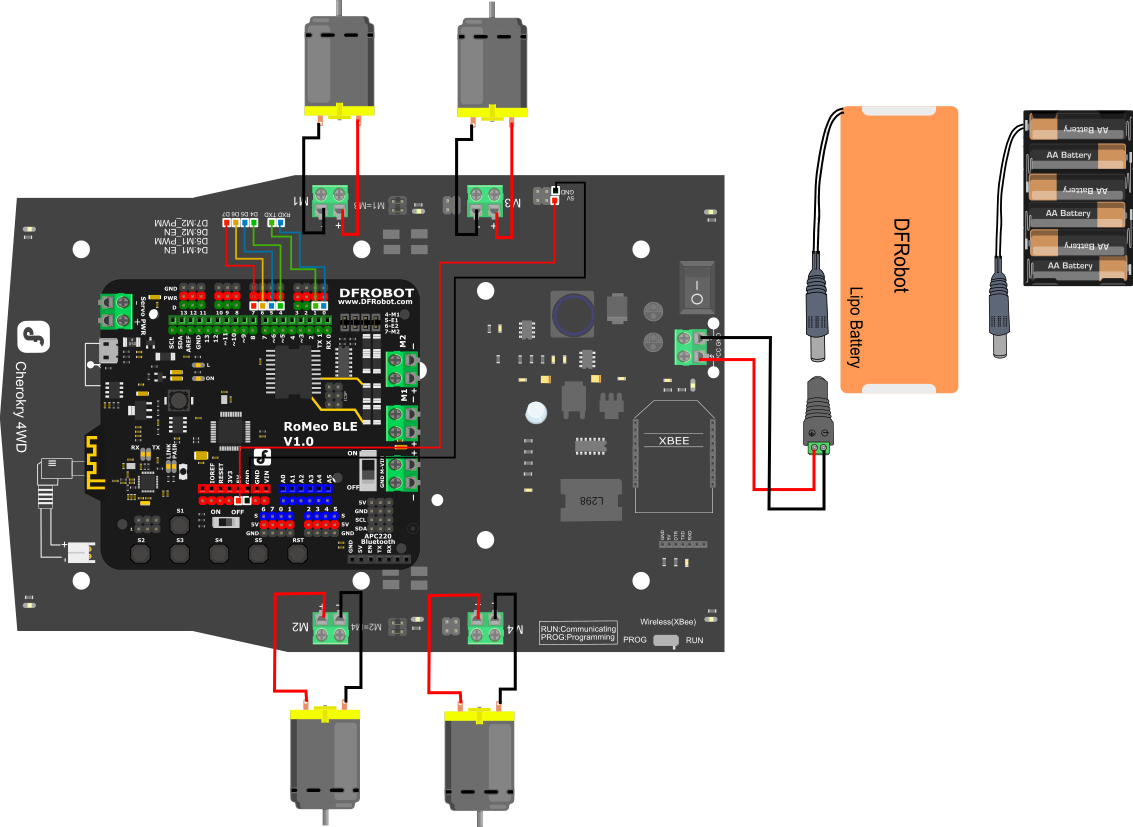
Other Preparation Work
- Assemble the Cherokey kit following the Cherokey Instruction Manual.
- Mount the RoMeo BLE microcontroller on the Cherokey PCB as shown in the image.
- Connect the RoMeo BLE to the Cherokey PCB using F-F jumper wires according to the logic connections table.
- Connect the Cherokey PCB to +5V and GND on the RoMeo BLE.
- Connect the motors to the motor terminals on the Cherokey PCB, ensuring correct polarity.
- Insert batteries or connect the LiPo battery to the Cherokey PCB.
- Ensure the motor jumpers (M1=M3, M2=M4) are correctly positioned as described.
Sample Code
int speedPin_M1 = 5;     //M1 Speed Control
int speedPin_M2 = 6;     //M2 Speed Control
int directionPin_M1 = 4;     //M1 Direction Control
int directionPin_M2 = 7;     //M1 Direction Control

void setup(){
}

void loop(){
    carAdvance(100,100);
    delay(1000);
    carBack(100,100);
    delay(1000);
    carTurnLeft(250,250);
    delay(1000);
    carTurnRight(250,250);
    delay(1000);
}

void carStop(){                 //  Motor Stop
  digitalWrite(speedPin_M2,0);
  digitalWrite(directionPin_M1,LOW);
  digitalWrite(speedPin_M1,0);
  digitalWrite(directionPin_M2,LOW);
}

void carBack(int leftSpeed,int rightSpeed){         //Move backward
  analogWrite (speedPin_M2,leftSpeed);              //PWM Speed Control
  digitalWrite(directionPin_M1,HIGH);
  analogWrite (speedPin_M1,rightSpeed);
  digitalWrite(directionPin_M2,HIGH);
}

void carAdvance(int leftSpeed,int rightSpeed){       //Move forward
  analogWrite (speedPin_M2,leftSpeed);
  digitalWrite(directionPin_M1,LOW);
  analogWrite (speedPin_M1,rightSpeed);
  digitalWrite(directionPin_M2,LOW);
}

void carTurnLeft(int leftSpeed,int rightSpeed){      //Turn Left
  analogWrite (speedPin_M2,leftSpeed);
  digitalWrite(directionPin_M1,LOW);
  analogWrite (speedPin_M1,rightSpeed);
  digitalWrite(directionPin_M2,HIGH);
}
void carTurnRight(int leftSpeed,int rightSpeed){      //Turn Right
  analogWrite (speedPin_M2,leftSpeed);
  digitalWrite(directionPin_M1,HIGH);
  analogWrite (speedPin_M1,rightSpeed);
  digitalWrite(directionPin_M2,LOW);
}
Result
After uploading the code and powering on the robot:
- The Cherokey will move forward for 1 second.
- Then move backward for 1 second.
- Then turn left for 1 second.
- Then turn right for 1 second.
- This cycle repeats.
Additional Information
TROUBLESHOOTING TIPS:
- Batteries must be connected to make the motors move! If the Cherokey is only plugged in with USB power through the microcontroller, the motors will be under powered and will not work!
- If batteries are installed but the motors are not moving, make sure the switch at the rear of the Cherokey PCB is turned on.
- The Cherokey's direction may vary depending on the wiring of the motors. If you think the directions are wrong, try switching the positive and negative wires.
- If a problem persists, try editing the code to change the motor direction (covered in the Control Test Program section).
Was this article helpful?