
For Raspberry Pi--Sample code 7-Orientation detection(orientation.py)
Last revision 2026/01/29
Requirements
-
Hardware
- Raspberry Pi 4B(or similar) x 1
- LIS2DW12 Triple Axis Accelerometer x1
- Jumper wires x1
-
Software
- Download and install the LIS Series Python Library.
- Raspberry Pi Official OS
Connection
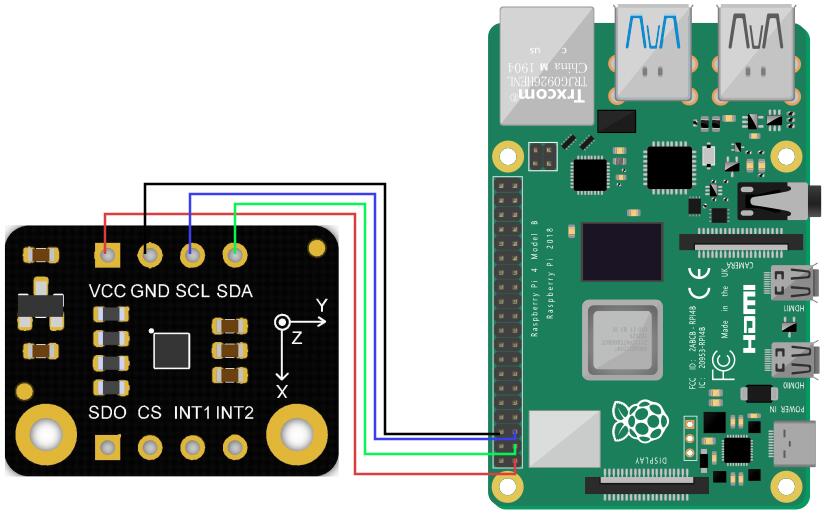
- Connect the module to the Raspberry Pi according to the connection diagram. The default I2C address is 0x19.
Driver Installtion
-
Enable the I2C interface of the Raspberry Pi. If it is already enabled, you can skip this step. Open Terminal, type the following command, and press Enter:
sudo raspi-configThen use the up and down keys to select "5 Interfacing Options", press Enter, select "P5 I2C", and press Enter to confirm "YES". Restart the Raspberry Pi main control board.
-
To install Python dependent libraries and git, the Raspberry Pi needs to be connected to the Internet. If it is already installed, you can skip this step. In the terminal, type the following commands in sequence, and press Enter:
sudo apt-get updatesudo apt-get install build-essential python-dev python-smbus git -
Download the LIS series driver library. In the terminal, type the following commands in sequence and press Enter:
cd Desktopgit clone https://github.com/DFRobot/DFRobot_LISNote:If you choose to use I2C (0X18) and SPI communication methods, you need to modify the demo to the corresponding communication. You may encounter situations where you do not have the authority to modify the sample program. The following is the solution:
-
Query permissions under the file directory which needs to be modified, the command is:
ls -al -
Modify the file permissions, the command is:
sudo chmod a+w XXX.pyAt this point, the file write permission is available for everyone.
Sample code
- In the terminal, type the following command and press Enter, run the sample code:
cd DFRobot_LIS/Python/raspberrypi/examples/LIS2DW12
cd orientation
python orientation.py
Result

Was this article helpful?