
Example Code for Arduino-Standard PWM DC control
Last revision 2026/01/18
This article offers a comprehensive guide on using Arduino for Standard PWM DC motor control, including hardware and software preparation, wiring diagrams, and sample code that allows users to control robot movements such as moving forward, backward, turning left, and right. It also includes troubleshooting tips for ensuring accurate motor direction and speed control. Ideal for hobbyists and professionals seeking to improve their robotics projects with Arduino.
Hardware Preparation
- 4WD Mobile Platform (Arduino Controller Supported), ROB0003, 1, DFRobot
- Romeo-All in one Controller, DFR0225, 1, Romeo
- DF05BB Standard Servo (5kg), SER0020, 1, DFRobot
- IR Kit For Arduino, DFR0107, 1, DFRobot
- 10 sets M3 * 10 hexagonal standoffs mounting kit, FIT0063, 1, DFRobot
- URM ultrasound mounting bracket, FIT0006, 1, DFRobot
- URM37 V4.0 Ultrasonic Sensor, SEN0001, 1, DFRobot
- Adjustable Infrared Sensor Switch, SEN0019, 3, DFRobot
- Light Disc with 7 SMD RGB LED, DFR0106, 2, DFRobot
- DFRobot Bluetooth V3, TEL0026, 1, DFRobot
- Pan and Tilt Kit (Black Anodized) (no servos), FIT0004, 1, DFRobot
- Wire cutter and wire stripper, 1, -
- Soldering Iron, 1, -
- Solder, 1, -
- Phillips Screw Driver, 1, -
- Pliers, 1, -
- 5xAA batteries (1.2V rechargeable or 1.5V alkaline), 1 set, -
Software Preparation
- Arduino IDE (download from Arduino)
Wiring Diagram
Connect the motors to M1 (left) and M2 (right):
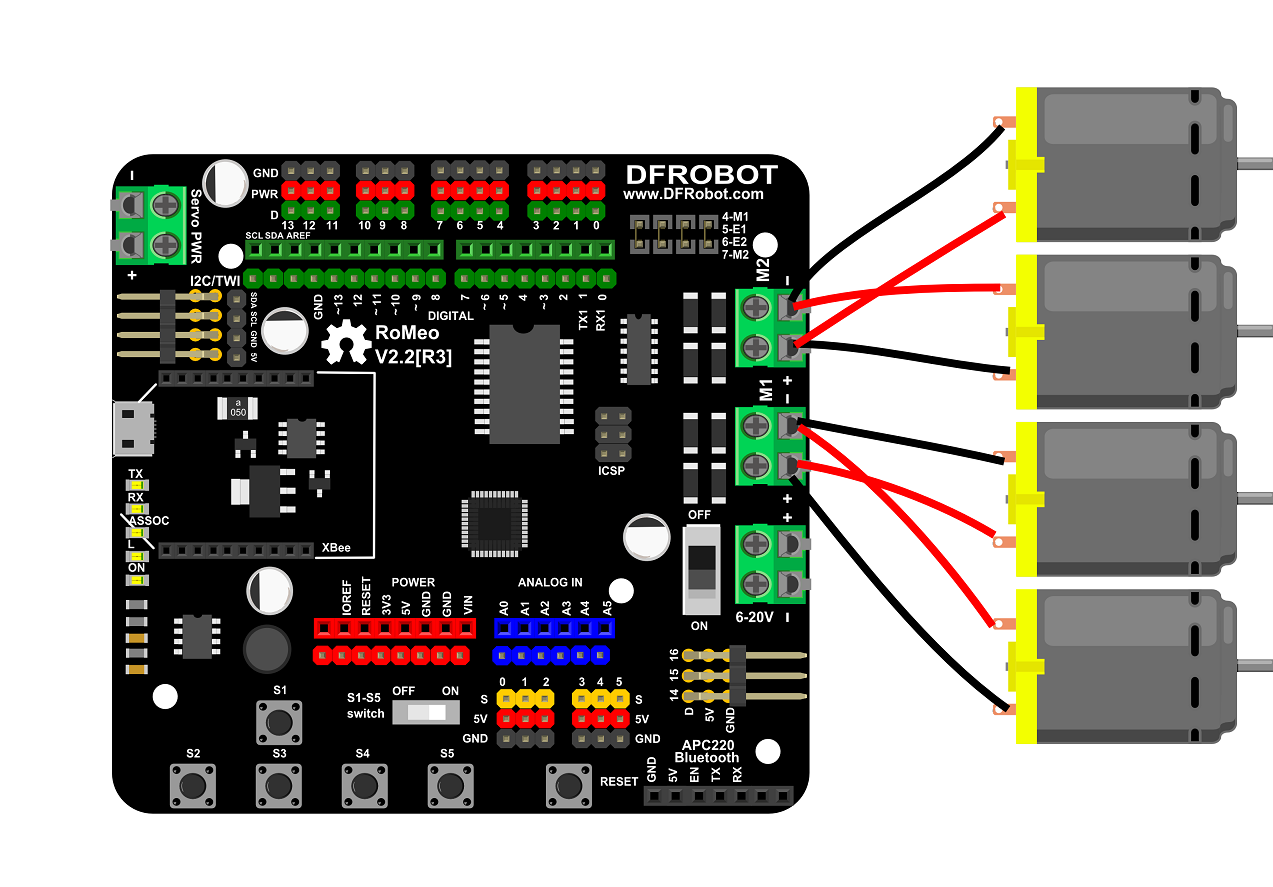
Other wiring matches the Bluetooth Remote Control section.
Other Preparation Work
- Connect the robot to your computer via USB.
- Set the Arduino IDE's Serial Monitor baud rate to 19200.
- Ensure the motors are wired correctly (flip wiring if motors move in the wrong direction).
Sample Code
int E1 = 5; //M1 Speed Control
int E2 = 6; //M2 Speed Control
int M1 = 4; //M1 Direction Control
int M2 = 7; //M1 Direction Control

///For previous Romeo, please use these pins.

//int E1 = 6; //M1 Speed Control
//int E2 = 9; //M2 Speed Control
//int M1 = 7; //M1 Direction Control
//int M2 = 8; //M1 Direction Control

void stop(void) //Stop
{
digitalWrite(E1,LOW);
digitalWrite(E2,LOW);
}

void advance(char a,char b) //Move forward
{
analogWrite (E1,a); //PWM Speed Control
digitalWrite(M1,HIGH);
analogWrite (E2,b);
digitalWrite(M2,HIGH);
}

void back_off (char a,char b) //Move backward
{analogWrite (E1,a);
digitalWrite(M1,LOW);
analogWrite (E2,b);
digitalWrite(M2,LOW);
}

void turn_L (char a,char b) //Turn Left
{
analogWrite (E1,a);
digitalWrite(M1,LOW);
analogWrite (E2,b);
digitalWrite(M2,HIGH);
}

void turn_R (char a,char b) //Turn Right
{
analogWrite (E1,a);
digitalWrite(M1,HIGH);
analogWrite (E2,b);
digitalWrite(M2,LOW);
}


void setup(void)
{
    int i;
    for(i=6;i<=9;i++)
    pinMode(i, OUTPUT);
    Serial.begin(19200); //Set Baud Rate
}

void loop(void)
{
    char val = Serial.read();
    if(val!=-1)
    {
        switch(val)
        {
            case 'w'://Move Forward
            advance (100,100); //PWM Speed Control
            break;

            case 's'://Move Backward
            back_off (100,100);
            break;

            case 'a'://Turn Left
            turn_L (100,100);
            break;

            case 'd'://Turn Right
            turn_R (100,100);
            break;
        }
        delay(40);
    }
    else stop();
}
Result
- Send "w" via Serial Monitor to move forward.
- Send "s" to move backward.
- Send "a" to turn left.
- Send "d" to turn right.
- Stop sending commands to halt the robot.
Additional Information
- Adjust the PWM values (e.g.,
advance(100,100)) to change the robot's speed. - For older Romeo controllers, uncomment the alternate pin definitions in the code.
Was this article helpful?