
Example Code for Arduino-IR Remote Control
Last revision 2026/01/18
This article offers a detailed tutorial on setting up and programming an Arduino-based IR remote control system for a 4WD robot, complete with hardware requirements, wiring instructions, and sample code to execute various movements using an IR remote.
Hardware Preparation
- 4WD Mobile Platform (Arduino Controller Supported), ROB0003, 1, DFRobot
- Romeo-All in one Controller, DFR0225, 1, Romeo
- DF05BB Standard Servo (5kg), SER0020, 1, DFRobot
- IR Kit For Arduino, DFR0107, 1, DFRobot
- 10 sets M3 * 10 hexagonal standoffs mounting kit, FIT0063, 1, DFRobot
- URM ultrasound mounting bracket, FIT0006, 1, DFRobot
- URM37 V4.0 Ultrasonic Sensor, SEN0001, 1, DFRobot
- Adjustable Infrared Sensor Switch, SEN0019, 3, DFRobot
- Light Disc with 7 SMD RGB LED, DFR0106, 2, DFRobot
- DFRobot Bluetooth V3, TEL0026, 1, DFRobot
- Pan and Tilt Kit (Black Anodized) (no servos), FIT0004, 1, DFRobot
- Wire cutter and wire stripper, 1, -
- Soldering Iron, 1, -
- Solder, 1, -
- Phillips Screw Driver, 1, -
- Pliers, 1, -
- 5xAA batteries (1.2V rechargeable or 1.5V alkaline), 1 set, -
Software Preparation
- Arduino IDE (download from Arduino)
- IRremote library (install via Arduino Library Manager)
- Metro library (install via Arduino Library Manager)
Wiring Diagram
Connect the IR receiver to digital pin 14 (RECV_PIN):
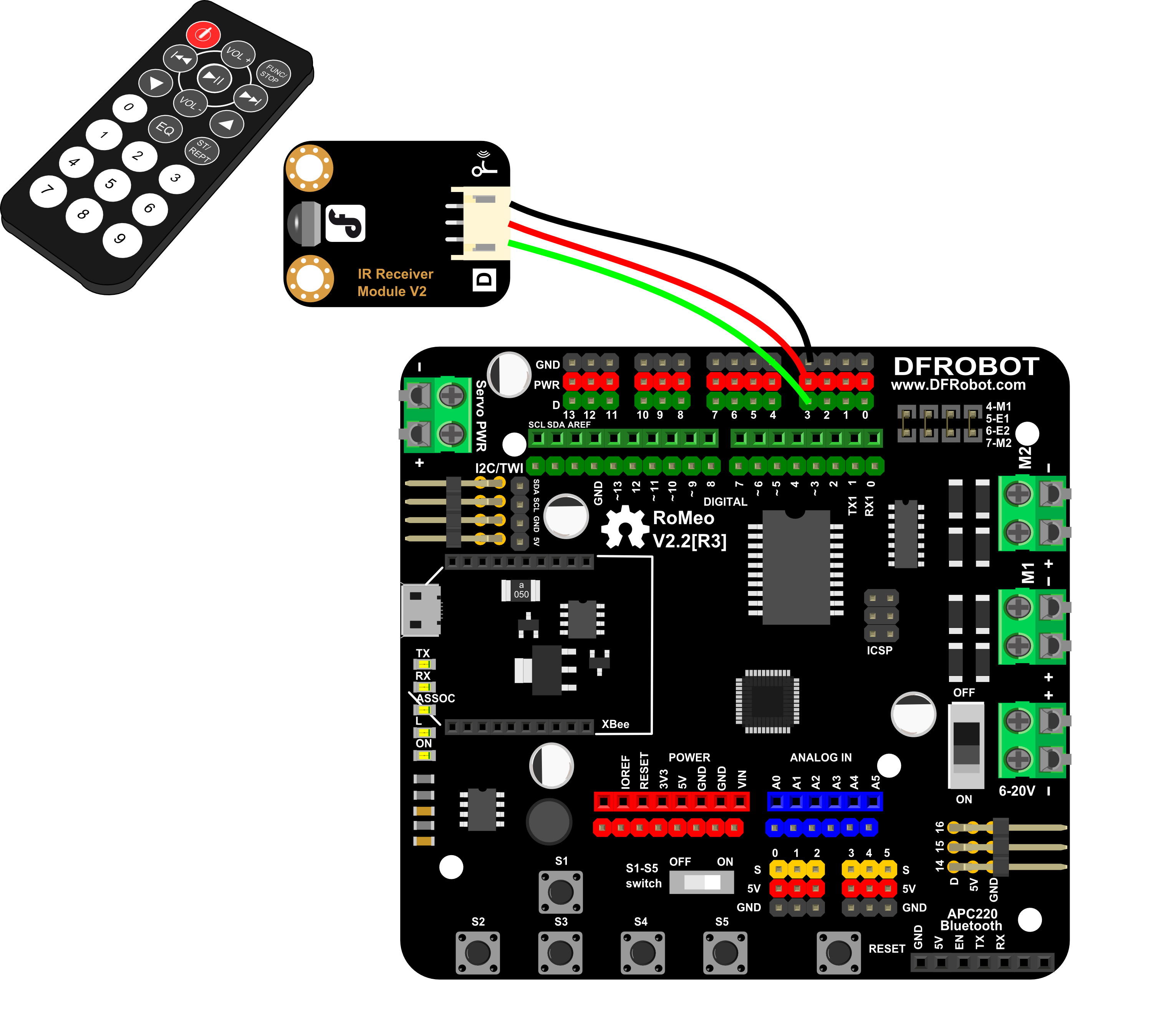
Other wiring matches the Bluetooth Remote Control section.
Other Preparation Work
- Connect the IR receiver to digital pin 14.
- Install the IRremote and Metro libraries in Arduino IDE.
- Ensure the robot is powered on and the IR receiver is within range of the remote.
Sample Code
/*

 4WD kit

 author:Lauren
 version:0.1
 date:2011.12.6

 Function:
 IR remote control 4wd robot


 */


int E1 = 5;     //M1 Speed Control
int E2 = 6;     //M2 Speed Control
int M1 = 4;    //M1 Direction Control
int M2 = 7;    //M1 Direction Control


#include <Metro.h>

/*
 * IRremote: IRrecvDemo - demonstrates receiving IR codes with IRrecv
 * An IR detector/demodulator must be connected to the input RECV_PIN.
 * Version 0.1 July, 2009
 * Copyright 2009 Ken Shirriff
 * http://arcfn.com
 */

#include <IRremote.h>

int RECV_PIN = 14;

Metro output = Metro(30,true);

IRrecv irrecv(RECV_PIN);

decode_results results;
void stop(void)                    //Stop
{
  digitalWrite(E1,LOW);
  digitalWrite(E2,LOW); return;
}
void advance(char a,char b)          //Move forward
{
  analogWrite (E1,a);      //PWM Speed Control
  digitalWrite(M1,HIGH);
  analogWrite (E2,b);
  digitalWrite(M2,HIGH);return;
}
void back_off (char a,char b)          //Move backward
{
  analogWrite (E1,a);
  digitalWrite(M1,LOW);
  analogWrite (E2,b);
  digitalWrite(M2,LOW);return;
}
void turn_L (char a,char b)             //Turn Left
{
  analogWrite (E1,a);
  digitalWrite(M1,LOW);
  analogWrite (E2,b);
  digitalWrite(M2,HIGH);return;
}
void turn_R (char a,char b)             //Turn Right
{
  analogWrite (E1,a);
  digitalWrite(M1,HIGH);
  analogWrite (E2,b);
  digitalWrite(M2,LOW);return;
}

void setup()
{
  unsigned char i;
  for (i = 4; i <= 7; i++ ) // settings control two of the four pins for the output motor
      pinMode (i, OUTPUT);
  Serial.begin(57600);
  irrecv.enableIRIn(); // Start the receiver
}

void loop() {
  if (irrecv.decode(&results)) {
    Serial.println(results.value, HEX);
    irrecv.resume(); // Receive the next value
  }

  if(output.check()){
    switch(results.value){
    case 0xFD807F:
      Serial.println("forward");
      advance (60,60);


      break;

    case 0xFDA05F:
      Serial.println("stop");
      stop();


      break;

    case 0xFD906F:
      Serial.println("back");
      back_off (60,60);

      break;


    case 0xFD20DF:
      Serial.println("left");
      turn_L (60,50);

      break;


    case 0xFD609F:
      Serial.println("right");
      turn_R (60,50);

      break;


    default:
      break;
    }
  }
}
Result
- Press the forward button on the IR remote (code 0xFD807F) to move forward.
- Press the stop button (code 0xFDA05F) to stop.
- Press the back button (code 0xFD906F) to move backward.
- Press the left button (code 0xFD20DF) to turn left.
- Press the right button (code 0xFD609F) to turn right.
Additional Information
- The code uses IRremote to receive IR codes and Metro to handle timing.
- Modify the
casevalues to match your remote's IR codes (view codes via Serial Monitor).
Was this article helpful?