
Example Code for Arduino-Bluetooth Remote Control
Last revision 2026/01/18
This comprehensive guide explains how to set up an Arduino-powered Bluetooth remote control system, detailing hardware requirements, wiring instructions, and sample code for controlling robot movements. The article provides step-by-step instructions for connecting and programming the Arduino to respond to Bluetooth signals, enabling users to manipulate the robot's direction and actions using simple commands from a Bluetooth-enabled device.
Hardware Preparation
- 4WD Mobile Platform (Arduino Controller Supported), ROB0003, 1, DFRobot
- Romeo-All in one Controller, DFR0225, 1, Romeo
- DF05BB Standard Servo (5kg), SER0020, 1, DFRobot
- IR Kit For Arduino, DFR0107, 1, DFRobot
- 10 sets M3 * 10 hexagonal standoffs mounting kit, FIT0063, 1, DFRobot
- URM ultrasound mounting bracket, FIT0006, 1, DFRobot
- URM37 V4.0 Ultrasonic Sensor, SEN0001, 1, DFRobot
- Adjustable Infrared Sensor Switch, SEN0019, 3, DFRobot
- Light Disc with 7 SMD RGB LED, DFR0106, 2, DFRobot
- DFRobot Bluetooth V3, TEL0026, 1, DFRobot
- Pan and Tilt Kit (Black Anodized) (no servos), FIT0004, 1, DFRobot
- Wire cutter and wire stripper, 1, -
- Soldering Iron, 1, -
- Solder, 1, -
- Phillips Screw Driver, 1, -
- Pliers, 1, -
- 5xAA batteries (1.2V rechargeable or 1.5V alkaline), 1 set, -
Software Preparation
- Arduino IDE (download from Arduino)
- bluetooth serial assistant app (Android or IOS)
Wiring Diagram
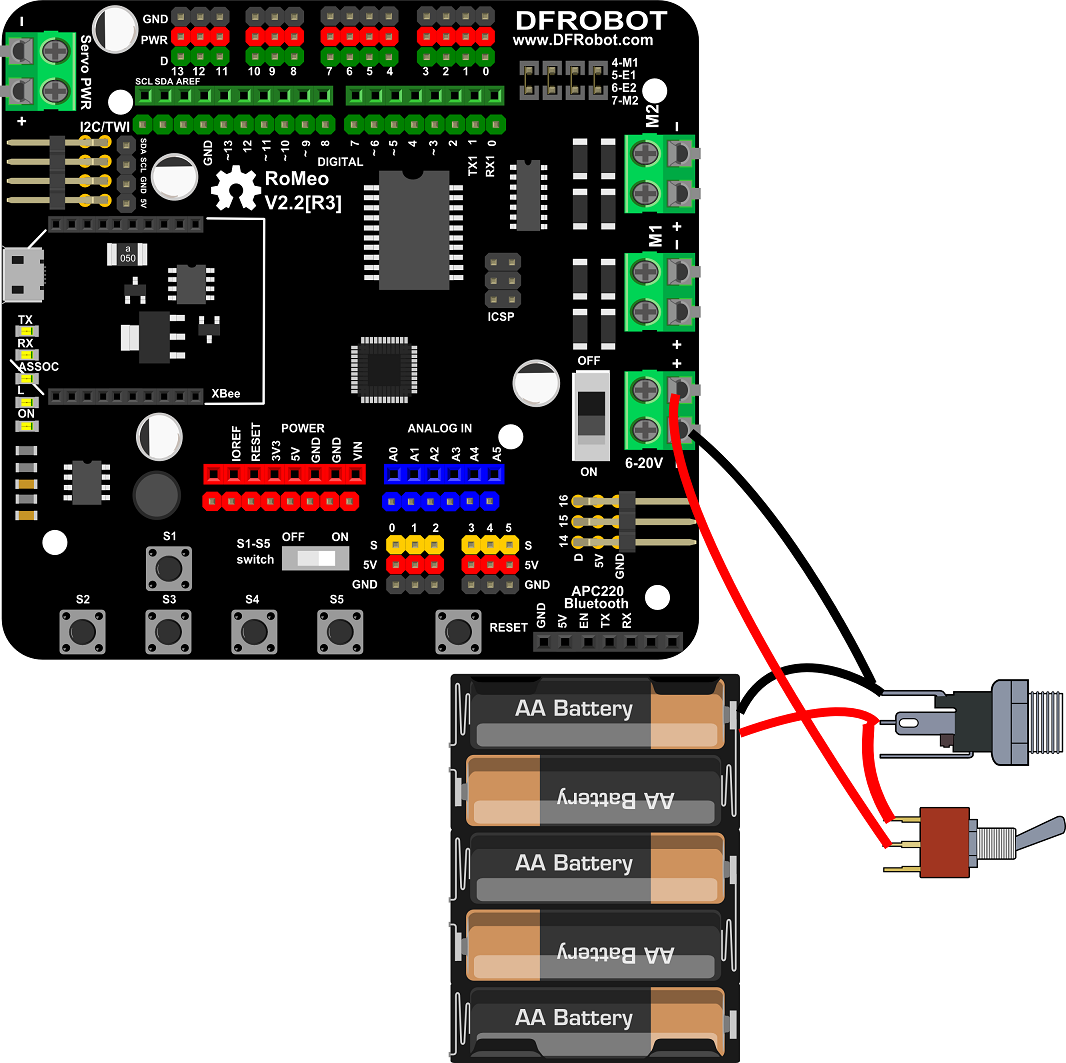
Connect the power supply and switch. Remember that red for positive, and black for negative:
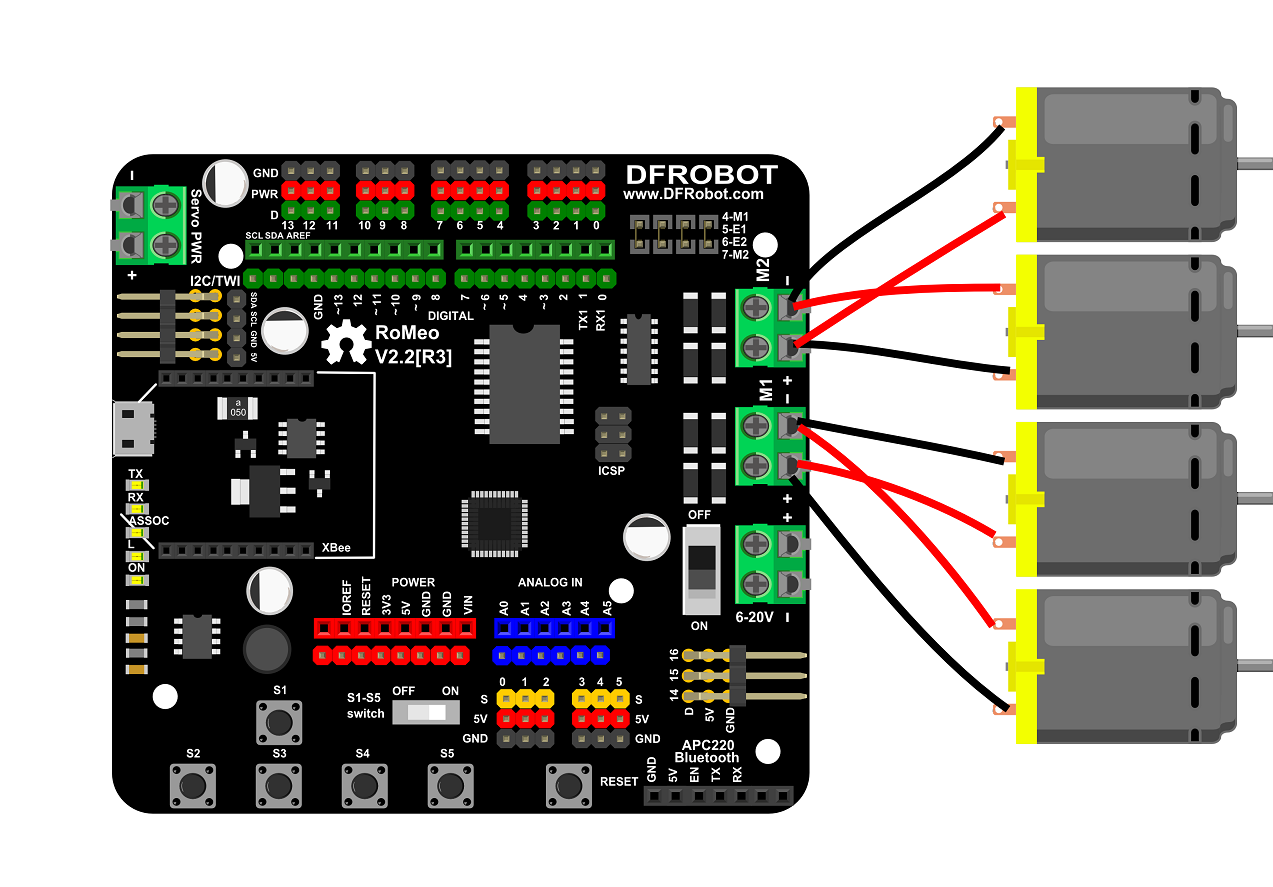
Connect the two left motor to M1 and the two right motor to M2:
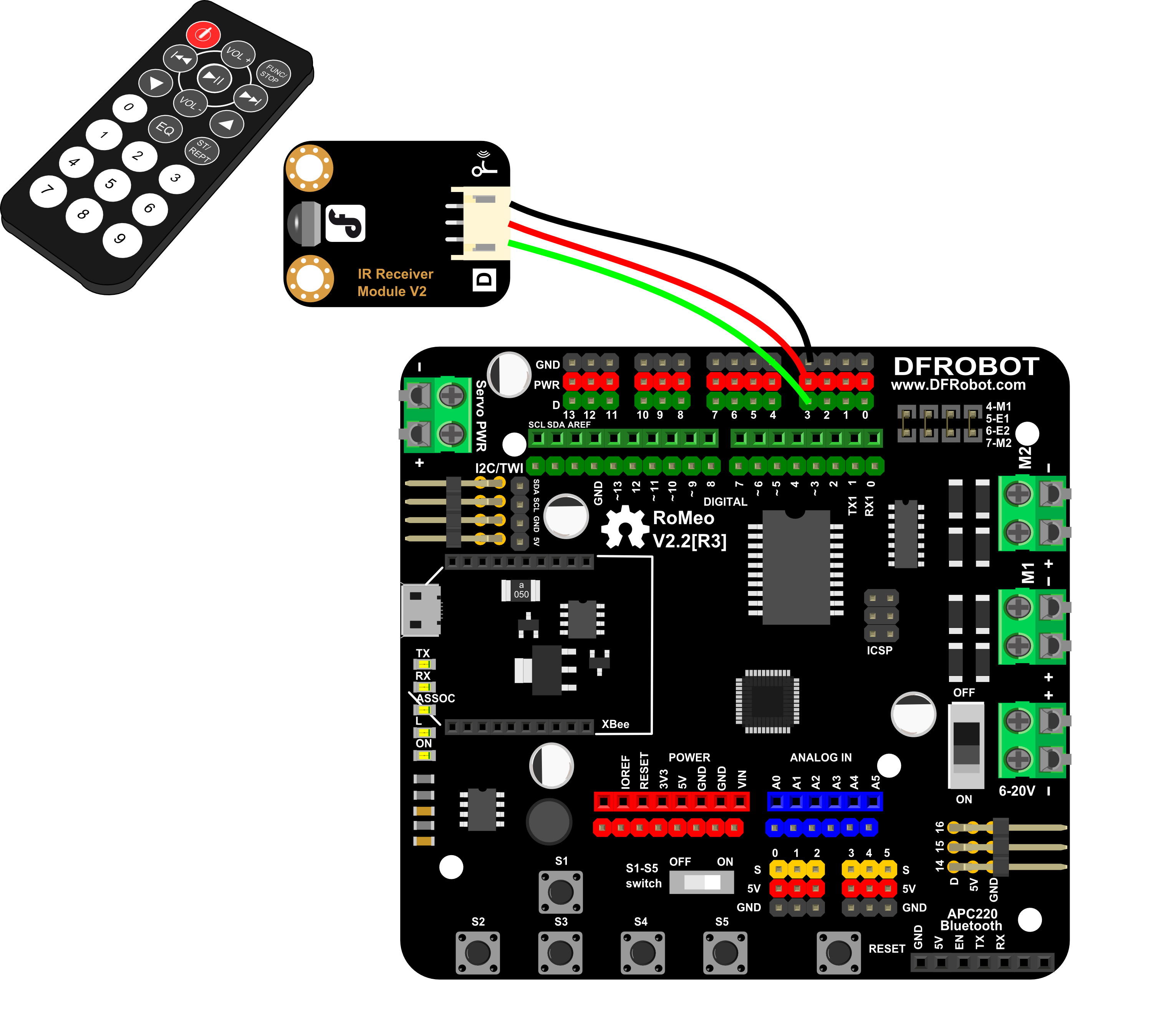
Connect the IR receiver to digital pin 3:
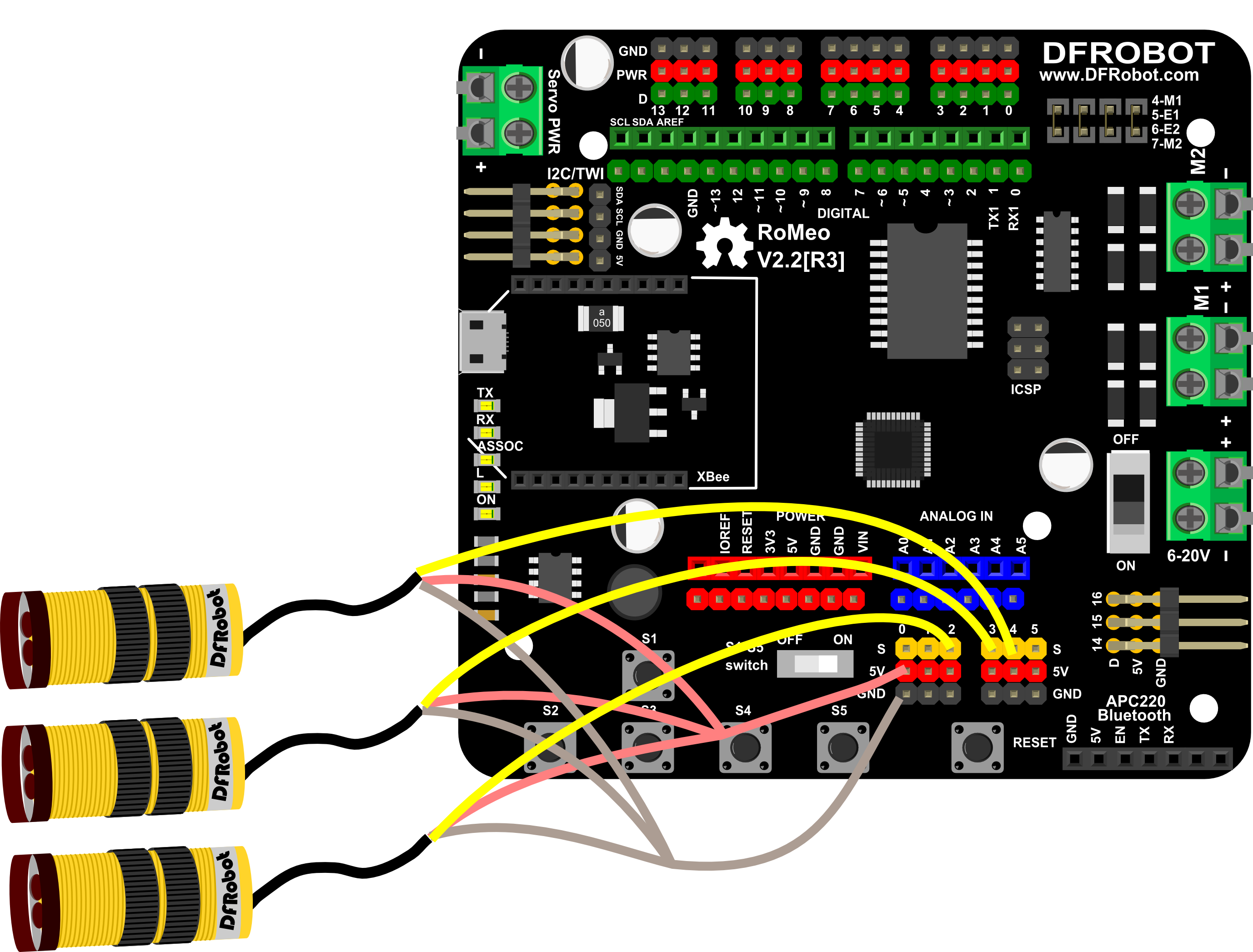
Connect the IR sensors to analog pins 2, 3 and 4:
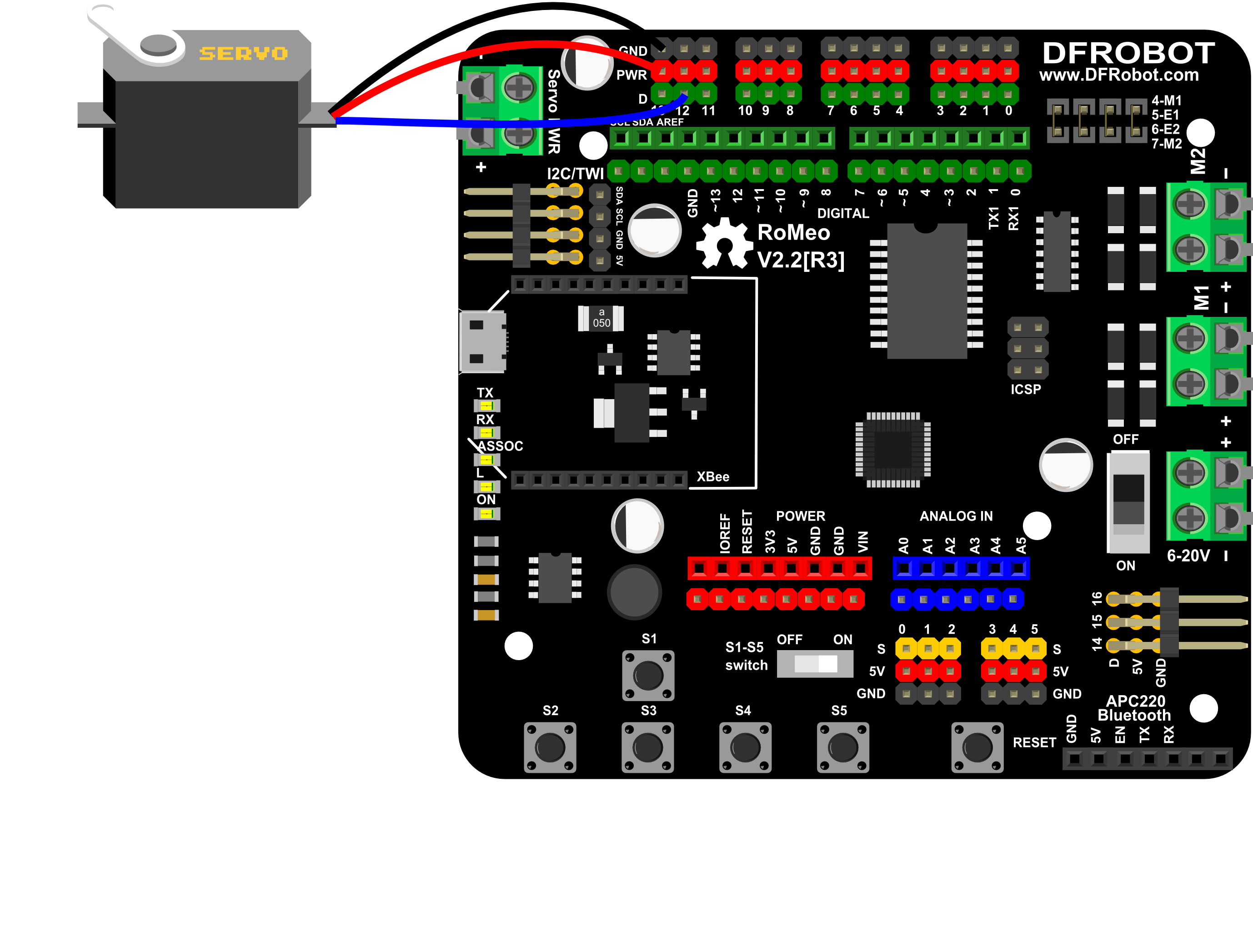
Connect the servo to digital pin 12:
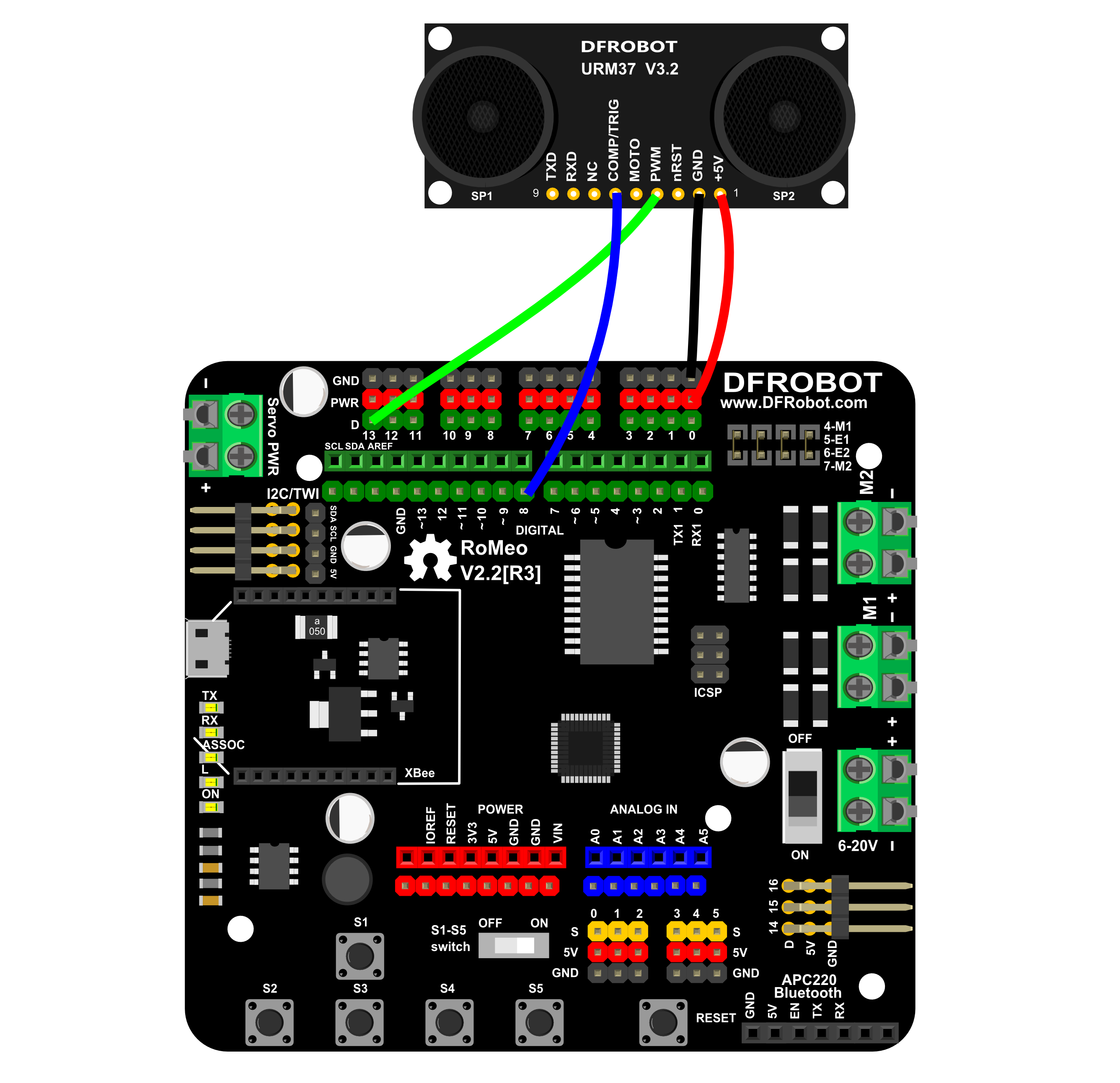
Connect the URM37 v3.2 Ultrasonic sensor to digital pins 8 and 13:
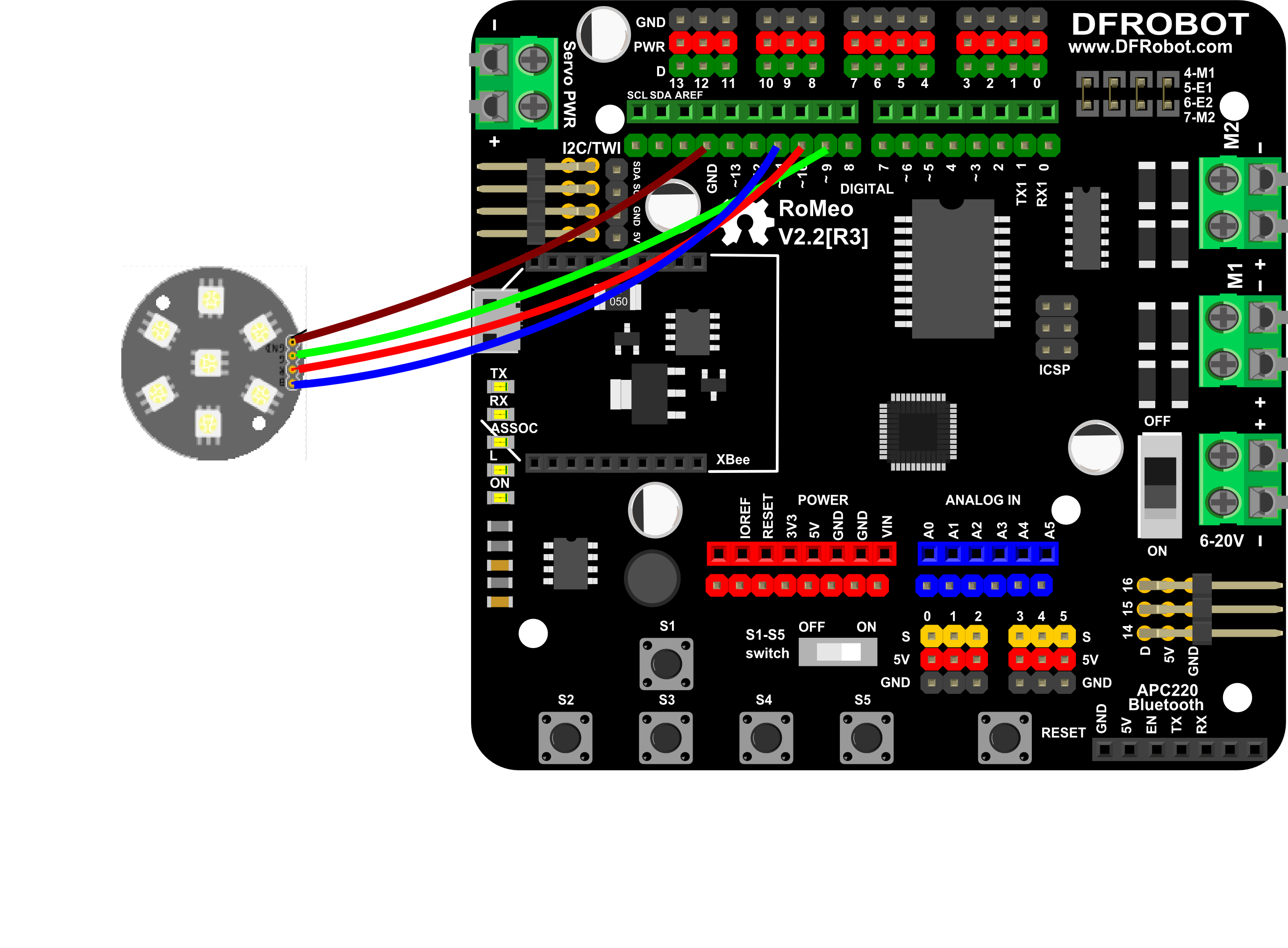
Connect the 7LEDs disc to digital pins 9, 10 and 11:
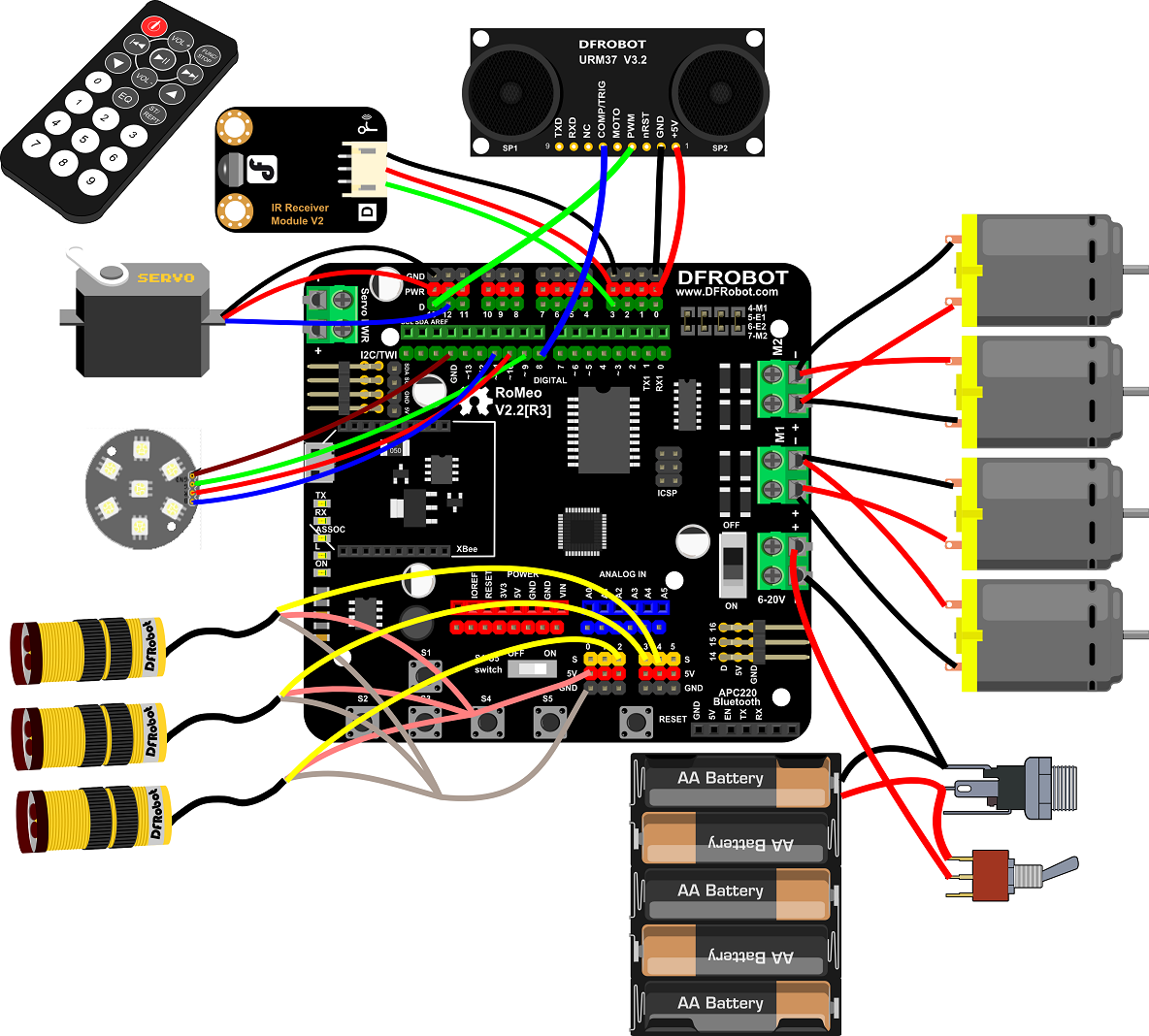
Total wiring diagram:
Other Preparation Work
- Set your Bluetooth device's baud rate to 115200.
- Install the bluetooth serial assistant app on your phone (Android or IOS).
- Ensure all hardware connections match the wiring diagrams.
Sample Code
/*
  Bluetooth PWM control
  NOTE:set your BT rate 115200    //BT(bluetooth)

  Apply the BT on your romeo, using the phone BT as the controler.
  Could realize the 4 direction control with key "a" "s" "d" "w"
  and Stop with "q" .

  https://www.dfrobot.com/index.php?route=common/store_home
  https://www.dfrobot.com.cn/community/portal.php

  created on 17 Mar 2015
  by Leff Wei @DFRobot
 */
int E1 = 5;     //define M1 enable pin
int E2 = 6;     //define M2 enable pin
int M1 = 4;    //define M1 speed pin
int M2 = 7;    //define M2 speed pin

void stop(void){                 //stop
  digitalWrite(E1,LOW);
  digitalWrite(E2,LOW);
}

void advance(char a,char b){           //forward
  analogWrite (E1,a);             //PWM speed control
  digitalWrite(M1,HIGH);
  analogWrite (E2,b);
  digitalWrite(M2,HIGH);
}
void back_off (char a,char b) {          //back
  analogWrite (E1,a);
  digitalWrite(M1,LOW);
  analogWrite (E2,b);
  digitalWrite(M2,LOW);
}
void turn_L (char a,char b) {           //turn left
  analogWrite (E1,a);
  digitalWrite(M1,LOW);
  analogWrite (E2,b);
  digitalWrite(M2,HIGH);
}
void turn_R (char a,char b) {           //turn right
  analogWrite (E1,a);
  digitalWrite(M1,HIGH);
  analogWrite (E2,b);
  digitalWrite(M2,LOW);
}

void setup(void) {
  int i;
  for(i=4;i<=7;i++)
    pinMode(i, OUTPUT);
  Serial1.begin(115200);   //Serial1 baud rate for BT
  //NOTE:set your BT rate 115200
  Serial.begin(115200);    //Serial baud rate for IDE monitor
}

void loop(void) {
  if(Serial1.available()>0){  //if received data from Bluetooth
    char val = Serial1.read();   //Control the platform via Bluetooth
//if(Serial.available()>0){  //if received data from serial port
  //char val = Serial.read();    //Control the platform via USB cable
    Serial.print("The command you input is:"); // display the command on your IDE monitor
    Serial.println(val);

    if(val!=-1){
      switch(val){
      case 'w'://forward
        advance (100,100);   //PWM speed control
        break;
      case 's'://backward
        back_off (100,100);
        break;
      case 'a'://turn left
        turn_L (100,100);
        break;
      case 'd'://turn right
        turn_R (100,100);
        break;
      case 'q'://stop
        stop();
        break;
      default :
        break;
      }
      delay(40);
    }

  }
}
Result
- Send "w" to move forward
- Send "s" to move backward
- Send "a" to turn left
- Send "d" to turn right
- Send "q" to stop
Additional Information
- Install the Bluetooth Serial app on your phone.
- Connect your Bluetooth device (e.g., "Leff_peach" on Leonardo).
- Send "w""s""a""d" and "q" to control the car.
Images:
image:COMB0004_app_bt1.png|App Installation image:COMB0004_app_bt2.png|Connect bluetooth image:COMB0004_app_bt3.png|Connected image:COMB0004_app_bt4.png|Command
Was this article helpful?