
Getting Started
Last revision 2026/01/18
This guide provides step-by-step instructions for assembling a robot, including required tools, motor installation, battery setup, and wiring electronics, ensuring a fully functional build.
Additional Parts Required
In order to build the complete kit, you will need the following additional (basic) tools:
- Wire cutter and wire stripper
- Soldering Iron
- Solder
- Phillips Screw Driver
- Pliers
- 5xAA batteries (1.2V rechargeable or 1.5V alkaline)
Assembly
Although you can develop your own way to build your robot with the kit, this manual will give you a basic guide to assembling the robot.
Basic Platform
Before assembly the motor, you should solder the motor wires to the motor. Please leave a wire length of at least 15-20 cm in order to install to Romeo. Be careful when using a soldering iron, heat shrink tubing is recommended to protect soldered wires.(If you have condition you can use hot glue to fixed the wires) If you do not know how to use a soldering iron, please find professional help.
- Insert the two motors into the frame and using the given truss screws secure it. Note the direction of the motors, ensure the holes line up properly between the motor and truss.
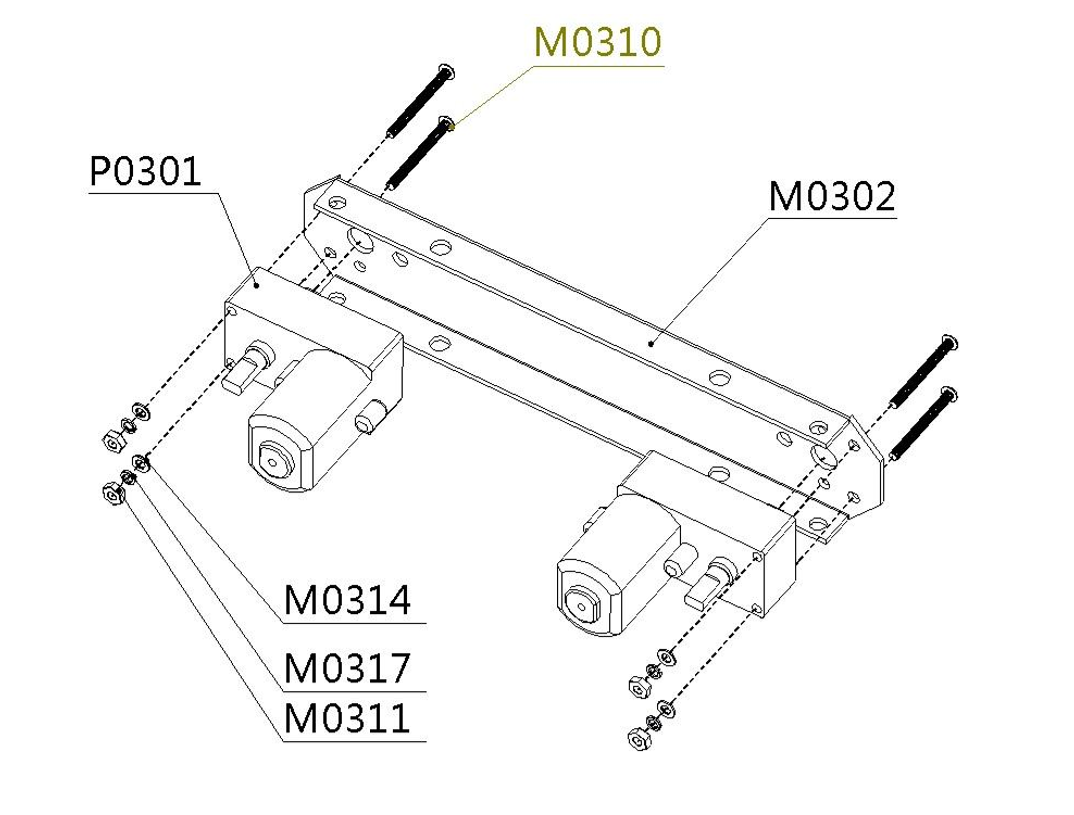
- All four motor are installed in the same way mentioned here.
- The battery holder is installed with countersunk screws on the fuselage’s lower plate.(tips: you may alternatively use the 7.4V Lipo 2200mAh Battery(FIT0137) at DFRobot to replace the battery holder).
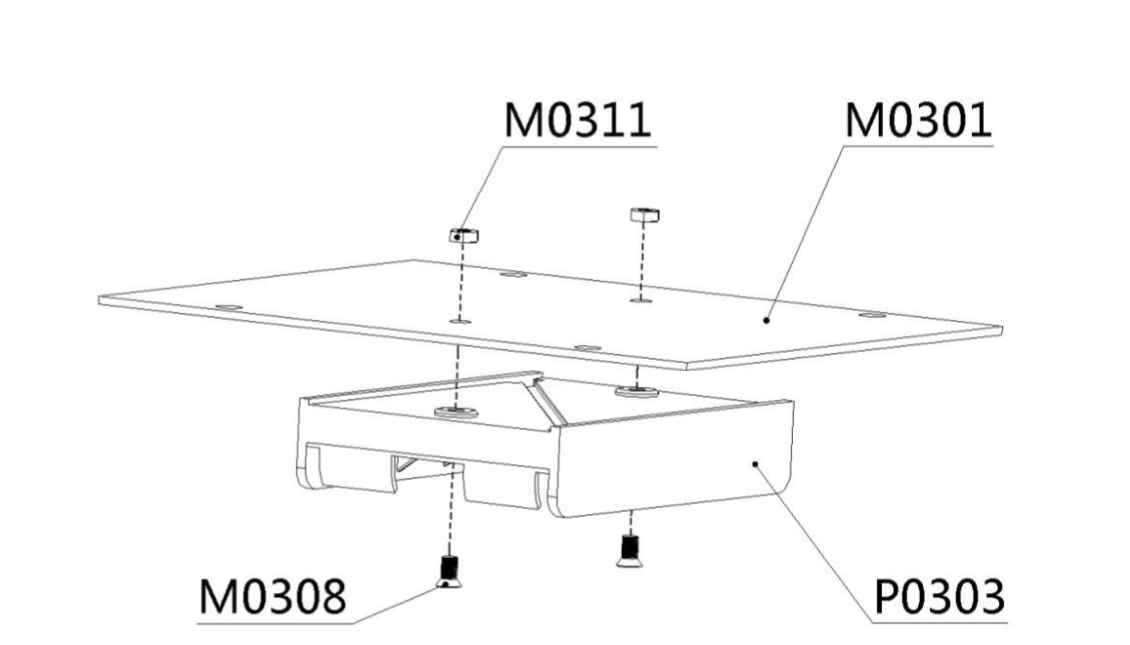
- The battery holder uses five AA batteries. You can use 1.2v rechargeable, or 1.5v alkaline batteries. We recommend using rechargeable batteries.
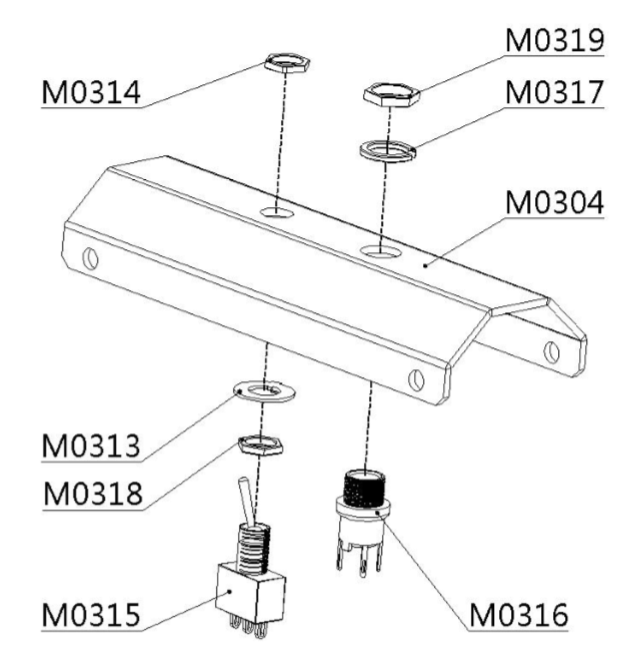
- Before assembly the power switch and power jack, you should solder the wires to the switch and jack. Please leave at least 10-15 cm of wire in order to install to battery holder and Romeo. Remember red for positive, black for negative. Again, please be careful when using a soldering iron, heat shrink tubing is recommended to protect soldered parts. If you do not know how to use a soldering iron, please find professional help.
- Please install the power switch and power jack on the bezel as pictured below.
- Use the screws to connect the fuselage’s lower plate and motor brackets.
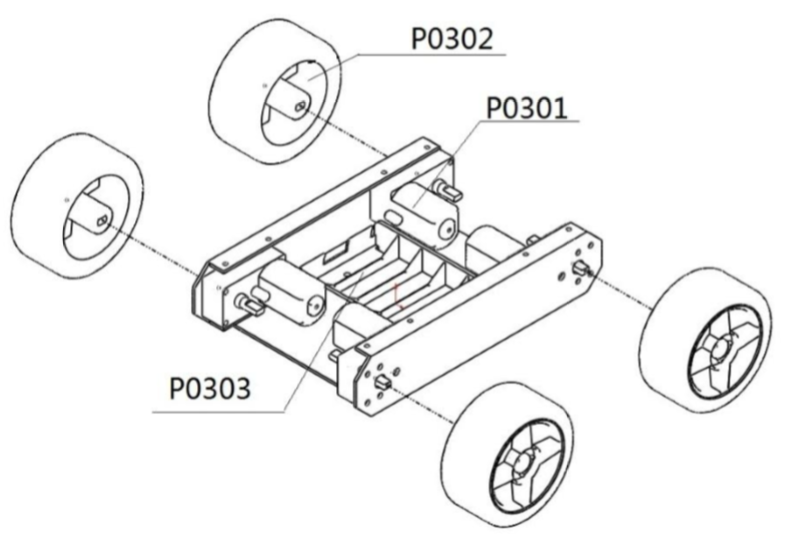
- Before installing any other parts, you must attach the wheels to the motors. Otherwise you may risk damage to the motor shafts.
- Using the screw to fix the side truss to the fuselage’s lower plate.
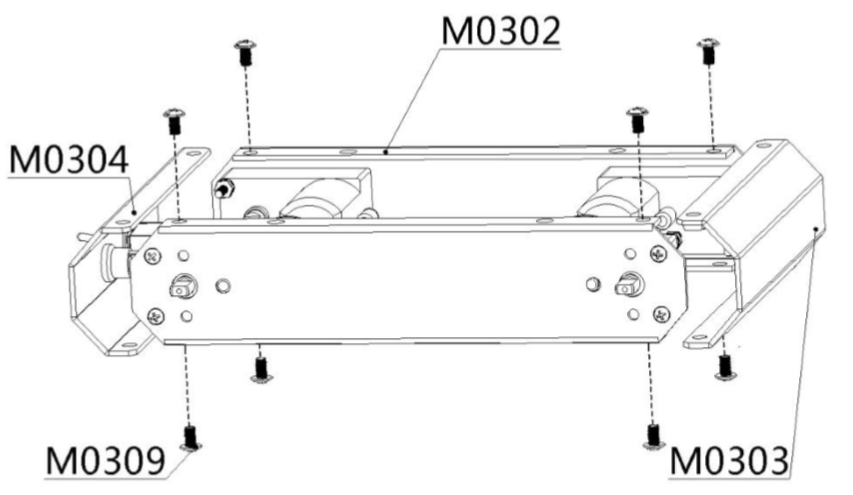
- Use flange screws to fix the fuselage’s upper plate to the side truss.
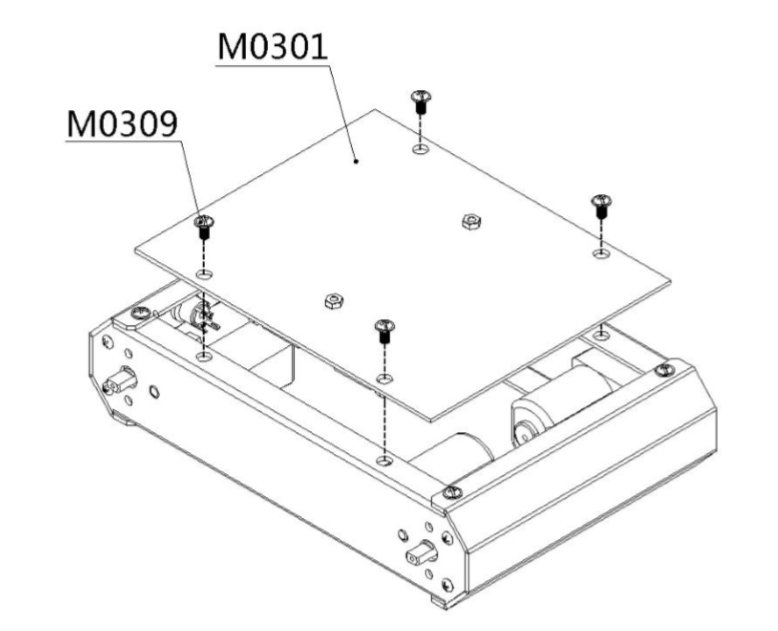
- When installing the fuselage upper plate, make sure the battery cables have been identified and pull the leads out so you can wire them to the Romeo.
- Use flange screws to fix the sensor mounting grill to the bracket. This grill is an option to use if you have any other sensors to install.
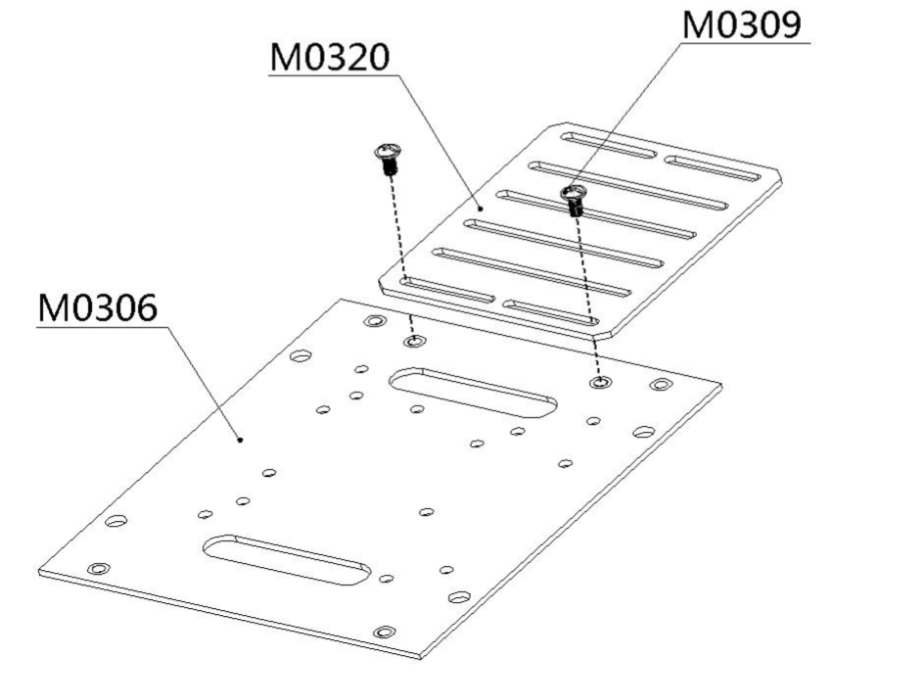
- The copper stand-offs need to be mounted on the fuselage’s upper plate in order to support the top plate.
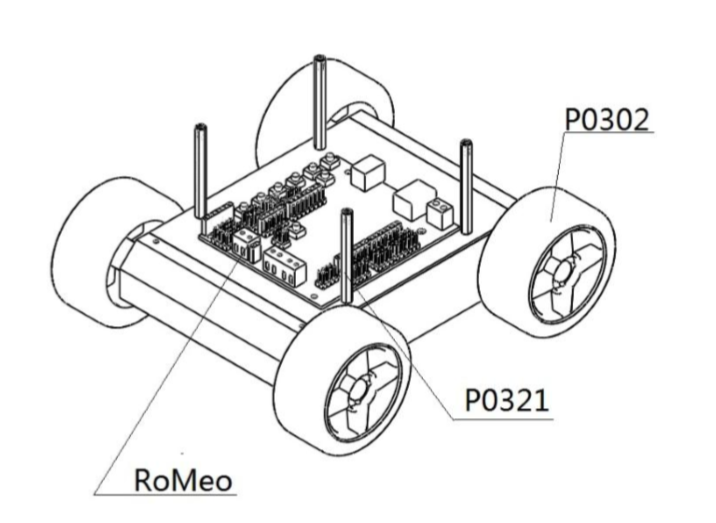
- Use flange screws to fix the IR sensor’s mounting bracket on the top plate.
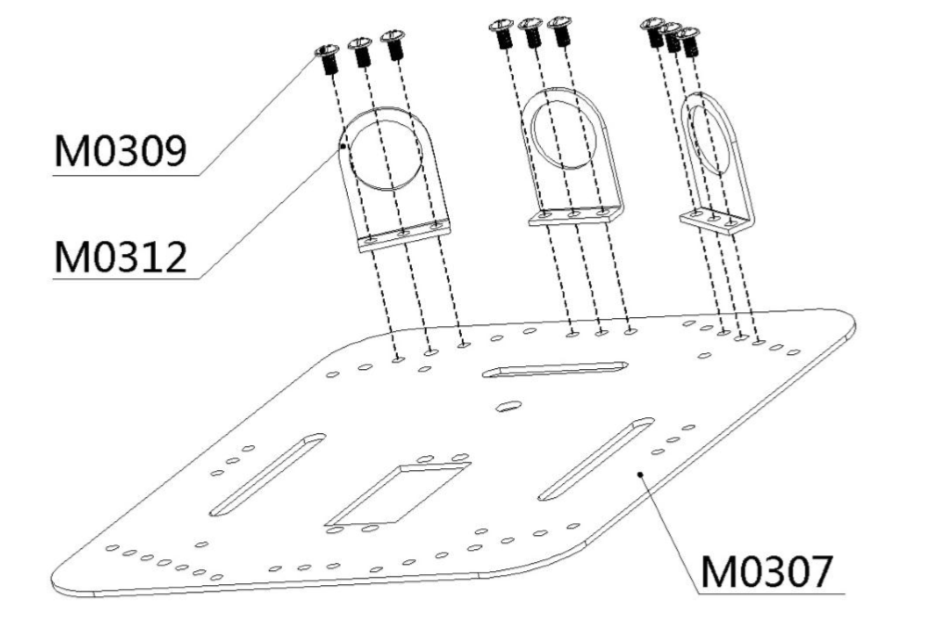
- Use flange screws to fix the top plate on to the Copper stand-offs.
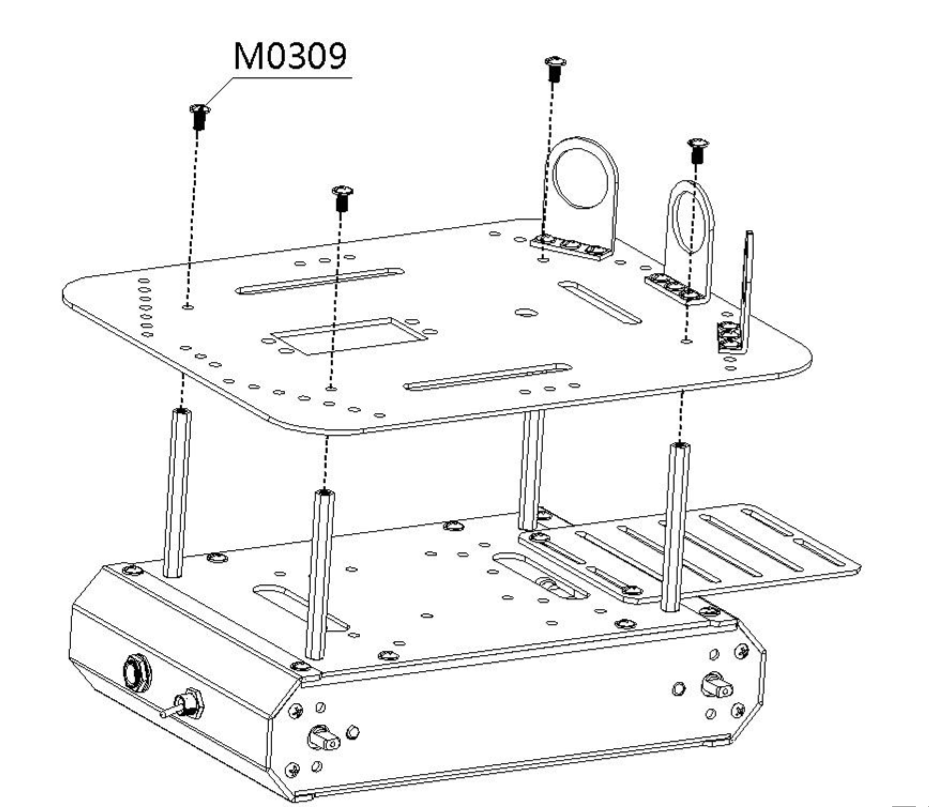
Electronocs and Wiring
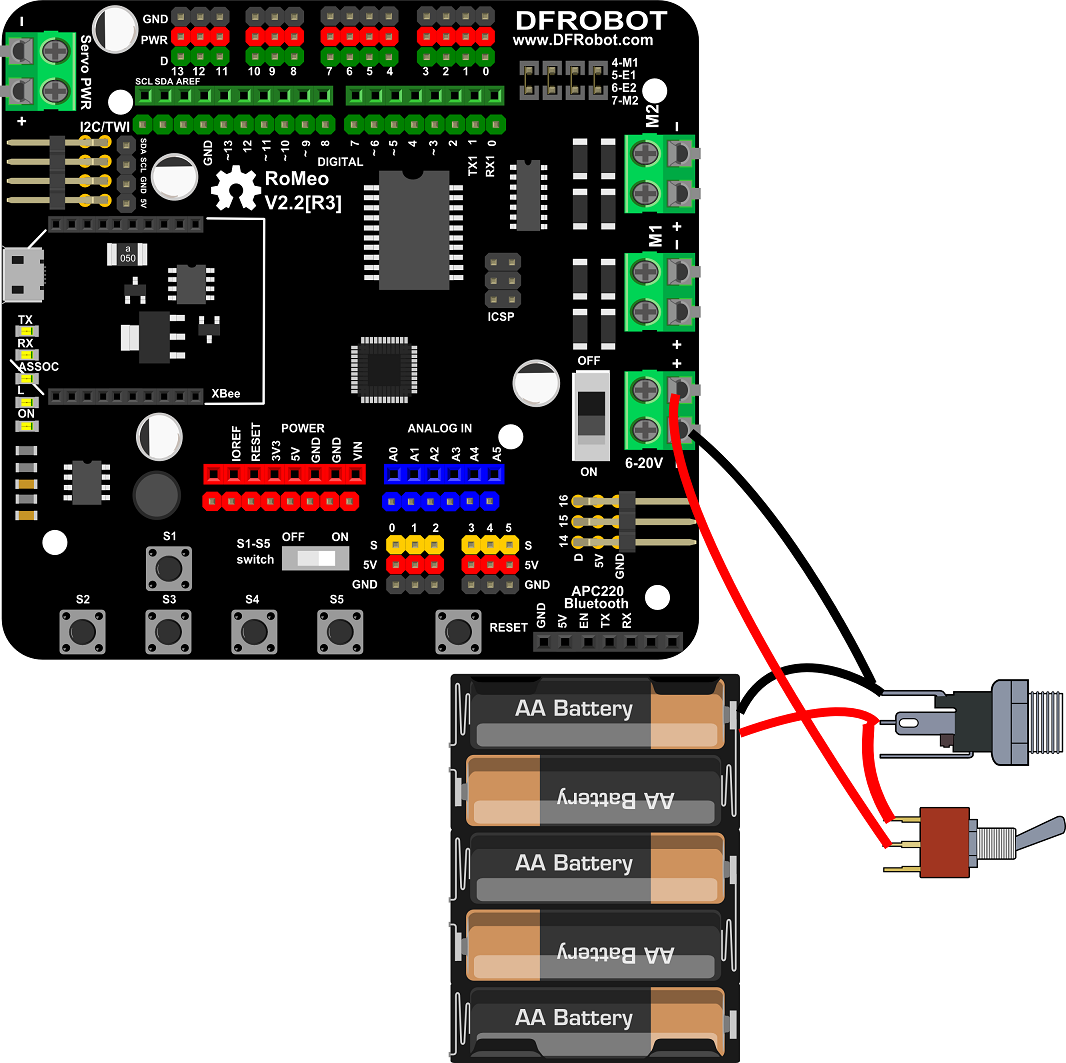
1 Power and Switch
Connect the power supply and switch. Remember that red for positive, and black for negative.
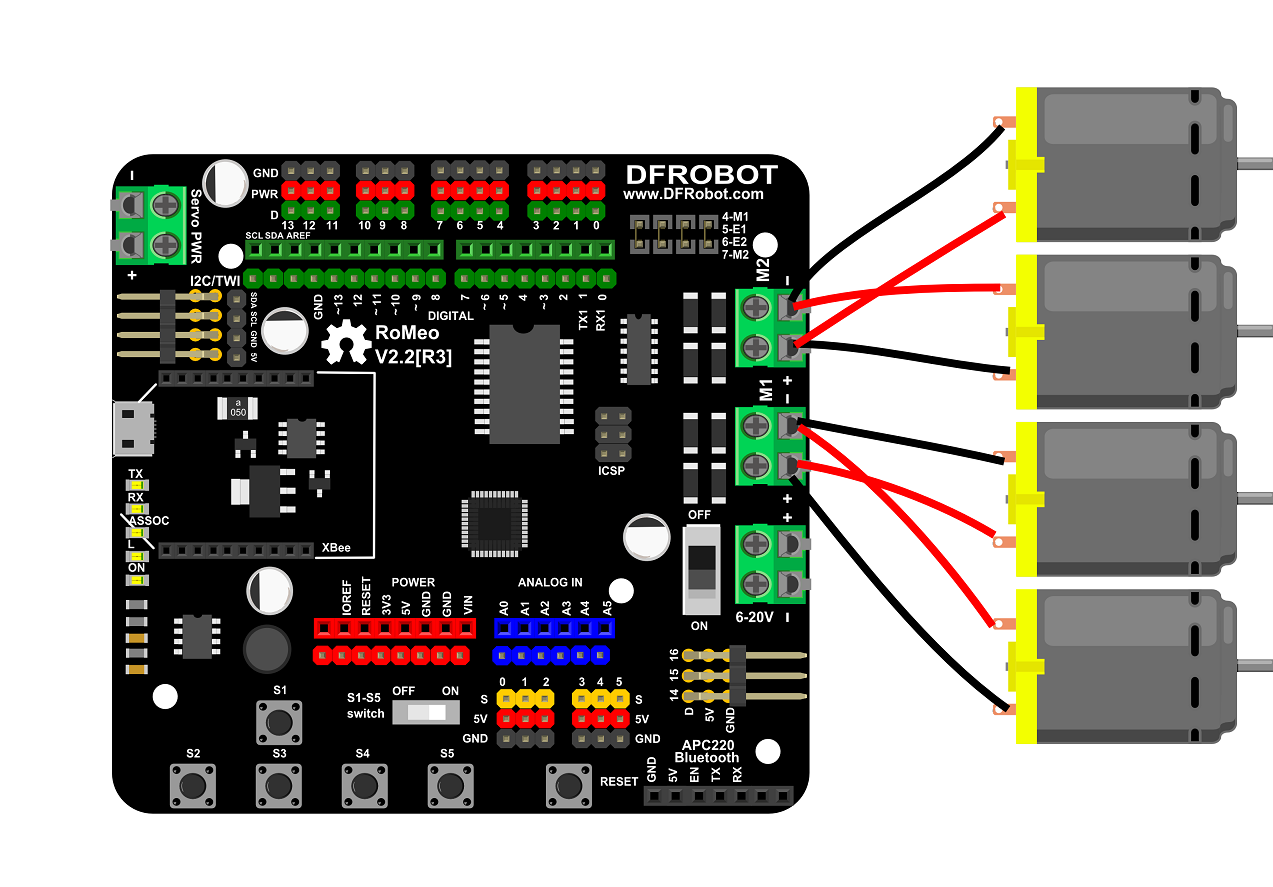
2 Motors
Connect the two left motor to M1 and the two right motor to M2. When you connect the motors you should test the motors for each side to ensure they move in the right direction. If not, you should flip the wiring for only one of the motors.
3 IR Remote Control
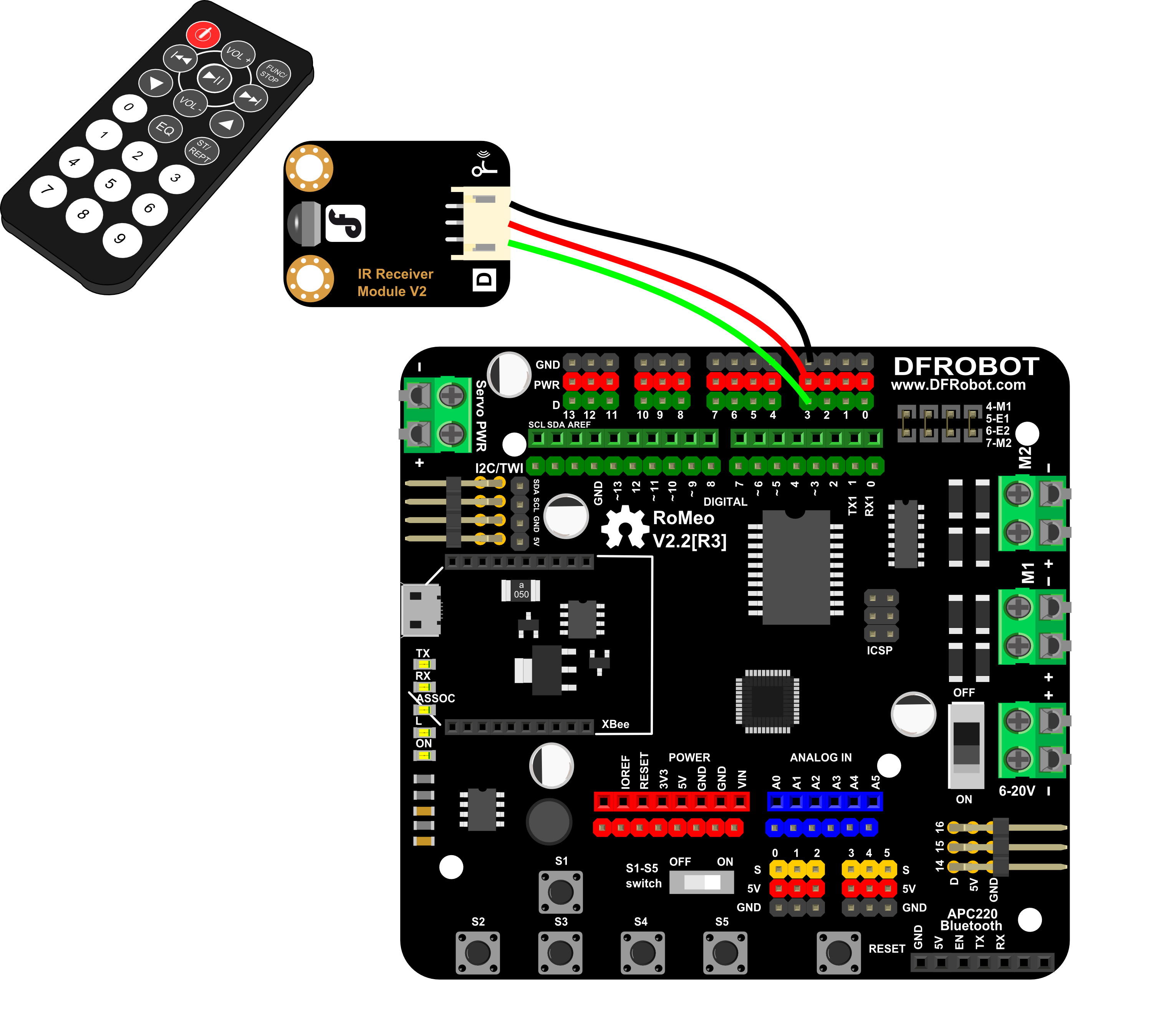
Connect the IR receiver to digital pin 3, the green line is for data, the black line is for GND, and the red line is for Vcc.
4 IR sensors
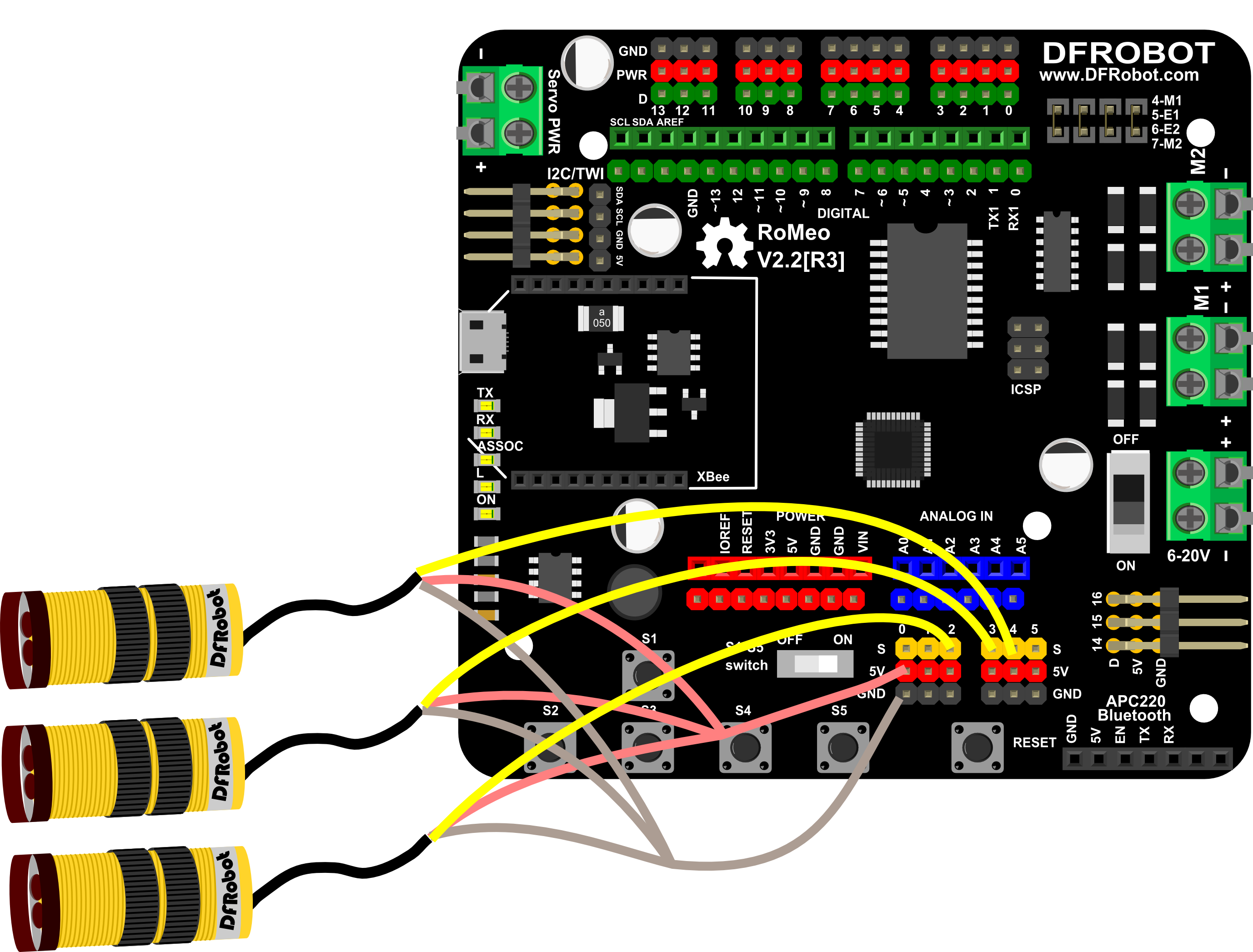
Connect the IR sensors to analog pins 2, 3 and 4. You have to re-wire the connectors to fit the analog pins (Notice the wire order). If you don’t want to use the analog pins, you can just plug into digital pins but you should note that in this setup most of the digital pins are used to drive other sensors and the motors.
5 Servo
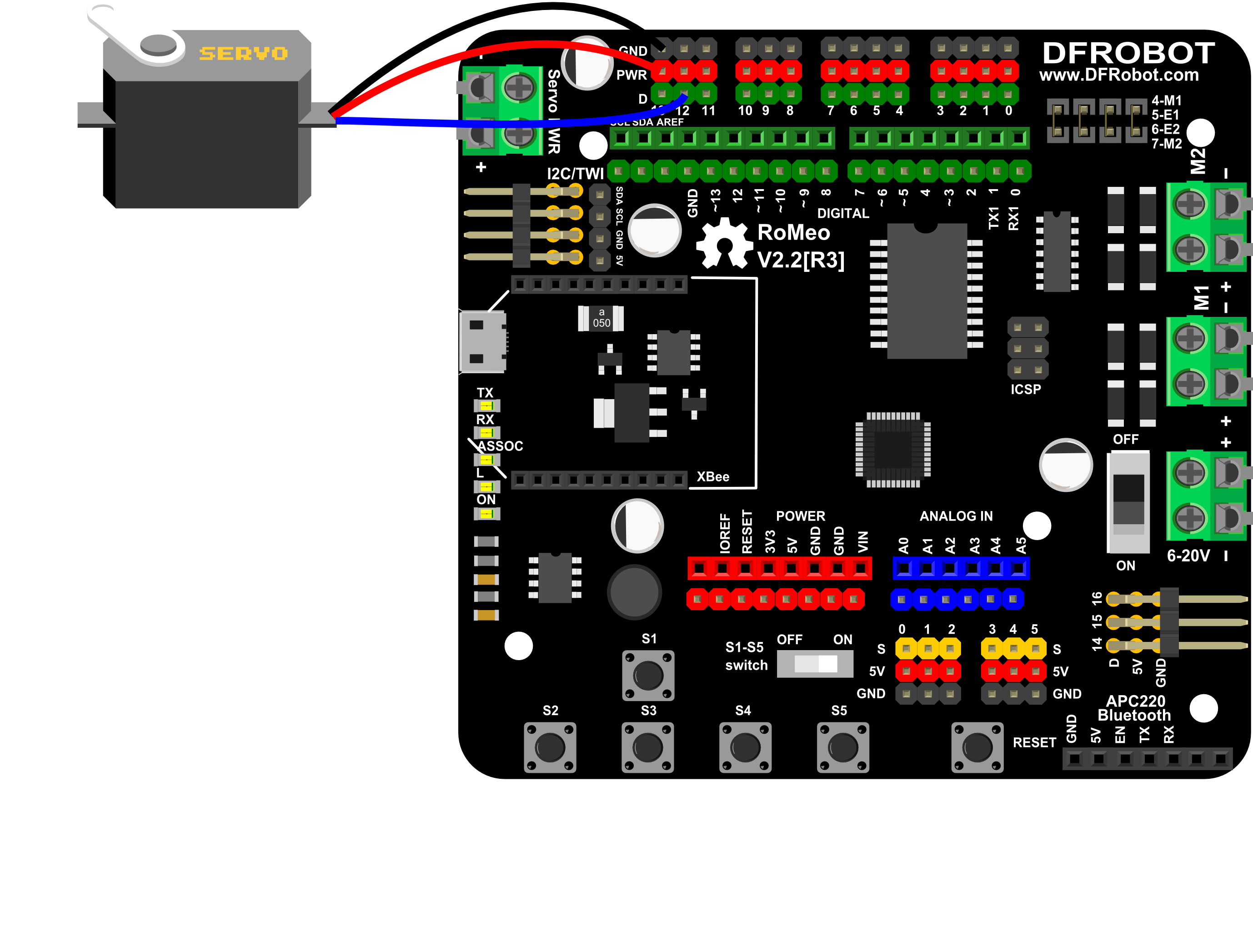
Connect the servo to digital pin 12, the orange(Blue in picture) line is for the data, the brown(Black in picture) line is for GND, the red line is for Vcc.
6 URM37 v3.2 Ultrasonic sensor
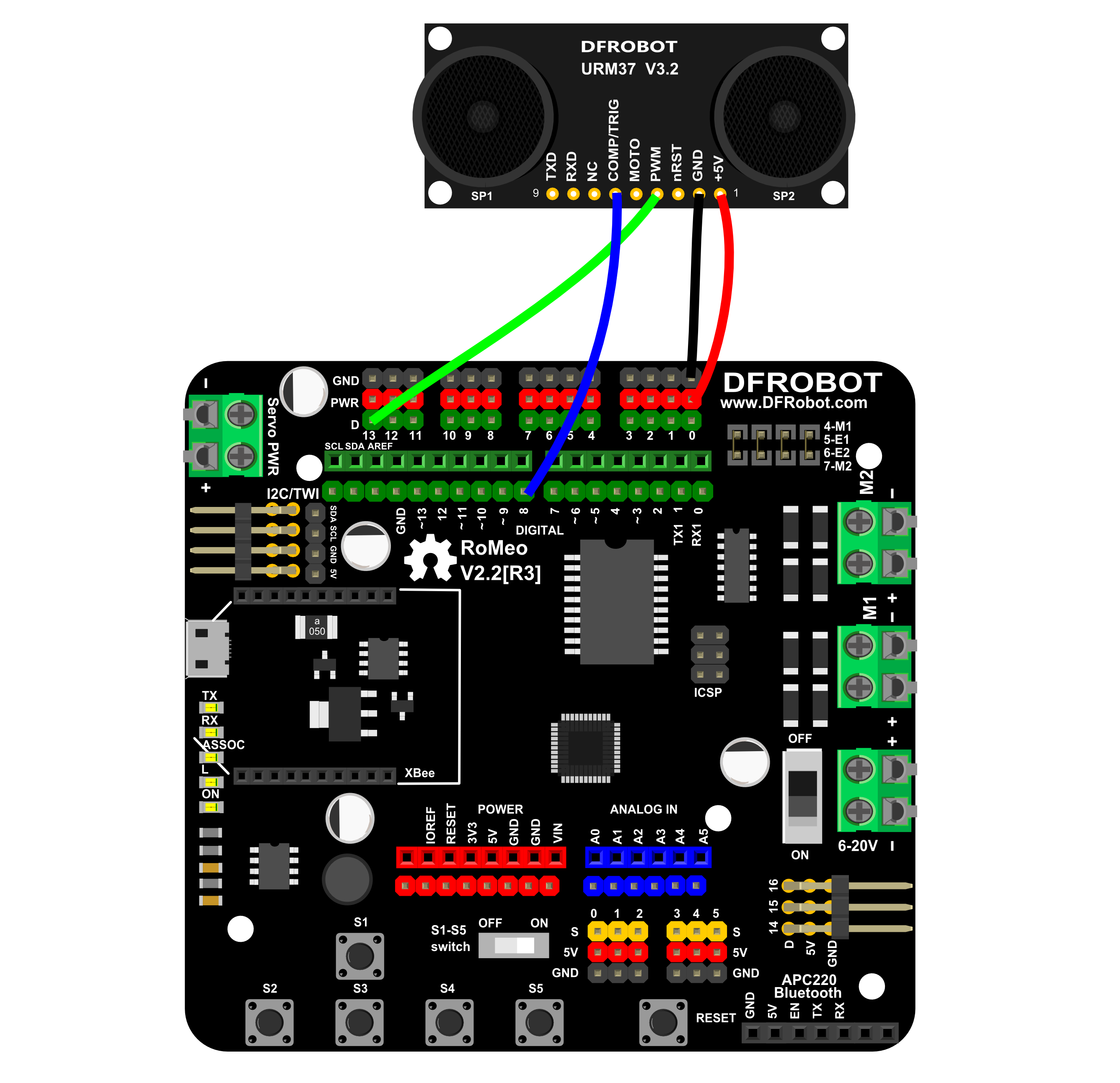
Connect the URM sensor to digital pins 8 (blue), and 13(green), the red line is for 5V+, the black line is for GND.
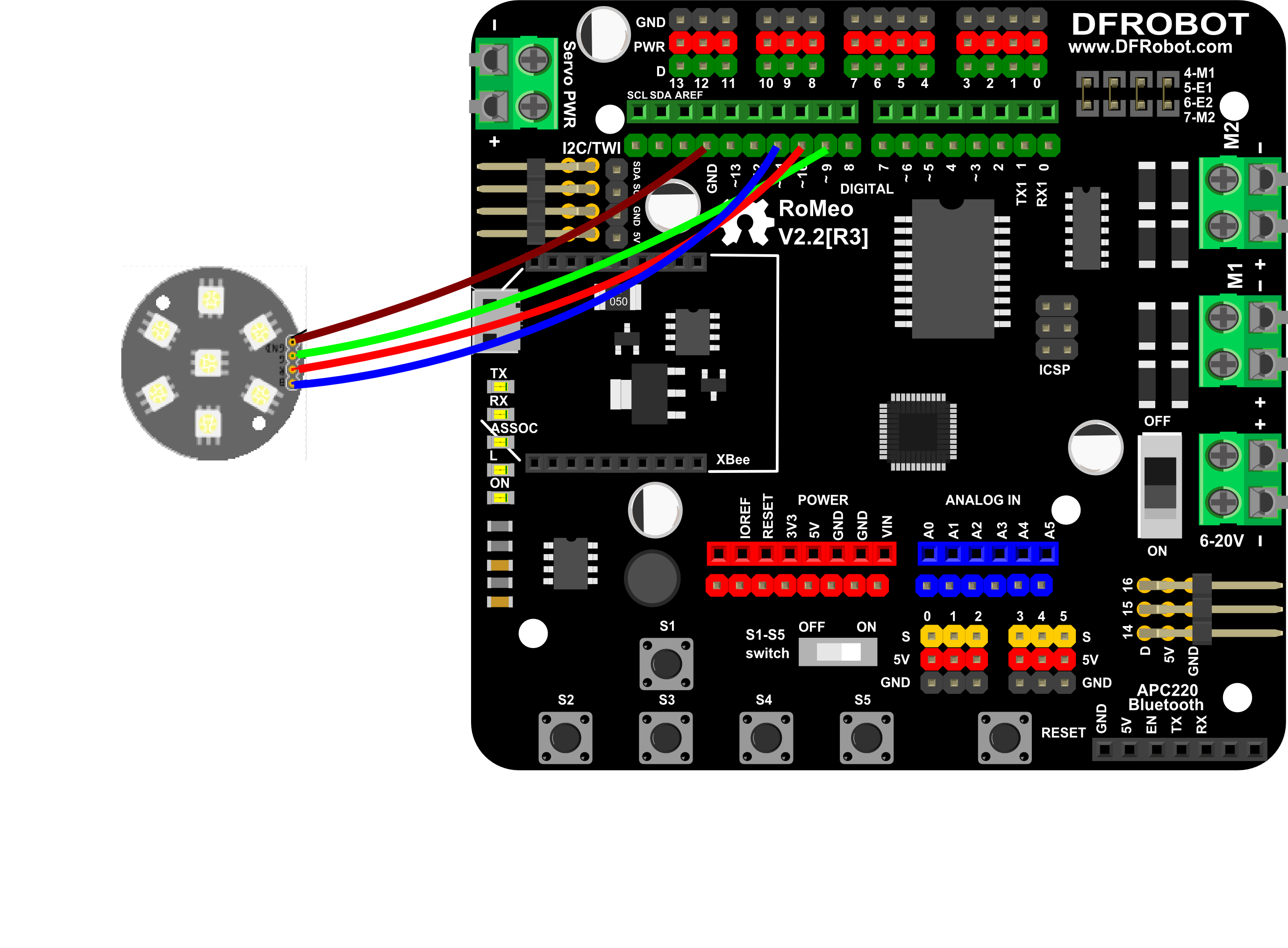
7 LEDs disc
Connect the 7LEDs disc to digital pins 9(green), 10(red), and 11(blue), and GND (black) to GND.
Total
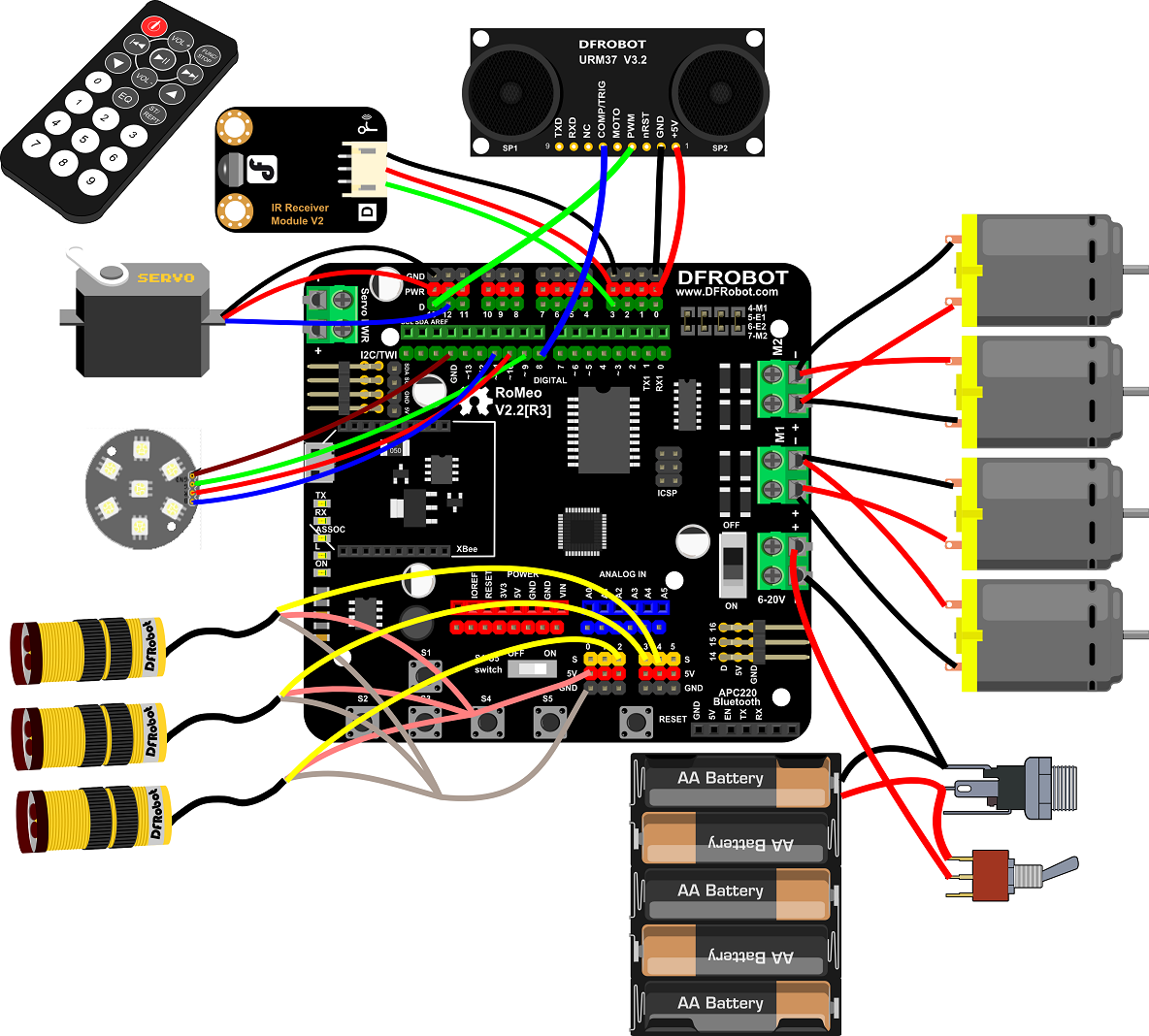
When all of the sub-section tests have passed, you should end up with something that looks just like the diagram below. A little mess somehow.:-D
User Manual
Was this article helpful?