
Connect to TTN
This blog post offers a detailed guide on how to connect gateways to The Things Network (TTN) using Packet Forwarder and Basic Station modes, including registering a TTN account, configuring gateway settings, and integrating node devices for seamless data collection and network access.
Connect to TTN using Packet Forwarder
Register an account on TTN: https://www.thethingsnetwork.org/
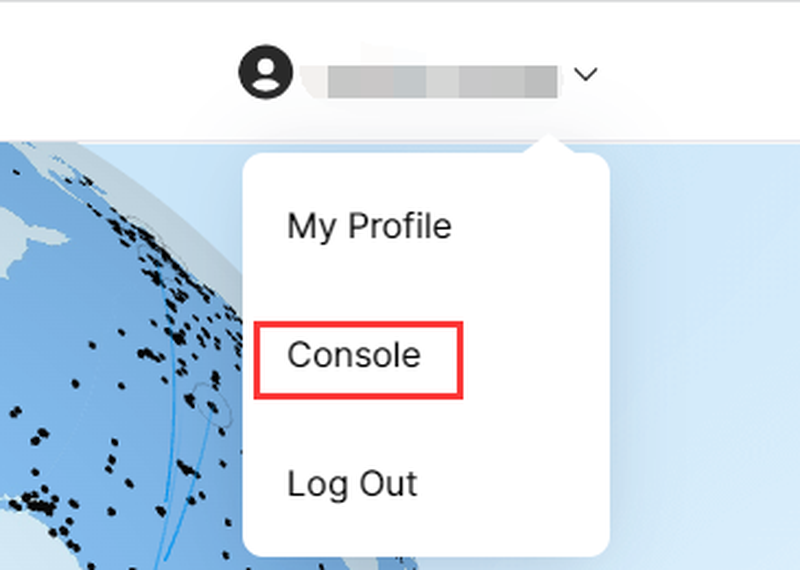
Select "Console" in the top-right corner of the page.
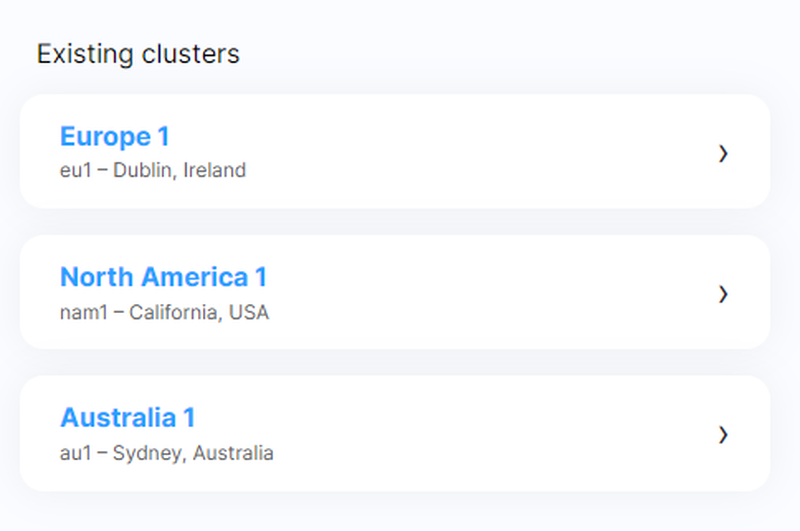
Select the corresponding region
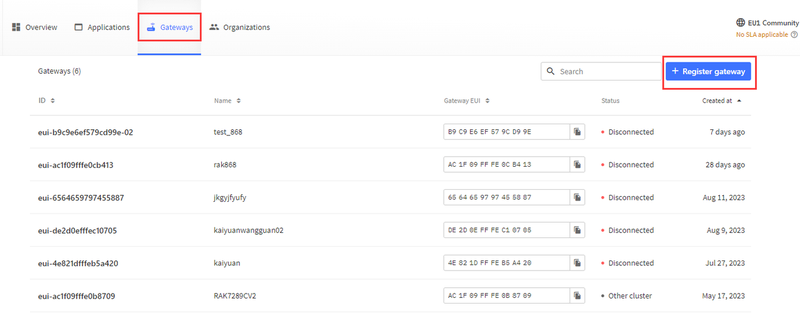
Register a gateway on TTN
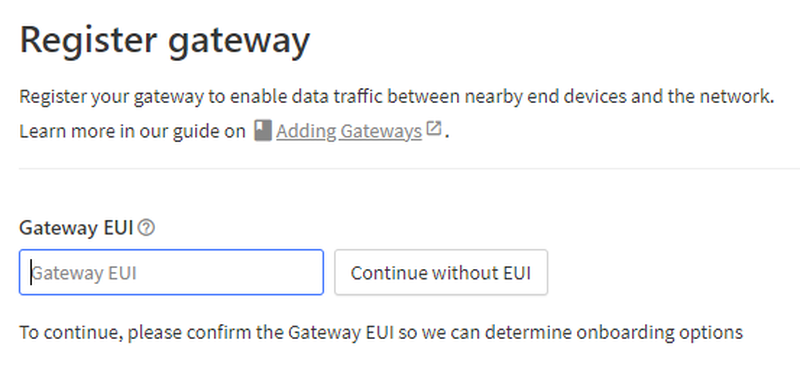
Enter the Gateway EUI; the Gateway EUI can be obtained from the web configuration page.

Then select the corresponding frequency to complete the gateway registration.
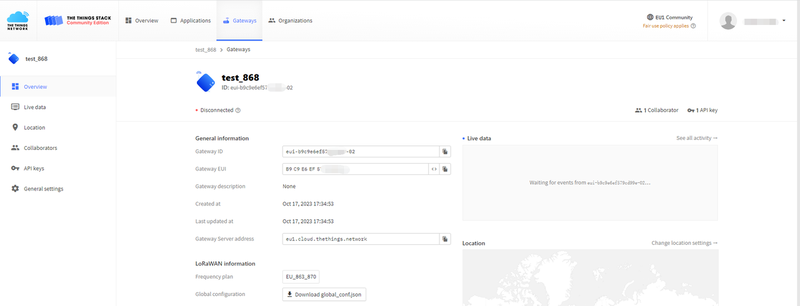
Connect the gateway to a network cable. Now return to the gateway's configuration page, set the mode to "Packet Forwarding Mode", replace the "Server Address" with the "Gateway Server Address" from TTN, then click the Confirm button to save the configuration.

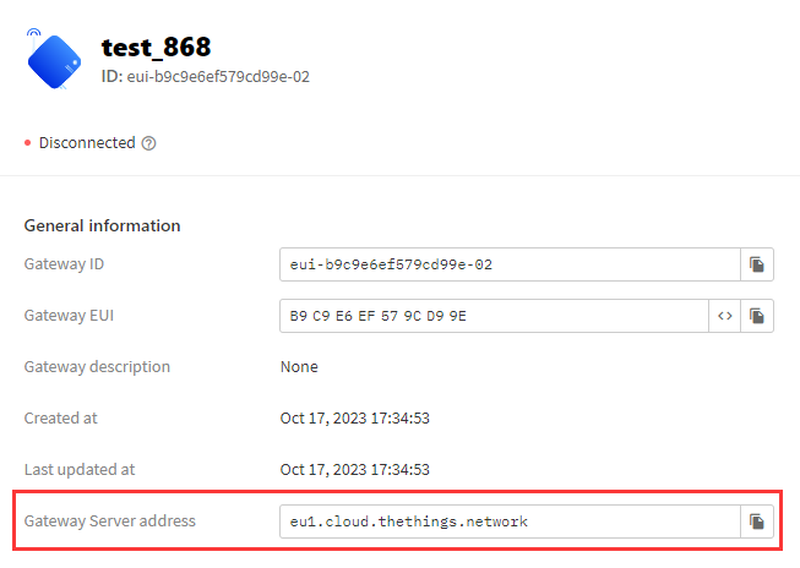
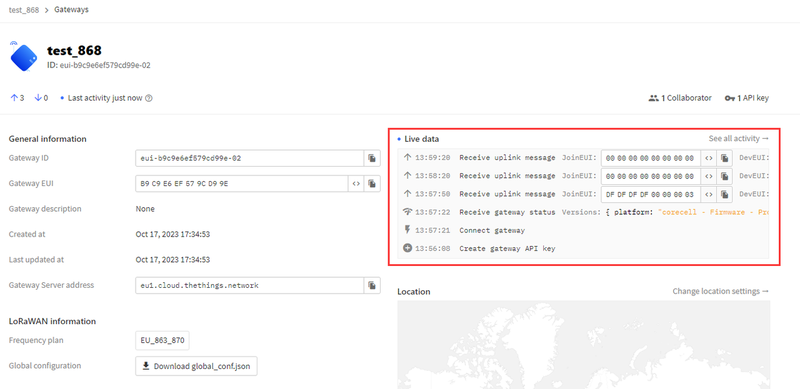
At this point, return to the TTN page, and you will see that the gateway has been connected.
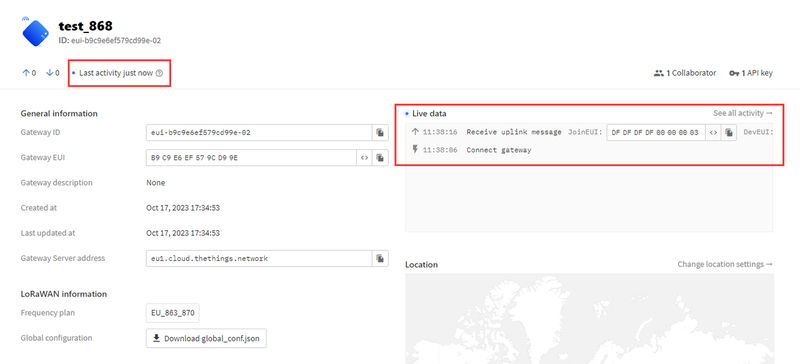
If you want to add a node device, create a new application on the TTN page.

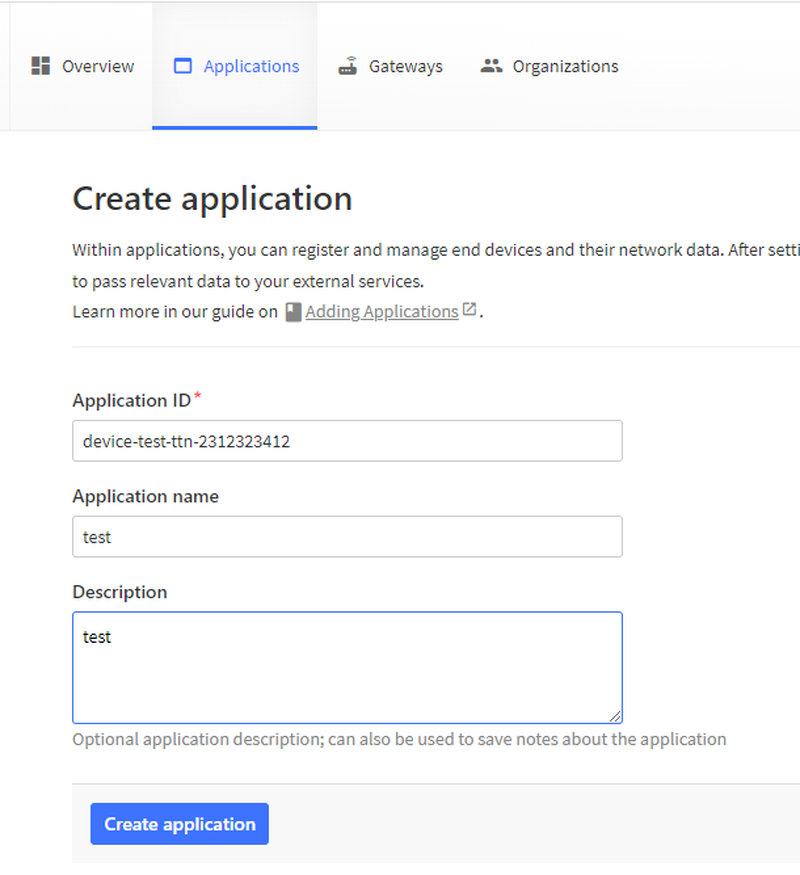
Create a new node device in the current application
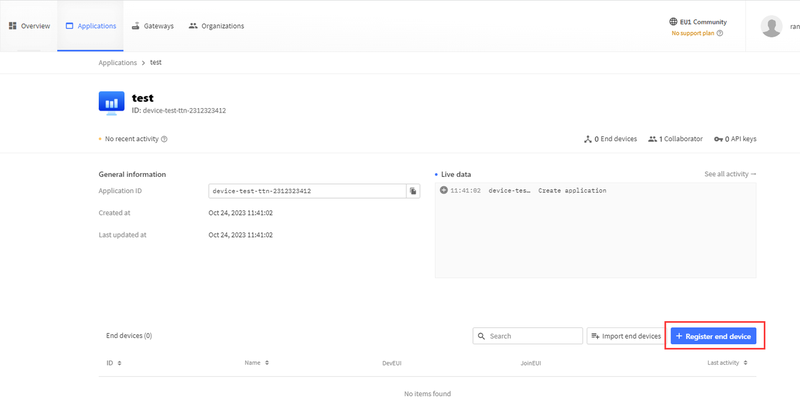
Fill in your node information in sequence to complete the node creation.
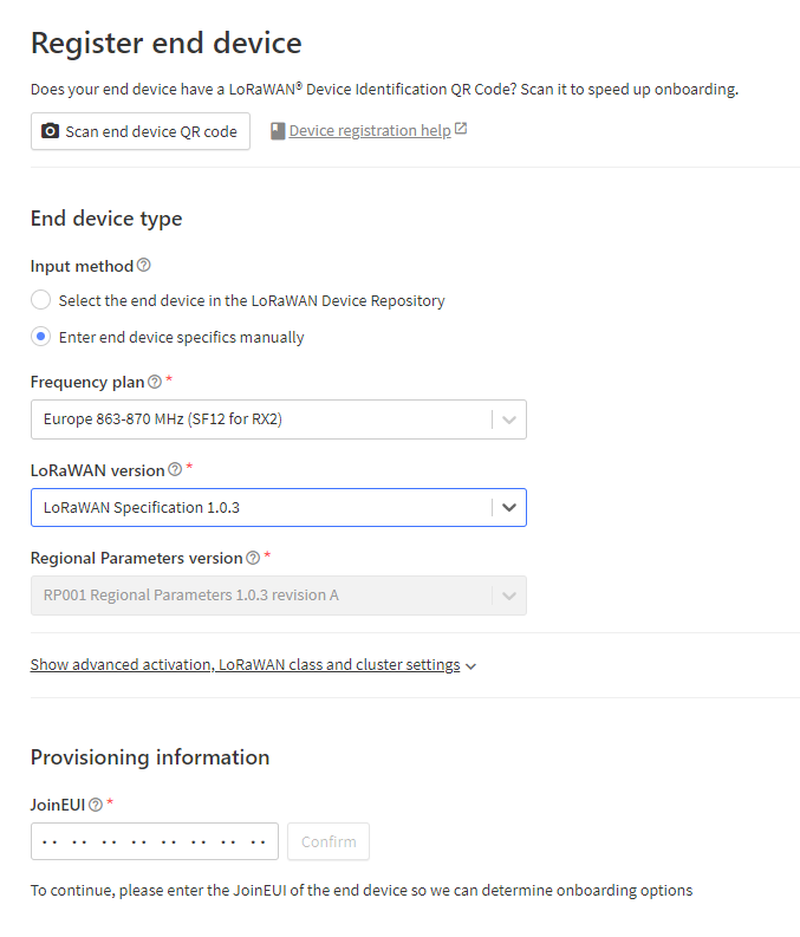
After completing the creation, you can observe the node device. The device can successfully access the network through the gateway's Packet Forwarding Mode, and you can also view the data reported by the node.
Connect to TTN using Basic Station
The preparation steps are the same as the Packet Forwarder steps above: register a TTN account, then register the gateway.
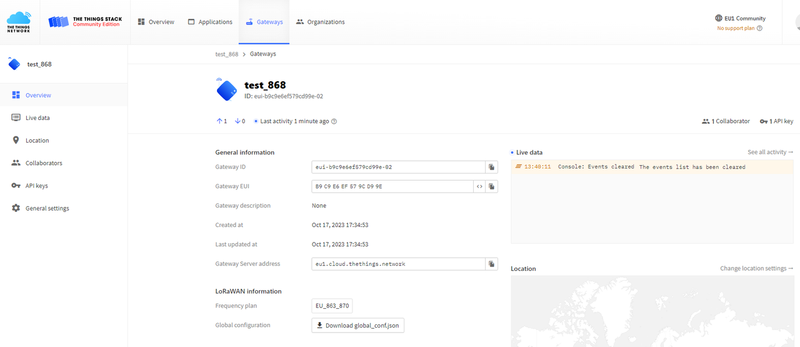
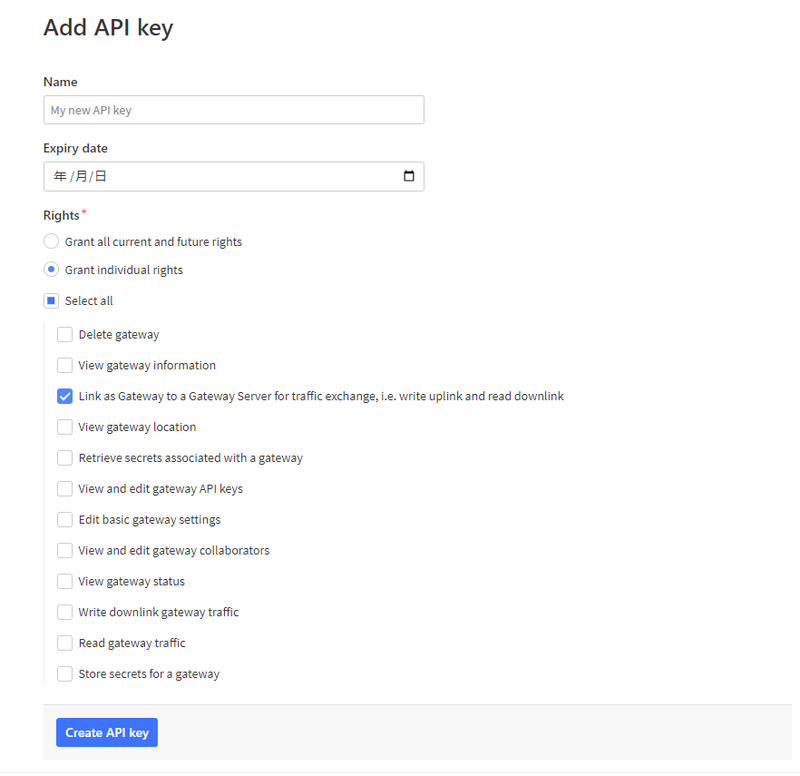
Three key configuration pieces of information are required: 1. "Gateway Server Address", 2. Create an API key and copy it down, 3. Prepare the certificate.
First, create an API key first.
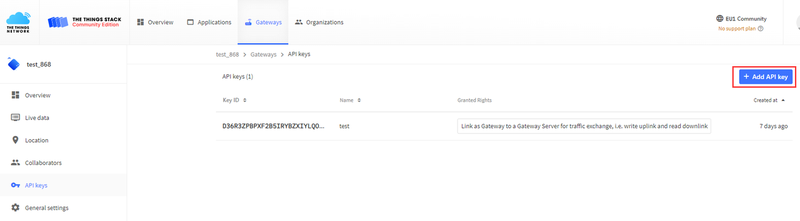
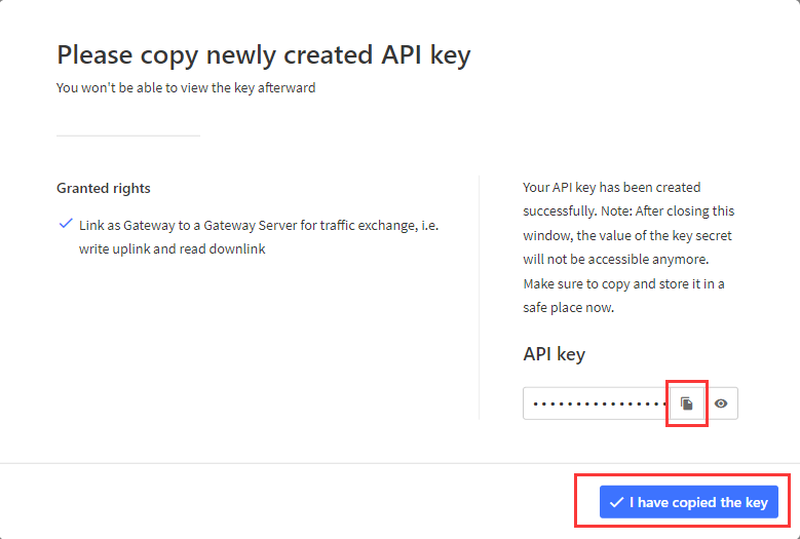
Copy down the API key
Return to the gateway's web configuration page, set the mode to "Basic Station", and fill in the three pieces of configuration information prepared earlier.

For example:
- Server Address: eu1.cloud.thethings.network
- Client Token: NNSXS.EKPBFIZFL3TUZUWFFHLGL5L6LEY76GRJZ4EC3OA.N5VGFCNIAZN7ISWTNCWNBFDQRPKWFZOPU3OTQ7TMDLPBMF4FTKBA
- CA Certificate: trust.pem
The CA certificate can be obtained via the provided URL.
Connect the gateway to the network using an Ethernet cable.
Then add the node device to the TTN application. After resetting the node, you will be able to see the data reported by the gateway on TTN.
Was this article helpful?