
Connect to LORIOT
This article guides readers through the process of connecting to LORIOT using Packet Forwarder and Basic Station, including steps for logging in, adding devices, and configuring gateway settings, such as MAC address and TLS certificate mapping.
Connect to LORIOT using Packet Forwarder
Visit loriot.io
On the login page, select Germany, Frankfurt
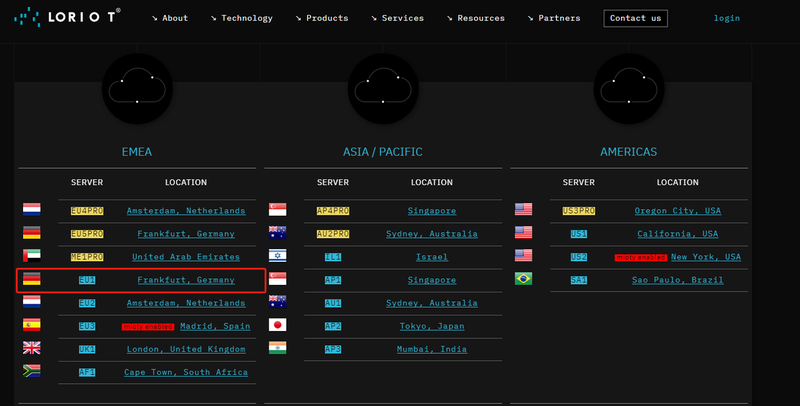
Log in.
Add a gateway device in "Networks"; add a node device in "Applications".
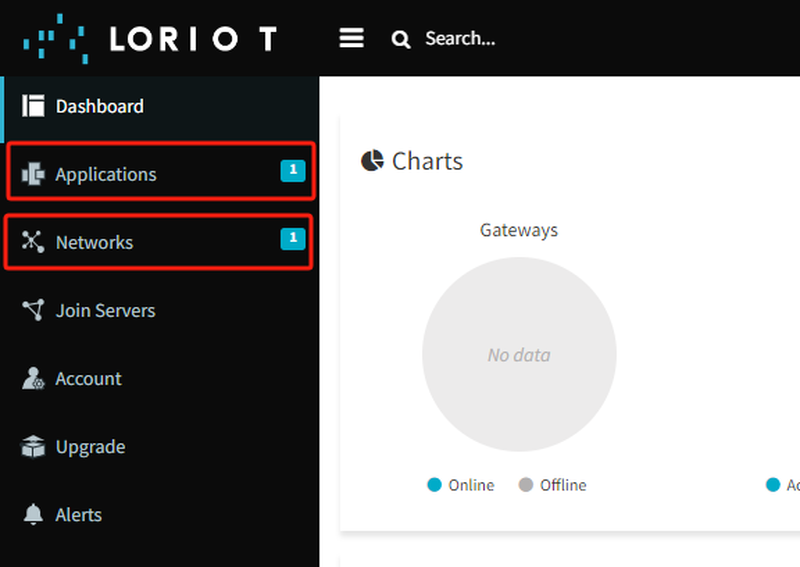
Use its built-in template "Sample Network"
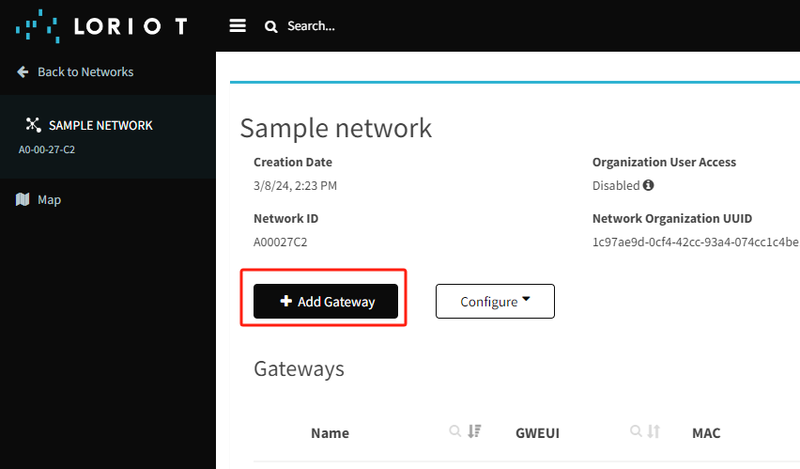
Select "Packet Forwarder Semtech"

Fill in the MAC address and the gateway's EUI as instructed
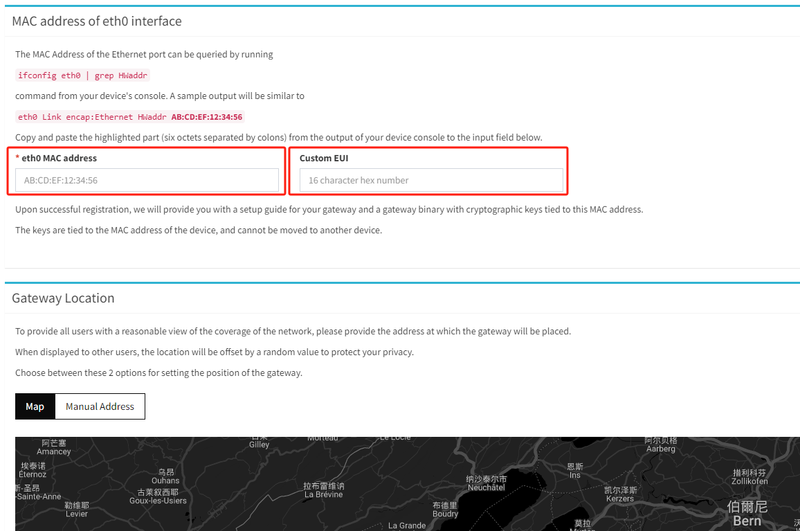
Then click Register Gateway at the bottom of the page.
On the LoRaWAN gateway web interface, switch the mode to Packet Forward and fill in the corresponding information.

You can already see that the gateway is online on the LORIOT page.
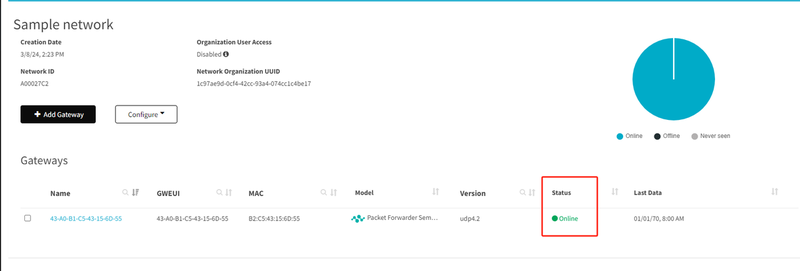
Add a node device in "Applications", and you will be able to see the messages reported by the node.
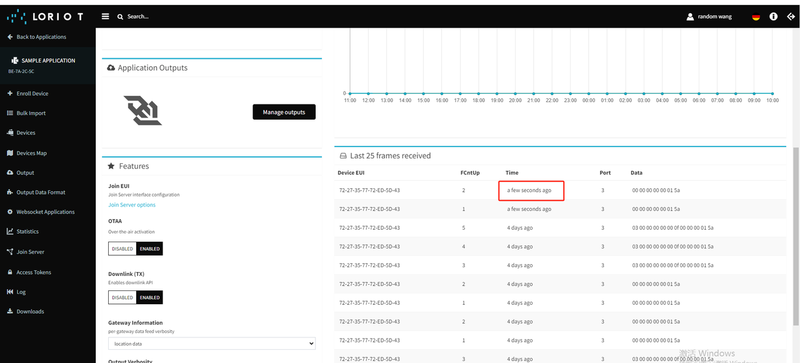
Connect to LORIOT using Basic Station
Refer to the previous steps for connecting to LORIOT using Packet Forwarder.
Here, select "Basics Station Semtech" when choosing the gateway type.
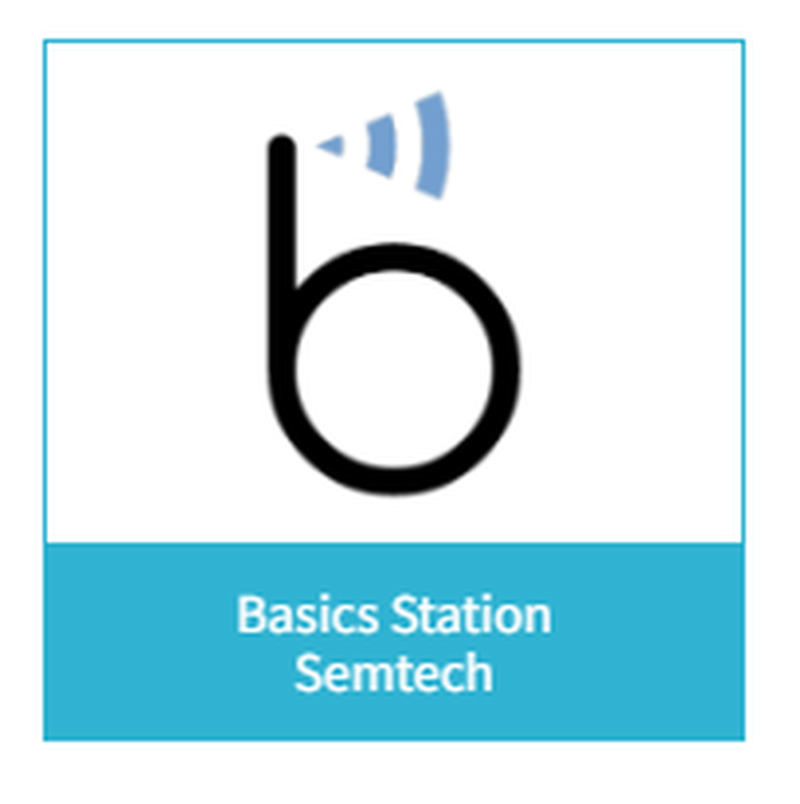
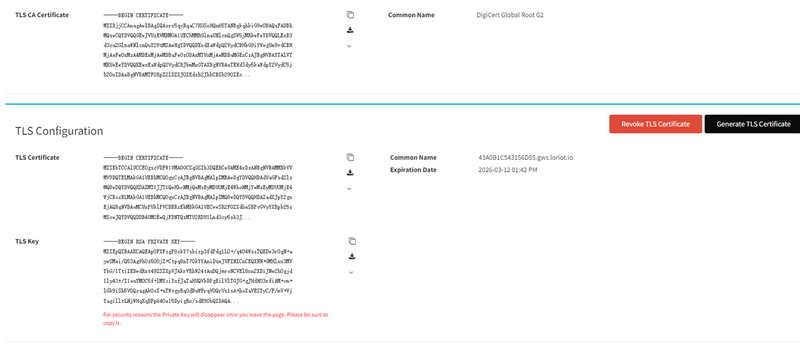
Fill in the MAC address and the gateway's EUI as instructed, navigate to the gateway page, click "Certificate", and generate the "TLS Certificate".
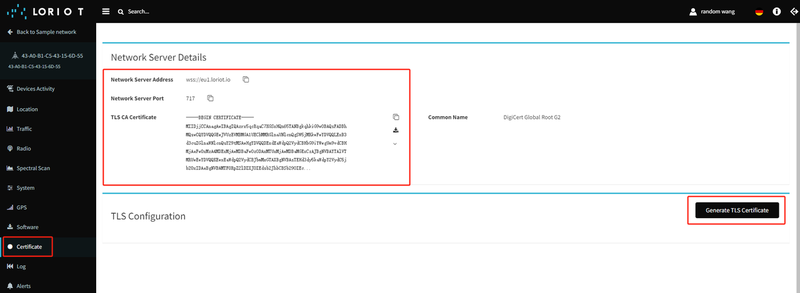
Download the three files below, and map them to "CA Certificate", "Client Certificate", and "Client Key" on the gateway page respectively.
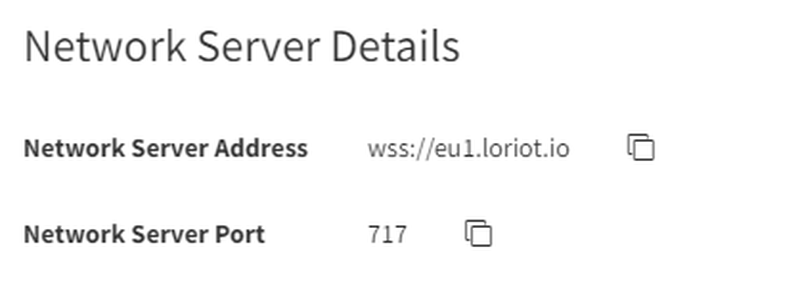
Server and Port Number
Was this article helpful?