
HUSKYLENS 2 Video Streaming Configuration
HUSKYLENS 2 streams video via WebRTC or RTSP, like turning its AI camera into a live USB or WiFi webcam, after installing the RNDIS driver, enabling Video Streaming, then viewing the IP or RTSP URL in a browser or VLC.
1. Wireless WebRTC Video Streaming
Make sure you have used HUSKYLENS 2 WiFi Module and successfully connected to the WiFi network in the settings.
Swipe the HUSKYLENS 2 screen to find "Video Streaming". If not found, first Firmware Update. In the Video Streaming menu, toggle the WebRTC Streaming switch to ON and YES.

This will automatically return to the main interface. The top-right status bar will show a real-time video streaming icon, indicating that you are currently in video streaming mode. Open any model in HUSKYLENS 2 to start video streaming.

After opening the model, the IP address will appear on the HUSKYLENS 2 screen. As shown below, after opening Hand Recognition, the IP address will be displayed on the HUSKYLENS 2 screen.(If two IP addresses appear at this time, it indicates that HUSKYLENS 2 is simultaneously connected to both wired and wireless networks. Generally speaking, 88.1 is the IP address for the wired network.)


Enter the WiFi IP address of the wired network in the browser .

Click "Play Stream" to proceed.


To exit this mode, you need to click the real-time video transmission icon again to turn off the WebRTC video transmission switch; otherwise, you will remain in the video transmission mode.

Make sure you have used HUSKYLENS 2 WiFi Module and successfully connected to the WiFi network in the settings.
Step 1: Download and Install VLC Media Player
Download the latest version from the official website: https://www.videolan.org/vlc/
Click to download the VLC installer: vlc-3.0.18-win64.exe
Step 2: Enable RTSP Streaming on HUSKYLENS 2
Swipe the HUSKYLENS 2 screen to find "Video Streaming". If not found, first Firmware Update. In the Video Streaming menu, toggle the RTSP Streaming switch to ON and YES.

This will automatically return to the main interface. The top-right status bar will show a real-time video streaming icon, indicating that you are currently in video streaming mode. Open any model in HUSKYLENS 2 to start video streaming.

Once the HUSKYLENS screen displays the following content, the video streaming is ready. Launch VLC and input wireless ip, in this case is rtsp://192.168.9.181:8554/live


To exit this mode, toggle the RTSP Streaming switch to OFF , otherwise it will remain in RTSP mode.
3. Installation of Wired Video Transmission Driver
For wired video transmission using any protocol, the RNDIS driver needs to be installed. If the RNDIS driver has not been installed, it needs to be installed. The process for WIN11 is as follows. For other systems, follow the same procedure. If it fails to work, you can check the system version for answers or contact technical support.


4. Wired WebRTC Video Streaming
Enable RTSP Streaming on HUSKYLENS 2:
Swipe the HUSKYLENS 2 screen to find "Video Streaming". If not found, first Firmware Update. In the Video Streaming menu, toggle the WebRTC Streaming switch to ON and YES.
This will automatically return to the main interface. The top-right status bar will show a real-time video streaming icon, indicating that you are currently in video streaming mode. Open any model in HUSKYLENS 2 to start video streaming.

After opening the model, the IP address will appear on the HUSKYLENS 2 screen. (If two IP addresses appear at this time, it indicates that HUSKYLENS 2 is simultaneously connected to both wired and wireless networks. Generally speaking, 88.1 is the IP address for the wired network.)

Enter the IP address of the wired network in the browser and click "Play Stream" to proceed.
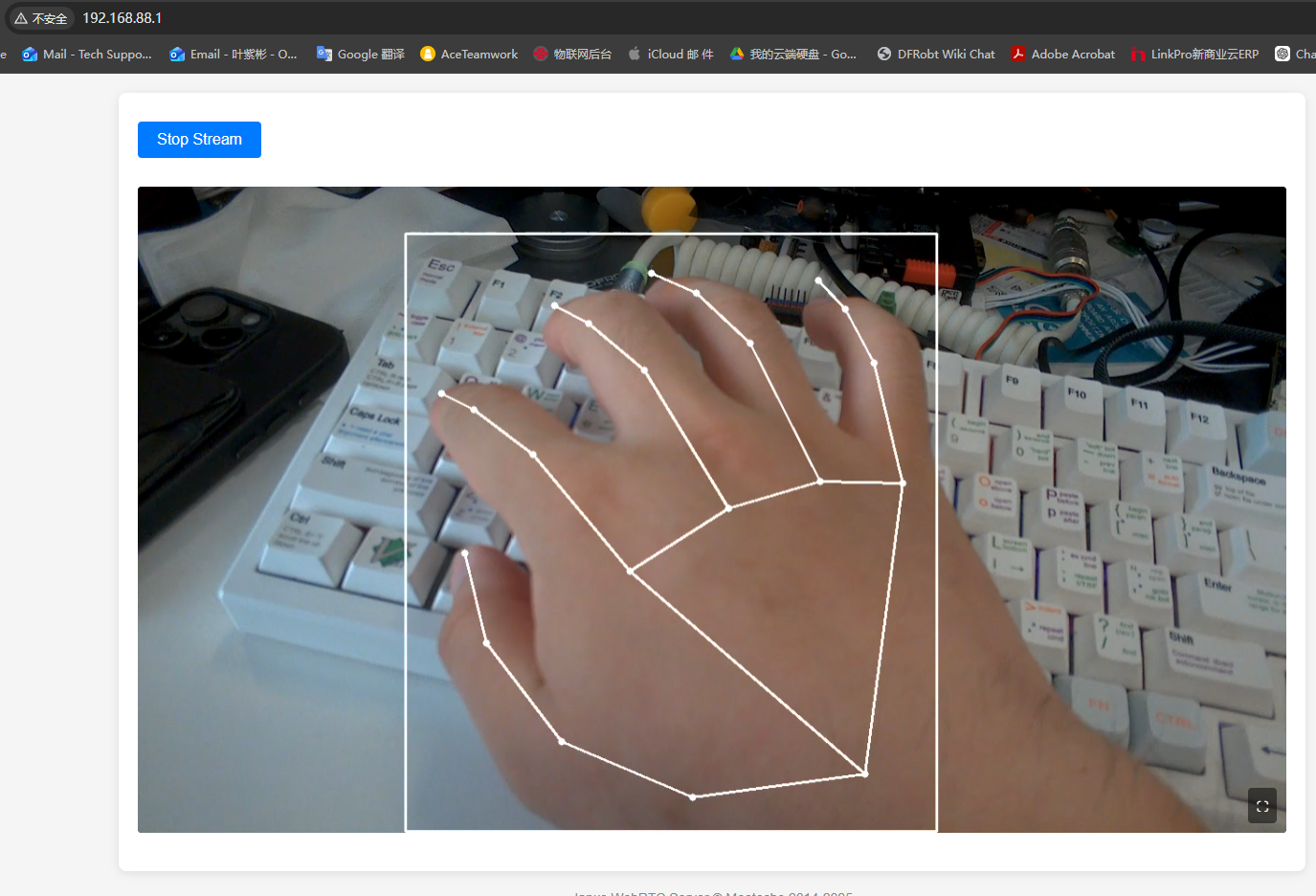
To exit this mode, you need to click the real-time video transmission icon again to turn off the WebRTC video transmission switch; otherwise, you will remain in the video transmission mode.
5. Wired RTSP Video Streaming
Step 1: Download and Install VLC Media Player
Download the latest version from the official website: https://www.videolan.org/vlc/
Click to download the VLC installer: vlc-3.0.18-win64.exe
Step 2: Enable RTSP Streaming on HUSKYLENS 2
Swipe the HUSKYLENS 2 screen to find "Video Streaming". If not found, first Firmware Update. In the Video Streaming menu, toggle the RTSP Streaming switch to ON and YES.
This will automatically return to the main interface. The top-right status bar will show a real-time video streaming icon, indicating that you are currently in video streaming mode. Open any model in HUSKYLENS 2 to start video streaming.

Once the HUSKYLENS screen displays the following content, the video streaming is ready. Launch VLC and input rtsp://192.168.88.1:8554/live.
To exit this mode, toggle the RTSP Streaming switch to OFF , otherwise it will remain in RTSP mode.
Was this article helpful?